How to Configure Commission Run in iDempiere
The Commission Run window in iDempiere records the result of a completed commission calculation for a specific period. It captures the total commission earned by a sales agent or partner based on predefined rules set up in the Commission definition.
In retail operations, this window is used by finance and sales teams to review monthly or periodic commission amounts before triggering payment. For example, the Chennai Store uses it to process monthly sales commissions for agents across product lines. Once reviewed, the Commission Run drives the creation of an Accounts Payable invoice through the Create Invoice process, connecting commission calculations directly to vendor payments and financial reporting.
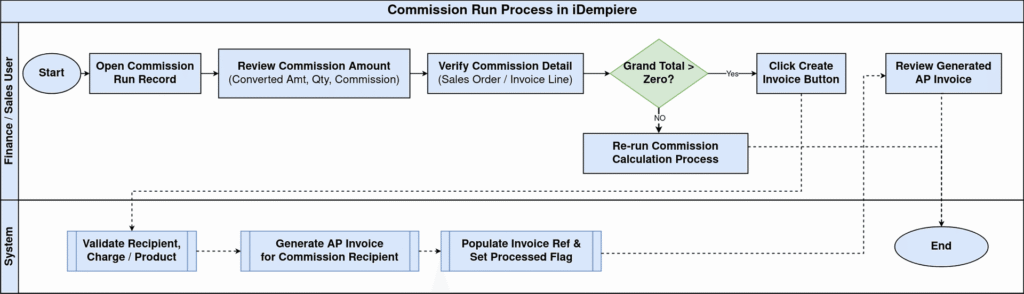
Process Flow
Business Rules
- A Commission Run must have a commission amount greater than zero before an AP invoice can be created.
- Each Commission Run maps to one Commission definition and generates a single supplier invoice.
- The Processed flag is set automatically after the Create Invoice process completes — preventing duplicate invoices.
- Commission amounts are calculated in the base currency of the organization (INR for Chennai Store).
- The Commission Amount tab shows line-level details, including Converted Amount, Actual Quantity, and Commission Amount.
- The Commission Detail sub-tab links each line to specific sales transactions (Sales Order Line / Invoice Line).
- A commission recipient (Business Partner) must exist before the invoice creation process can run.
Prerequisites
The following must be configured before using the Commission Run window:
- Commission definition set up with applicable rules, recipients, and charge/product.
- Business Partner (commission recipient / sales agent) created and active.
- Organization configured — e.g., Chennai Store under POTS tenant.
- Currency configured and matching the commission setup (INR).
- Document Type for AP Invoices set up.
- Charge or Product representing commission expense defined.
- Commission calculation process executed to generate the Commission Run record.
Configuration Steps
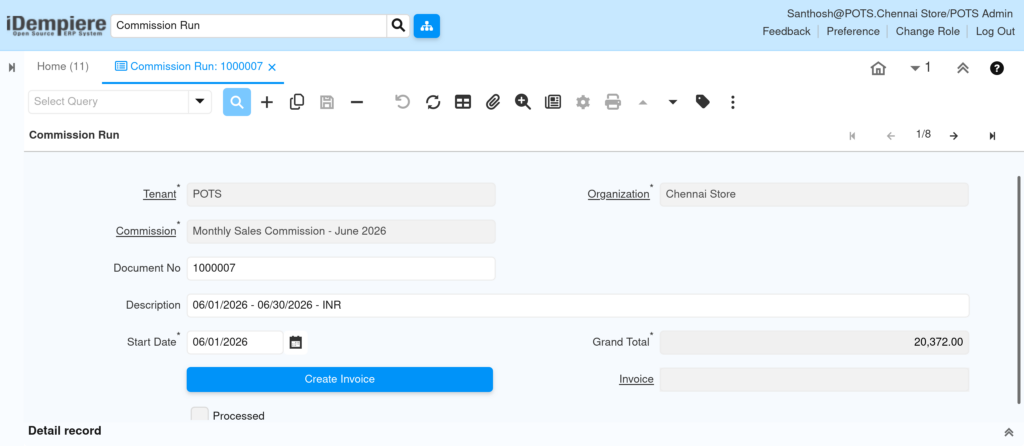
Step 1: Open the Commission Run Record
Navigate to the Commission Run window and locate the relevant commission run for the period. Verify the Commission name, organization, and description match the expected calculation period before proceeding.
| Field | Sample Value | Description |
| Tenant | POTS | Client/tenant the record belongs to. |
| Organization | Chennai Store | Store or business unit for the commission run. |
| Commission | Monthly Sales Commission – June 2026 | Links to the commission definition used for calculation. |
| Document No | 1000007 | Auto-generated unique identifier for this run. |
| Description | 06/01/2026 – 06/30/2026 – INR | Calculation period and currency. |
| Start Date | 06/01/2026 | Beginning date of the commission period. |
| Grand Total | 20,372.00 | Total calculated commission amount in INR. |
| Processed | Unchecked | Indicates whether the invoice has been created. |
| Invoice | (blank before processing) | Populated with the AP invoice reference after creation. |
Step 2: Review Commission Amount Details
Before creating an invoice, review the Commission Amount tab to verify line-level details. Confirm the Converted Amount, Actual Quantity, and Commission Amount are correct. This ensures the AP invoice will reflect accurate figures.
| Field | Sample Value | Description |
| Commission Run | 1000007 | Reference to the parent commission run. |
| Commission Line | Monthly Sales Commission – June 2026_10 | Identifies the specific commission rule line applied. |
| Active | Checked | Record is active and included in the total. |
| Converted Amount | 10,160.00 | Sales amount converted to base currency for commission calculation. |
| Actual Quantity | 26 | Number of units or transactions included in this line. |
| Commission Amount | 20,372.00 | Final commission amount payable for this line. |

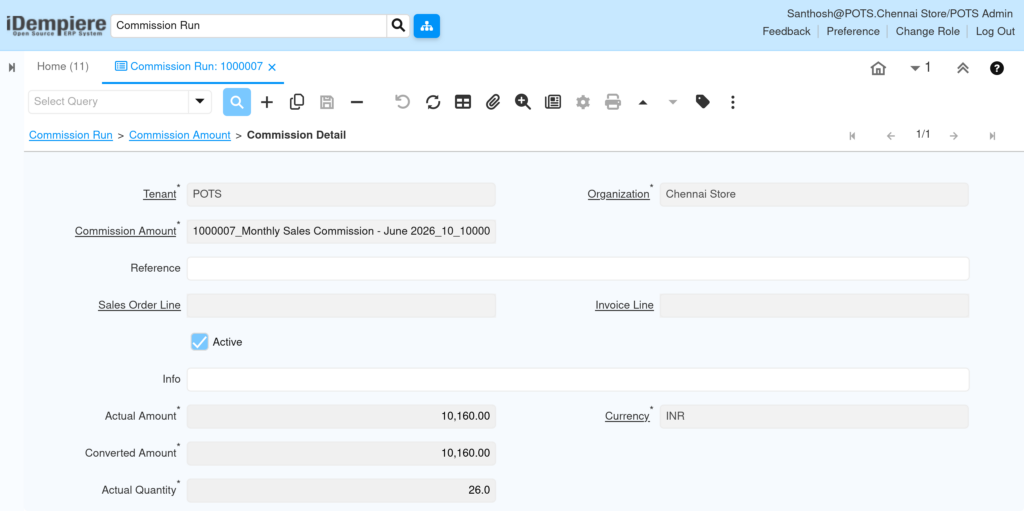
Step 3: Verify Commission Detail
Open the Commission Detail sub-tab to inspect individual transaction-level records. Verify Actual Amount, Converted Amount, Actual Quantity, and Currency. The Sales Order Line and Invoice Line fields show which transactions contributed to this commission.
| Field | Sample Value | Description |
| Commission Amount | 1000007_Monthly Sales Commission – June 2026_10_10000 | Composite reference linking run, line, and detail. |
| Reference | (blank) | Optional reference field for additional tracking. |
| Sales Order Line | (blank) | Links to the originating sales order line, if applicable. |
| Invoice Line | (blank) | Links to the originating invoice line, if applicable. |
| Active | Checked | Detail record is active. |
| Actual Amount | 10,160.00 | Gross sales amount for this transaction. |
| Currency | INR | Currency of the transaction. |
| Converted Amount | 10,160.00 | Amount after currency conversion. |
| Actual Quantity | 26.0 | Quantity sold in this transaction. |
Step 4: Create the AP Invoice
Once the commission amounts are verified, click the Create Invoice button on the Commission Run header. The system validates all required data commission total, recipient, and charge/product then generates an Accounts Payable invoice automatically.
- Open Commission Run record (e.g., Document No 1000007).
- Confirm Grand Total is greater than zero (e.g., ₹20,372.00).
- Click the Create Invoice button.
- System creates AP invoice and populates the Invoice field.
- Processed checkbox is automatically checked.
Common Issues and Resolutions
| Issue | Cause | Resolution |
| Create Invoice button does nothing | Commission Total is zero or commission calculation was not run | Re-run commission calculation and verify Grand Total > 0 |
| Invoice field remains blank after clicking Create Invoice | Process completed but AP invoice failed to save due to mandatory field missing | Check AP Invoice mandatory fields: Document Type, Organization, Currency |
| Currency mismatch error on Create Invoice | Commission currency differs from the invoice document currency | Align currency in commission setup to match the organization’s base currency (INR) |
| Processed checkbox checked but no invoice visible | Invoice was created in a prior run; duplicate creation blocked | Search AP Invoices filtered by Business Partner to locate the existing invoice |
| Commission Detail shows zero Actual Quantity | No sales transactions matched the commission rule criteria for the period | Verify commission rule date range and eligible product/partner filters |
Next Steps
After creating the AP invoice from the Commission Run, complete the following:
- Review and complete the generated Supplier Invoice in the AP Invoice window.
- Process payment against the AP invoice using Payment and Receipt or Payment Batch.
- For next period, re-run the Commission calculation process to generate a new Commission Run.