How to Configure Bank in iDempiere for Retail
Learn how to configure the Bank window in iDempiere for retail — set up bank accounts, routing, payment methods, and account mappings.
Introduction
The Bank window in iDempiere is the master record for every banking institution your retail business interacts with. It stores the bank’s name, routing identifier, address, and the accounts that belong to it. Without a properly configured bank master, iDempiere cannot process payments, reconcile bank statements, or post financial transactions to the correct ledger accounts.
Prerequisites
Ensure the following configurations are completed before configuring the Bank window:
- Chart of Accounts — GL accounts for cash and bank must exist before linking bank accounts.
- Currency — All currencies used by your bank accounts must be defined in iDempiere.
- Organization — The correct Organization (or * for shared) must be active.
- Business Partner — For supplier payment banks, the Business Partner record must exist.
- Payment Terms — Required if payment terms are to be linked to bank payment transactions.
Business Rules
- Only active bank records are available for selection in payment transactions and bank account lookups.
- Deactivating a bank record prevents new transactions from referencing it but does not affect historical records.
- Each bank account must be assigned to a currency; multi-currency banks require separate account records per currency.
- A bank account designated as the Default automatically populates in payment documents for the assigned document type.
- Bank accounts must be linked to a valid GL Account before payments can be posted to the chart of accounts.
Navigation
| Path: Menu → Financial Management → Business Partner → Bank |
The Bank window displays all existing bank records. Use the search bar to locate a specific bank by name or routing number.
Step-by-Step Configuration
Step 1: Open the Bank Window
Purpose: Access the Bank master list to view existing banks or create a new bank record.
- Navigate to Financial Management → Business Partner → Bank.
- The window displays all bank records configured in iDempiere.
- Use the search bar at the top to filter by bank name, routing number, or organization.
- Click any existing record to view its details, or proceed to Step 2 to create a new bank.
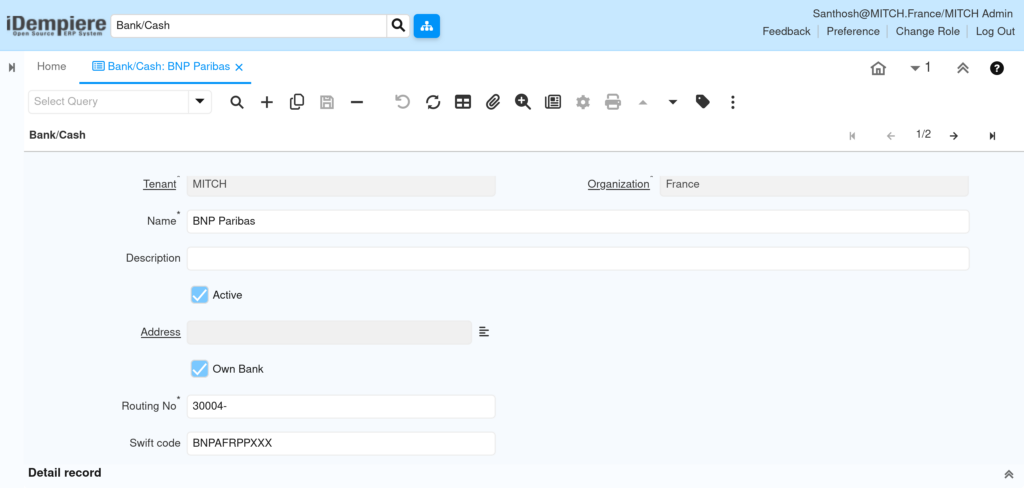
Step 2: Create a New Bank Record
Purpose: Create the bank master record with identification details, routing information, and contact address.
- Click the New Record icon (+) in the toolbar.
- A blank Bank form opens.
- Fill in all mandatory fields before saving.
Field Reference — Bank Header Tab
| Field | Sample Value | Description |
| Name | State Bank of India — Retail | Full name of the bank as it appears in transactions and reports. |
| Description | Primary retail banking partner for POS settlements | Internal description for reference. Not printed on documents. |
| Organization | * | Set to * to share the bank across all branches, or assign a specific org. |
| Routing No | 110002 | Official bank routing or IFSC code used for electronic transfers. |
| Swift Code | SBININBB | SWIFT/BIC code required for international wire transfers. |
| Active | Yes (checked) | Controls whether this bank is available for use in transactions. |
| Street | 18 MG Road | Bank branch street address for correspondence. |
| City | Chennai | City of the bank branch. |
| Postal Code | 600001 | Postal / PIN code of the bank branch. |
| Country | India | Country where the bank is registered. |
| Phone | +91 44 2234 5678 | Bank contact telephone number. |
Step 3: Configure the Bank Account Tab
Purpose: Add one or more bank accounts under the bank master. Each account represents a distinct account number and currency used for transactions.
- Inside the Bank record, click the Bank Account tab.
- Click New Record (+) to add a new bank account.
- Fill in account details including Account No, Account Type, and Currency.
- Link the account to a GL Account for financial posting.
- Mark the account as Default if it should auto-populate on payment documents.
- Save each account before adding another.
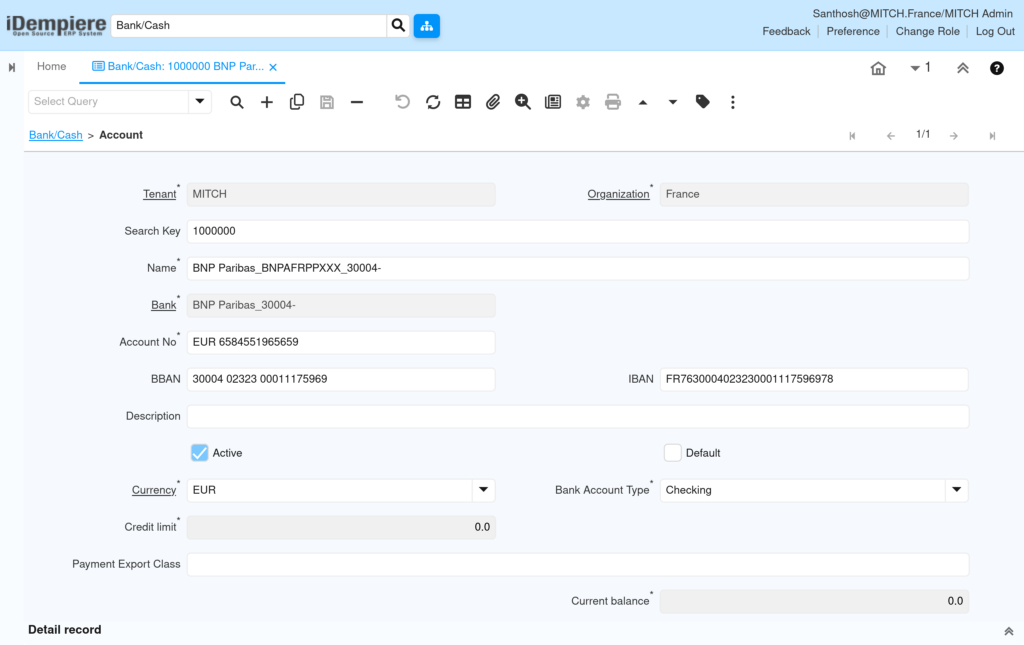
Field Reference — Bank Account Tab
| Field | Sample Value | Description |
| Name | SBI Current Account — Chennai Main | Descriptive name for the bank account. Appears in payment lookups. |
| Account No | 30012345678 | The actual bank account number issued by the bank. |
| Account Type | Checking | Checking or Savings. Controls reconciliation and statement import rules. |
| Currency | INR | Currency in which this account operates. One account per currency. |
| GL Account | 10110 — Bank Current Account | Chart of accounts code for posting payments and receipts. |
| Default | Yes (checked) | If checked, auto-populates this account on payment documents. |
| Credit Card | No (unchecked) | Check if this account is a credit card account. |
| IBAN | IN30110002300123456 | International Bank Account Number for cross-border transactions. |
| Active | Yes (checked) | Inactive accounts are hidden from transaction lookups. |
| Description | POS daily settlement account | Internal note about the account usage. |
Example Bank Account Records
| Account Name | Account No | Type | Currency | GL Account | Default | Active |
| SBI Current — Chennai | 30012345678 | Checking | INR | 10110 | Yes | Yes |
| SBI Savings — Reserve | 30098765432 | Savings | INR | 10120 | No | Yes |
| HDFC USD Settlement | 56781234560 | Checking | USD | 10130 | No | Yes |
| SBI POS Collection | 30054321900 | Checking | INR | 10115 | No | Yes |
Each bank account is independently available in payment documents. Multiple accounts can exist under one bank record. Only the account marked Default auto-populates; all others must be selected manually.
Step 4: Configure the Account — Accounting Tab
Purpose: Map the bank account to GL accounts for automated financial posting. This tab controls how payments and receipts affect your chart of accounts.
- Inside the Bank Account record, click the Accounting sub-tab.
- The accounting schema for your organisation is pre-loaded.
- Assign the correct GL accounts for each accounting element.
- Confirm that the Bank Asset Account matches the account in your chart of accounts.
- Save the accounting configuration.
Field Reference — Bank Account Accounting Tab
| Field | Sample Value | Description |
| Accounting Schema | Primary Accounting Schema | The accounting schema this mapping applies to. |
| Bank Asset Account | 10110 — Bank Current Account | Main GL account debited/credited for bank transactions. |
| Bank In Transit | 10150 — Bank In Transit | Interim account for payments that are not yet cleared. |
| Bank Unidentified | 10160 — Unidentified Receipts | Used when incoming payments cannot be matched to invoices. |
| Bank Expense | 63010 — Bank Charges | GL account for bank service charges and fees. |
| Bank Interest Expense | 63020 — Bank Interest Expense | GL account for interest charged by the bank. |
| Bank Interest Revenue | 42010 — Bank Interest Income | GL account for interest earned on bank balances. |
| Bank Revaluation | 65010 — FX Revaluation | GL account for foreign currency revaluation differences. |
Step 5: Configure Payment Processor (Optional)
Purpose: Link a payment processor (e.g. Razorpay, PayU, Stripe) to a bank account for automated POS or e-commerce payment collection in retail.
- Inside the Bank Account record, click the Payment Processor sub-tab.
- Click New Record (+).
- Select the payment processor from the drop-down.
- Enter the Merchant ID, API credentials, and processing currency.
- Set Accepted Tender Type (Credit Card, UPI, Wallet, etc.).
- Save and test connectivity if supported.
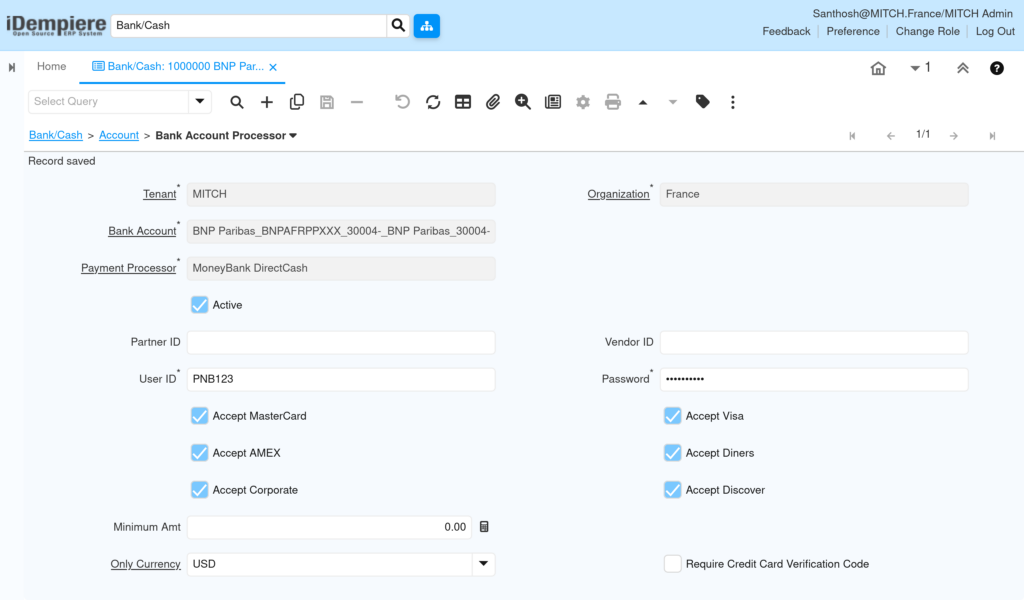
Field Reference — Payment Processor Sub-Tab
| Field | Sample Value | Description |
| Name | Razorpay — Chennai POS | Unique name for the payment processor configuration. |
| Payment Processor | Razorpay | Select from installed payment processor plugins in iDempiere. |
| Merchant ID | rzp_live_XXXXXXXXXXXX | Merchant identifier issued by the payment processor. |
| Accepted Tender Type | Credit Card, UPI | Payment methods accepted through this processor. |
| Currency | INR | Processing currency for this merchant account. |
| Active | Yes (checked) | Activates the processor for live transactions. |
Step 6: Save the Bank Record
Purpose: Persist the bank master and all associated account records to make them available in transactions.
- Click the Save icon (disk icon) in the toolbar, or press F10.
- iDempiere validates all mandatory fields before saving.
- The saved bank record is immediately available in payment documents and bank account lookups.
- Save each tab (Bank, Bank Account, Accounting) individually after entering data.
Step 7: Activate or Deactivate a Bank Record
Purpose: Control which bank records appear in transaction lookups without deleting historical data.
- Open the Bank record you want to activate or deactivate.
- Locate the Active checkbox on the bank header.
- Uncheck Active to deactivate: the bank and its accounts are hidden from all new transaction forms.
- Re-check Active to restore availability.
- Deactivating a bank does not delete or modify historical transactions that used it.
- Apply the same Active control at the Bank Account level to deactivate individual accounts while keeping the bank visible.
| Important: Always deactivate rather than delete bank records. Deleted banks cause referential integrity errors in historical transaction reports. |
Common Issues and Resolutions
| Issue | Cause | Resolution |
| Bank account does not appear in payment document | Account is inactive or not linked to the correct org | Check the Active flag and Organization on the Bank Account tab. |
| Payment posted to wrong GL account | Incorrect account mapping in Accounting sub-tab | Open Bank Account → Accounting tab, correct the Bank Asset Account GL code, and re-post affected transactions. |
| Cannot save bank record — routing number error | Duplicate routing number entered for same org | Check for existing banks with the same Routing No. Use a unique identifier or differentiate by name. |
| Default bank account not auto-populating on invoices | Default flag not checked on the bank account | Open the bank account and check the Default checkbox. Only one account per document type should be default. |
| Bank account missing from bank statement import | Account No format mismatch between bank file and iDempiere | Verify that the Account No in iDempiere matches exactly the account number in the imported bank statement file. |
| Historical payments lost after bank deletion | Bank record deleted instead of deactivated | Restore from backup. Going forward, only deactivate bank records by unchecking Active. |
Best Practices
- Use a consistent naming convention: Bank Name — Branch — Purpose (e.g. “SBI — Chennai — POS Settlement”).
- Map all GL accounts (Asset, In Transit, Charges, Interest) in the Accounting tab before going live to prevent unposted transactions.
- Mark only one bank account as Default per document type to avoid auto-population conflicts.
- Create separate bank account records for each currency; never use one account for multiple currencies.
- Deactivate unused accounts rather than deleting them to preserve audit trail integrity.
- Review bank account GL mappings at every financial year-end to ensure alignment with the updated chart of accounts.
- Link payment processors at the bank account level only after confirming API credentials in a sandbox environment.
- Keep routing numbers and IBAN codes up to date; outdated numbers cause payment failures.
- Document the purpose of each bank account in the Description field for easy identification during audits.
Next Steps
After completing Bank configuration in iDempiere, proceed with:
- Cash Journal — Configure cash accounts linked to POS tills and petty cash for daily retail cash management.
- Payment Terms — Define payment terms for suppliers and customers that reference the configured bank accounts.
- Business Partner Bank Account — Link supplier and customer bank details for automated payment runs.
- Bank Statement Loader — Set up automatic bank statement import using the configured bank account identifiers.
- Outgoing Payment — Configure and test payment documents using the newly created bank accounts.