How to Configure Discount Schema in iDempiere
The Discount Schema window in iDempiere controls how promotional discounts are calculated and applied during sales transactions. Setting the Discount Type to Breaks enables rule-based pricing that triggers discounts when specific quantity or price thresholds are met.
Process Flow
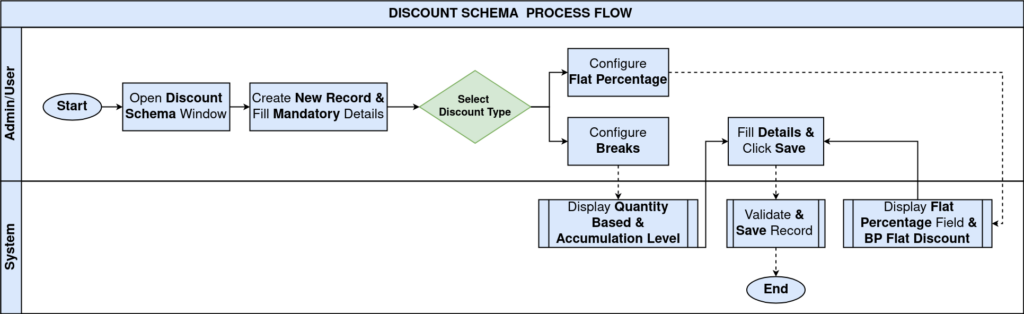
Business Rules
- Discount Type must be set to Breaks to enable quantity-based or price-based promotional discount lines.
- When Quantity Based is checked, the Break Value represents minimum order quantity; when unchecked, Break Value represents a price threshold.
- Each break line defines a Product Category or specific Product, a Break Value threshold, and a Break Discount % to apply.
Prerequisites
Ensure the following configurations are completed before configuring the Promotion Discount Schema:
- Initial Tenant Setup has been completed successfully.
- Business Partners are configured in iDempiere.
- Product Categories have been created and products assigned.
- Price Lists and Price List Versions are configured.
- The user role has access to the Discount Schema window.
Step-by-Step Configuration
Step 1: Open the Discount Schema Window
Navigate to the Discount Schema window using the menu path above. The window lists all existing Discount Schema records. Each record represents a pricing rule set that can be linked to a Price List Version or Business Partner.
Step 2: Create a New Discount Schema Record
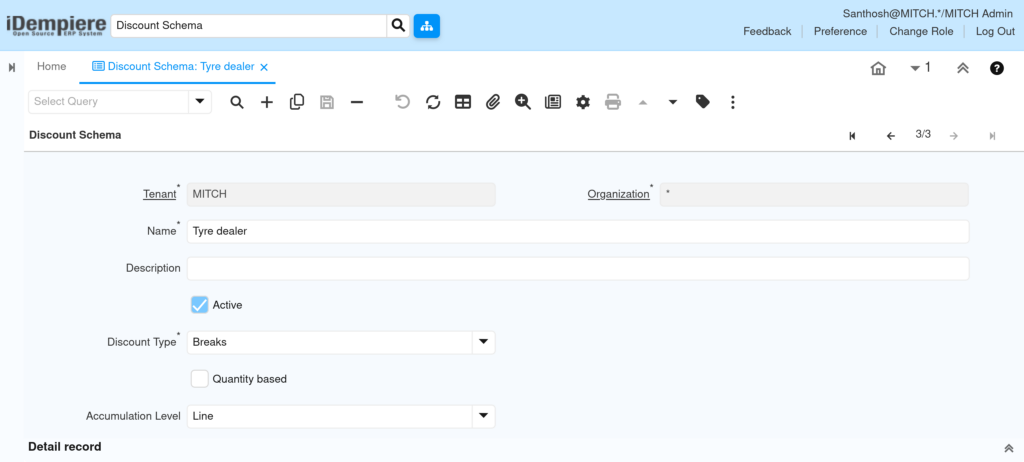
Click the New Record (+) button in the toolbar to open a blank form. Enter the header-level fields that define the schema name, discount method, and accumulation behaviour.
Field’s in Discount Schema Header
| Field | Sample Value | Description |
| Tenant | MITCH | System tenant for this schema. |
| Organization | * (All) | Use * to share across all branches. |
| Name | Promo – Tyre Dealer | Descriptive name for the promotion schema. |
| Description | Break-based promo discount for tyre channel | Business purpose or additional notes. |
| Active | Yes (checked) | Enables the schema for use in transactions. |
| Discount Type | Breaks | Must be set to Breaks to enable break-line pricing. |
| Quantity Based | Yes / No | Checked = break on quantity; unchecked = break on price. |
| Accumulation Level | Line | How discounts accumulate: Line, Order, or Partner level. |
Step 3: Set Discount Type to Breaks
The Discount Type field controls how the discount is calculated. To enable promotion discount rules based on quantity or price thresholds, set this field to Breaks.
- Breaks — Activates the Discount Schema Break tab where individual tier rules are defined.
- Flat Discount — Applies a single fixed percentage to all lines; no break-line configuration required.
When Discount Type = Breaks, the Quantity Based checkbox becomes relevant:
- Quantity Based checked: The Break Value threshold is evaluated against the ordered quantity.
- Quantity Based unchecked: The Break Value threshold is evaluated against the line price.
| Important: The Flat Discount % field is disabled when Discount Type is set to Breaks. Leave it at 0. |
Step 4: Configure Sample Promotion Schemas
The following examples show two promotion schemas using the Break discount type — one for a tyre dealer channel and one for a franchise network.
| Field | Tyre Dealer Schema | Point S Schema |
| Tenant | MITCH | MITCH |
| Organization | * (All) | * (All) |
| Name | Tyre dealer | Point S |
| Description | Break promo for tyre distribution | Break promo for Point S franchise |
| Active | Yes | Yes |
| Discount Type | Breaks | Breaks |
| Quantity Based | No (price-based) | No (price-based) |
| Accumulation Level | Line | Line |
Step 5: Save the Header Record
Click the Save button (floppy disk icon) or press Alt + S to save the Discount Schema header record. The record becomes available for break-line configuration immediately after saving.
Step 6: Open the Discount Break Tab
With the saved Discount Schema record open, navigate to the child tab:
| Discount Schema → Tab: Discount Break |
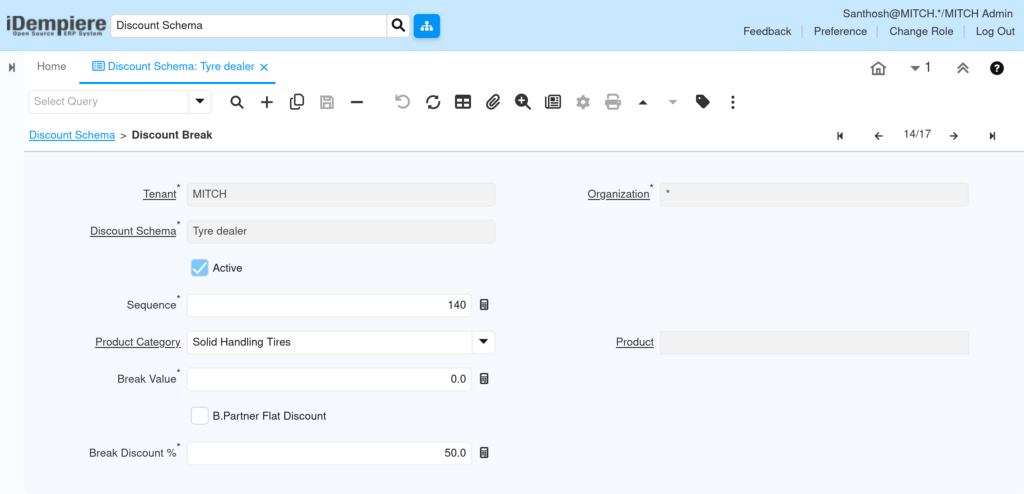
The Discount Break tab lists all individual break lines configured for this schema. Each line defines a threshold and the corresponding discount to apply when that threshold is met.
Step 7: Create Break Lines – Quantity-Based Discount
When Quantity Based is checked on the header, the Break Value represents the minimum order quantity required to trigger the discount. Use this configuration for volume promotions.
Field’s in Discount Break (Quantity-Based)
| Field | Sample Value | Description |
| Tenant | MITCH | System tenant. |
| Organization | * (All) | Shared across all branches. |
| Discount Schema | Tyre dealer | Parent schema this line belongs to. |
| Active | Yes | Line must be active to apply in transactions. |
| Sequence | 10 | Evaluation order; lower numbers are processed first. |
| Product Category | Solid Handling Tires | Restricts this break to a specific product category. |
| Product | (leave blank for category rule) | Restricts to a specific product if set. |
| Break Value | 5.00 | Minimum quantity to trigger this discount tier. |
| B.Partner Flat Discount | No | If checked, uses the partner’s own discount rate instead. |
| Break Discount % | 10.00 | Discount percentage applied when break value is met. |
Example: A Break Value of 5 and Break Discount % of 10 means a 10% discount is applied when 5 or more units are ordered.
Step 8: Create Break Lines — Price-Based Discount
When Quantity Based is unchecked on the header, the Break Value represents the minimum line price threshold required to trigger the discount. Use this for price-based promotions.
Field Reference — Discount Break (Price-Based)
| Field | Sample Value | Description |
| Tenant | MITCH | System tenant. |
| Organization | * (All) | Shared across all branches. |
| Discount Schema | Tyre dealer | Parent schema this line belongs to. |
| Active | Yes | Line must be active to apply. |
| Sequence | 140 | Evaluation order within the schema. |
| Product Category | Solid Handling Tires | Applies to this product category. |
| Product | (blank) | Leave blank for category-level rule. |
| Break Value | 0.00 | Minimum price threshold; 0.00 applies to all prices. |
| B.Partner Flat Discount | No | Unchecked — uses schema break discount. |
| Break Discount % | 50.00 | Promotion discount percentage applied at this break. |
Example from screenshots: Sequence 140, Product Category = Solid Handling Tires, Break Value = 0.0, Break Discount % = 50.0 — this applies a 50% promotional discount to all lines in that category regardless of price.
Step 9: Configure Multiple Break Tiers
Multiple break lines can be added to the same schema to create tiered discount structures. Use Sequence numbers to define the evaluation order.
Example: Tiered Quantity Discount — Tyre Dealer Schema
| Sequence | Product Category | Break Value (Qty) | Break Discount % |
| 10 | Solid Handling Tires | 1.00 | 10% |
| 20 | Solid Handling Tires | 5.00 | 20% |
| 30 | Solid Handling Tires | 10.00 | 30% |
| 140 | Solid Handling Tires | 0.00 (price-based) | 50% |
The system evaluates from the lowest sequence upward and applies the highest qualifying break. Ensure sequence numbers are unique within each schema.
Step 10: Save Break Records
Click Save (Alt + S) after entering each break line. Each break line must be saved individually before navigating to the next record.
Common Issues and Resolutions
| Issue | Cause | Resolution |
| Discount not applied on sales order | Schema not linked to Price List Version | Assign schema to the applicable Price List Version. |
| Break line not triggering | Break Value threshold not met or wrong evaluation type | Check Quantity Based setting on header and verify Break Value. |
| Flat Discount % field is greyed out | Discount Type is set to Breaks | Expected behaviour. Set type to Flat Discount to use this field. |
| Duplicate sequence error on save | Two break lines share the same sequence number | Assign unique Sequence numbers to each break line. |
| Changes not reflected in existing orders | Schema updates apply prospectively only | Re-open existing orders or create new orders to apply updated schema. |
| B.Partner Flat Discount overrides schema | B.Partner Flat Discount checkbox is enabled on break line | Uncheck the option to use the schema Break Discount % instead. |
| Break tab not visible | Discount Type not set to Breaks | Set Discount Type to Breaks and save the header first. |
Best Practices
- Use descriptive schema names that identify the channel, product group, and promotion type.
- Always define a Product Category filter on break lines to prevent unintended discounts.
- Use unique, evenly-spaced Sequence numbers (10, 20, 30) to allow future insertions without renumbering.
- Deactivate expired promotion schemas instead of deleting them to preserve historical pricing records.
- Review active break lines periodically to ensure promotion periods are still valid.
- Avoid overlapping break lines on the same product category within a schema.