How to Process a Material Receipt in iDempiere
Material Receipt in iDempiere records the physical receipt of goods from a vendor into a warehouse or store. It captures delivered quantities, updates on-hand inventory, and posts accounting entries within a single transaction.
In retail operations, Material Receipt serves as the link between Procurement and Inventory, used for vendor deliveries, stock replenishment, and store-level receipts. Inventory is updated only after the document is completed, ensuring goods are available for sale, transfer, or stock counting.
Upon completion, stock on hand is increased at the specified Warehouse and Locator, and accounting entries are generated for Inventory Asset and Not Invoiced Receipts. Accurate processing of Material Receipts is essential for maintaining inventory accuracy, vendor reconciliation, and financial integrity.
Process Flow

Prerequisites
Ensure the following configurations are completed before processing a Material Receipt in iDempiere:
- Purchase Order — A confirmed Purchase Order must exist and be in Completed status.
- Business Partner (Vendor) — The supplier must be configured as an active Business Partner with the Vendor checkbox enabled.
- Product — All products to be received must be active and linked to the correct Product Category.
- Warehouse and Locator — At least one active Warehouse and Locator must be configured for the receiving organisation.
- Unit of Measure — UOM records for all received products must be active.
- Chart of Accounts — Inventory Asset and Accounts Payable accounts must be mapped in the Accounting Schema.
- Document Type — The Material Receipt (MM Receipt) Document Type must be configured and active.
- Organisation — The receiving organisation must be active and assigned the correct Accounting Schema.
Business Rules
- A Material Receipt must reference a valid, open Purchase Order before stock can be received; receipts without a PO are permitted only as an exception for retail scenarios (e.g., urgent or local procurement), restricted to authorized roles, with mandatory capture of vendor and invoice details for audit traceability.
- Material Receipt lines should be generated using “Create Lines From,” with Purchase Order as the primary reference for procurement tracking; alternative sources (e.g., invoices) are allowed only in approved scenarios.
- Only active Products linked to the Purchase Order can be received against that order; Material Receipt lines can only be created for active products, since deactivated products are restricted from selection in transaction entry.
- Received quantity cannot exceed the ordered quantity on the Purchase Order line unless Over-Receipt is explicitly enabled.
- The Material Receipt document number sequence can be reset every Financial Year either automatically (via “Restart Sequence Every Year” + Date Column) or manually (via the “Current Next” field) in the Document Sequence window.
- Material Receipt supports capturing expiry date for applicable products through the Attribute Set Instance (ASI), enabling batch and shelf-life tracking.
- Free item products can be recorded by entering lines with zero cost; such transactions impact inventory valuation and costing.
- A Material Receipt can be saved as a Draft and completed later; inventory is only updated on Completion.
- Completing a Material Receipt is irreversible at the document level — it must be Reversed to correct errors after completion.
- Each Material Receipt line must carry a valid Unit of Measure that matches or converts to the purchase UOM.
- Active Warehouse and Locator records must exist before a Material Receipt can be completed for that location.
- Vendor returns can be generated with reference to existing Material Receipts by creating a return document and using “Create Lines From” to select the original receipt and process return quantities.
- Vendor invoice matching requires a completed Material Receipt; open (incomplete/draft) receipts are excluded from the matching process.
Step-by-Step: Processing a Material Receipt
Step 1: Open the Material Receipt Window
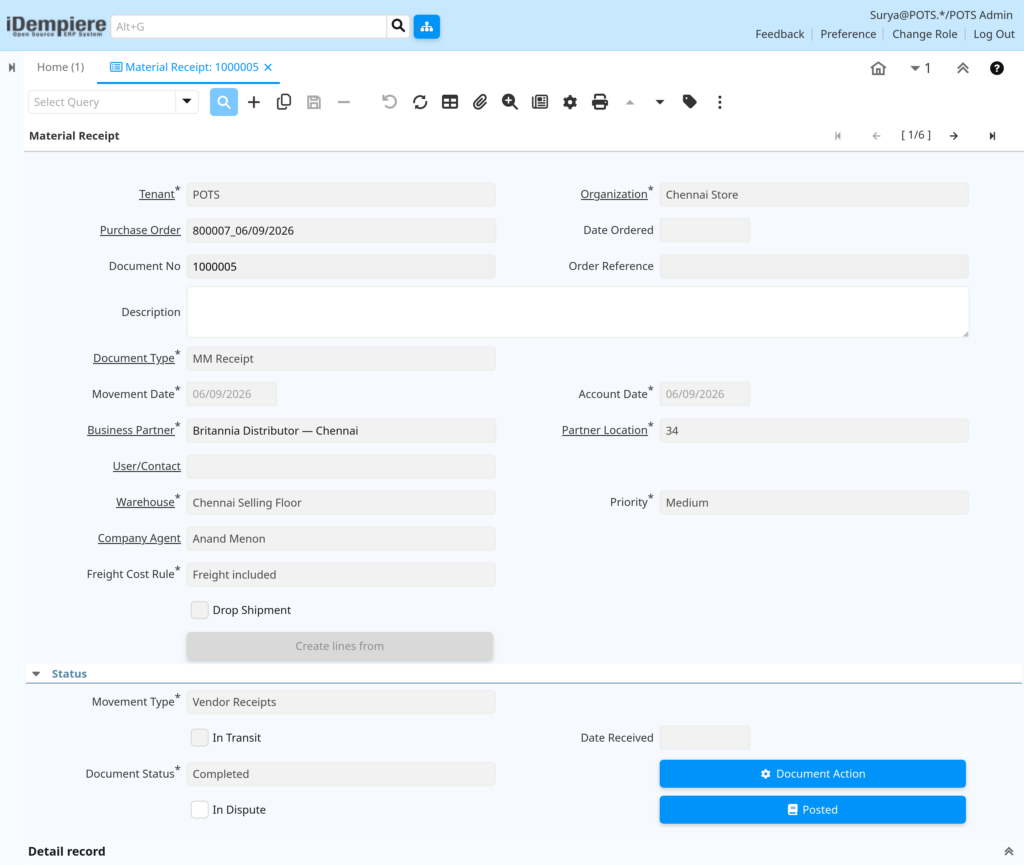
Navigate to Requisition-to-Invoice (Purchasing) → Material Receipt. The window has all existing receipt documents. Each row shows the Document No., Business Partner (vendor), Warehouse, Movement Date, and Document Status.
Use this window to create new receipts, review partially received Purchase Orders, and complete, reverse, or void existing documents.
Step 2: Create a New Material Receipt
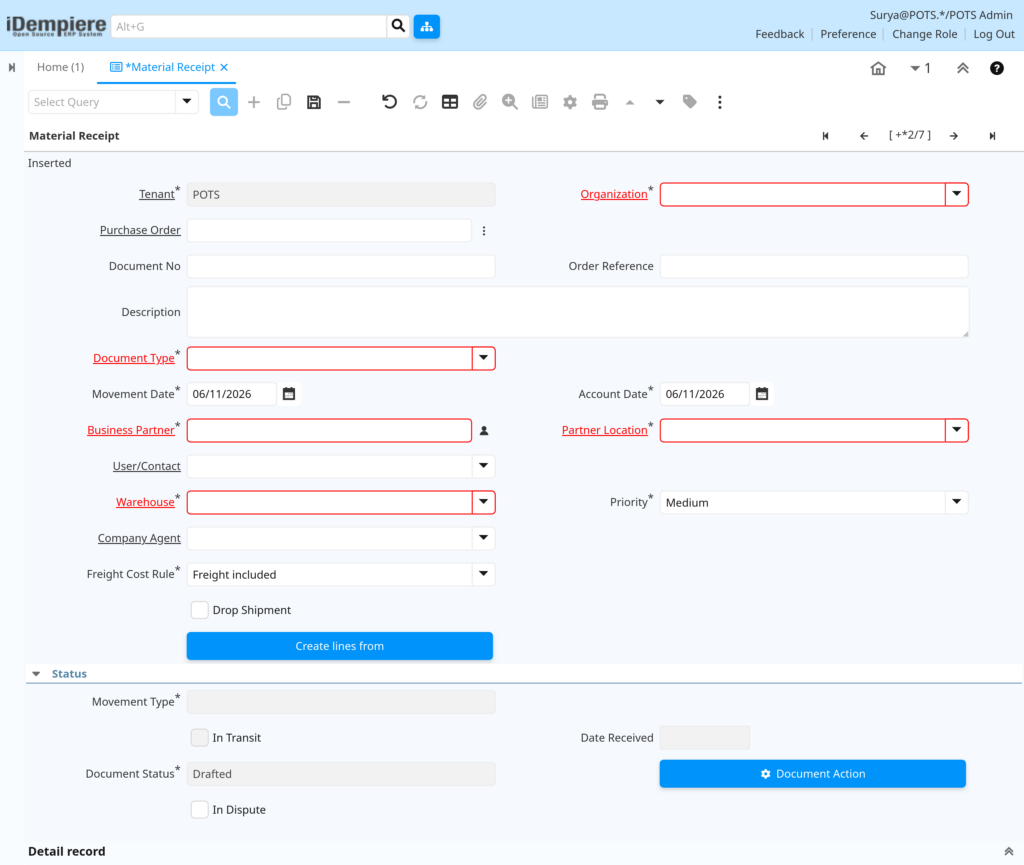
- Click the New Record icon (+) in the toolbar, or press Alt+N as a keyboard shortcut to start a new document.
- A blank Material Receipt form opens on the Material Receipt (header) tab.
- The Document Status defaults to Drafted.
Header Tab — Field Reference
The table below lists the fields visible on the Material Receipt header tab in a standard iDempiere installation. Fields marked “System” are auto-managed and normally hidden or read-only during data entry, but are explained here because they directly affect retail receiving, costing, and audit trails.
| Field | Sample Value (Retail) | Description |
| Organisation | HQ Retail Store 01 | The branch or store entity receiving the goods. Use * (asterisk) only for shared/system-level configuration records — transaction documents should use the specific store organisation. |
| Document Type | MM Receipt | Determines the document number sequence, accounting rules, and whether the receipt is treated as a Vendor Receipt or Customer Return. |
| Document No. | MMR-2026-000123 | System-generated receipt number based on the Document Type sequence. Editable only if the sequence allows manual entry. |
| Document Status | Drafted | Read-only field showing the current lifecycle state: Drafted, In Progress, Completed, Closed, Reversed, or Voided. |
| Movement Date | 01-Sep-2026 | The date goods physically arrive at the store/warehouse. Drives inventory valuation and stock movement dating. |
| Account Date | 01-Sep-2026 | The accounting (GL posting) date used for the journal entries generated by this receipt. Defaults to the Movement Date but can be changed within an open period. |
| Date Ordered | 28-Aug-2026 | Read-only. Pulled from the linked Purchase Order; shows when the order was originally placed. |
| Date Received | 01-Sep-2026 | Records the actual date the goods were received — used in delivery performance reporting. |
| Business Partner | ABC Apparel Traders | The vendor supplying the goods. Must be an active Business Partner with the Vendor checkbox enabled. |
| Partner Location | ABC Apparel — Mumbai Dispatch | The ship-from address of the vendor. Defaults from the Business Partner record but can be changed for the specific shipment. |
| Purchase Order | PO-2026-000456 | The source Purchase Order. Selecting this enables the “Create Lines From” process to pull order lines onto the receipt. |
| Order Reference | ABC-INV-77890 | Optional. The vendor’s own reference number (e.g., their delivery challan or dispatch note number) for cross-checking. |
| Warehouse | Retail Store 01 — Main WH | The physical warehouse or store stockroom into which goods are received. Determines which Locators are available. |
| Movement Type | Vendor Receipt | Read-only/system-controlled. Identifies this as an inbound movement from a vendor for reporting and accounting purposes. |
| Delivery Via | Pickup | Indicates how the goods were delivered — e.g., Pickup, Shipper, or Delivery. Used mainly for logistics tracking. |
| Freight Cost Rule Amount | Included | Optional. Freight or delivery charge associated with this receipt, if charged separately by the vendor. |
| In Transit | No | System flag. If checked, the receipt represents goods that have been shipped but not yet physically received (used for inter-branch transfers). |
| Drop Shipment | No | Checked only if goods were shipped directly from the vendor to a third-party location rather than to this Warehouse. |
| Create lines from | (Button) | Opens the Create Lines From dialog, allowing receipt lines to be generated from the selected Purchase Order or Vendor Invoice. |
| Create Confirmation | (Button) | Generates a Confirmation record for the receipt lines, used when a separate confirmation/QA step is required before completion. |
| Generate Invoice from Receipt | (Button) | Available after completion. Creates and matches a Vendor Invoice based on this completed receipt. |
| Description | Festive season stock intake — Sep 2026 | Free-text notes visible on the printed receipt document. |
| User/Contact | Receiving Clerk — R. Kumar | Optional. The internal user or vendor contact associated with this transaction, for traceability. |
| Posted | N (Not Posted) | Read-only system field. Shows whether accounting entries for this document have been generated (Y/N/Error). |
| Active | Checked (Yes) | Determines whether the record is available for transactions and reporting. Uncheck only to retire incorrect/duplicate header records. |
Step 3: Select the Purchase Order and Create Receipt Lines
- In the Purchase Order field, click the search/lookup icon or type the PO number directly.
- iDempiere displays the open (Completed status) Purchase Orders for the selected vendor.
- Select the relevant Purchase Order. The header fields (Business Partner, Partner Location, Price List, Currency) auto-populate entirely from the PO.
- Save the header record first (the Create Lines From button is only active after the header is saved).
- Click the Create Lines From button on the header.
- A selection window opens showing all open lines from the selected Purchase Order.
- Tick the checkbox next to each product line to be received, and adjust the quantity if the delivery differs from the order.
- Click OK — iDempiere automatically creates the corresponding Receipt Lines on the Receipt Line tab.
TIP: Receipt lines are NOT created automatically just by selecting a Purchase Order on the header. The Create Lines From process must be run, and the lines must be confirmed with OK before they appear on the Receipt Line tab.
Step 4: Review and Adjust Receipt Lines
Each receipt line corresponds to one product pulled from the Purchase Order. Review and adjust every line before completing the receipt.
Receipt Line Tab — Field Reference
| Field | Sample Value (Retail) | Description |
| Line No. | 10 | Sequence number for the line. Increments by 10 per line and controls display order. |
| Purchase Order Line | PO-2026-000456 — Line 10 | Read-only. Shows the originating PO line this receipt line was created from. |
| Product | Cotton T-Shirt — White, Size L | The item being received. Pulled from the PO line; must be an active product. |
| Attribute Set Instance | Lot: LOT-SEP26-014, Exp: 31-Mar-2027 | Captures Lot No., Serial No., and Expiry Date for products with an Attribute Set assigned (essential for apparel batches, cosmetics, and perishables). |
| Locator | Store01 / Aisle-A / Rack-03 / Shelf-1 | Storage location within the Warehouse where the goods are placed. Must belong to the Warehouse selected on the header. |
| UOM | Each | Unit of Measure for the quantity entered on this line. |
| Quantity (Qty Entered) | 100 | The quantity entered in the selected UOM. Converted internally to the base UOM. |
| Target Quantity | 100 | Read-only. The quantity that should have been received, based on the source Purchase Order line. |
| Movement Quantity | 98 | The actual quantity physically received. Edit this field to reflect the real count — this is the figure that updates inventory on completion. |
| Picked Quantity | 0 | Used in shipment/picking workflows; typically zero on a vendor receipt and relevant mainly for outbound shipments. |
| Confirmed Quantity | 0 | Populated only when a separate Confirmation step (Create Confirmation) is used for QA verification before final completion. |
| Scrapped Quantity | 2 | Quantity rejected due to damage or quality issues during receiving. Recorded here for QA and costing visibility. |
| Charge | (blank) | Optional. Line-level additional charge (e.g., handling for this specific item), if applicable. |
| Description | Short-delivered by vendor — 2 units damaged in transit | Line-level note documenting variances, shortages, or damage for audit purposes. |
| Project / Activity / Campaign | (blank) | Optional dimensions for cost and marketing analysis if Project/Activity-based accounting is used in the retail chain. |
- Set Movement Quantity to the actual quantity received — not the ordered or target quantity.
- For short deliveries, enter only the received quantity; the remaining balance stays open on the Purchase Order for the next receipt.
- For damaged goods, record the damaged units under Scrapped Quantity and add a Description note. Raise a separate Return to Vendor if the goods are to be sent back.
- For lot-controlled or expiry-tracked retail products (apparel batches, cosmetics, packaged food), set the Attribute Set Instance with the correct Lot No. and Expiry Date before saving the line.

Step 5: Confirm the Locator for Each Line
Every receipt line requires a valid Locator — the specific aisle, rack, or shelf within the Warehouse where stock is physically placed.
- Click the Locator field on each receipt line.
- Select the appropriate storage location from the list of Locators belonging to the header Warehouse.
- If different items go to different storage areas (e.g., cold storage vs. dry shelf), update each line individually.
- For retail stores using a single back-of-store stockroom, a default Locator can be set on the Warehouse to auto-fill this field on all lines.

Step 6: Save the Draft
- Click Save (disk icon) in the toolbar, or press Alt+S.
- The Document Status remains Drafted.
- Inventory on-hand is not yet affected at this stage.
- A drafted receipt can be reopened, edited, and re-saved any number of times before completion.
Step 7: Complete the Material Receipt
Completing the Material Receipt finalises the transaction, updates inventory, and triggers accounting posting.
- Verify that every line has the correct Movement Quantity, Attribute Set Instance (if applicable), and Locator.
- Locate the Document Action field at the bottom of the window (or the Document Action button in the toolbar).
- Select Complete from the Document Action drop-down list.
- Click the OK / Process button to execute the action.
- iDempiere validates the document and, if successful, sets the Document Status to Completed.
- Inventory on-hand quantities at the specified Warehouse and Locator are updated immediately.
- Accounting posting will happen for the Inventory Asset and Accounts Payable (Not Invoiced Receipts) accounts, based on the Accounting Schema configuration.
- The linked Purchase Order lines are updated to reflect the received quantities (the PO’s “Delivered Quantity” increases).
Note: Completion is irreversible at the document level. If an error is found after completion, use the Reverse (Correct), or Reverse (Accrual) to create a correcting document. Do not attempt to edit a completed receipt directly.Step 8: Verify the Inventory Update Using the Storage Detail Report
After completion, confirm that stock levels have been updated correctly using the Storage Detail report, which shows on-hand, reserved, and ordered quantities by Product, Warehouse, Locator, and Attribute Set Instance.
Steps to Verify
- Navigate to Menu → Material Management and Pricing → Storage Detail.
- In the report parameters, set the Warehouse to the warehouse used in the receipt (e.g., Retail Store 01 — Main WH).
- Optionally filter by Product, Product Category, or Locator to narrow the results to the received items.
- Run the report.
- For each received product, confirm that the On-Hand (Available) Quantity has increased by the Movement Quantity entered on the receipt.
- If Lot or Serial tracking was used, confirm the correct Lot No., Serial No., and Expiry Date appear against the product.
- To confirm the accounting side, open the completed Material Receipt and check the Posted field — it should show Y Checked (Yes). If it shows N or Unchecked.
Step 9: Reverse or Void a Receipt (If Required)
If a completed Material Receipt contains an error, use the Reverse action from the Document Action field — never delete the document.
Reversal and Void Options
| Action | When to Use | Effect |
| Reverse – Correct | Error discovered in the same accounting period as the original receipt. | Creates a reversal document dated the same day as the original. Inventory is reversed and the original accounting entries are cancelled with offsetting entries. |
| Reverse – Accrual | Error discovered in a later accounting period (the original period is closed). | Creates a reversal document dated within the current open period. Preserves the original period’s entries and posts the correction in the current period. |
| Void | The receipt was created in error and the goods were never physically received. | Sets the Document Status to Voided. If voided before Completion, there is no inventory or accounting impact. |
Sample Material Receipt Records
Use these sample records to validate your Material Receipt configuration in iDempiere.
| Document No. | Vendor | Warehouse | Movement Date | Products | Status |
| MMR-2026-000201 | ABC Apparel Traders | Retail Store 01 — Main WH | 01-Sep-2026 | White T-Shirt L, Blue Jeans 32 | Completed |
| MMR-2026-000202 | XYZ Footwear Suppliers | Retail Store 02 — South Branch WH | 02-Sep-2026 | Running Shoes Size 9 | Completed |
| MMR-2026-000203 | Fresh Foods Co. | Retail Store 01 — Perishables Zone | 03-Sep-2026 | Packaged Snacks 100g | Drafted |
| MMR-2026-000204 | Tech Parts Ltd | Retail Store 03 — Electronics WH | 04-Sep-2026 | Bluetooth Headset Model A | Completed |
Common Issues and Resolutions
| Issue | Cause | Resolution |
| Create Lines From shows no lines. | All PO lines are already fully received, the PO is Closed, or the header was not saved before running Create Lines From. | Save the header first. Check PO line delivered quantities and status; re-open the PO if it was closed prematurely. |
| Locator field is empty or shows no options. | No active Locators are configured for the selected Warehouse. | Create and activate at least one Locator under the Warehouse in the Locator window before retrying. |
| Completion fails with “No Accounting” or “Account not configured” error. | Inventory Asset or AP Liability accounts are not mapped for the Product Category or Business Partner in the Accounting Schema. | Configure the Product Category and Business Partner accounting defaults in the Accounting Schema, then re-attempt Complete. |
| Receipt created but inventory not updated. | Receipt was saved but Document Action was never set to Complete. | Open the receipt, set Document Action to Complete, and process. Inventory updates only on Completion. |
| Cannot reverse a completed receipt — period closed error. | The accounting period of the original receipt is closed. | Use Reverse – Accrual to post the reversal in the current open period instead of Reverse – Correct. |
| Duplicate receipt created for the same Purchase Order. | Staff created a new receipt without checking for an existing Drafted receipt for the same PO. | Search for existing Drafted receipts against the PO before creating a new one; void duplicates if found. |
| Product not available when running Create Lines From. | Product is inactive, or not present on the source Purchase Order. | Activate the product in the Product window and verify it is listed as a line on the source Purchase Order. |
| Attribute Set Instance (Lot/Expiry) fields not visible on the line. | The Product is not assigned an Attribute Set, or Mandatory Attribute Set is not enabled. | Assign the correct Attribute Set to the Product master and ensure the Attribute is set to mandatory if expiry tracking is required. |
| Material Receipt document number does not reset for the new financial year. | “Restart Sequence Every Year” is not enabled, and the Current Next was not reset manually. | In General Rules → System Rules → Document Sequence, enable Restart Sequence Every Year with the correct Date Column, or manually reset Current Next at year-end. |
Next Steps
After processing Material Receipts in iDempiere, proceed with:
- Vendor Invoice — Match completed Material Receipts to vendor invoices using Generate Invoice from Receipt or the standard invoice matching process.
- Inventory Valuation — Review product cost and Inventory Asset balances after stock intake using the Inventory Valuation report.
- Physical Inventory — Configure and run periodic Physical Inventory counts to verify received stock against the system.
- Return to Vendor — Configure Return to Vendor (Material Receipt with negative movement / Vendor Return) documents for damaged or incorrect goods received.
- Purchase Order Matching — Use the Matched POs tab and Transaction Detail report to monitor open, partial, and fully received Purchase Orders.