How to Create and Convert Leads in iDempiere
A Lead in iDempiere represents a potential customer who has shown interest in purchasing products but has not yet been qualified or converted into a Business Partner. Leads originate from cold calls, referrals, conferences, marketing campaigns, or email enquiries, and are assigned to sales representatives for follow-up.
Once qualified, a Lead is converted into a Business Partner and optionally a Sales Opportunity, moving the prospect into the active sales pipeline and directly impacting revenue forecasting.
Process Flow

Business Rules
- Name is mandatory when creating a Lead record.
- Sales Lead flag must be enabled to classify the record as a customer prospect.
- Lead Source must identify where the enquiry originated for channel tracking.
- Activities can be recorded against a Lead to maintain a full interaction history.
- Qualified Leads can be converted into a Business Partner using the Convert Lead process.
- Create Opportunity can optionally be enabled during conversion to generate a Sales Opportunity.
- Leads cannot create a Business Partner if the customer already exists in the system.
- Lead Activities provide a complete history of customer interactions before conversion.
Prerequisites
- Organization configured.
- Sales Representative configured.
- Campaign configured if lead attribution is required.
- Lead Source values available for classification.
- Sales Stage configured if an Opportunity will be created during conversion.
Configuration Steps
Step 1: Create the Lead Record
Capturing complete customer information at the time of enquiry ensures the lead can be effectively qualified and converted.
- Open the Lead window and click New Record.
- Enter all available contact and company information, enable Sales Lead, assign a Sales Representative, set Lead Source and Lead Status, and save.
| Field | Sample Value | Mandatory | Description |
| Search Key | alpha | No | Unique identifier for quick lookup |
| Name | Karthik | Yes | Contact person name at the prospective company |
| BP Name | ALPHA RETAIL SOLUTIONS | No | Company name used during Business Partner creation on conversion |
| Phone | 9872202101 | No | Primary contact phone number |
| Email Address | karthik@alpharetail.in | No | Contact email address |
| Address | No 20, Anna Salai, Chennai, 600002 | No | Prospect business address |
| Active | Checked | Yes | Makes the lead available for processing |
| Sales Lead | Checked | Yes | Classifies the record as a customer sales prospect |
| Vendor Lead | Unchecked | No | Enable only if the lead is a potential supplier |
| Campaign | Q1 LinkedIn Posts | No | Marketing campaign from which the lead originated |
| Lead Source | Cold Call | No | Channel through which the enquiry was received |
| Lead Status | New | No | Current qualification status of the lead |
| Sales Representative | Anand Menon | No | Staff member responsible for following up the lead |
| Comments | Customer expressed interest in purchasing AASHIRVAAD ATTA 5KG for retail distribution. | No | Free-text notes about the enquiry |

Step 2: Record Lead Activity
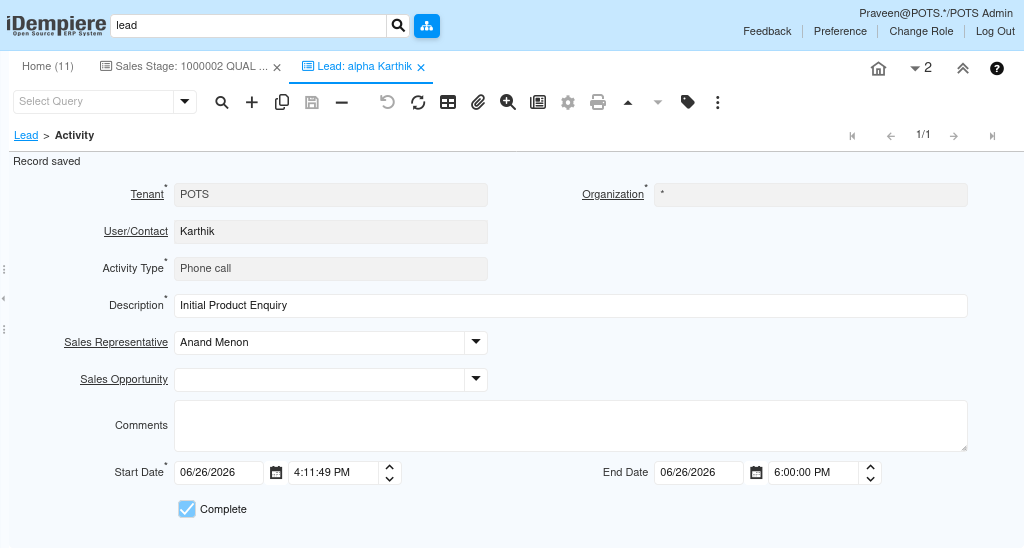
Every customer interaction must be recorded on the Activity tab to maintain a complete qualification history for the lead.
- Open the Activity tab on the Lead and click New Record.
- Select User/Contact, Activity Type, and Sales Representative, enter Start Date and End Date, add Comments, and enable Complete when the interaction is finished.
| Field | Sample Value | Mandatory | Description |
| User/Contact | Karthik | Yes | Contact person involved in the interaction |
| Activity Type | Phone call | Yes | Type of interaction recorded |
| Description | Initial Product Enquiry | Yes | Short description of the interaction |
| Sales Representative | Anand Menon | No | Sales representative who conducted the activity |
| Sales Opportunity | Blank | No | Link to an opportunity, if already created |
| Comments | Customer requested pricing, delivery schedule, MOQ, and distributor margins for Aashirvaad Atta 5KG. | No | Detailed notes from the interaction |
| Start Date | 26/06/2026 4:11 PM | Yes | Date and time the interaction began |
| End Date | 26/06/2026 6:00 PM | No | Date and time the interaction ended |
| Complete | Checked | No | Marks the activity as completed |
Step 3: Qualify the Lead
Qualification determines whether the lead has sufficient business potential to be converted into a Business Partner and Opportunity.
- Review the lead based on customer interest, expected purchase volume, distribution coverage, delivery location, and commercial viability.
- Update Comments or Lead Status to reflect the qualification outcome.
| Qualification Criteria | Sample Assessment |
| Customer Interest Level | High – actively seeking a distributor for Aashirvaad Atta 5KG |
| Expected Volume | Approximately 100 bags per month |
| Distribution Coverage | Multiple retail outlets across Chennai |
| Delivery Location | Chennai, Tamil Nadu |
| Commercial Viability | Meets minimum order quantity requirements |
Step 4: Convert the Lead
Convert Lead transforms a qualified lead into a Business Partner and optionally creates a Sales Opportunity for pipeline tracking.
- Click the Process button on the Lead and select Convert Lead.
- Enable Create Opportunity, enter Sales Stage, Opportunity Amount, Currency, Sales Representative, and Expected Close Date, then click OK.
| Field | Sample Value | Mandatory | Description |
| Create Opportunity | Checked | No | Generates a Sales Opportunity during conversion |
| Sales Stage | Prospecting | No | Initial stage assigned to the new Opportunity |
| Opportunity Amount | 500,000 | No | Expected deal value for the Opportunity |
| Currency | INR | No | Currency of the Opportunity Amount |
| Sales Representative | Anand Menon | No | Sales representative assigned to the Opportunity |
| Expected Close Date | 31-Jul-2026 | No | Target date for closing the Opportunity |

Step 5: Verify the Conversion Result
Confirming that the Business Partner and Sales Opportunity were created correctly ensures the lead has successfully entered the sales pipeline.
- Open the Business Partner window and search for the converted customer.
- Then open the Sales Opportunity window and verify the newly created Opportunity is present with the correct stage and amount.
| Record | What to Verify | Expected Result |
| Business Partner | Search for ALPHA RETAIL SOLUTIONS | Business Partner record created successfully |
| Sales Opportunity | Sales Stage, Amount, Sales Representative, and Expected Close Date | Opportunity created in Prospecting stage |
Common Issues and Resolutions
| Issue | Cause | Resolution |
| Lead cannot be converted | Mandatory fields not populated | Verify Name and BP Name are filled before running Convert Lead. |
| Duplicate Business Partner error during conversion | Customer already exists in Business Partner master | Search for the existing Business Partner and link it to the lead manually. |
| Opportunity not created after conversion | Create Opportunity was not enabled | Re-run Convert Lead and enable Create Opportunity before clicking OK. |
| Activity not visible on the Lead | Activity not saved correctly | Open the Activity tab and verify the record was saved and Complete is checked. |
| Lead not appearing in Sales Representative’s list | Sales Representative not assigned | Assign the correct Sales Representative on the Lead header. |
| Lead Source missing from dropdown | Lead Source not configured | Configure the required Lead Source values in the reference data setup. |
Next Steps
- Progress the Sales Opportunity through Qualification, Proposal Submitted, and Negotiation stages.
- Record additional Activities against the Opportunity as customer interactions continue.
- Close the Opportunity as Closed Won once the order is confirmed.
- Create a Sales Order from the converted Business Partner.
- Review lead conversion rates periodically to measure sales pipeline health.