How to Configure POS Tender Type in iDempiere
POS Tender Type defines the payment methods accepted at the billing counter during POS transactions in iDempiere.
In retail operations, it classifies customer payments such as Cash, Credit Card, Debit Card, UPI, Cheque, and Customer Credit, and is selected by cashiers at the point of sale.
The Tender Type chosen during billing directly controls how payment records are created, how settlement is tracked, and how split payments across multiple methods are handled.
Process Flow
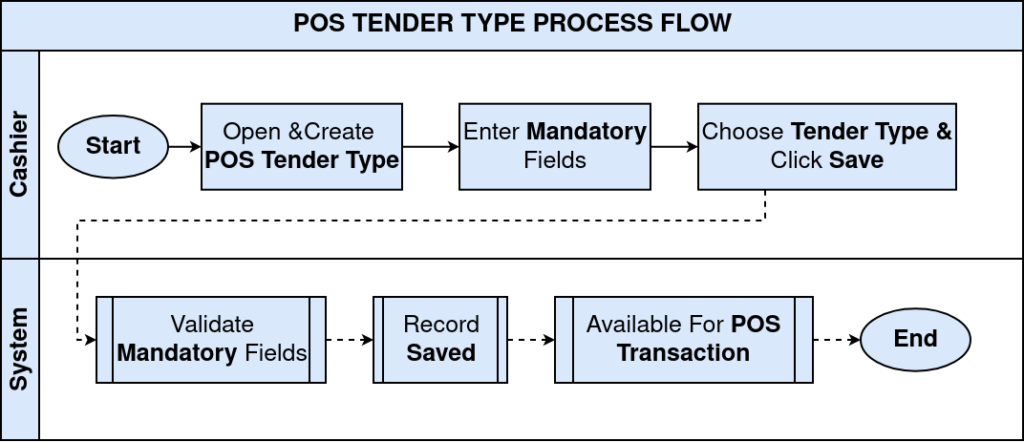
Business Rules
- Tender Type Name must be unique across the organization.
- Only Active Tender Types are available for selection during POS billing.
- Tender Type is mandatory when recording a POS payment.
- A Tender Type must be linked to a valid underlying payment method.
- Multiple Tender Types can be used within a single POS transaction.
- Inactive Tender Types cannot be selected at the billing counter.
Prerequisites
- Organization configured.
- POS terminal setup completed.
- Required payment methods identified for the retail business.
Configuration Steps
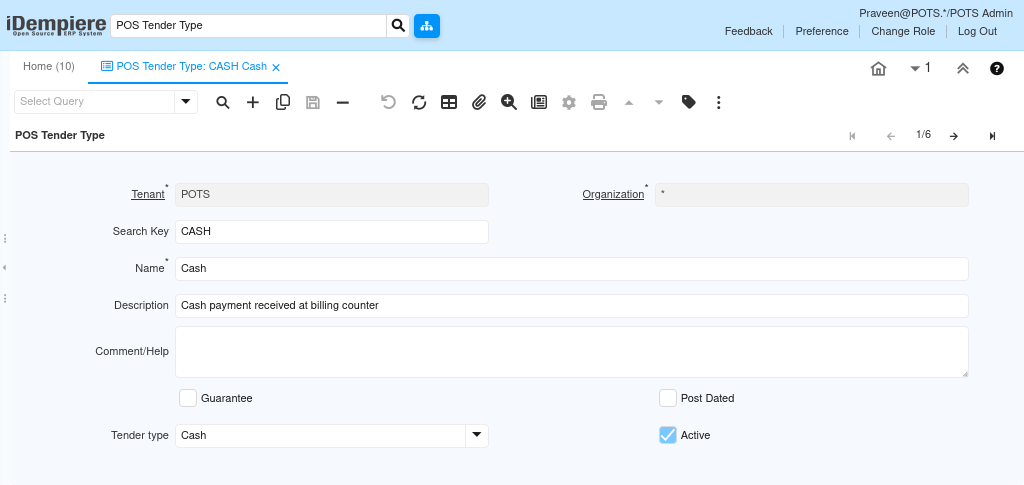
Step 1: Create the POS Tender Type Record
Each payment method accepted at the billing counter requires its own Tender Type record.
- Open the POS Tender Type window and click New Record.
- Enter the Organization, Search Key, Name, Description, and Tender Type.
- Enable Active and save.
| Field | Sample Value | Mandatory | Description |
| Organization | * | Yes | Organization the Tender Type belongs to |
| Search Key | CASH | Yes | Unique identifier for the Tender Type |
| Name | Cash | Yes | Display name shown at the billing counter |
| Description | Cash payment received at billing counter | No | Optional description for the record |
| Tender Type | Cash | Yes | Underlying payment method linked to this record |
| Active | Checked | Yes | Enables the record for POS selection |
Step 2: Configure All Required Tender Types
Each payment channel accepted at the store needs a dedicated Tender Type record so cashiers can record payments accurately.
- Repeat the creation process for every payment method used in the store.
- Assign the correct underlying Tender Type for each record.
| Search Key | Name | Tender Type |
| CASH | Cash | Cash |
| DCARD | Debit Card | Credit Card |
| CCARD | Credit Card | Credit Card |
| UPI | UPI Payment | Direct Deposit |
| CHEQUE | Cheque Payment | Check |
| CREDIT | Customer Credit | Account |

Step 3: Use Tender Type in a POS Transaction
The Tender Type is selected during POS billing to record the payment method used by the customer.
- Open the POS Order, navigate to the POS Payment tab,
- select the required POS Tender Type, and enter the payment amount.
| Field | Sample Value | Mandatory | Description |
| POS Tender Type | Cash | Yes | Payment method selected for the transaction |
| Amount | 660.80 | Yes | Payment amount entered by the cashier |

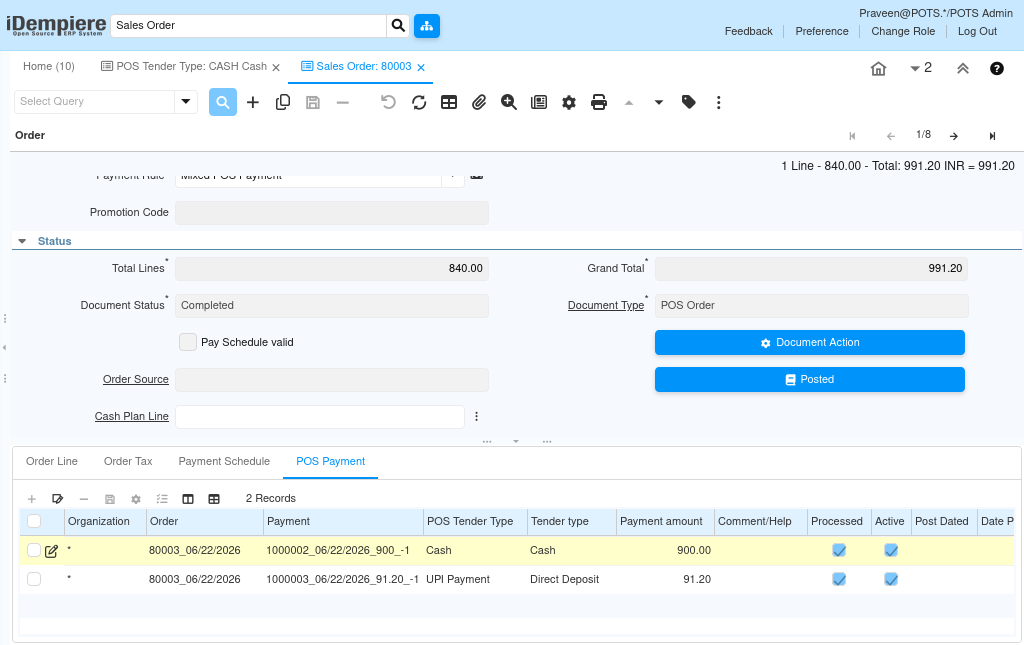
Step 4: Process Split Payments
Split payments allow the cashier to record multiple payment methods for a single transaction when a customer pays with more than one method.
- On the POS Payment tab, add a line for each payment method used.
- Enter the Tender Type and Amount for each line until the full transaction amount is covered.
| POS Tender Type | Amount (INR) |
| Cash | 500.00 |
| UPI Payment | 300.00 |
| Credit Card | 200.00 |
Step 5: Complete the POS Order and Verify Payments
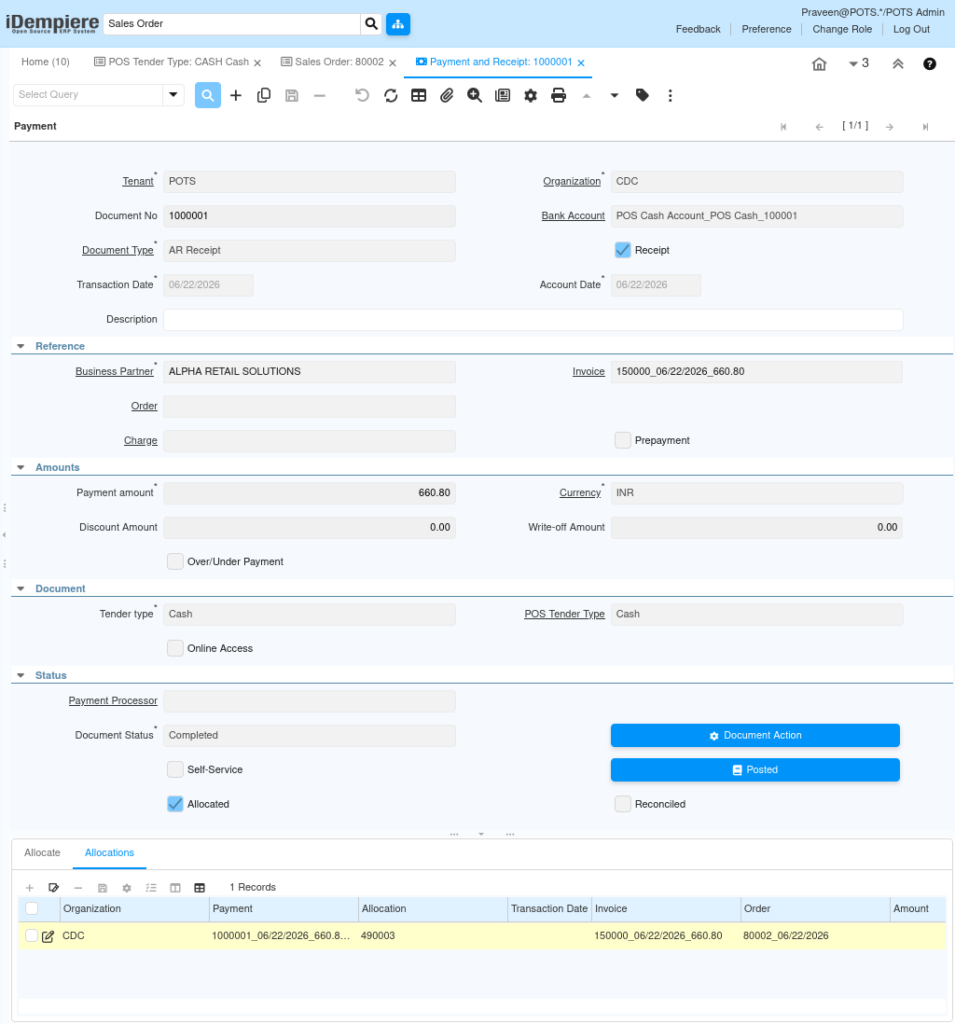
Completing the POS Order generates the payment records for each Tender Type used.
- Complete the POS Order using Document Action.
- Open the generated payment records and verify Payment Amount, POS Tender Type, Tender Type, and Payment Status.
| Field | Sample Value | Mandatory | Description |
| Payment Amount | As entered | Auto | Amount recorded for each Tender Type |
| POS Tender Type | As selected | Auto | Tender Type used during billing |
| Tender Type | Derived | Auto | Underlying payment method |
| Payment Status | Completed | Auto | Confirms the payment is finalized |
Common Issues and Resolutions
| Issue | Cause | Resolution |
| Tender Type not visible at POS counter | Record is inactive | Enable the Active flag on the Tender Type record. |
| Duplicate Tender Type Name error | Name already exists in the organization | Use a unique Name and Search Key for each Tender Type. |
| Payment not recorded after selection | Amount field left blank | Enter the payment amount before saving the POS payment line. |
| Split payment does not balance | Sum of payment lines does not match order total | Adjust the amounts across lines until they equal the order total. |
| Customer Credit not available for selection | Account Tender Type not configured | Create a Tender Type with Tender Type set to Account. |
| UPI payment not available | Direct Deposit Tender Type not configured | Create a Tender Type with Tender Type set to Direct Deposit. |
| Payment record not generated after order completion | POS Order not completed | Complete the POS Order using Document Action. |
Next Steps
- Assign the configured Tender Types to the POS terminal.
- Verify payment records generated after each POS transaction.
- Verify AP Payment accounting entries.
- Reconcile the payment with the bank statement.
- Review vendor account balances.
- Monitor and maintain Bank Account Document sequences.
- Continue periodic payment processing using Payment Selection