How to Create and Manage Sales Opportunities in iDempiere
A Sales Opportunity in iDempiere represents a qualified prospect with potential revenue, allowing sales teams to track deal progress, record customer interactions, and forecast expected income.
Opportunities monitor product discussions, quotations, negotiations, and order confirmations from the point a lead is qualified through to a Sales Order.
Probability and Weighted Amount are automatically calculated from the assigned Sales Stage, directly impacting pipeline reporting and revenue forecasting across the organization.
Process Flow
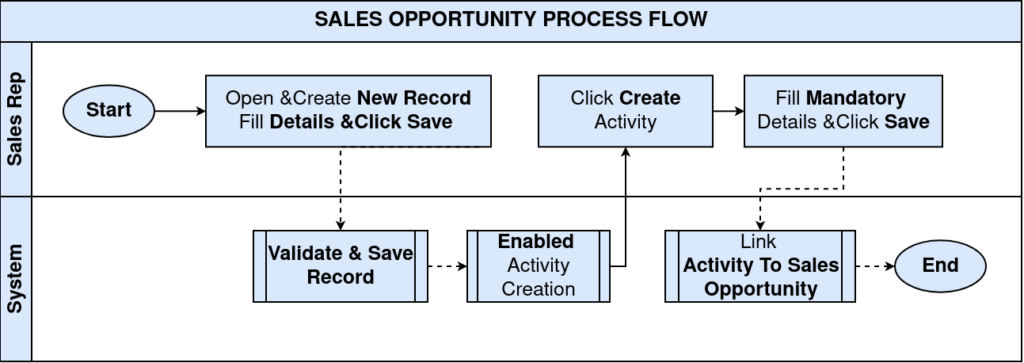
Business Rules
- Business Partner is mandatory on every Sales Opportunity.
- Sales Stage is mandatory and controls the Probability and Weighted Amount.
- Opportunity Amount represents the expected deal value for forecasting.
- Probability is derived automatically from the selected Sales Stage.
- Weighted Amount is calculated as Opportunity Amount multiplied by Probability.
- Activities can be recorded against an Opportunity to maintain a full interaction history.
- A Proposal (Non-Binding Offer) can be created from the Sales Management Order window.
- Quote Convert process generates a Sales Order from a completed Proposal.
- Sales Stage must be manually updated to Closed Won after the Sales Order is confirmed.
Prerequisites
- Business Partner configured as a Customer.
- Sales Stage records configured with correct Probability values.
- Sales Representative configured.
- Price List configured for the customer.
- Products configured for quoting and Sales Order creation.
Configuration Steps
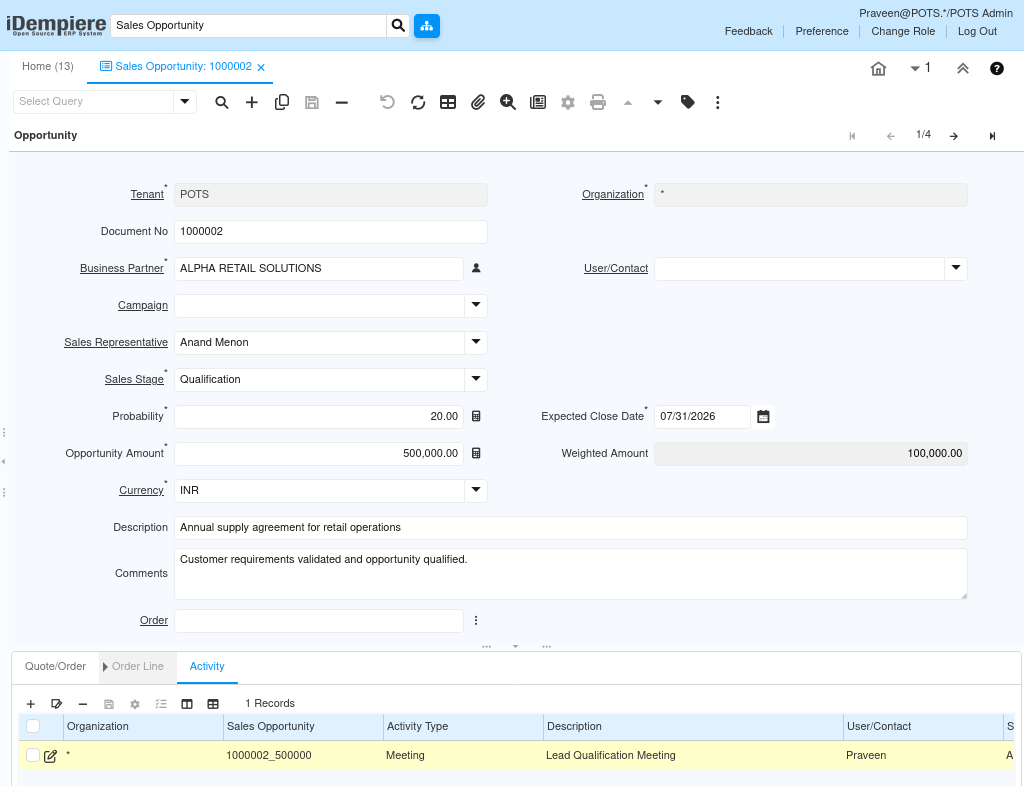
Step 1: Create the Sales Opportunity
Creating the Opportunity establishes the deal record, assigns the business partner and sales stage, and anchors the pipeline forecast.
- Open the Sales Opportunity window and click New Record.
- Enter Business Partner, Sales Representative, Sales Stage, Opportunity Amount, Currency, and Expected Close Date. Add a Description and Comments, then save.
| Field | Sample Value | Mandatory | Description |
| Document No | 1000002 | Auto | Auto-generated Opportunity reference number |
| Business Partner | ALPHA RETAIL SOLUTIONS | Yes | Customer associated with the Opportunity |
| User/Contact | Karthik | No | Customer contact person for the Opportunity |
| Campaign | Q1 LinkedIn Posts | No | Marketing campaign linked to the Opportunity |
| Sales Representative | Anand Menon | Yes | Sales representative managing the Opportunity |
| Sales Stage | Prospecting | Yes | Current stage in the sales cycle |
| Probability | 10.00 | Auto | Derived automatically from the selected Sales Stage |
| Expected Close Date | 31-Jul-2026 | Yes | Target date for closing the deal |
| Opportunity Amount | 500,000.00 | Yes | Expected deal value used for forecasting |
| Weighted Amount | 50,000.00 | Auto | Opportunity Amount multiplied by Probability |
| Currency | INR | Yes | Transaction currency for the Opportunity |
| Description | Annual supply agreement for retail operations | No | Short description of the deal |
| Comments | Customer evaluating pricing, delivery schedule, and distributor margins. | No | Free-text notes about the Opportunity |
Step 2: Record an Activity
Each customer interaction must be recorded on the Activity tab to maintain a complete engagement history throughout the sales cycle.
- Open the Activity tab and click New Record (+).
- Select Activity Type, enter Description, assign Sales Representative, link User/Contact, enter Start and End Date, add Comments, and enable Complete.
| Field | Sample Value | Mandatory | Description |
| Sales Opportunity | 1000002_500000 | Auto | Linked Opportunity reference |
| Activity Type | Meeting | Yes | Type of customer interaction |
| Description | Lead Qualification Meeting | Yes | Short description of the interaction |
| User/Contact | Praveen | No | Internal user who conducted the activity |
| Sales Representative | Anand Menon | No | Sales representative responsible for the activity |
| Comments | Reviewed customer requirements, budget expectations, and delivery timelines. | No | Detailed notes from the interaction |
| Start Date | 26/06/2026 | Yes | Date and time the interaction began |
| End Date | 26/06/2026 | No | Date and time the interaction ended |
| Complete | Checked | No | Marks the activity as finished |

Step 3: Progress the Opportunity Through Sales Stages
The Sales Stage must be updated after each significant customer interaction to keep probability, weighted amount, and pipeline reports accurate.
- Open the Opportunity record after each customer event and update the Sales Stage field.
- iDempiere recalculates Probability and Weighted Amount automatically.
| Sales Stage | Probability | When to Update | Weighted Amount (on ₹50,000) |
| Prospecting | 10% | Lead identified; initial contact made | ₹50,000 |
| Qualification | 20% | Requirements and budget confirmed | ₹1,00,000 |
| Proposal Submitted | 50% | Commercial quotation sent to customer | ₹2,50,000 |
| Negotiation | 80% | Pricing and terms under active discussion | ₹4,00,000 |
| Closed Won | 100% | Customer confirmed the order | ₹5,00,000 |
| Closed Lost | 0% | Opportunity not converted | ₹0 |

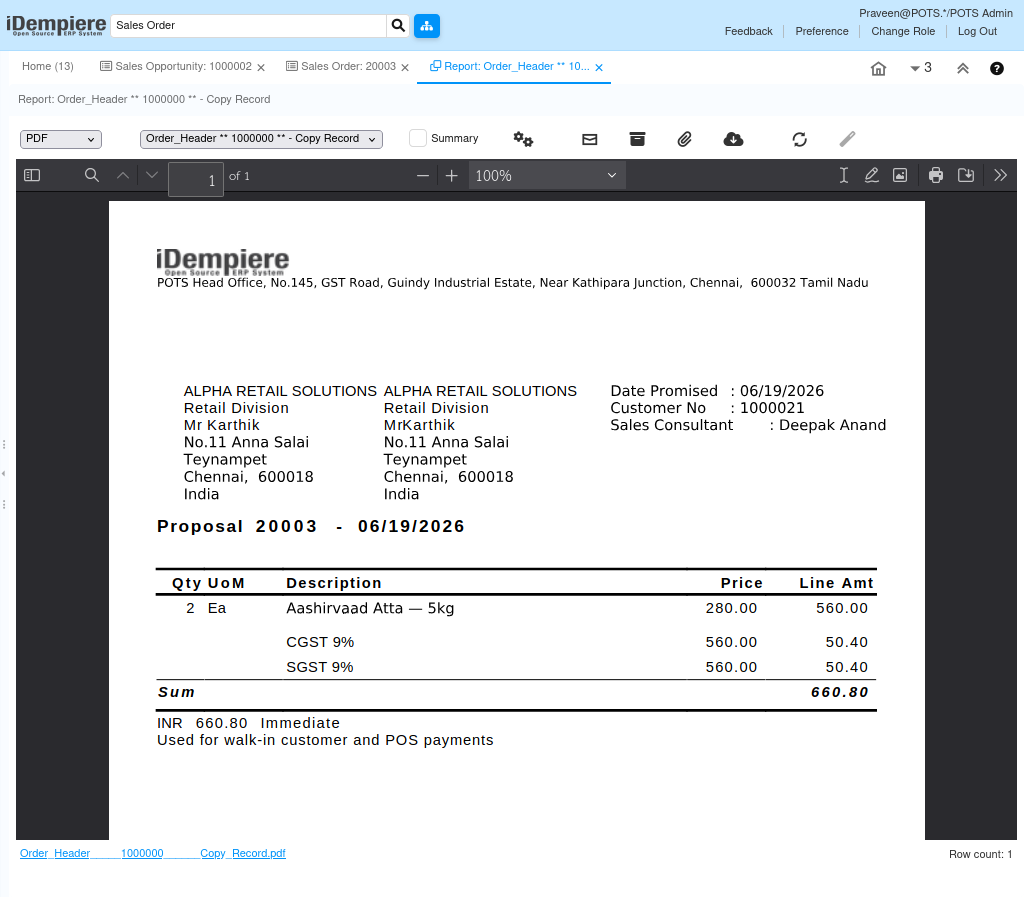
Step 4: Create a Proposal (Non-Binding Offer)
A Proposal is created when the customer requires a formal quotation before committing to a purchase.
Navigate to Sales Management → Sales Order and click New Record.
Set Target Document Type to Non Binding Offer, select the Business Partner, add product lines with quantity and price, then Complete the document.
| Field | Sample Value | Mandatory | Description |
| Target Document Type | Non Binding Offer | Yes | Creates a quotation without committing stock |
| Business Partner | ALPHA RETAIL SOLUTIONS | Yes | Customer receiving the quotation |
| Product | Aashirvaad Atta 5KG | Yes | Product being quoted |
| Quantity | 2 | Yes | Quantity included in the proposal |
| Unit Price | 280.00 | Yes | Price per unit in the proposal |
| Grand Total | 660.80 | Auto | Total value of the proposal |
Step 5: Convert Proposal to Sales Order
Once the customer approves the quotation, Quote Convert generates a confirmed Sales Order from the proposal.
- Open the completed Proposal and click Process → Quote Convert.
- Select the Proposal as the source Order, set Document Type to Standard Order, and click Start.
| Field | Sample Value | Mandatory | Description |
| Order (Source) | Proposal reference | Yes | Proposal selected for conversion |
| Document Type | Standard Order | Yes | Target document type for the converted order |

Step 6: Verify the Generated Sales Order
Confirming the Sales Order ensures the conversion was successful and the order is ready for fulfillment.
- Open the Sales Order window and locate the newly created Standard Order.
- Verify Business Partner, Product, Quantity, and the Quotation Reference linking back to the original Proposal.
| Field | Sample Value | Mandatory | Description |
| Document Type | Standard Order | Auto | Confirmed order type generated from the proposal |
| Business Partner | ALPHA RETAIL SOLUTIONS | Auto | Customer from the original proposal |
| Product | Aashirvaad Atta 5KG | Auto | Product carried forward from the proposal |
| Quantity | 100 | Auto | Quantity from the approved proposal |
| Quotation Reference | Original Proposal No | Auto | Links the Sales Order back to the source proposal |
Common Issues and Resolutions
| Issue | Cause | Resolution |
| Probability not updating after stage change | Sales Stage Probability misconfigured | Verify Probability value on the Sales Stage master record. |
| Weighted Amount showing incorrect value | Opportunity Amount not entered correctly | Update Opportunity Amount; Weighted Amount recalculates automatically. |
| Proposal not visible in Quote/Order tab | Proposal created from a different Business Partner | Ensure the Proposal uses the same Business Partner as the Opportunity. |
| Quote Convert fails | Proposal document not in Completed status | Complete the Proposal document before running Quote Convert. |
| Opportunity remains open after Sales Order creation | Sales Stage not updated manually | Update Sales Stage to Closed Won on the Opportunity after order confirmation. |
| Activity not linked to Opportunity | Sales Opportunity field left blank on Activity | Select the correct Opportunity reference when creating the Activity. |
| Business Partner missing from Opportunity | Lead not converted before creating Opportunity | Convert the Lead to a Business Partner first, then create the Opportunity. |
Next Steps
- Complete the Sales Order and proceed to shipment and delivery.
- Generate Customer Invoice once goods are dispatched.
- Process payment receipt against the Customer Invoice.
- Review Opportunity pipeline regularly using Sales Opportunity reports.
- Update Closed Lost Opportunities promptly to maintain forecast accuracy.