How to create Credit Bills in ADempiere Retail?
Credit Orders (F8) refers to billing a customer on credit instead of receiving immediate payment. It allows trusted customers (e.g., corporate clients, partners) to purchase goods/services and pay later as per agreed terms. By pressing F8 in the POS system, the bill is marked as a credit bill instead of a cash/online payment.
User Access
Who Can Access
- Cashier
- Head Cashier
What User Can Do
- Press F8 in the billing screen to mark the transaction as a Credit Order
- Select or enter a credit customer from the master
- Add due date and credit terms
Pre-Requisite Activities
- Customer should be registered in Credit Customer Master
- Assign credit limits and due dates per customer
- Enable F8 functionality in POS configuration
- Assign user permissions for issuing credit bills
Business Rules
- Credit billing allowed only for approved customers
- Credit bill cannot be settled with discount unless authorized
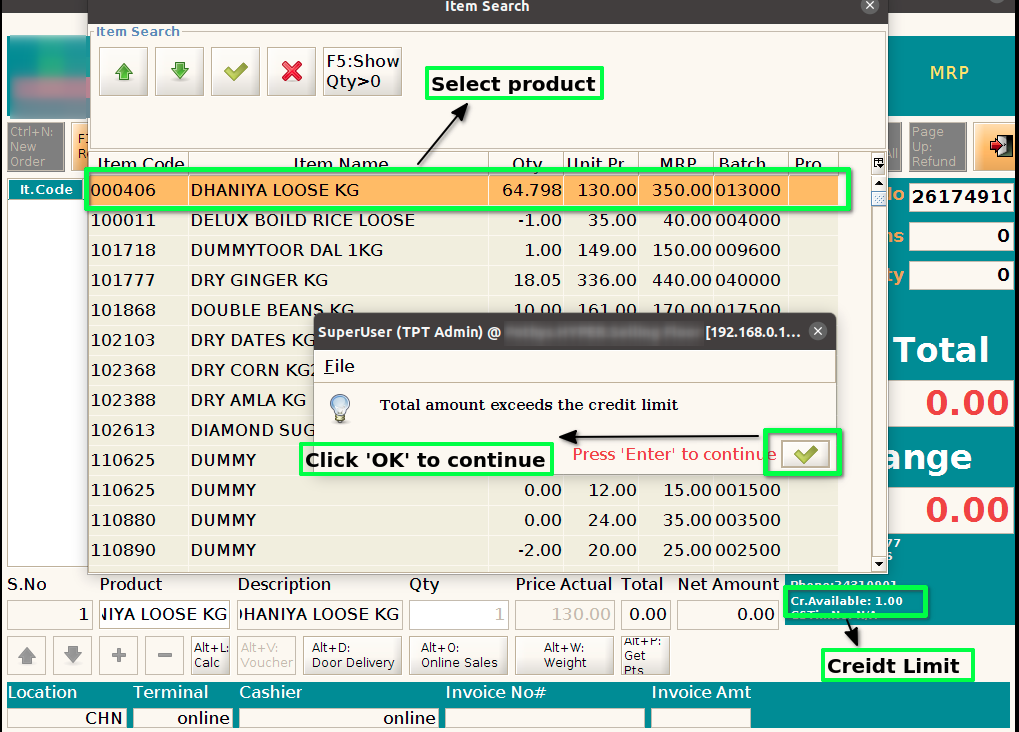
- Total credit value must not exceed the credit limit
- Each credit bill must be linked to a customer account
- System must track pending balances and alert if overdue
- Staff cannot use F8 unless granted proper access rights
User Interface
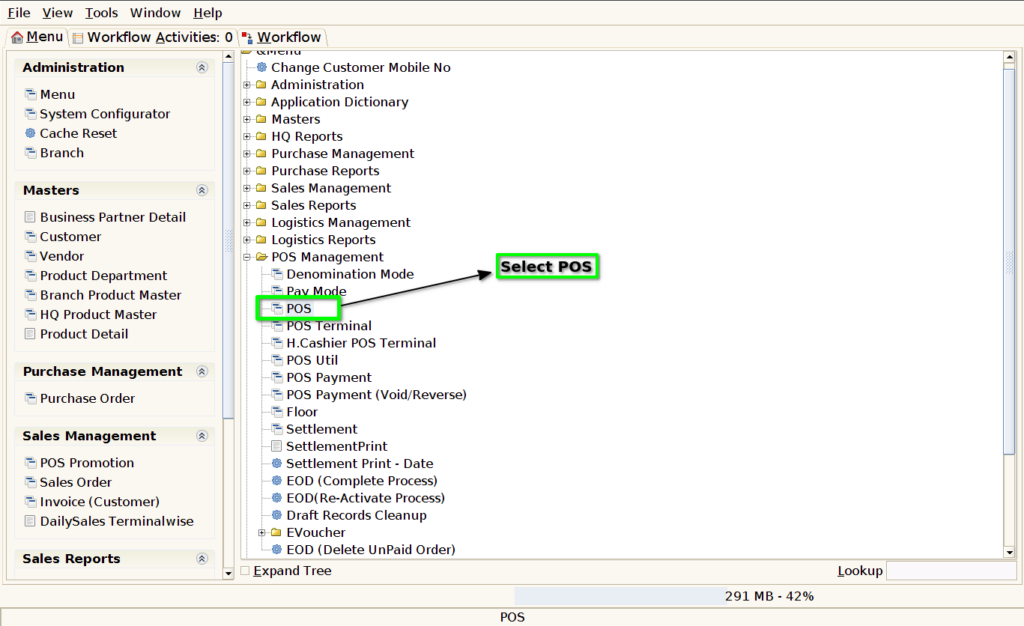
Step 1 : Select ‘POS’ in Menu -> POS Management -> POS or Search POS in Lookup.
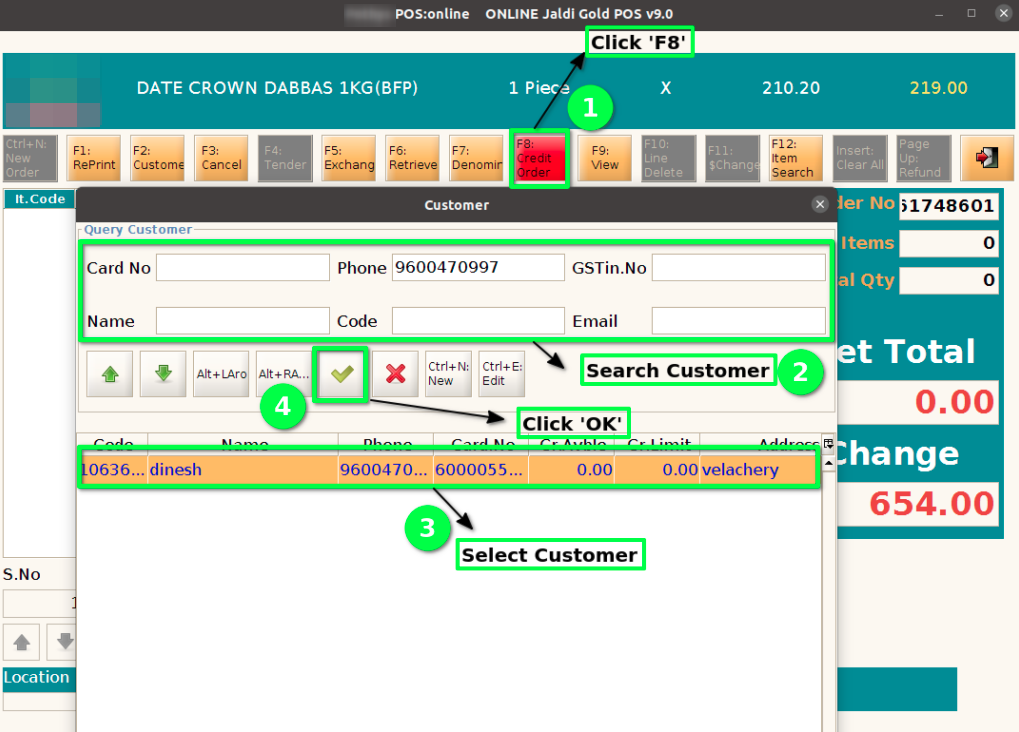
Step 2 : Select Credit Order(F8) option and select the customer (GST customer/Non GST customer)
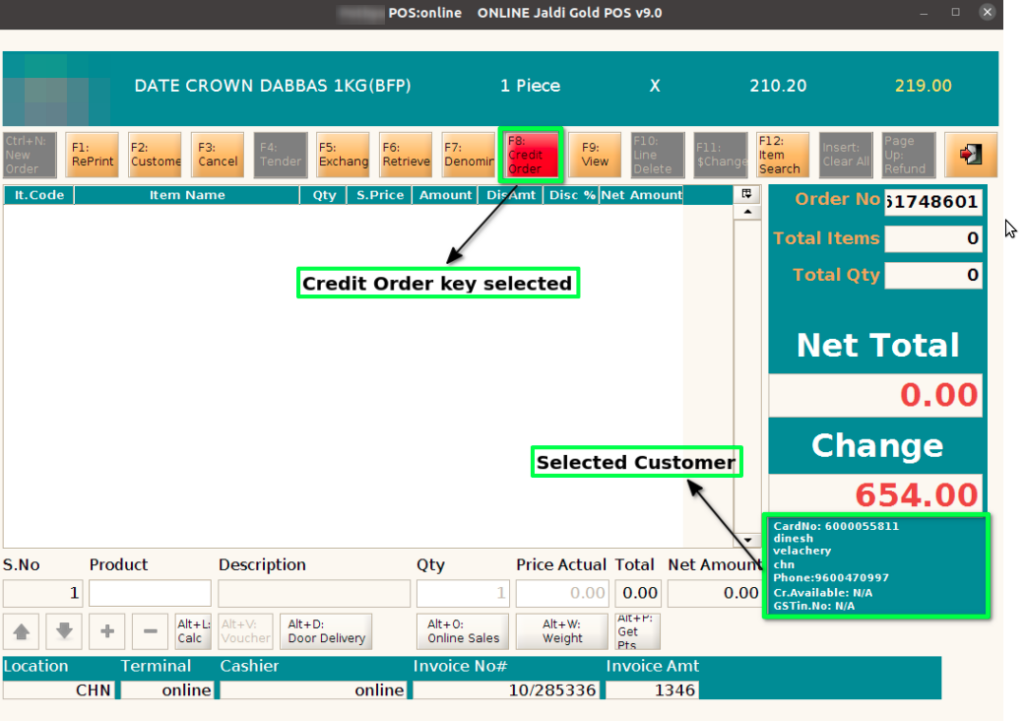
Step 3 : The credit order function key will be highlighted and selected customer details will show
Step 4 : Scan the products and click F4, if credit sale discount? option not selected in branch configuration. Invoice will generate automatically
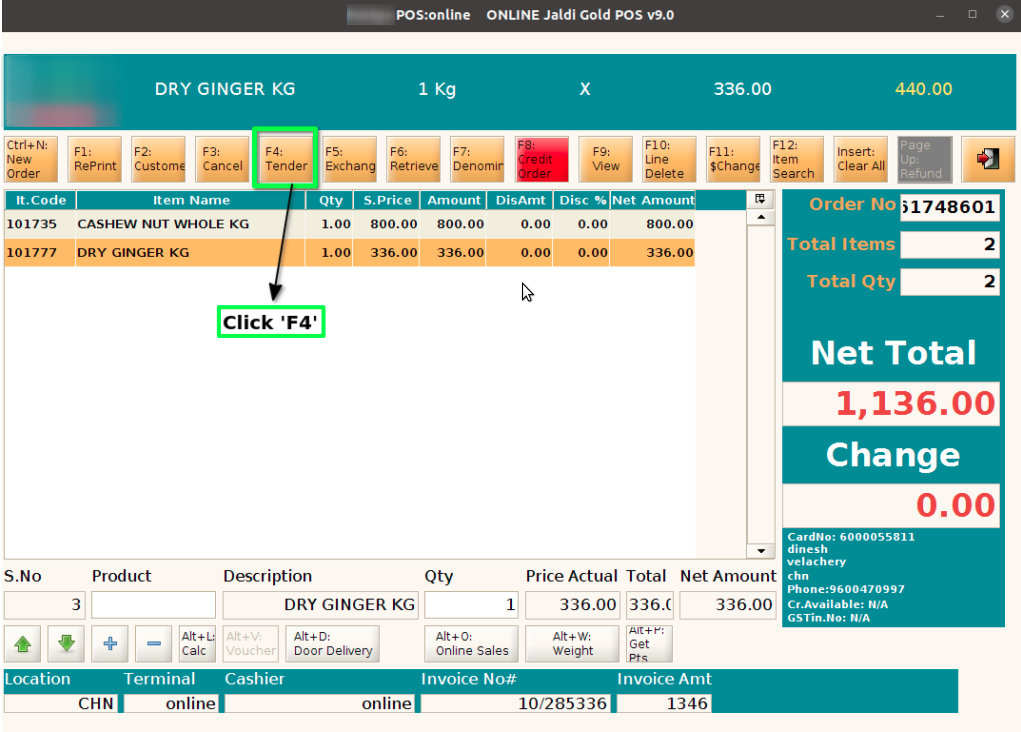
Step 5 : if credit sale discount? option selected in branch configuration. Payment screen will open, press ‘Alt+F4’ order complete
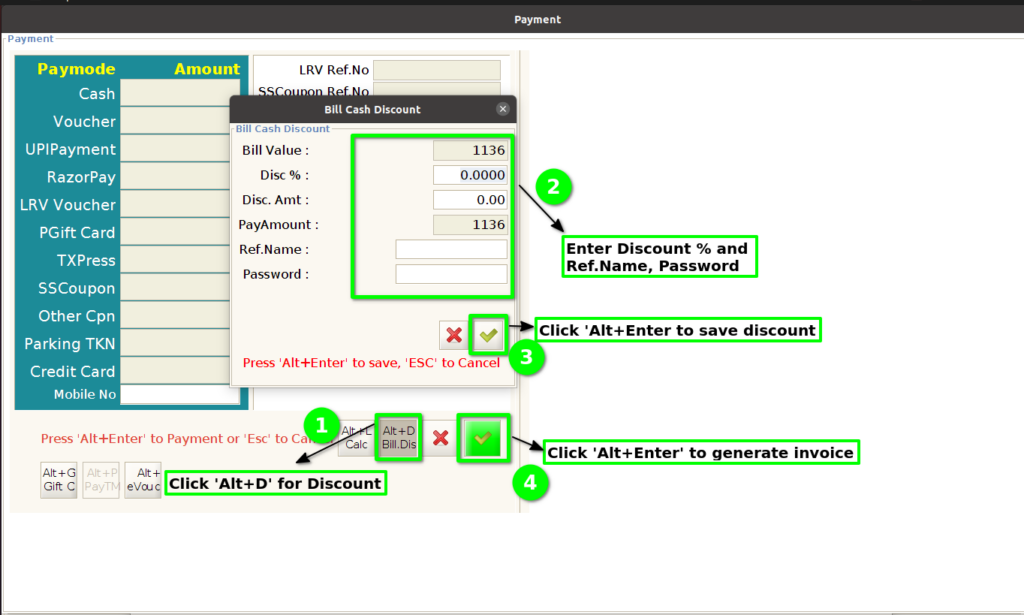
Step 6 : If the customer does not have enough credit limit, system should not allow to scan the products