POS Screen Overview in ADempiere Retail
The POS (Point of Sale) screen is the central interface used by sales staff or cashiers to process customer sales, apply discounts, and generate invoices. It displays all necessary tools to perform billing operations in real-time at the counter.
User Access
Who Can Access
- Cashier
- Head Cashier
What User Can Do
- Scan or search products by barcode, name, or item code
- View item details: name, price, stock, tax, discount
- Modify quantity, price (with rights), or apply offers
- Select customer details (walk-in or registered)
- Choose payment modes (cash, card, UPI, wallet, credit)
- Apply promotions, loyalty points, and coupons
- Generate and print bill/tax invoice
- Process returns, exchanges, or void bills
Pre-Requisite Activities
- Product Entry Panel – add or scan items
- Billing Summary – subtotal, discount, tax, net total
- Customer Info – assign customer for loyalty or credit
- Payment Panel – split or full payments
- Navigation Buttons/Shortcuts – Save, Cancel, Hold, Void, etc.
- Additional Features – apply promo, print duplicate, F8 for credit bills
Business Rules
- Only authenticated users can access POS
- Price changes require special permissions
- Every bill must have at least one item and payment mode
- Real-time stock deduction after bill save
- Promotions apply automatically or manually based on setup
- POS is linked with inventory, finance, and loyalty modules
User Interface
Step 1 : Select ‘POS’ in Menu -> POS Management -> POS or Search POS in Lookup.

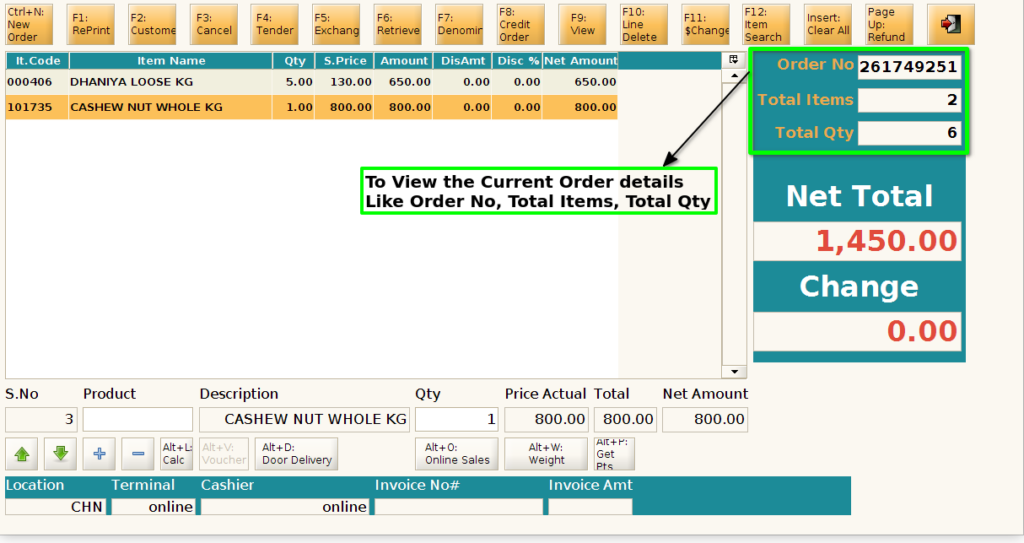
Step 2 : To View the current order details, Right side of the screen
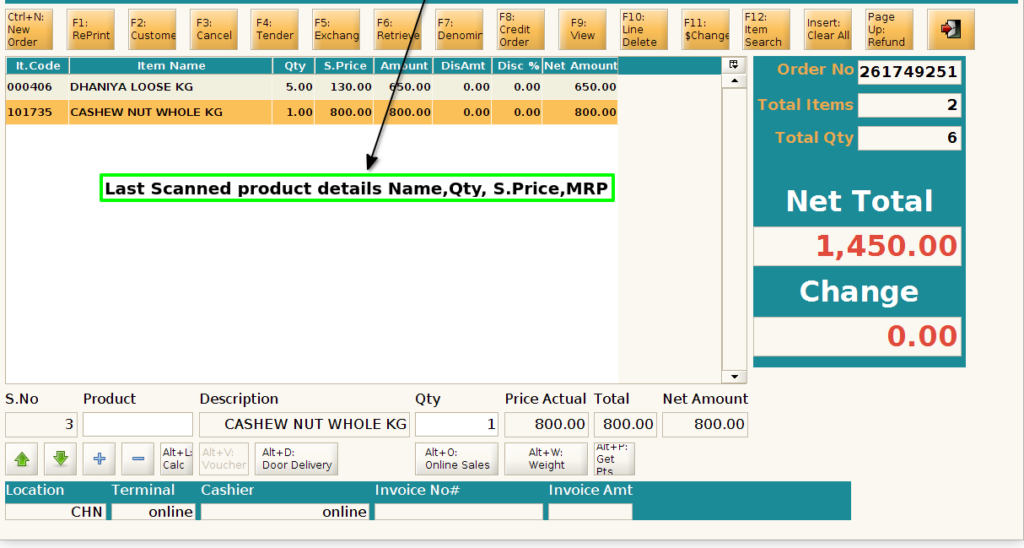
Step 3 : To view the Last Scanned product details of the Top of the screen
Step 4 : To view the Net Total of the current order n right side of the screen
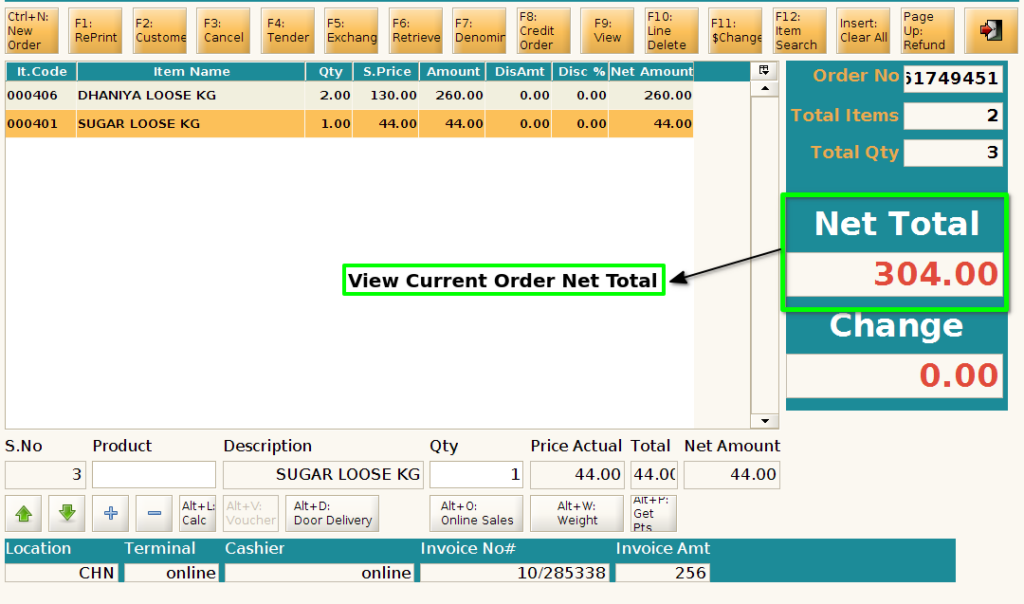
Step 5 : To view the Location, Terminal, Cashier, Last Invoice Number, Last Invoice Amount in the bottom of the screen