How to Delete a Line Item in ADempiere Retail POS?
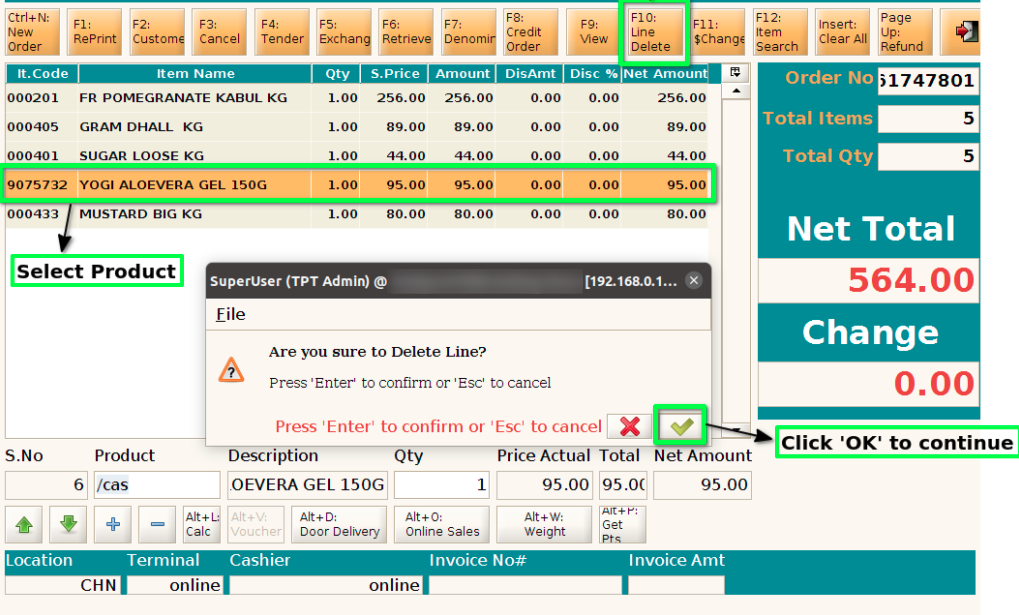
Line Delete (F10) in POS means removing a specific product/item line from the current bill or transaction before finalising or printing the invoice. This is useful when the customer changes their mind, a product is scanned by mistake, or a wrong quantity/price was entered.
User Access
Who Can Access
- Cashier
- Head Cashier
What User Can Do
- Press F10 to delete a selected line item
- Remove multiple items by selecting and pressing F10 repeatedly
- System will auto-recalculate totals after deletion
Pre-Requisite Activities
- POS system must have keyboard shortcut (F10) configured
- Define user access for allowing/disabling line delete
- Set system rules for audit logging line deletions
- Configure alerts or confirmation before deletion
Business Rules
- Line delete is only allowed before final billing/print
- Cannot delete mandatory items (if business rule exists)
- System must log user ID, time, and item removed
- If discount applied, it should be revalidated after deletion
- Voided/deleted items should not affect stock unless already deducted
- If loyalty points/coupons are linked to the item, system must recalculate eligibility
User Interface
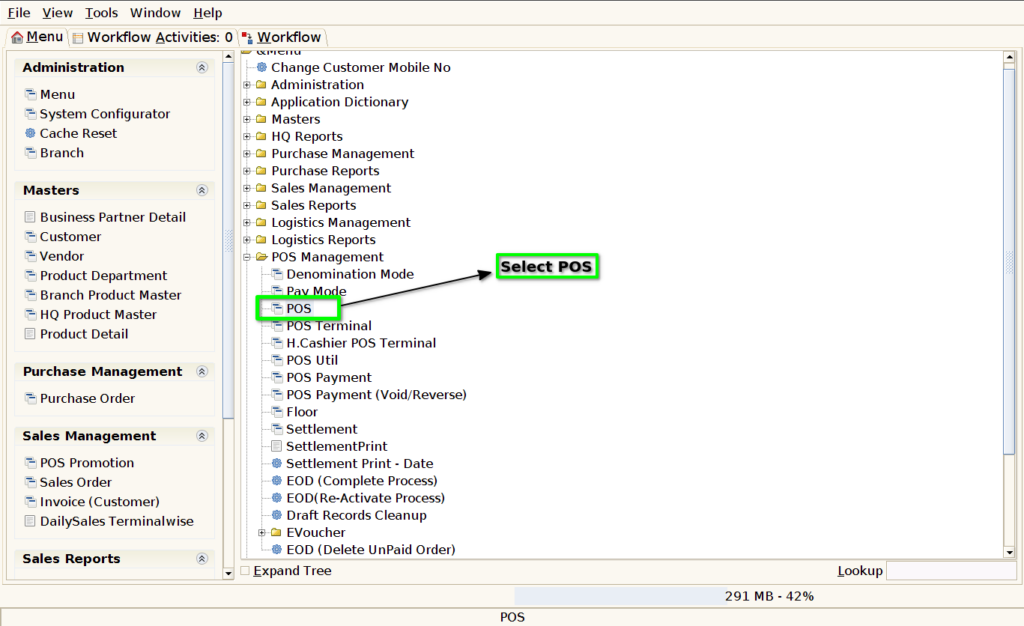
Step 1 : Select ‘POS’ in Menu -> POS Management -> POS or Search POS in Lookup.
Step 2 : Search Product using Product Code, Product Name, Barcode, IMEI, Serial Number

Step 3 : Select the product to delete and press ‘F10’ for Line delete