Jdk – 1.6 (Java Development Kit) Installation Guide in ADempiere
To Running JALDI application we need to install JAVA 1.6.0_45
Note :
We need to download the jdk-6u45-linux-x64.bin file in bellow location
https://www.oracle.com/in/java/technologies/javase-java-archive-javase6-downloads.html#license-lightbox
User Access
We need to install java in /usr directory
So we need to move the jdk1.6.0_45 folder in /usr directory as super user
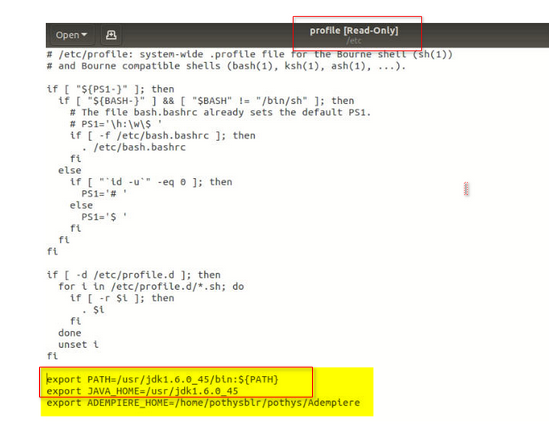
We need to add java environment variable in /etc/profile
So we need to add the java home path in /etc/profile as super user
Pre -Requisite
System requirements (recommended) :
- OS : UBUNTU 18.04LTS
- Architecture : 64 BIT
- RAM : 8 GB
- Disk Space : 500GB
- Processor : Minimum Pentium 2 266 MHz processor.
Business Rule
Step – 1 : Cautious about java version
Step – 2 : Cautious about java Home environment and java path environment
Step – 3 : Need to provide Required Information While setting java environment
Step – 4 : Ensure java location path in /usr and java environment variable in /etc
Steps to be followed
- Step – 1 : Update the system
- Step – 2 : Download jdk-6u45-linux-x64.bin version
- Step – 3 : Extract java file from Binary Package
- Step – 4 : Verify java configuration after being extracted from Binary Package
- Step – 5 : Need to create an Environment location
- Step – 6 : Verify java installation and setup Location
User interface
Step – 1 : Update the system
Before start to do a configuration need to update the system by following commands ,
sudo apt-get update
Step – 2 : Download jdk-6u45-linux-x64.bin version
https://www.oracle.com/in/java/technologies/javase-java-archive-javase6-downloads.html#license-lightbox
Download java as Linux x64 binary file format ;
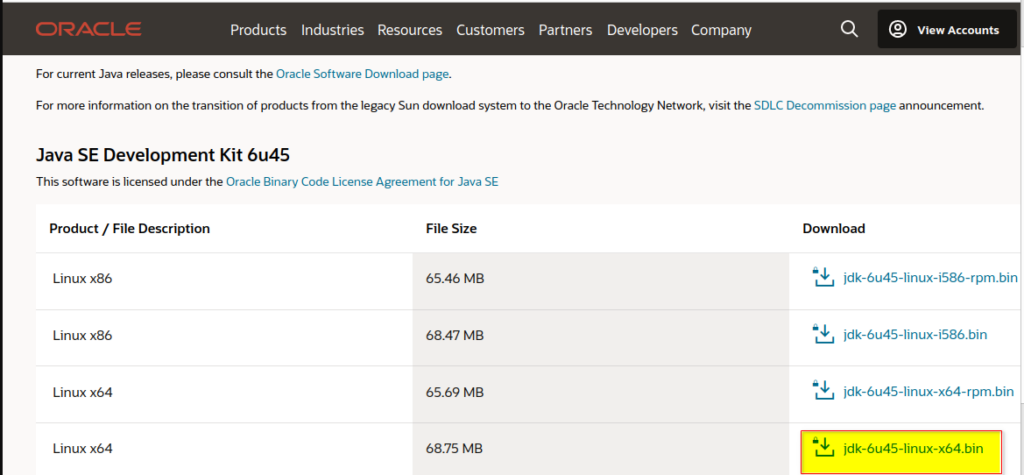
Once download done, Access given to jdk file
Step 3 : Extract java file from Binary Package
Step – 4 : Verify jdk1.6.0_45 after extracted from binary format
We can find jdk1.6.0_45 take places after extracted from binary format & open terminal by right click
Step – 5 : Need to Move jdk1.6.0_45 an /usr location
Need to Configure JAVA HOME_PATH
- Move the java file into “usr” Directory
picture for java file moved to “usr” directory :
- Goto “etc” directory for setting java home_path
picture for “changing directory into “etc” :
- Need to view “profile” via gedit
Add java home_path in etc environment
profile configuration for java home path setup
Note :
- Once you configured java Home_path in “etc” profile , Need to Restart the system
Step – 6 : Verify java installation and setup location
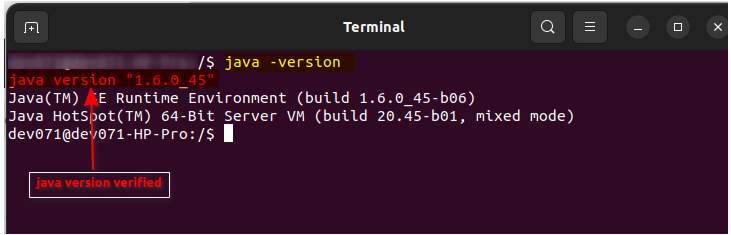
Once Java installation and configuration setup done , Need to verify the java version
To know about the java version use : ” java -version “
Standard Operating Procedure ( SOP )
- Need to follow the installation guide if anything has to do
- Follow the structure format of Install java 1.6 version
- Have a communication with TPT Administrator for clarification
- Don’t modify ” JAVA_HOME and JAVA PATH”
- Keep confidential of System credentials
FAQ
1 . What we have to do , if JAVA 1.6 unable to install ?
Follow the Bellow Commands to continue with JAVA 1.6
verify jdk1.6.0_45 in /usr location
verify the jdk1.6.0_45 folder permission
verify /etc profile JAVA_HOME , PATH currently
again restart system
2. Can we use multiple java version in a system ?
Yes , you can use multiple version to be use in /usr directory.but only one JAVA_HOME , PATH to setup in system
3.How to fix Ubuntu 18.04 unable to update
sudo apt-get remove purge app stream gnome