How to Hold/Retrieve a POS Bill in ADempiere Retail?
Bill Hold allows a cashier to temporarily pause a bill without cancelling it. Bill Retrieve enables the cashier to resume the held bill later and complete the transaction
User Access
Who Can Access
- Cashier
- Head Cashier
What User Can Do
- Hold a bill at any time during billing
- Retrieve a previously held bill to continue billing and complete the payment.
- Print the bill after retrieving it, just like a normal transaction
Pre-Requisite Activities
- User must be logged into the POS with appropriate billing permissions.
- Bill must be in progress to use the Hold function.
- System configuration must allow “Hold/Retrieve” feature in POS settings.
Business Rules
- Only unsaved bills can be held.
- Each held bill must be assigned a unique Hold ID or Reference Number.
- Retrieval can only be done by the same user or based on store configuration.
- Bills held beyond a certain time (e.g., end of the day) may be auto-cancelled based on settings.
- The number of bills that can be held simultaneously may be limited by system rules.
User Interface
Step 1 : Select ‘POS’ in Menu -> POS Management -> POS or Search POS in Lookup.

Step 2 : Search Product using Product Code, Product Name, Barcode, IMEI, Serial Number
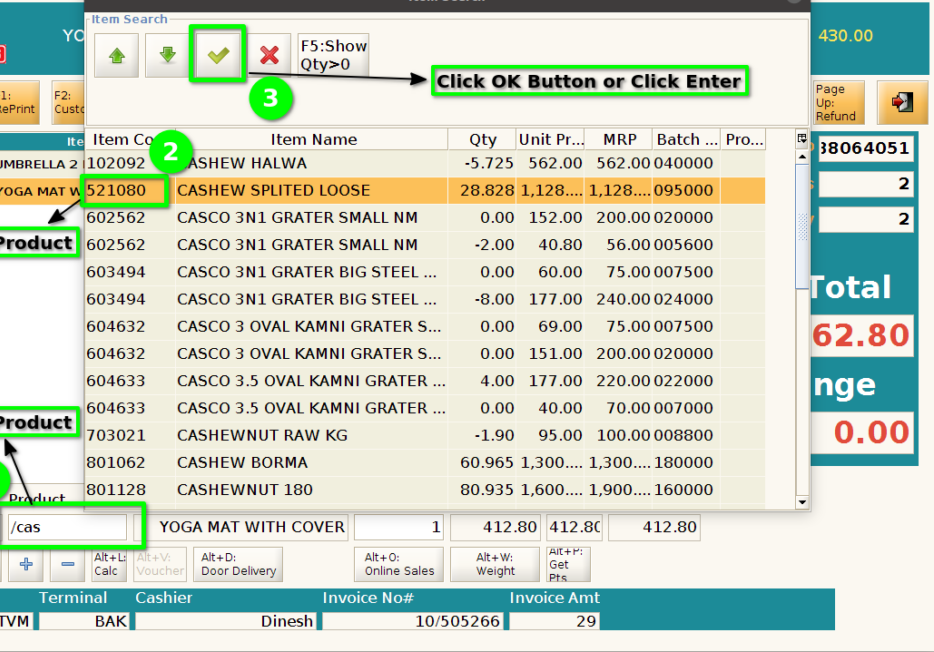
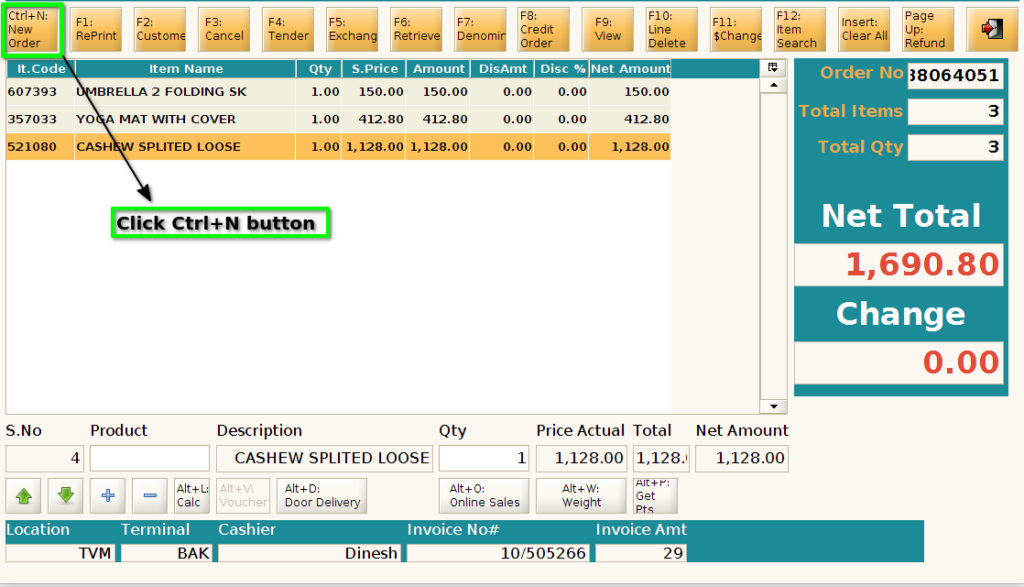
Step 3 : Click Ctrl + N button for Hold the order
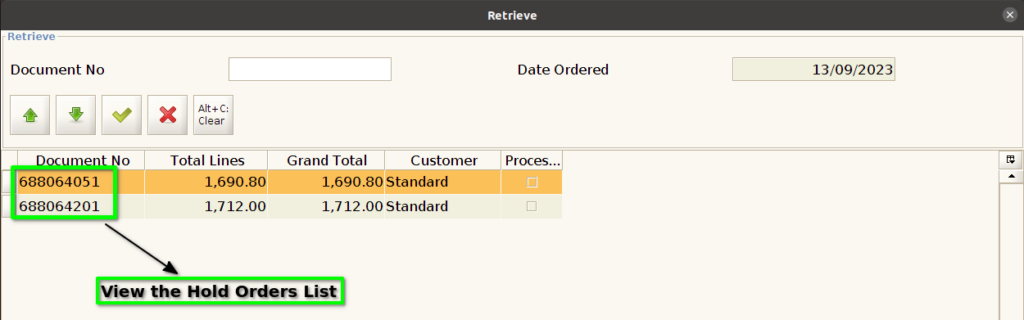
Step 4 : Click F6 for retrieve the hold order

Step 5 : User can able to view hold orders list
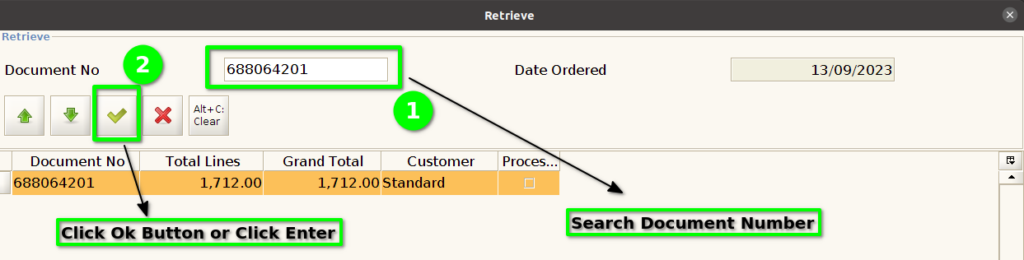
Step 6 : User can able to select the hold orders by using document search option or with help of up/down keys and click enter
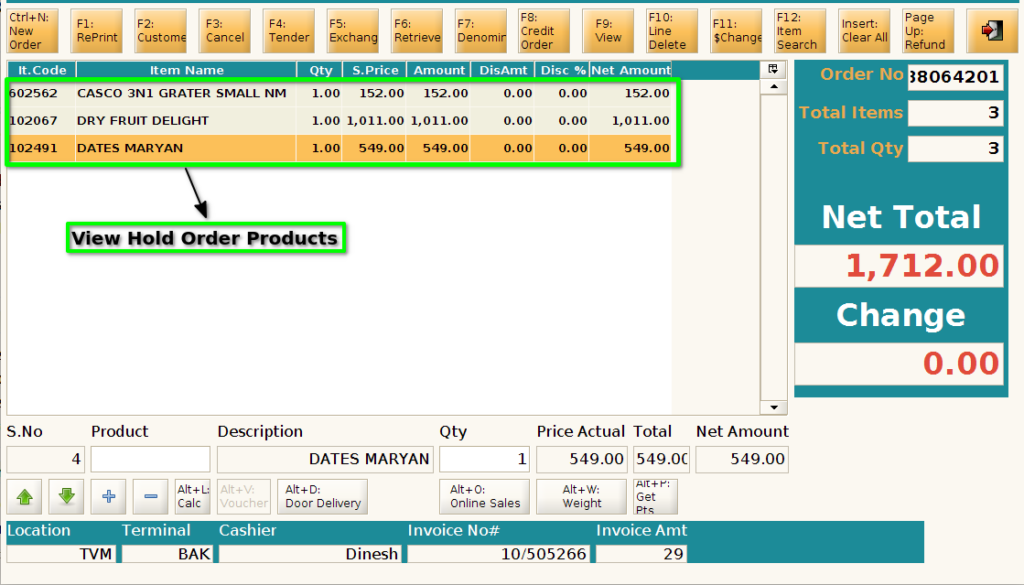
Step 7 : Selected Hold orders products list in pos screen
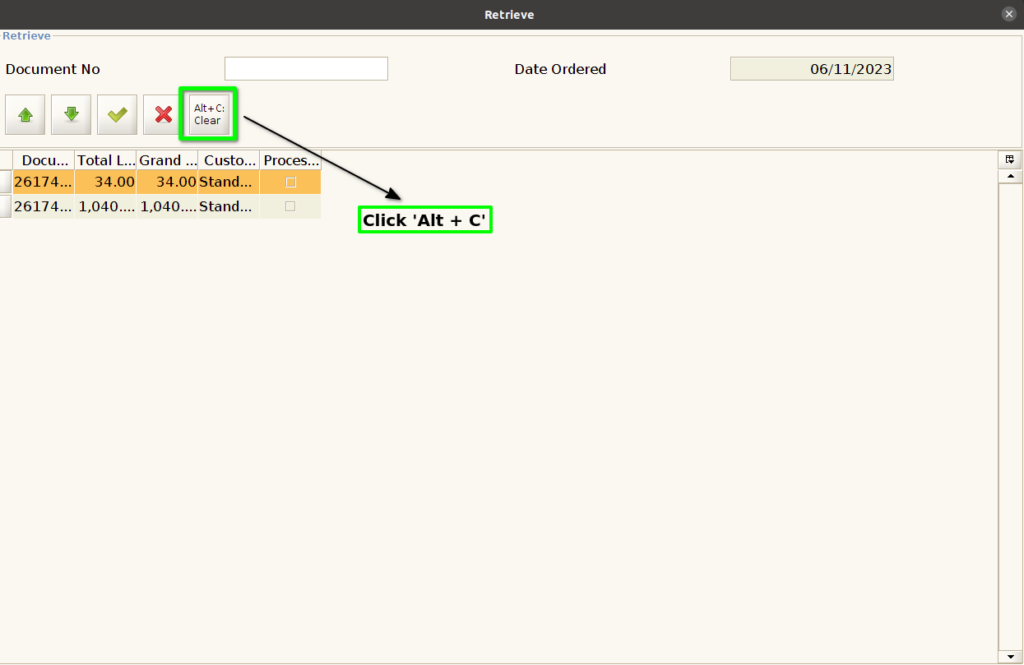
Step 8 : Clear all hold orders using ‘Alt + C’ in Retrieve screen
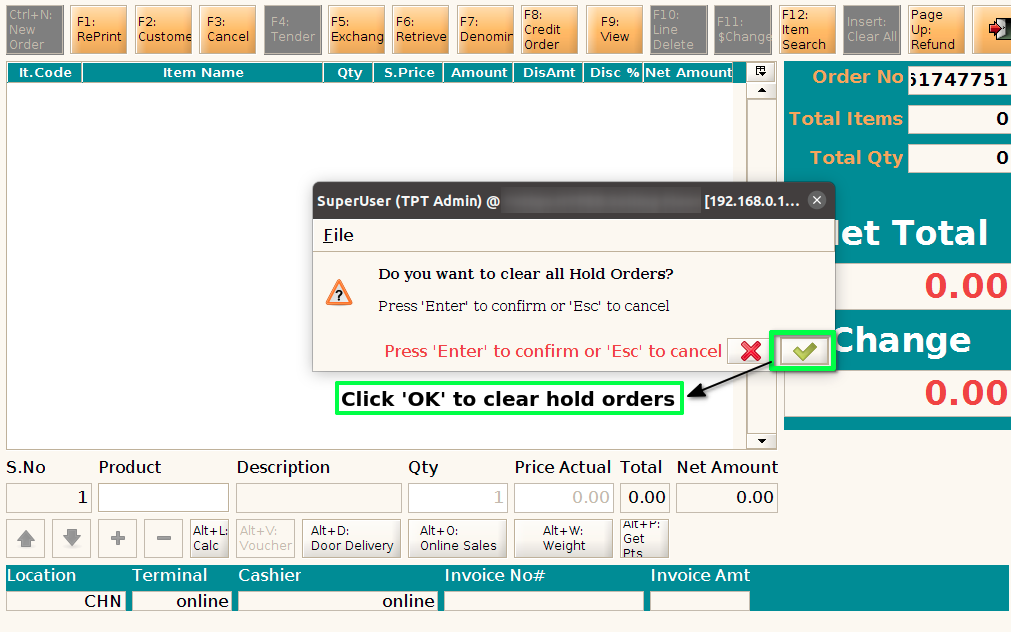
Step 9 : Enter head cashier password and click ‘Enter’ to clear the hold orders
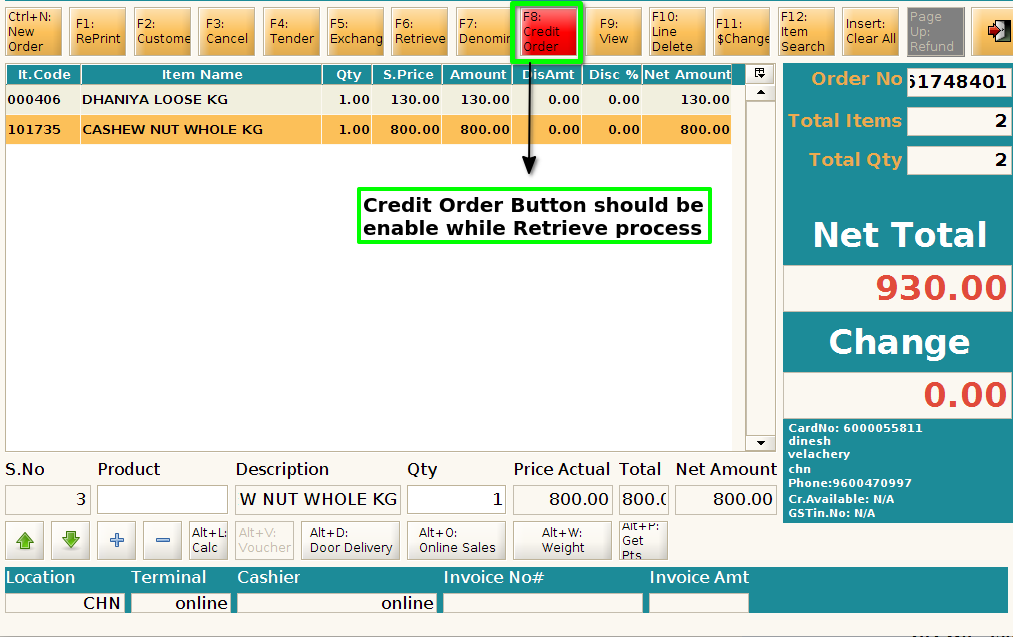
Step 10 : While Retrieve the credit order, the credit order button should be enabled (Red colour highlight)
Step 11 : While Retrieve the Door Delivery, the door delivery button should be enabled (Red colour highlight)
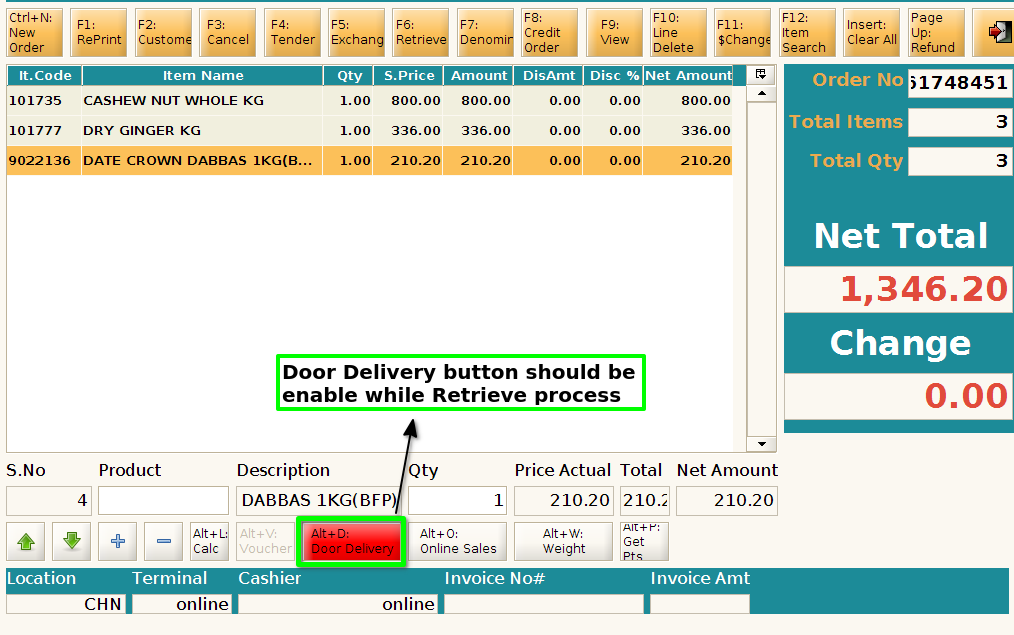
Step 12 : While Retrieve the Online Sales, the online sales button should be enabled (Red colour highlight)
