How to reactivate a Day for Sales in ADempiere Retail
EOD (End of Day) Re-Activate Process means reopening or re-enabling a previously closed day’s transactions in the system to allow corrections or adjustments after the day’s official close.
User Access
Who Can Access
- Back Office
- Cashier
- Manager
- Admin
What User Can Do
- Request re-activation of a closed day’s transactions to make necessary corrections.
- Modify or adjust transactions that were finalized after the day was closed.
- Add missing transactions that were not recorded before the EOD close.
- Re-run reports or settlements after making corrections.
- Require authorisation or approval
Pre-Requisite Activities
- Obtain Manager/Admin Approval
- Verify Reason for Re-Activation
- Ensure System Stability
Business Rules
- EOD re-activation can only be performed by authorised users (manager or admin).
- A valid reason must be documented and approved before re-activating a closed day.
- Users must re-run settlement and reports after completing necessary corrections.
- Re-activation must not compromise data integrity or create duplicate transactions.
User Interface
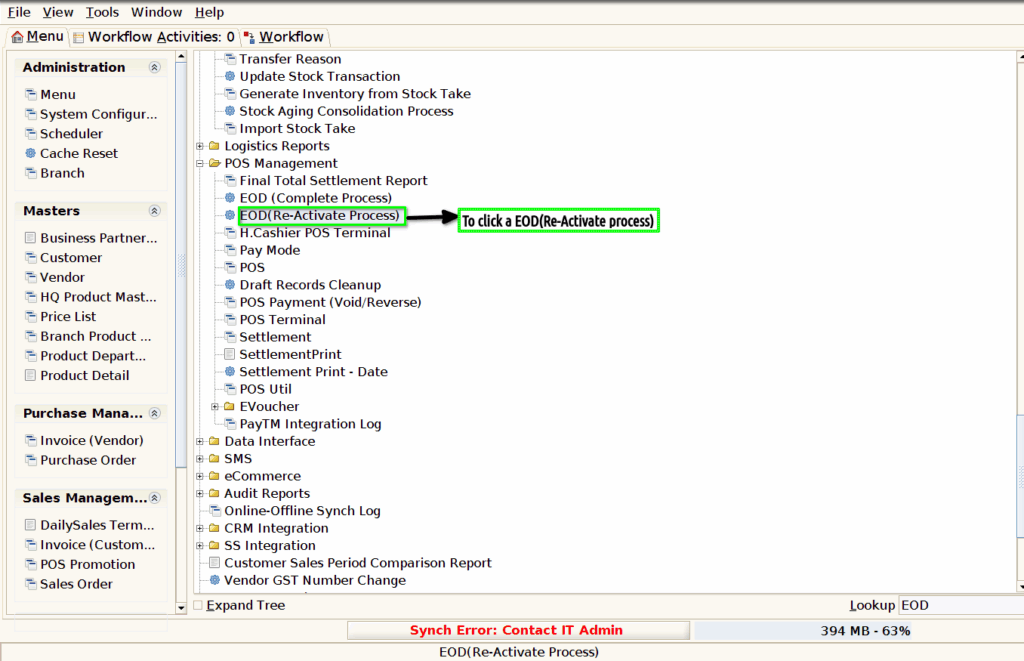
Step 1 : To Select a Branch in Menu.Then to click a EOD(Reactivate process).
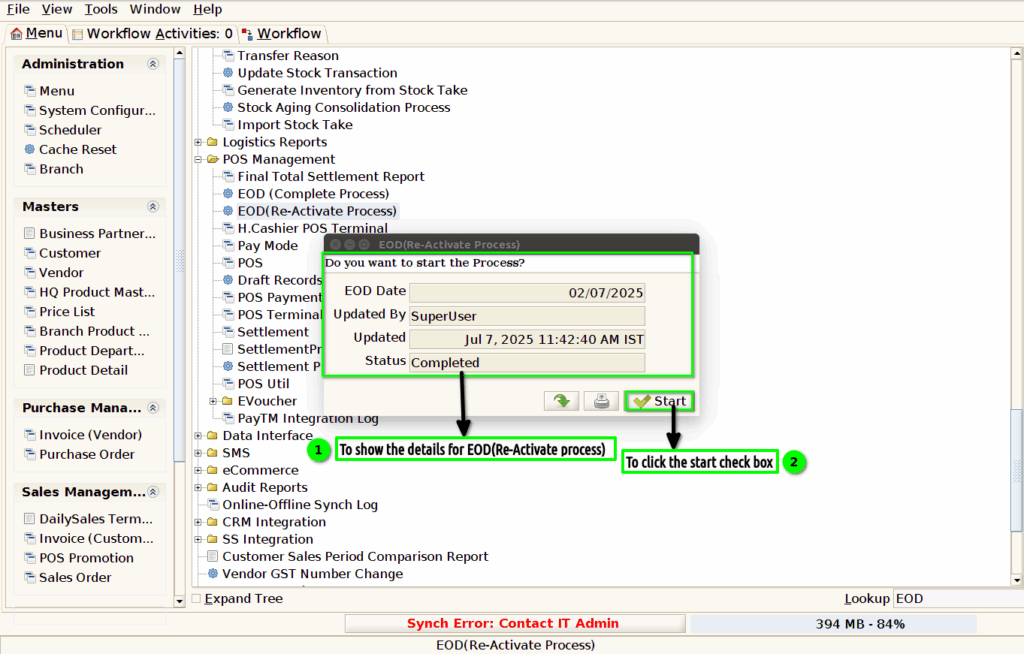
Step 2 :To show the details for EOD(Reactivate process).And then to click the start process.
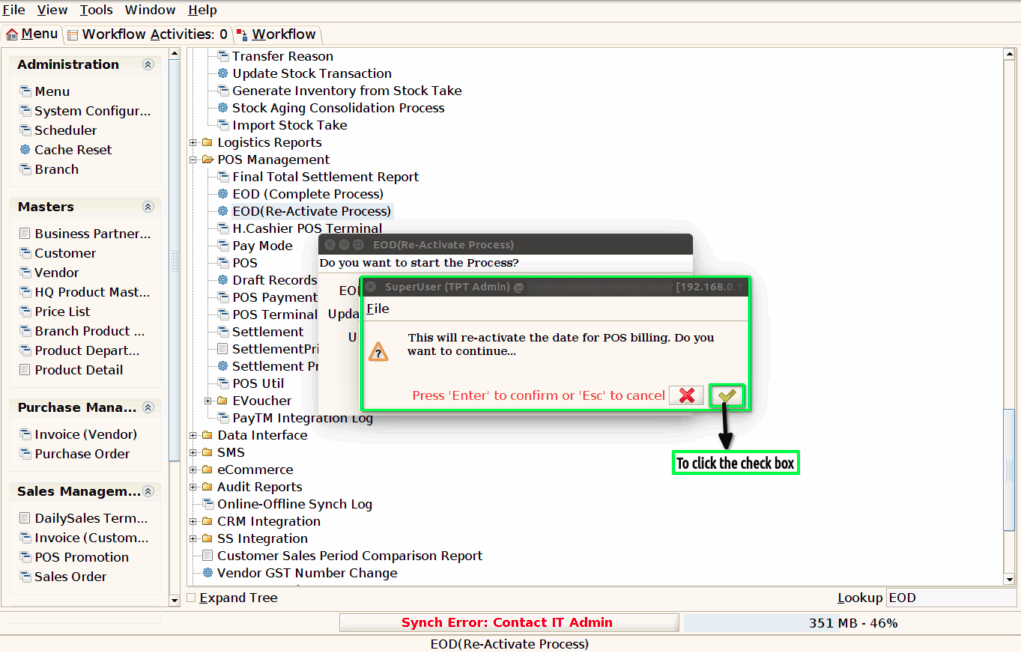
Step 3 :To click the Check Box.
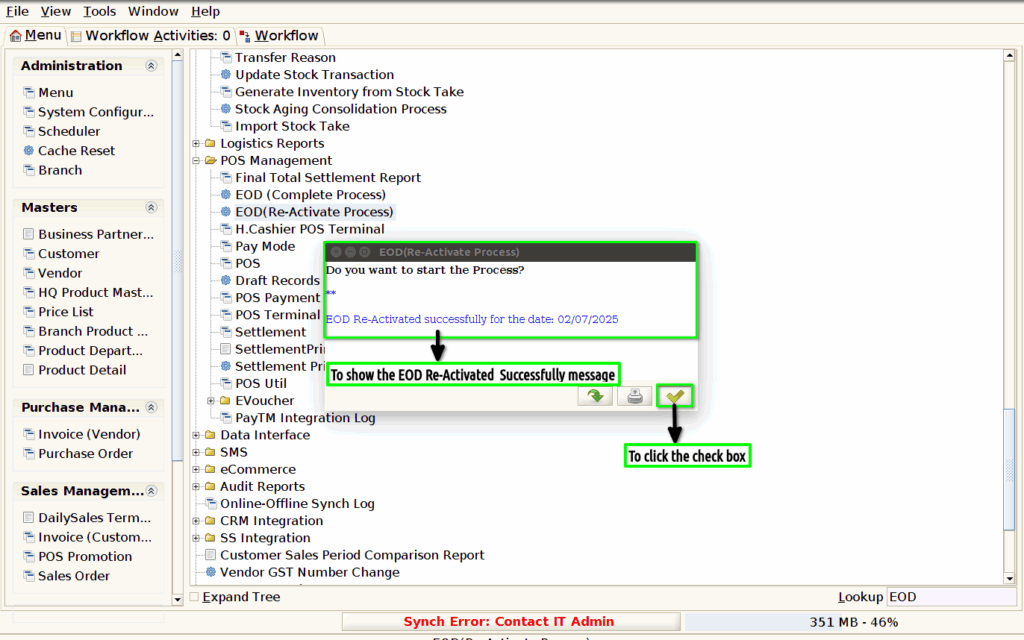
Step 4 :Once to run the process and to show the message for EOD Reactivated Successfully.To click the check box.