How to cancel a POS Bill in ADempiere Retail?
Bill Cancel refers to the process of invalidating a completed bill due to errors like wrong product, incorrect amount, wrong customer details, or cancelled transaction. This helps maintain clean records and accurate accounting.
User Access
Who Can Access
- Cashier
- Head Cashier
What User Can Do
- Search and select the bill to cancel (based on bill number/date)
- Enter the reason for cancellation (e.g., wrong entry, duplicate)
Pre-Requisite Activities
- Enable bill cancel option in system settings
- Define roles and rights for users allowed to cancel bills
- Set up approval workflow for cancellation
- Ensure inventory and accounting modules are properly integrated
Business Rules
- Only authorized users can cancel bills
- Bill cancellation must be done on the same day, or with approval
- On cancel, stock is re-added to inventory
- Original bill number is retained for audit; marked as cancelled
User Interface
Step 1 : Select ‘POS’ in Menu -> POS Management -> POS or Search POS in Lookup.

Step 2 : Click F3 button for cancel the invoice

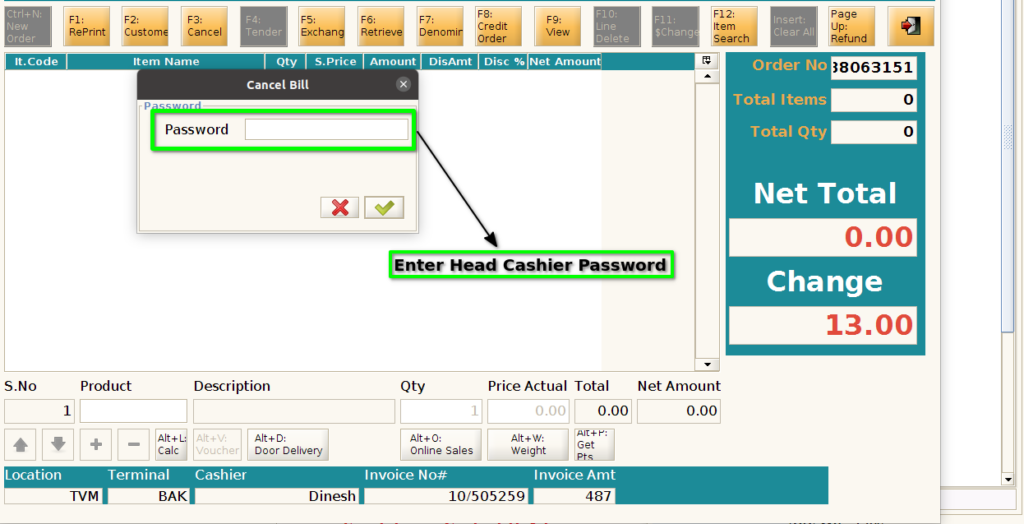
Step 3 : Enter Head cashier password to cancel the invoice
Step 4 : Enter invoice number and click “OK” to cancel the invoice

Step 5 : After the ok button Bill Cancelled Successfully pop-up will show
