How to capture Sales Rep for a Line Item in ADempiere Retail
“Capture Sales Rep” means recording the name or code of the salesperson involved in a sale, either automatically or manually, during POS billing or order entry. This helps in tracking performance, calculating incentives, and ensuring accountability for every transaction.
User Access
Who can Access
- Cashier
- Head Cashier
What User Can Do
- Select Sales Rep
- Update Sales Rep
- Select or scan Sales Rep ID/Name during billing
Pre-Requisite Activities
- Maintain Sales Rep Master (name, code, mobile, role)
- Configure system to prompt or auto-capture sales rep in billing
- Link Sales Rep with users/branches
- Setup rules for incentive logic (e.g., based on sales volume)
- Train users to correctly select reps during billing
Business Rules
- Mandatory rep capture for certain branches or bill types
- Each bill can have only one primary sales rep
- Sales cannot be billed without a rep (if enabled as required)
- Only users with proper rights can change assigned rep
User Interface
Step 1 : Select ‘POS’ in Menu -> POS Management -> POS or Search POS in Lookup.

Step 2 : Search Product using Product Code, Product Name, Barcode, IMEI, Serial Number
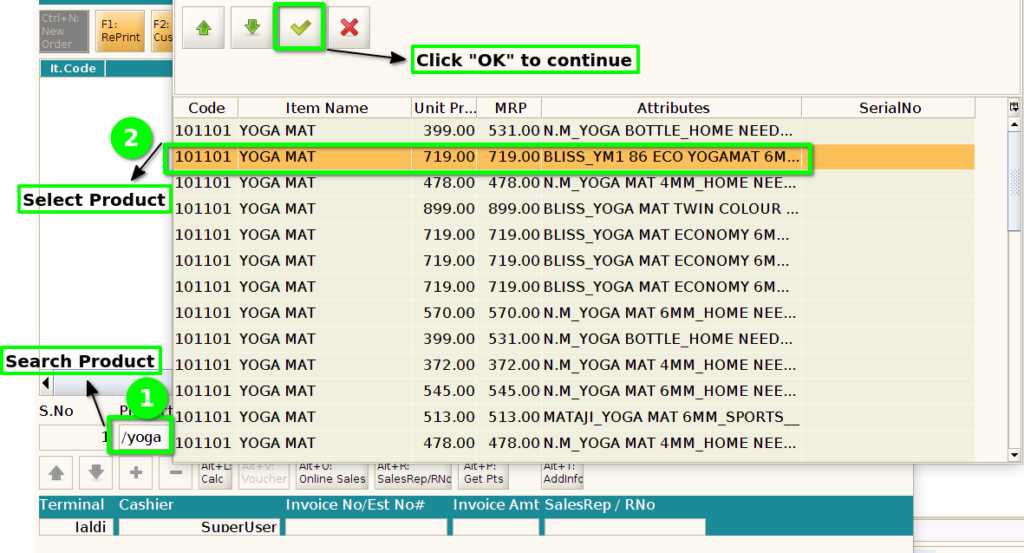
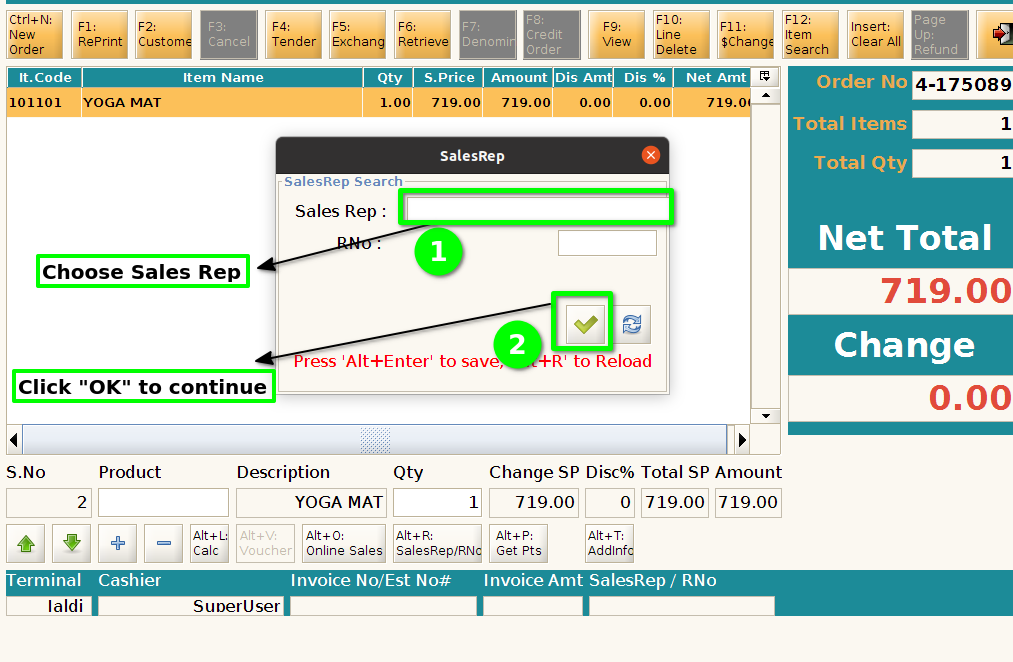
Step 3 : Choose Sales Rep for the scanned product
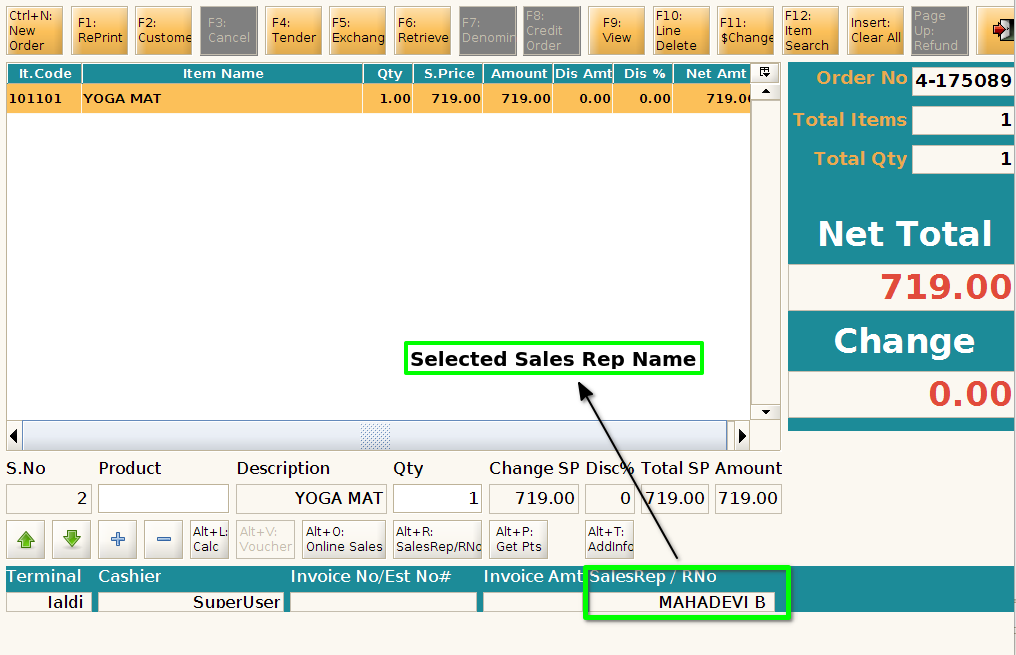
Step 4 : Selected Sales Rep name display in SalesRep/ RNo field
Step 5 : Change the Sales Rep click Alt+R Button
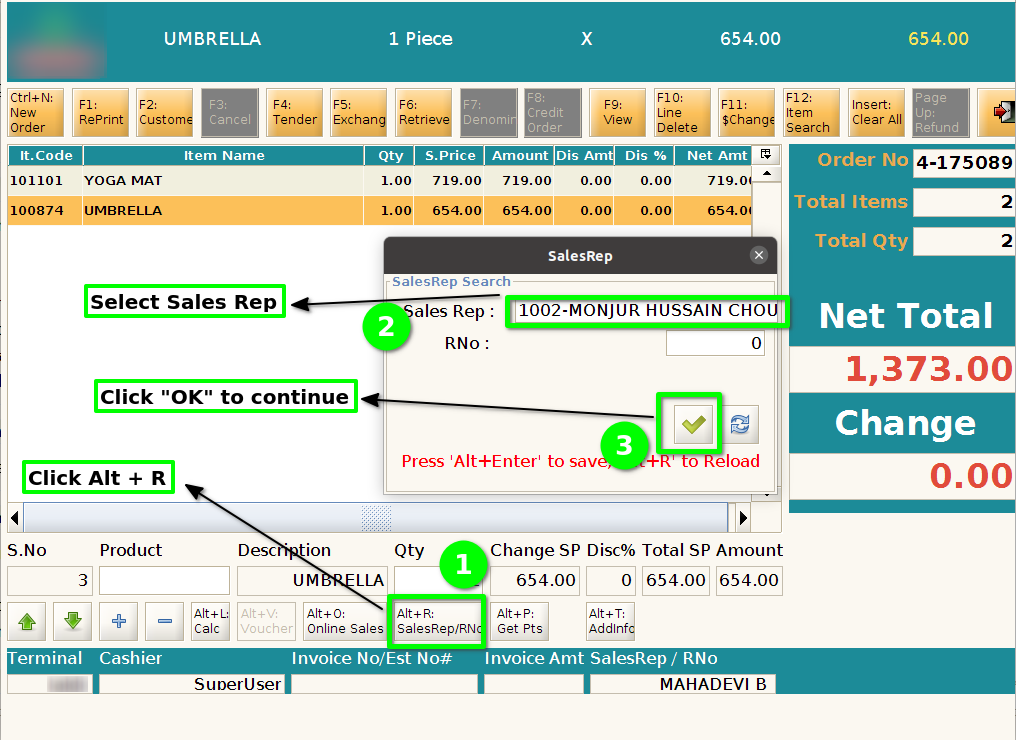
Step 6 : Updated Sales Rep name will show the Sales Rep / RNo field
