How to start a Day End Process in ADempiere Retail
EOD (End of the Day) is the process followed at the end of each business day to finalize and summarize all sales, transactions, and system activities. It ensures that daily data is accurately recorded and ready for reporting, settlement, or next-day operations.
User Access
Who Can Access
- Head Cashier
- Admin ( IT Team )
What User Can Do
- Close POS terminals and finalize transactions
- Generate daily sales reports (summary/detailed)
- Reconcile cash, card, UPI, and other payment modes
- Identify and handle discrepancies in billing or stock
Pre-Requisite Activities
- All sales and returns must be completed
- Ensure all bills are properly synced to server (SS sync)
- Verify manual entries, discounts, and coupon usage
- Resolve pending approvals or exceptions (e.g., override bills)
- Check open invoices or unpaid transactions
- Ensure all users are logged out of POS
Business Rules
- OD can be performed only once per day
- All payment modes must match the expected collection
- System must generate EOD Summary Report and archive
- Any error or mismatch must be resolved before EOD completion
- EOD triggers invoice posting and inventory impact
- No edits allowed for bills after EOD unless reversal process is applied
- EOD must be completed before the next day’s transactions begin
User Interface
STEP 1: Select EOD Complete Process
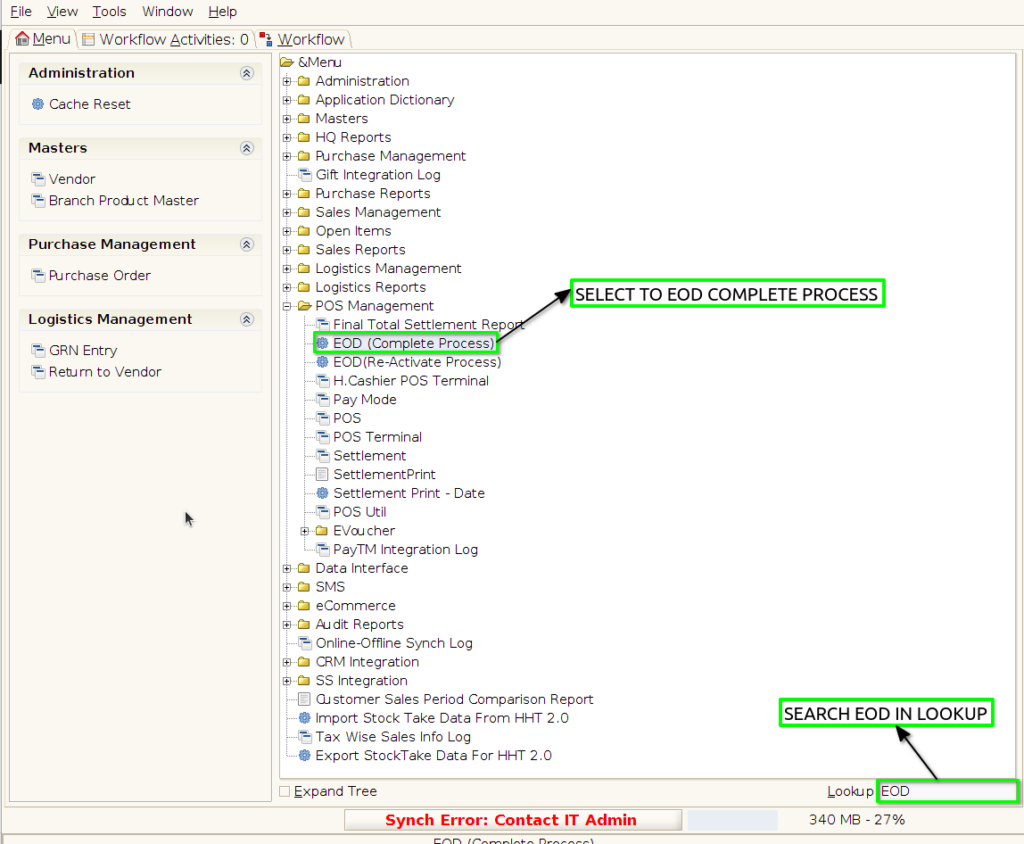
STEP 2: Alt + Enter or Click the EOD Complete Process

STEP 3: Verify Storage Update Check Box Must be in Enable While EOD Complete Process

STEP 4: Select the Start button in EOD Complete Process Showing Alert message to start EOD Process Before
STEP 5: Then Click the Tick button EOD Process Will be load
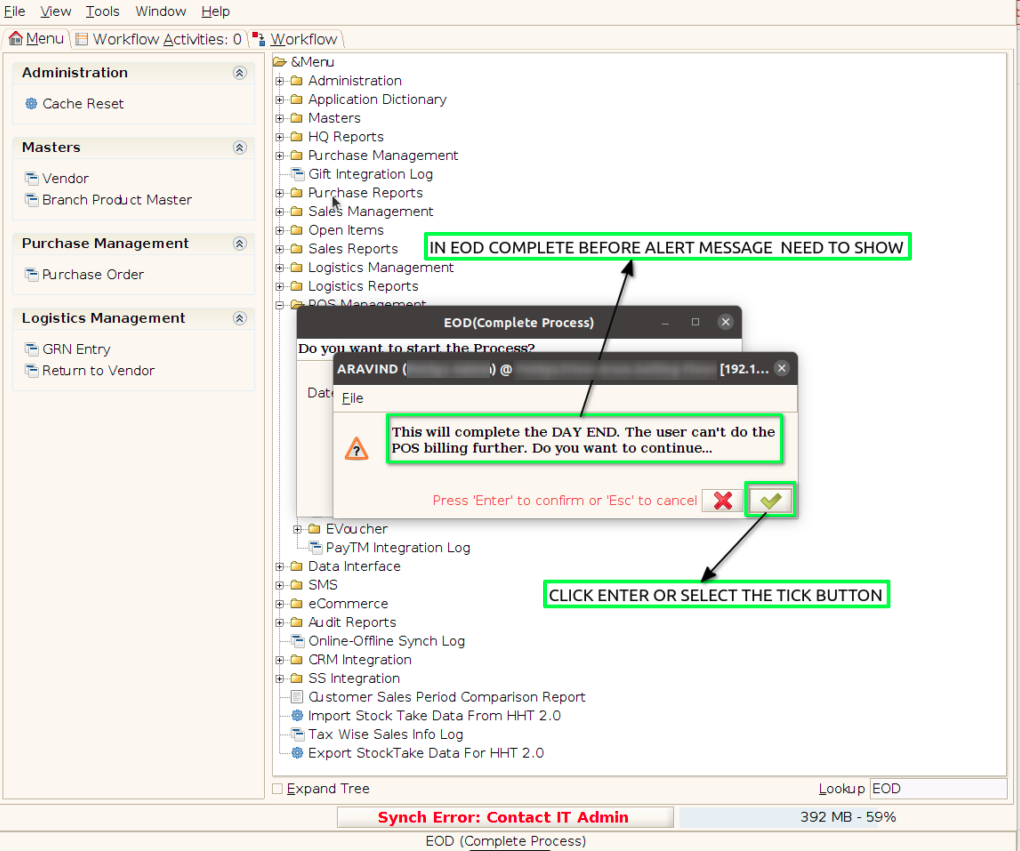

STEP 6: EOD Complete Process Loading Once Completed showing below popup without error message.

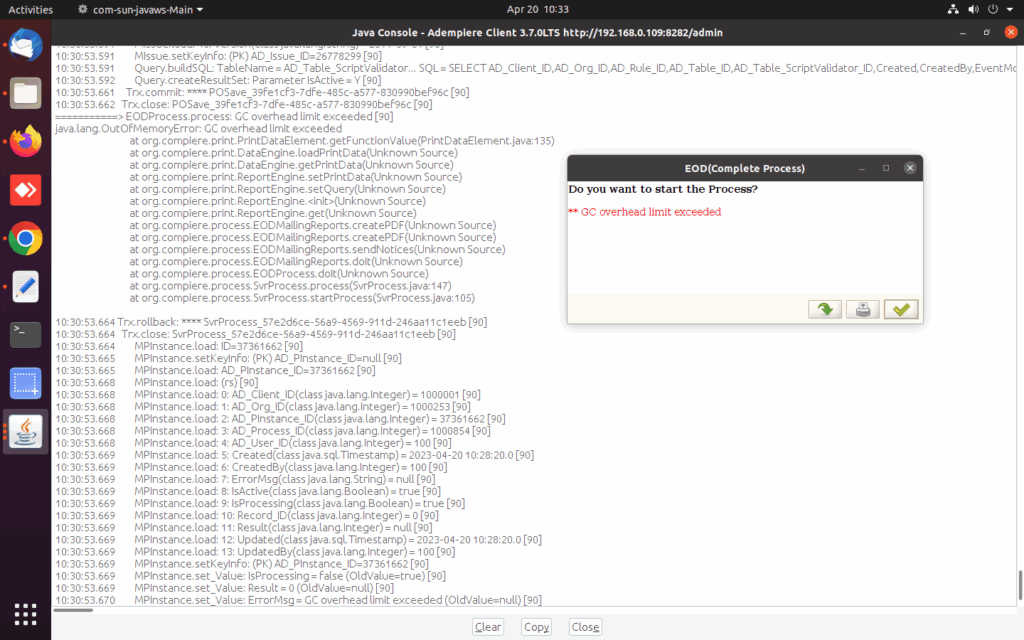
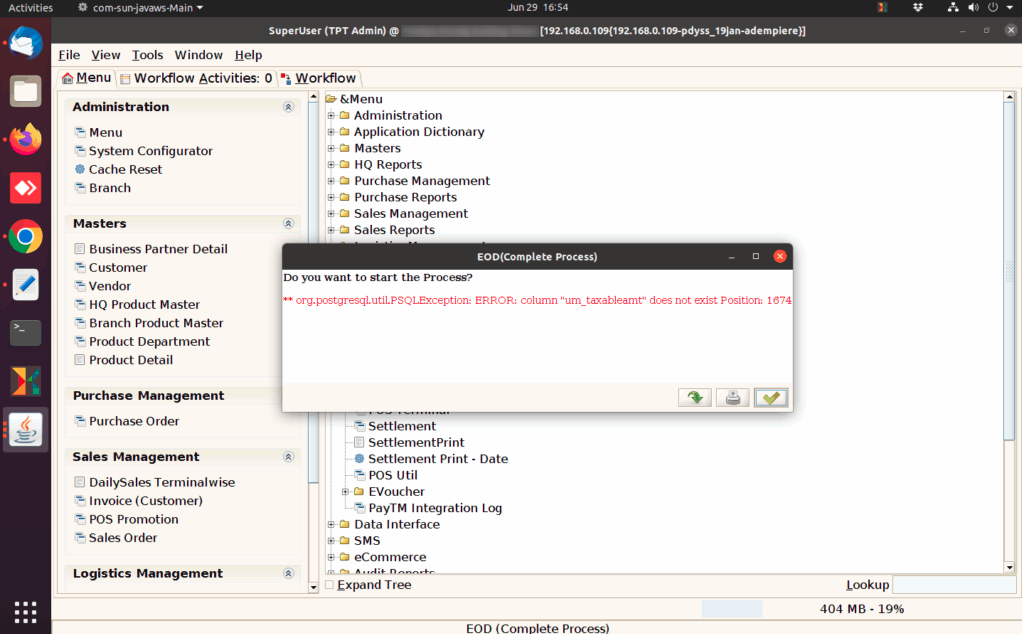
STEP 7: If any Error Have in EOD Complete Process Need to Show in popup screen (error messages in red colour)