How to synch missing Invoices to CRM Server in ADempiere Retail?
The Add Invoice to CRM Process captures each sales invoice generated in the POS or ERP system and sends it to the CRM system via API, so that the customer’s purchase history, value, and frequency are recorded centrally for loyalty, marketing, and service purposes.
User Access
Who Can Access
- Manager
- Admin
- Head Cashier
What User Can Do
- Automatically or manually send invoice data to CRM after billing.
- Ensure each bill/invoice is tagged to the correct customer (via mobile or loyalty ID).
- View invoice sync status in CRM or in the integration log.
- Re-trigger sync for failed invoice transmissions
Pre-Requisite Activities
- CRM and POS/ERP systems must be integrated via API.
- Customer must be identified at billing (optional but preferred).
- CRM API must support invoice endpoint, e.g.,
POST /invoice/create.
Business Rules
- Sync invoice details within selected date range.
- A specific customer is selected within the date range.
- Selected date range should be valid
User Interface
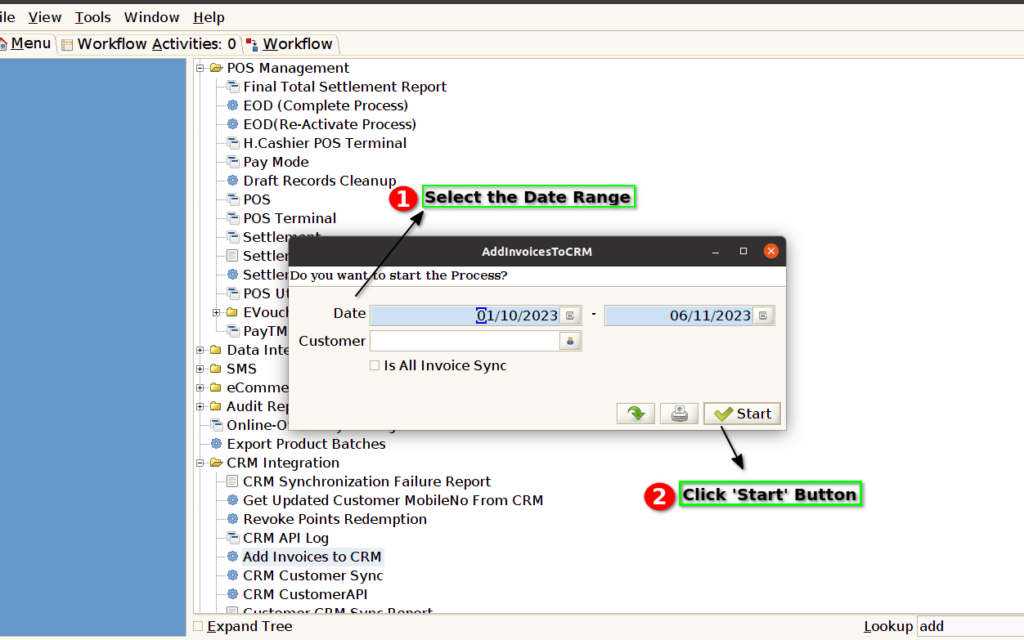
Step 1 : Select ‘Add Invoices To CRM’ in Menu -> CRM Integration-> Add Invoices To CRM or Search Add Invoices To CRM in Lookup.

Step 2: Select the date range and click start button to continue the process
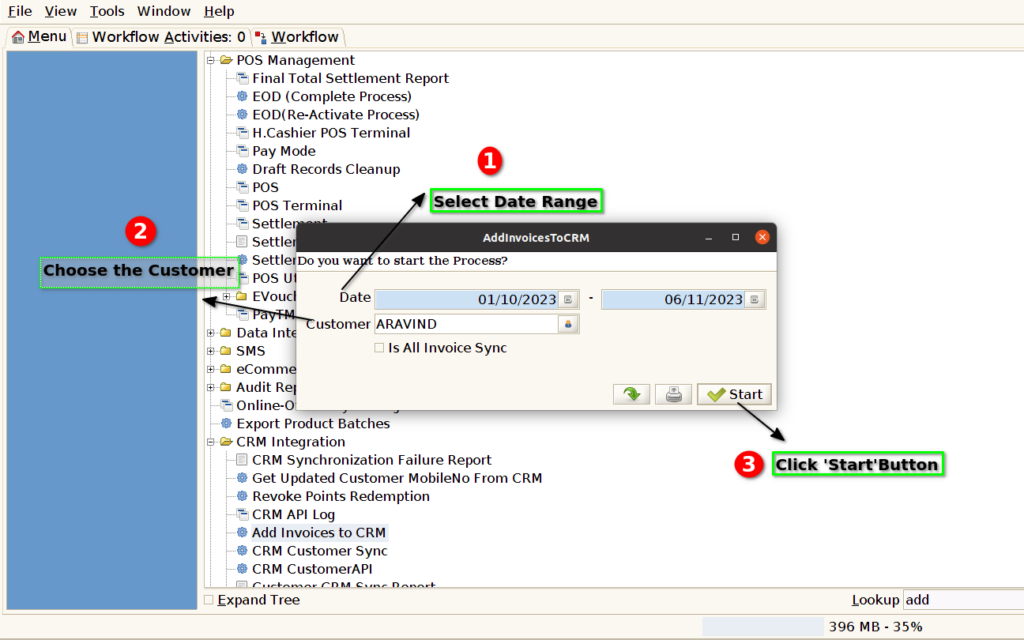
Step 3: Select the date range and customer and then click start button to complete the process
Step 4: Select the date range and click Is All Invoice sync Checkbox
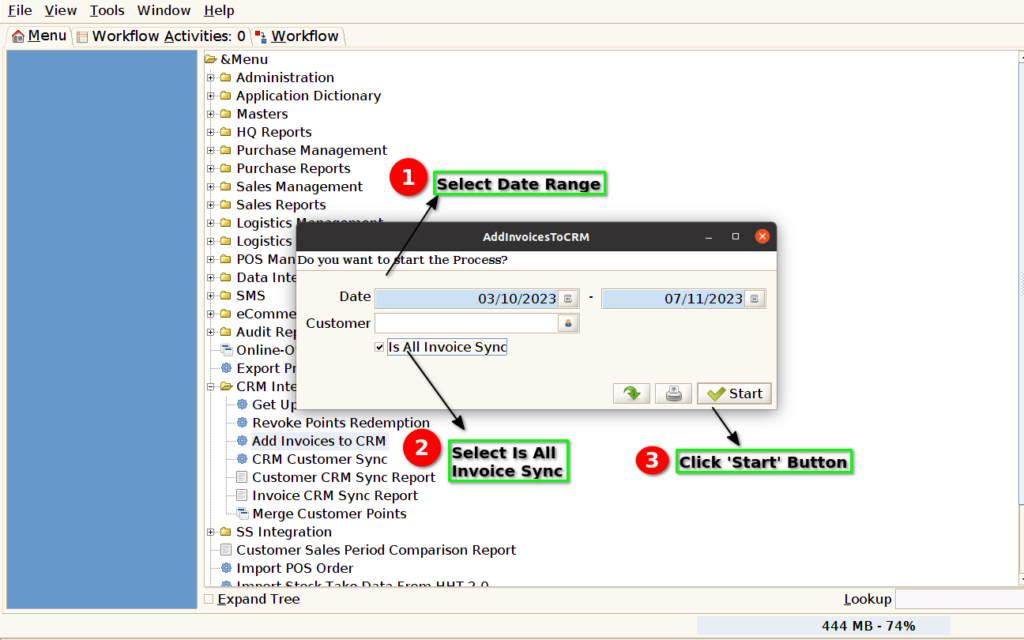
Step 5: Select the date range , customer and Is All Invoice sync Checkbox and click start button to continue the process
