How to Capture Additional Info of Warranty Products and display it in POS Bill in ADempiere Retail
This refers to the process of entering extra attributes or details for each product during item creation or transaction—such as IMEI, Serial No, Warranty, Expiry Date, etc.—that are not part of the standard product master.
User Access
Who can use
- Cashier
- Head Cashier
What user can do
- Input or select additional fields
- Save or confirm additional info
- Assign product-level notes or remarks
- Track product history via captured info
Pre-Requisite Activities
- Define product types that require additional info
- Configure Additional Info Fields in system (dynamic fields or fixed)
Business Rules
- Reload should not clear existing items on the bill
- Captured info should be saved in transaction database
- Info should reflect in customer receipt, audit logs, and reports
- Reload process must be quick and not impact performance
- Only users with permission can change certain fields (like discount approver or salesperson)
User Interface
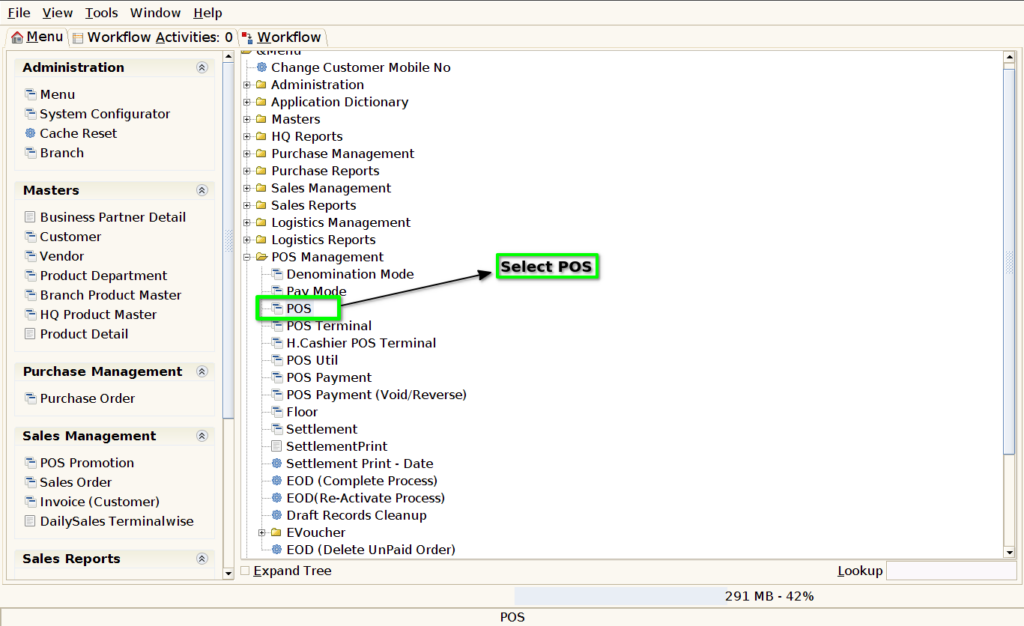
Step 1 : Select ‘POS’ in Menu -> POS Management -> POS or Search POS in Lookup.
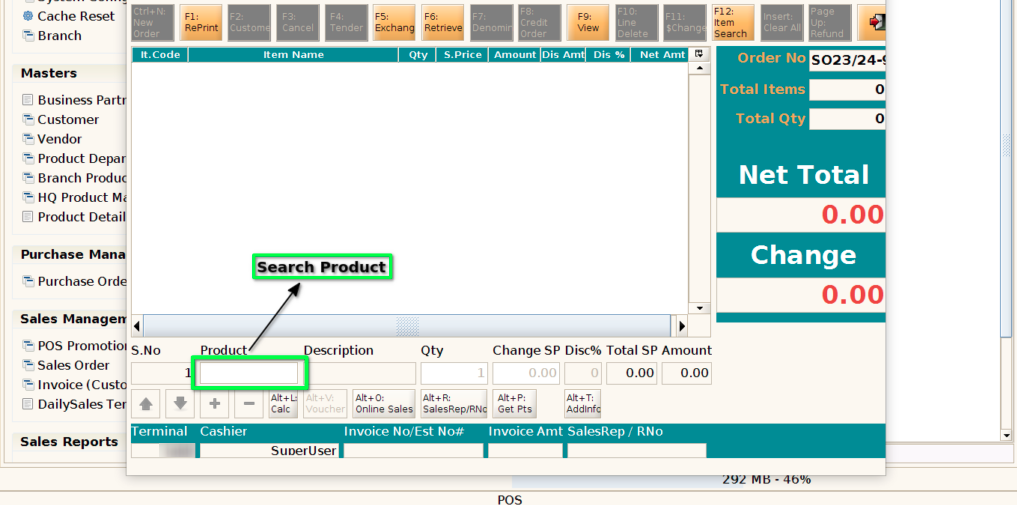
Step 2 : Search Product by Product Name along with /, Product Code along with /, Barcode, IMEI code, Serial Number
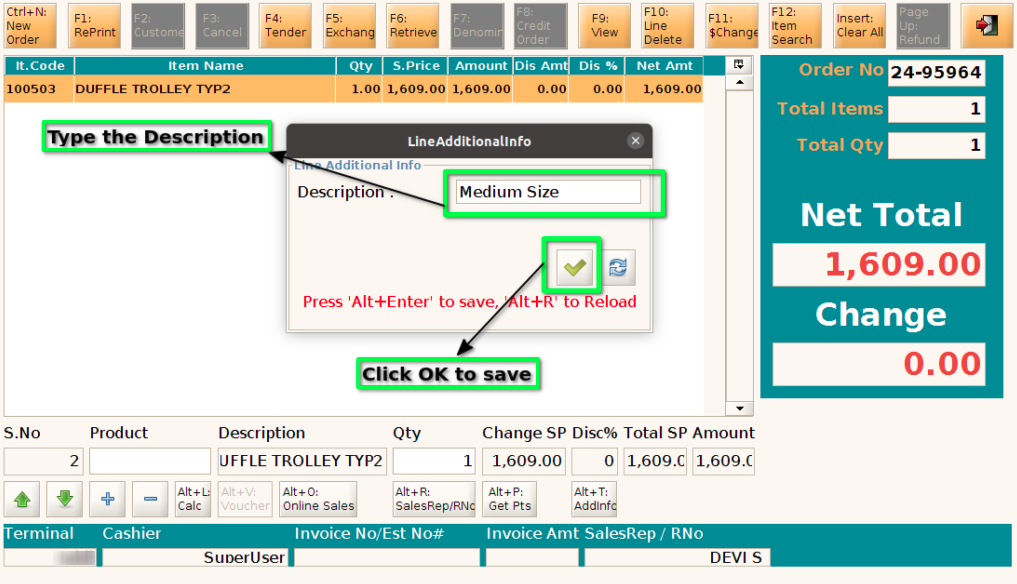
Step 3 : Click Alt + T for adding additional information for the particular product

Step 4 : Enter the addition details of the product and click “OK” to save
Step 5 : Complete the payment and view the bill copy, Description should print in Bill Copy