How to Change Price of a Line Item in ADempiere Retail?
The Price Change (F11) function allows the cashier or authorized user to manually change the price of a product during billing, based on permissions and applicable business rules.
User Access
Who Can Access
- Cashier
- Head Cashier
What User Can Do
- Select an item from the current bill and change its unit price.
- Apply discounts or adjust pricing (e.g., round off, promo price, bulk deal).
- View updated price and total immediately on the POS screen.
- Save the revised bill with the new price.
Pre-Requisite Activities
- The user must have proper access rights or manager override permission to change prices.
- The F11 key or price-change button must be enabled in POS settings.
- System must be configured to track and log price overrides.
Business Rules
- Price Change should allow to below L.cast and above MRP
- Price Change should not allow for promotion products
- Price Change should not allow to refund and exchange process
User Interface
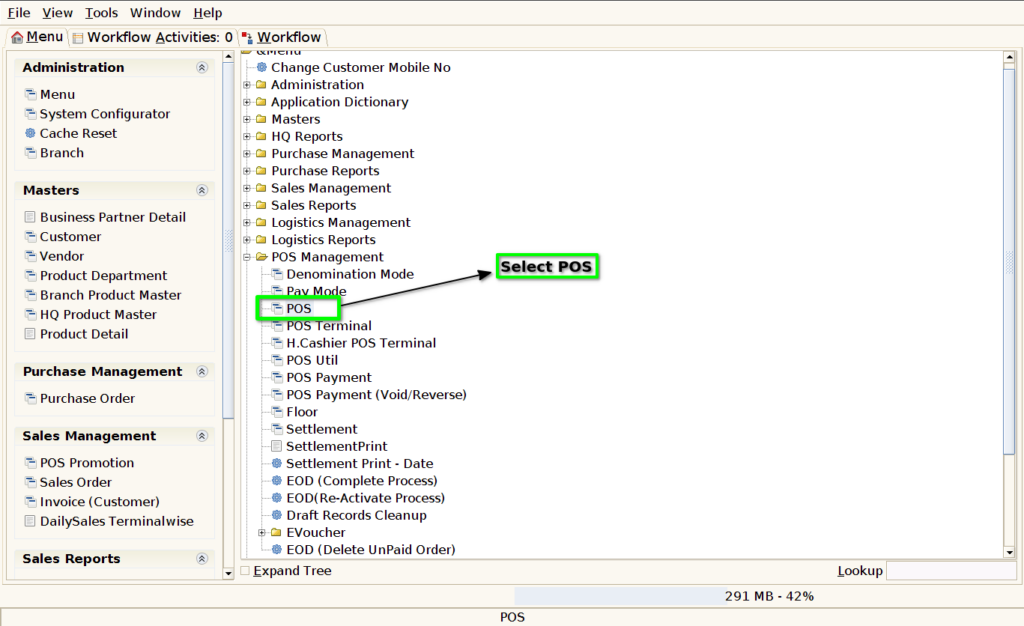
Step 1 : Select ‘POS’ in Menu -> POS Management -> POS or Search POS in Lookup.
Step 2 : Select the product for price change and click F11

Step 3 : Enter updated selling price in ‘Price Actual’ Column

Step 4 : Price Actual should not allow more than MRP

Step 5 : Price Actual should not allow Less than L.Cost

Step 6 : For promotion product price change should not allow

Step 7 : For LS user can use price change option for two menthods, first one enter updated selling price in ‘Change SP’ column, otherwise enter discount % in ‘Disc %’ Column
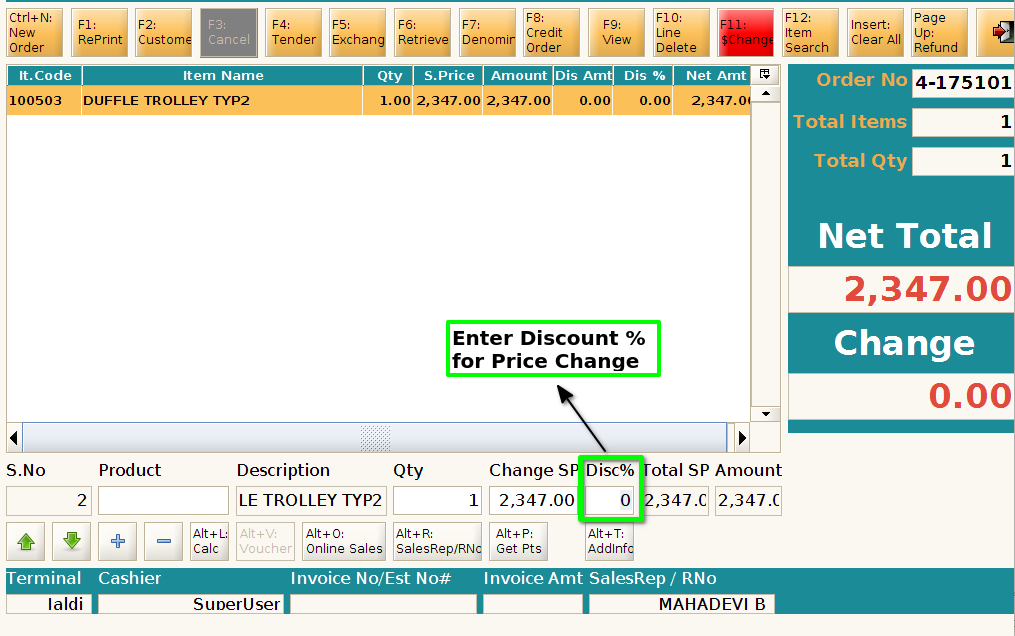
Step 8 : For LS, price change validation(Should not allow Below L.Cost and Above MRP) should based on department validation for price change.
