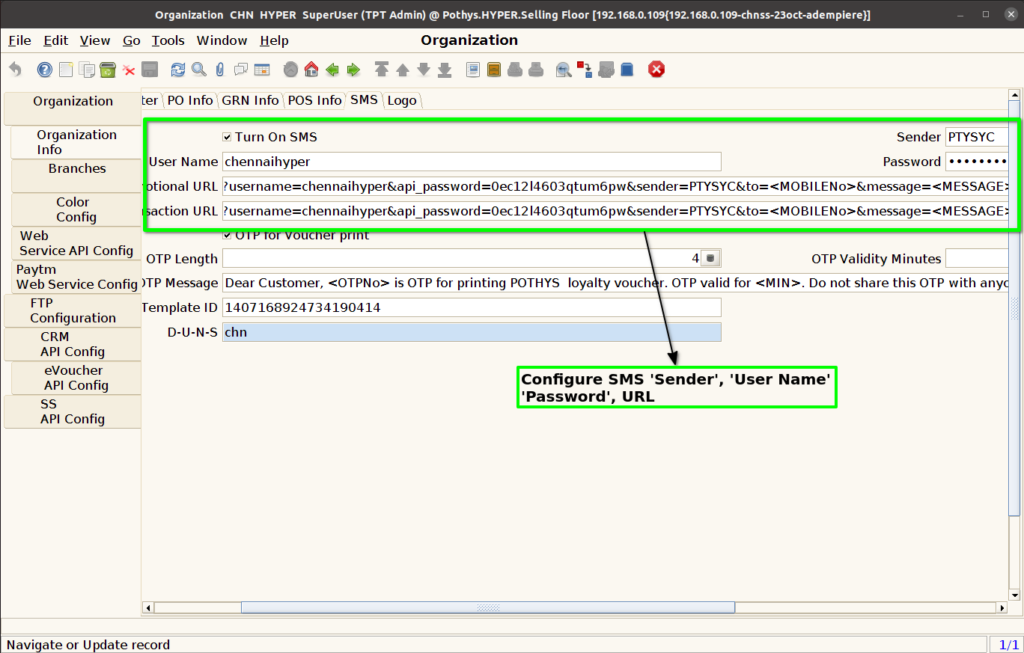
How to configure SMS Gateway Settings in ADempiere Retail?
Configure SMS Info means setting up the system to send automated text messages (SMS) for specific events like order confirmations, payment alerts, delivery updates, etc. It involves defining the SMS content, choosing when and to whom the messages are sent, and connecting to an SMS service provider.
User Access
Who Can Access
- Cashier
- Manager
- Admin
What User Can Do
- Set up SMS templates for different transactions
- Add or edit sender ID, gateway settings, and provider API
- Enable or disable SMS notifications for customers or vendors
- View SMS delivery status reports
Pre-Requisite Activities
- Finalize an SMS service provider
- Obtain the required API credentials and sender ID
- Define which modules or actions require SMS notifications
- Prepare and approve SMS message formats as per DLT guidelines (in India)
- Ensure mobile numbers are correctly saved in customer/vendor master
Business Rules
- Need a option to create different templates for different message
- While sending the OTP message, need alert popup for message delivered
- SMS should be sent only to valid mobile numbers
- System must log SMS events for tracking and audit
- Avoid sending duplicate SMS for the same event
User Interface
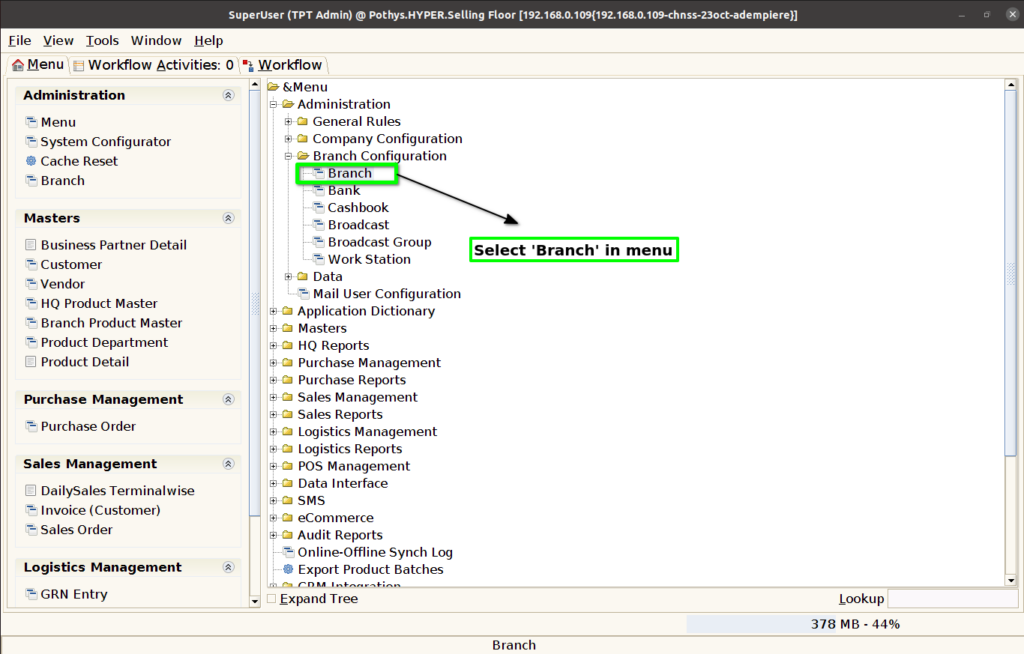
Step 1 : Select ‘Branch’ in Menu -> Administration -> Branch Configuration -> Branch or Search Branch in Lookup.
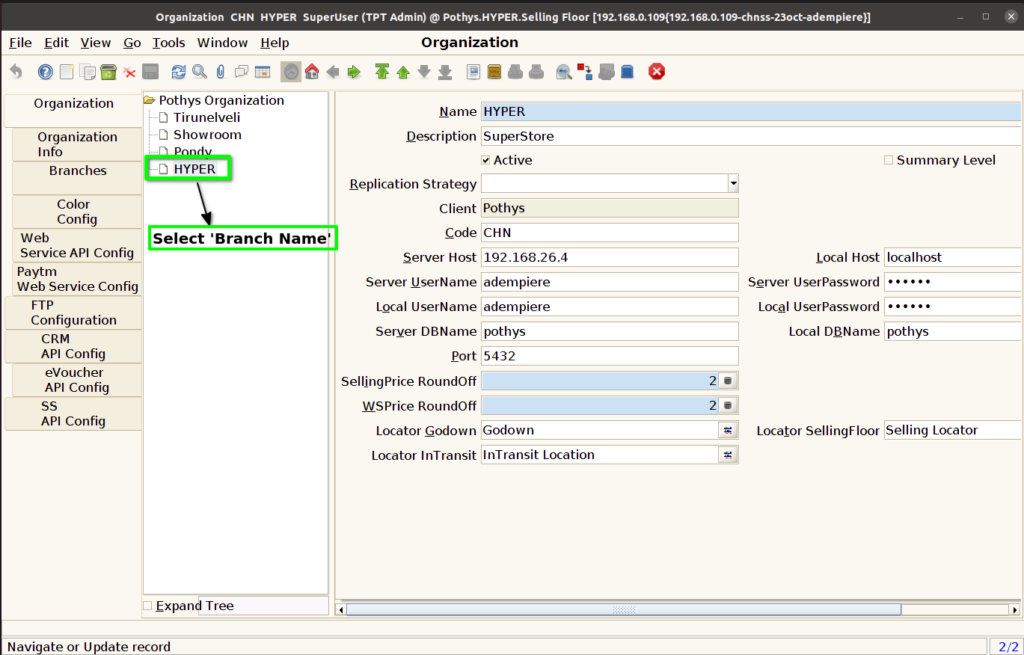
Step 2 : Select Branch name in Organization Tab.
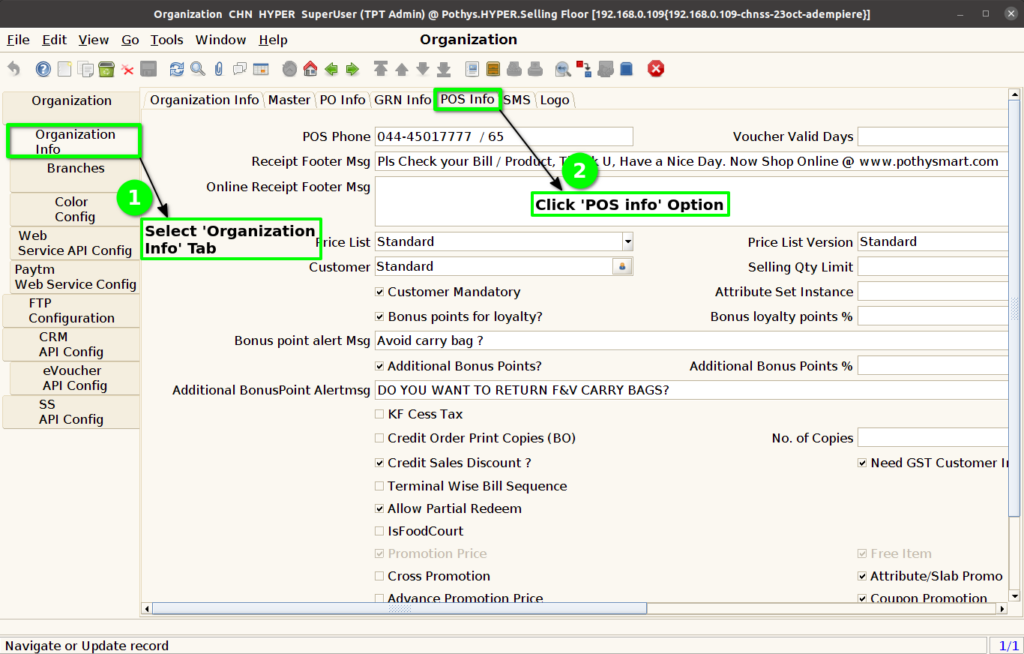
Step 3 : Select Organization Tab and click ‘Pos Info’ option.
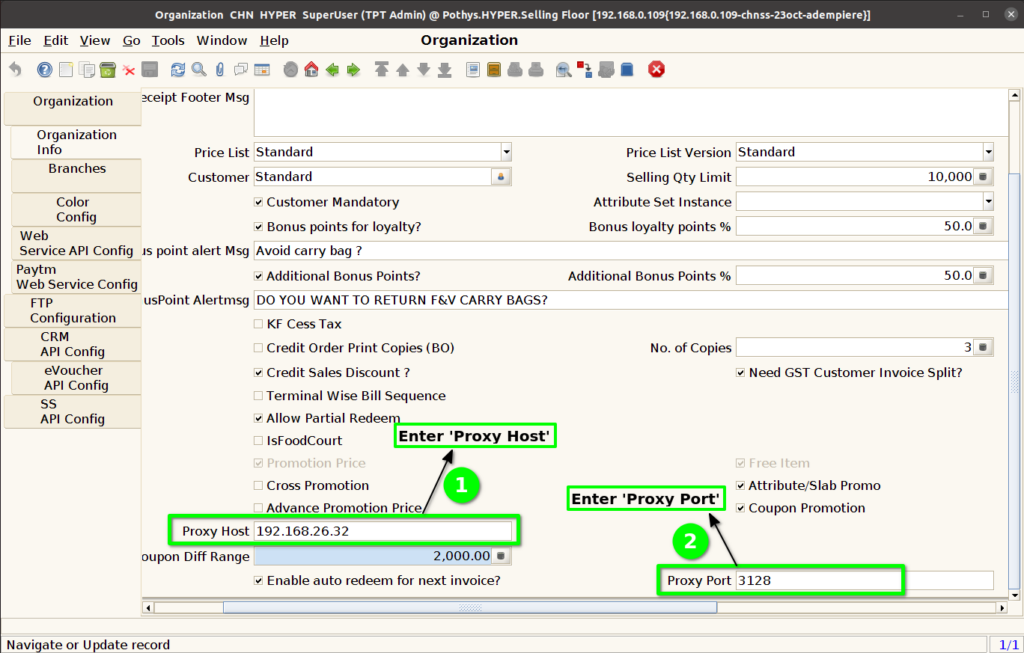
Step 4 : Enter ‘Proxy Host’ and ‘Proxy Port’ information.
Step 5 : Select ‘SMS’ option in ‘Organization Info’ Tab.
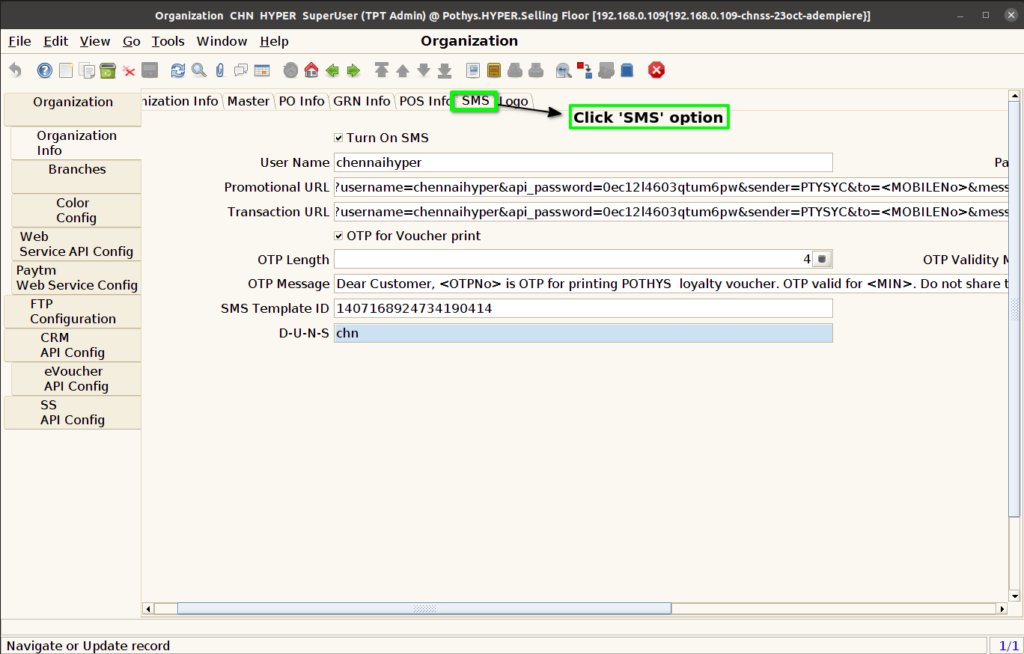
Step 6 : Configure SMS ‘sender’, ‘User Name’, ‘Password’, ‘Promotion URL’, ‘Transaction URL’.