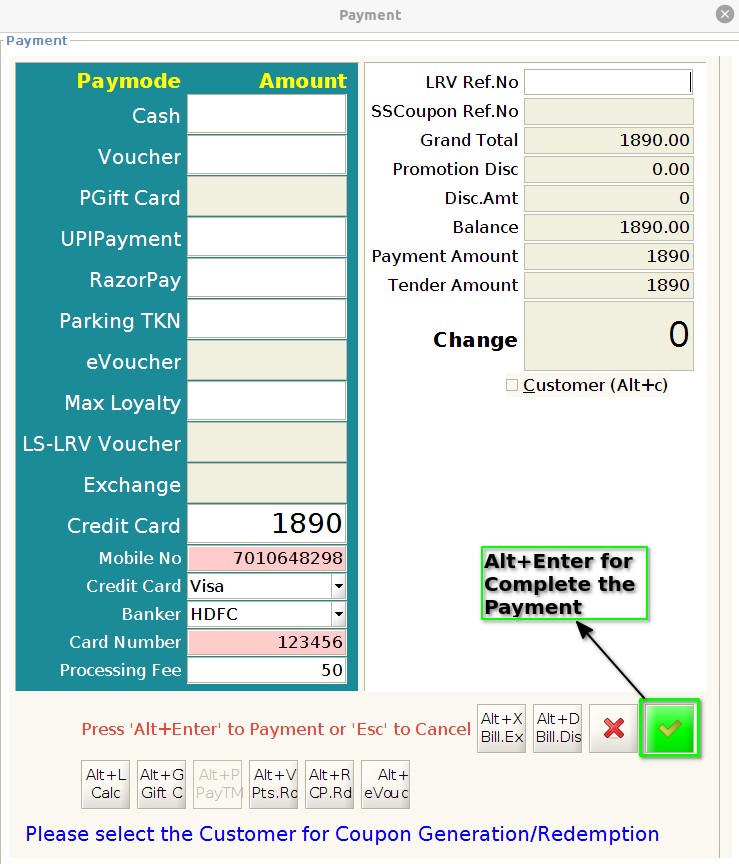
How to capture Bajaj Card Processing Fees during POS Payment in ADempiere Retail
When a customer makes a purchase using a Bajaj Finserv EMI Card, the POS should capture and display any processing or service fee associated with the transaction, and optionally charge it to the customer or account for it internally.
User Access
Who Can Access
- Cashier
- Head Cashier
What User Can DO
- Select “Bajaj Card” as the pay mode during billing.
- System auto-applies the Bajaj card fee (fixed or percentage).
- View fee amount separately in the bill summary.
Pre-Requisite Activities
- Bajaj card integration must be enabled as a pay mode.
- System must allow fee configuration, e.g.:
- Fixed fee: ₹99 per transaction
- % fee: 1.5% of transaction amount
Business Rules
- Fee is applied only when Bajaj Card is selected as pay mode.
- Fee should appear as a separate line item in:
- Bill print
- POS receipt
- Settlement report
- System config decides:
- Whether customer pays the fee or store absorbs it.
- Whether the fee is taxable or non-taxable.
- Fee amount must be posted to a separate accounting ledger.(e.g.,
Bajaj Card Charges).
User Interface
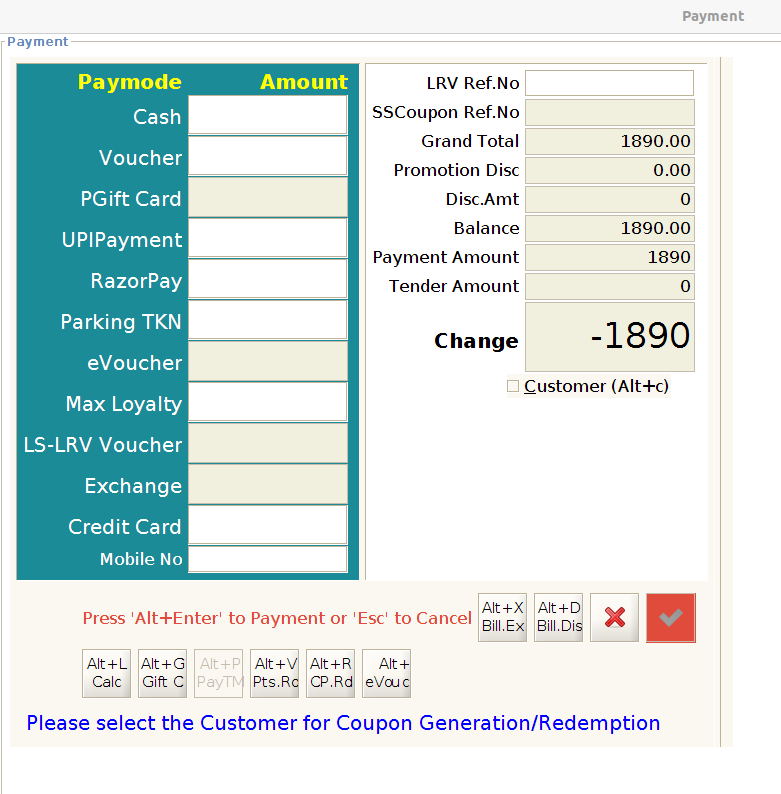
Step 1 : Press the F4 button to open the Tender screen
Step 2 : Enter the card details and processing fees

Step 3 : Finally press the Alt+Enter for Complete the Payment