How to Create Inventory In Approval document in ADempiere Retail
Inventory In Approval means getting official permission before adding or receiving items into the inventory. It ensures that any new stock entering the warehouse is authorised and properly recorded.
User Access
Who Can Access
- IT Admin
- Manager
- Back office
- Cashier
What User Can Do
- Submit a request
- Provide details
- Track the approval status
- Attach supporting documents
Pre-Requisite Activities
- Verify Purchase Orders
- Check Supplier Details
- Assign User Roles
Business Rules
- Approval Required Before Adding Stock
- Authorised Approvers Only
- Inspection Before Approval
User Interface
Step 1 : Select ‘Inventory In Approval ’ in Menu -> Logistics management > Inventory In Approval or Search Inventory In Approval in Lookup.

Step 2 : To create new Inventory In Approval document.

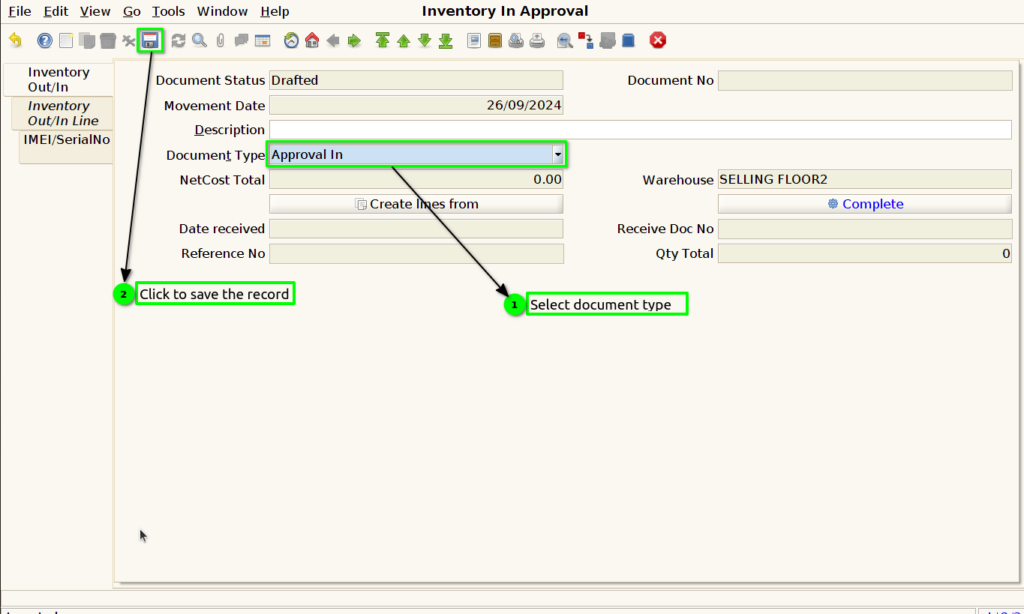
Step 3 : Select the document type and Save the record to generated document no.
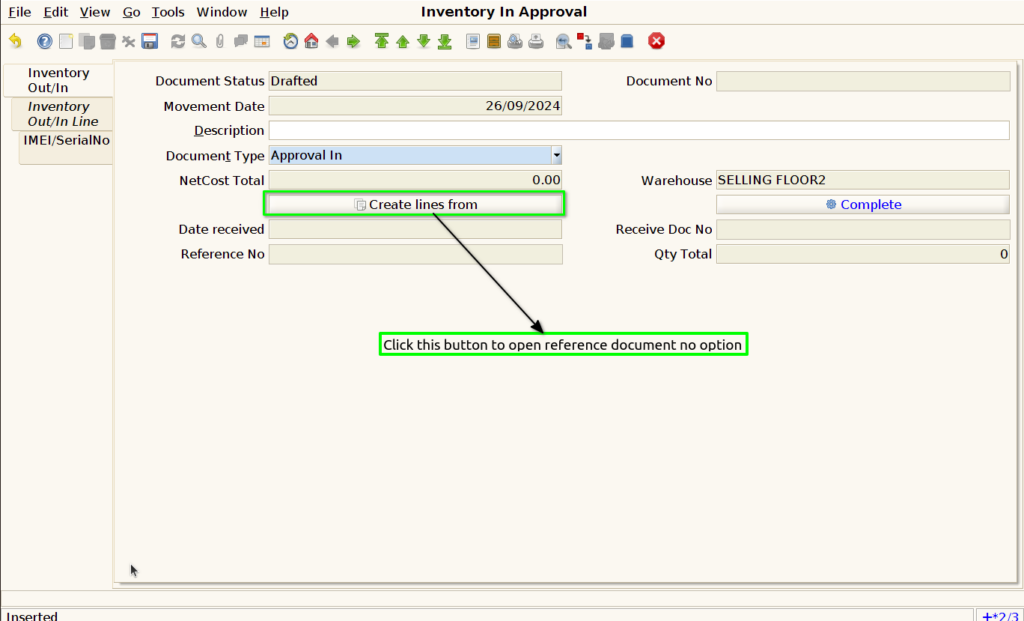
Step 4 : To use the copy line from option to select the Inventory out approval document reference no.
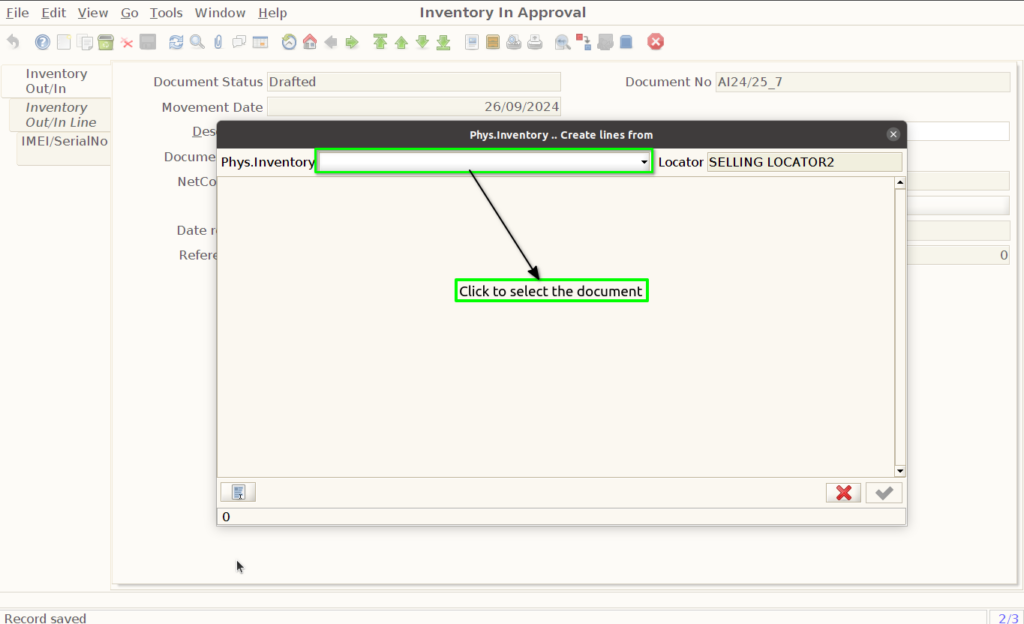

Step 5 : Product added in Inventory line
- Check the Inventory out reference no
- Verified the Product and In Quantity
- verify the IMEI and Serial no.
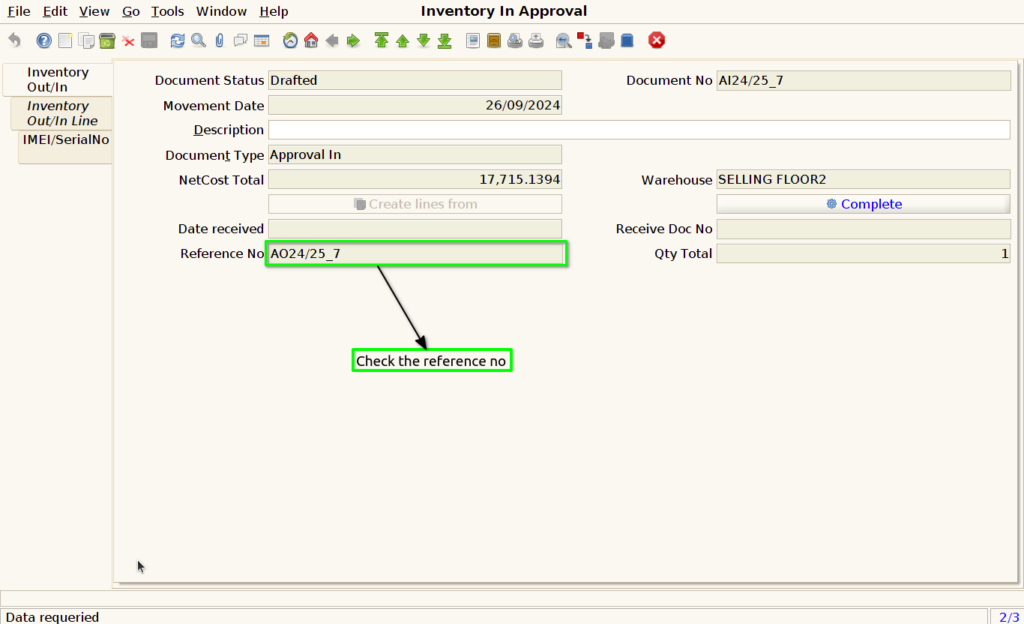
Step 6 : Verified the Product and In Quantity in Inventory IN/OUT line tab.

Step 7 : verify the IMEI and Serial no in Serial no/IMEI Tab.
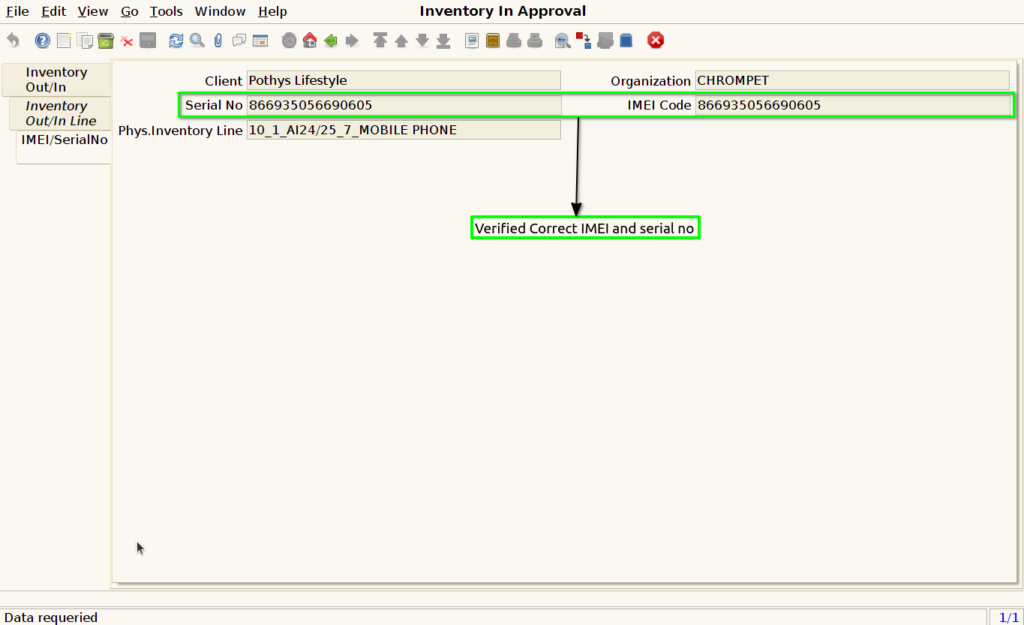
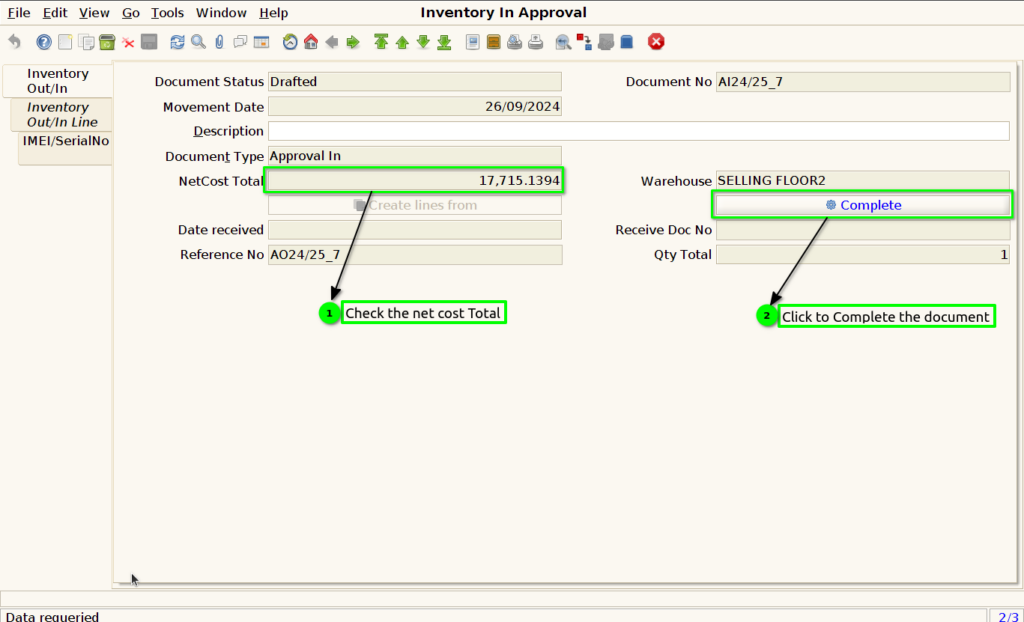
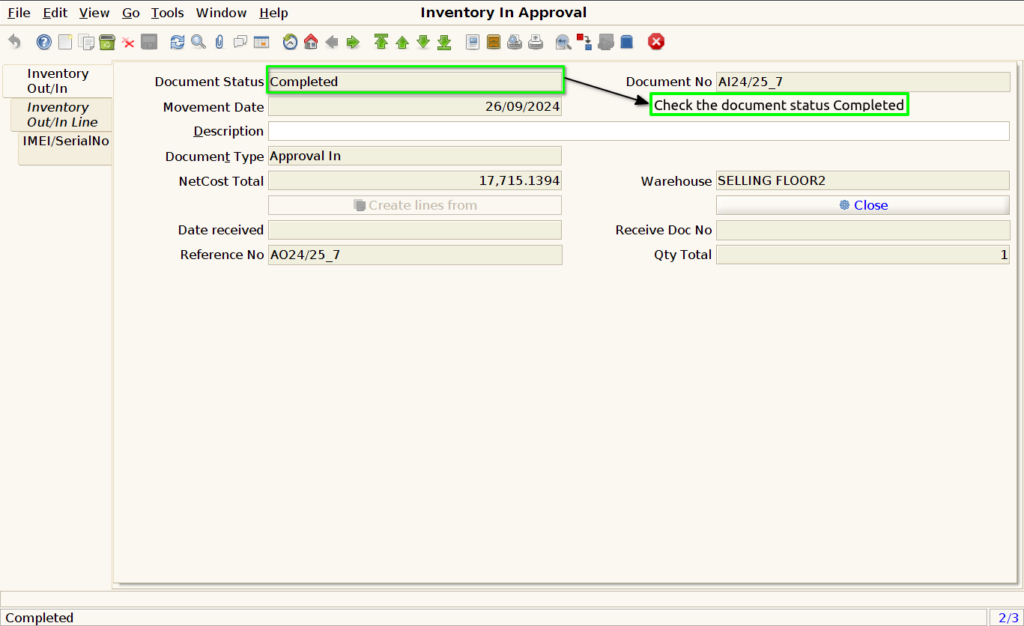
Step 8 : Check the Net Cost total , and complete the document.