How to Configure the Charge in iDempiere for Retail
Learn how to configure Charges in iDempiere for retail. Set up freight, delivery, packing, and handling charges for accurate cost tracking.
Introduction
The Charge window in iDempiere is used to configure additional transaction costs applied during purchasing, inventory movement, and sales processes. Charges allow businesses to track operational expenses — such as transportation, packaging, handling, and delivery — separately from product costs.
| Business Value – In retail, iDempiere Charges help manage additional operational and customer-related costs such as freight, loading, packing, and delivery expenses — ensuring accurate cost allocation across purchasing and sales transactions. |
Prerequisites
Before starting, ensure the following:
- Initial Tenant Setup completed successfully
- Tax Category configured (Standard Tax Category available)
Business Rules
- Charge records must be configured and kept Active before they can be used in purchasing, sales, or inventory transactions.
- The correct Tax Category should be assigned to each Charge to ensure proper GST or IGST calculation during transactions.
- Charges used for freight, transportation, or handling costs should be created before processing Purchase Orders and GRN transactions.
- Organization should be set as
*when the same Charge must be shared across multiple branches or warehouses. - Default Charge Amounts can be maintained in the Charge master and overridden at the transaction level if required.
Navigation
Menu → Performance Analysis and Accounting → Accounting Rules → Charge
The window displays all existing Charge records. Use the search filter to locate a specific record.
Step-by-Step Configuration
Step 1: Open Charge Window
Navigate to the path above. The window lists all existing Charge records configured in iDempiere.
Step 2: Create New Record
Click New Record (+) to open a blank form. To modify an existing record, open it and update the values directly.
Field Reference
- Organization — Set to * — makes the Charge available across all organizations
- Name — Charge name displayed during purchasing and sales transactions
- Description — Business purpose of the Charge
- Charge Amount — Default charge value applied automatically when the charge is selected
- Tax Category — Links the Charge to the applicable tax classification (e.g., GST 18%)
- Active — Must be enabled — makes the Charge available in transactions
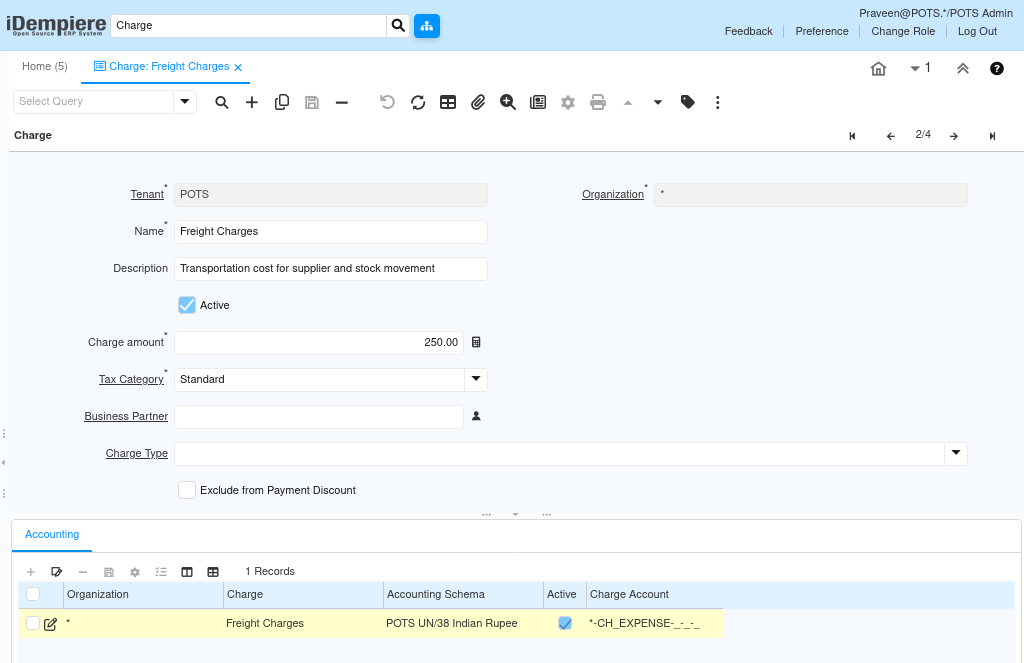
Step 3: Configure Freight Charges
Enter the following details to create the Freight Charges record used for supplier transportation and stock movement costs.
| Field | Value |
| Organization | * |
| Name | Freight Charges |
| Description | Transportation cost for supplier and stock movement |
| Charge Amount | ₹250.00 |
| Tax Category | Standard |
| Active | Yes |
Used for supplier transportation and inventory movement costs between locations.
Step 4: Configure Load and Unload Charges
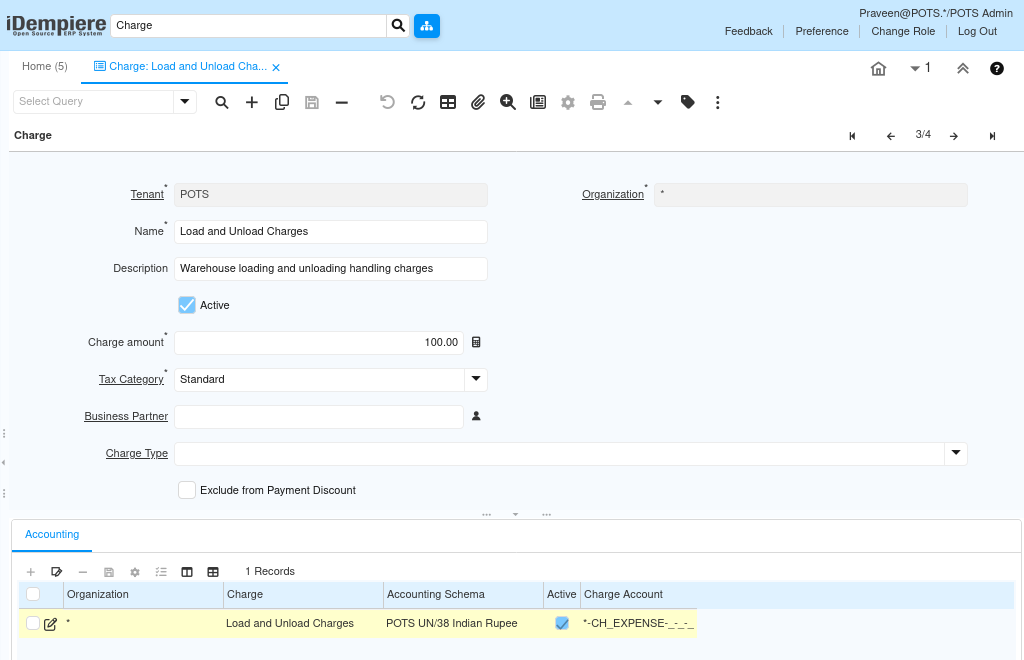
Enter the following details to create the Load and Unload Charges record used for warehouse handling activities.
| Field | Value |
| Organization | * |
| Name | Load and Unload Charges |
| Description | Warehouse loading and unloading handling charges |
| Charge Amount | ₹100.00 |
| Tax Category | Standard |
| Active | Yes |
Used for loading and unloading activities during warehouse receipt and dispatch operations.
Step 5: Configure Packing Charges
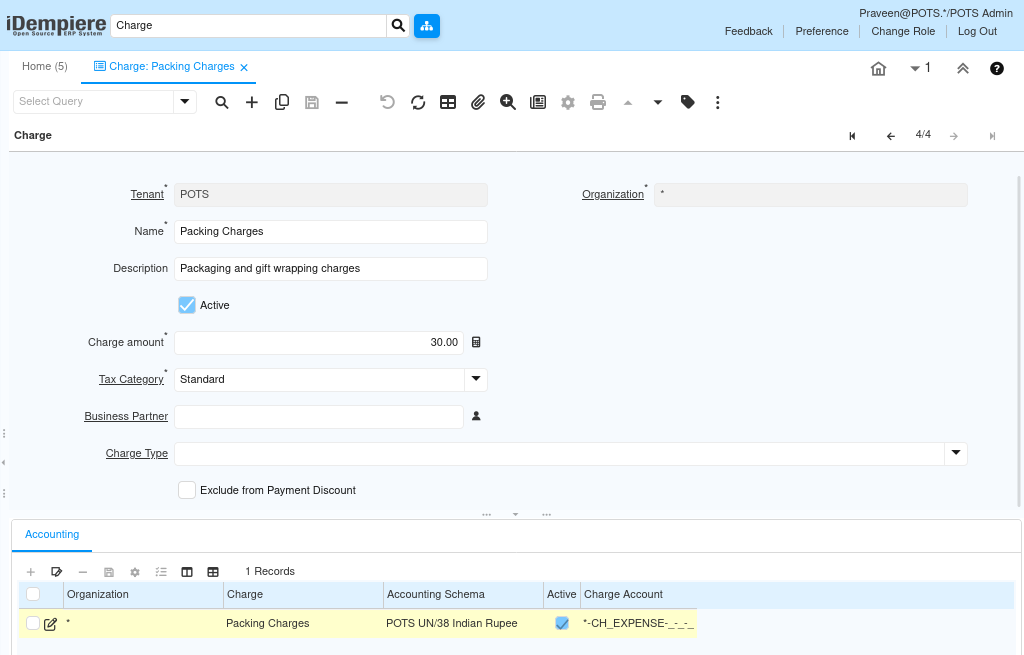
Enter the following details to create the Packing Charges record used for packaging and gift wrapping services.
| Field | Value |
| Organization | * |
| Name | Packing Charges |
| Description | Packaging and gift wrapping charges |
| Charge Amount | ₹30.00 |
| Tax Category | Standard |
| Active | Yes |
Applied when packaging or gift wrapping services are provided along with product sales.
Step 6: Configure Delivery Charges
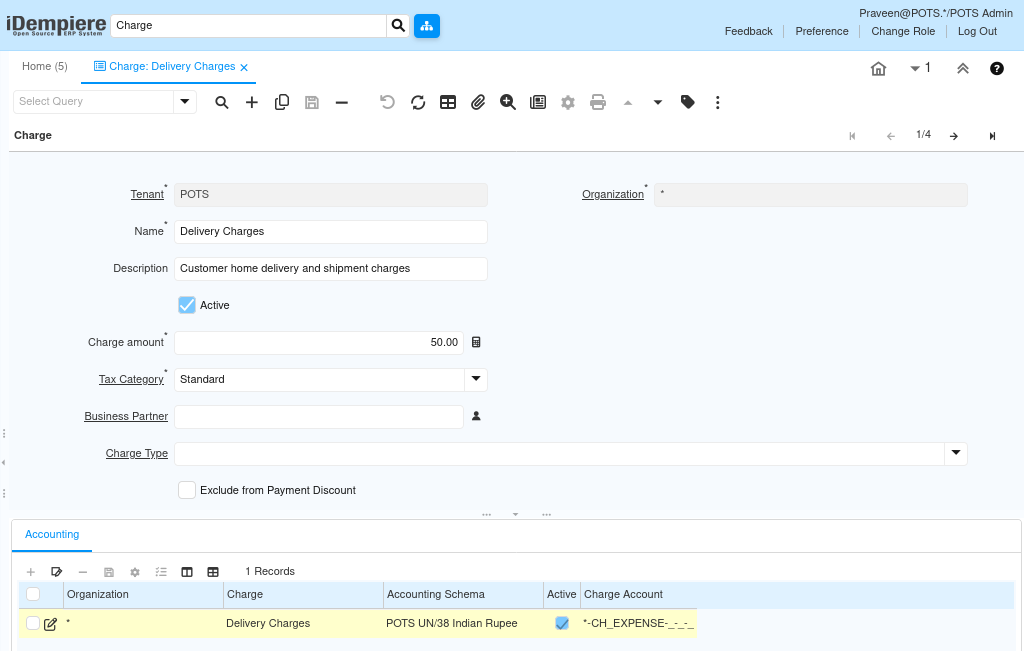
Enter the following details to create the Delivery Charges record used when products are delivered directly to customers.
| Field | Value |
| Organization | * |
| Name | Delivery Charges |
| Description | Customer home delivery and shipment charges |
| Charge Amount | ₹50.00 |
| Tax Category | Standard |
| Active | Yes |
Applied to sales transactions where products are shipped or delivered to customer locations.
Step 7: Save the Record
Click Save. The Charge record is created and immediately available for use in purchasing and sales transactions.
Configuration Summary
| Charge Name | Amount (₹) | Tax Category | Usage |
| Freight Charges | 250.00 | Standard | Supplier transport and stock movement |
| Load and Unload Charges | 100.00 | Standard | Warehouse loading and unloading |
| Packing Charges | 30.00 | Standard | Packaging and gift wrapping services |
| Delivery Charges | 50.00 | Standard | Customer home delivery and shipment |
Business Flow Overview
Charges in iDempiere are applied at the transaction level across purchasing and sales workflows:
Purchase Order / Sales Order
↓
Charge added to transaction (Freight / Delivery / Packing / Load–Unload)
↓
Tax applied via Tax Category (GST / IGST on Charge Amount)
↓
Invoice (Charge line appears separately from product lines)
↓
Accounting Posting (Charge expense posted to designated GL account)
| Organization Setting Setting Organization = * ensures Charge records are shared across all business units — Chennai, Pondicherry, Trivandrum, and CDC — without creating duplicate records per organization. |
Common Issues and Resolution
| Issue | Resolution |
| Mandatory field validation error on save | Verify Name, Tax Category, and Charge Amount fields are populated |
| Tax Category not available | Configure Tax Category before creating Charge records |
| Charge not available in transactions | Verify the Active checkbox is enabled |
| Charge not visible across organizations | Set Organization = * on the Charge record |
| Charge amount not applying automatically | Verify the Charge Amount field is populated with the correct default value |
| Changes not reflected after save | Run Cache Reset and log in again |
Best Practices
- Set Organization = * on all Charge records to avoid duplication across business units
- Assign the correct Tax Category to each Charge — tax is applied on the Charge Amount during transactions
- Use clear, descriptive Charge Names that reflect the business activity (e.g., Freight Charges, Delivery Charges)
- Keep Charge Amounts as default estimates — these can be overridden at the transaction level if needed
- Review Charge records periodically to update default amounts based on current operational costs
- Ensure Tax Category is configured before creating Charge records to avoid configuration errors
Next Steps
After completing Charge configuration in iDempiere, continue with:
- Product
- Payment Term