How to Create an Employee in iDempiere Using the Business Partner Window
Introduction
The Business Partner window in iDempiere is the central master record for all external and internal parties — including employees. Unlike standalone HR or payroll systems that maintain a separate Employee Master, iDempiere consolidates employee identity data directly within the Business Partner framework. Employee-specific attributes such as payroll numbers and commission IDs are stored here, acts as the central reference for employee-related data within iDempiere.
In a retail environment, this window is used to register store staff, field sales representatives, cashiers, and any other personnel who interact with transactions. Retail businesses rely on this window to capture employee addresses (for dispatch or correspondence), link employees to commission structures, and grant system access through the Contact (User) sub-tab.
Prerequisites
Ensure the following configurations are completed before configuring Business Partner (Employee) in iDempiere:
- Organization is set up and active in iDempiere.
- Business Partner Group for employees is created (e.g., “Employees” or “Staff”) to enable correct accounting defaults.
- Location / Address master data (City, Region, Country) is configured if employee addresses are required.
- User roles and access profiles are defined if the employee will be granted system login access via the Contact (User) sub-tab.
Business Rules
The following business rules apply to Business Partner (Employee) configuration in iDempiere:
- Each employee must be registered as a Business Partner with the Employee flag enabled. This distinguishes employee records from customer or vendor records in iDempiere.
- Payroll Number is stored in the Business Partner record as a reference identifier. It must be unique per employee and align with the payroll system in use.
- Employee Commission Number (Commission ID) is captured in the Business Partner record to link the employee to commission calculation rules configured elsewhere in iDempiere.
- Employee address is managed through the Location sub-tab. Each employee may have one or more addresses (home, correspondence) linked to their Business Partner record.
- Contact details and system login credentials are managed through the Contact (User) sub-tab. This is the iDempiere equivalent of a User Master — it grants the employee access to the system if required.
- Active records are available for use in transactions. Inactive records are excluded from lookups and order processing.
- Setting Organization = * (asterisk) makes the employee record available across all branches and stores. Organization-specific records are visible only within their assigned branch.
- Duplicate employee records must be avoided. Each employee should have a single Business Partner record to prevent data inconsistency across transactions and reports.
- Employee records must not be deleted once referenced in transactions. Deactivate the record instead to preserve historical data integrity.
Note: In some ERP systems, Employee Master is a separate module. In iDempiere, employee identity, address, and contact data are fully managed within the Business Partner window — no separate Employee Master window exists. Payroll numbers and commission IDs are captured as reference fields within this same window.
Navigation
Menu → Partner Relations → Business Partner Rules → Business Partner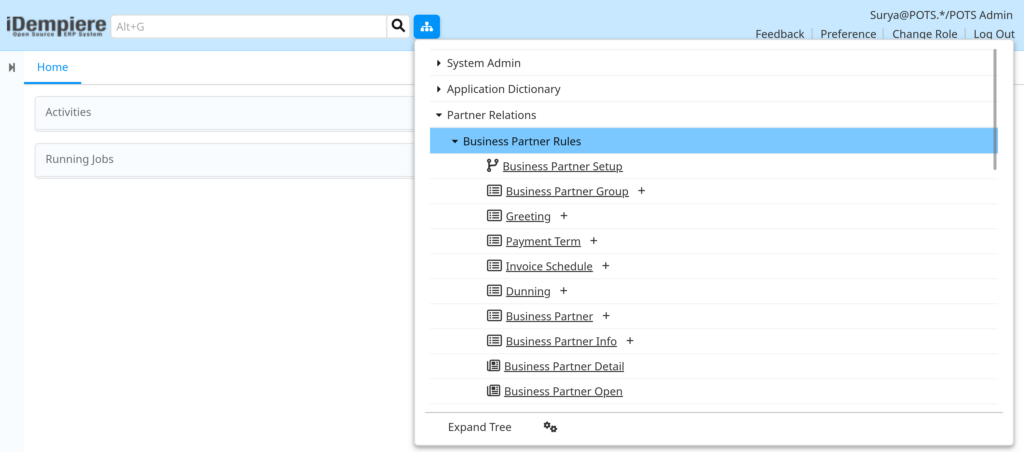
The window displays all existing Business Partner records. Use the search bar to filter records by name, ID, or employee status. Ensure the Employee checkbox is visible in the search results or apply a filter for Employee = Yes to narrow the list to staff records only.
Step-by-Step Configuration
Step 1: Open the Business Partner Window
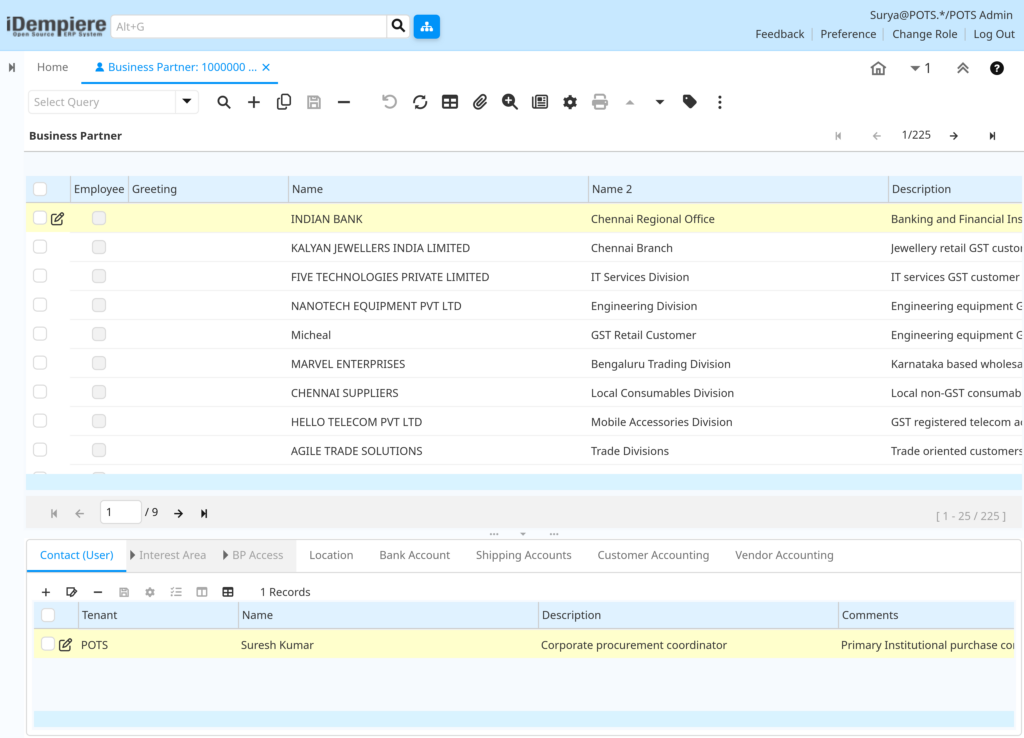
The window opens and displays a list of all existing Business Partner records — customers, vendors, and employees are all stored here.
Use the search bar at the top to locate an existing employee record or confirm that the employee does not already exist before creating a new one. This prevents duplicate records.
Step 2: Create a New Employee Record
Click the New Record icon (+) in the toolbar or press Alt+N. A blank Business Partner form opens. This is the main tab where the core employee identity is captured.
The Employee checkbox must be enabled to classify this Business Partner as a staff member. This flag distinguishes the record from customer or vendor entries and controls which transactions and reports include this record.
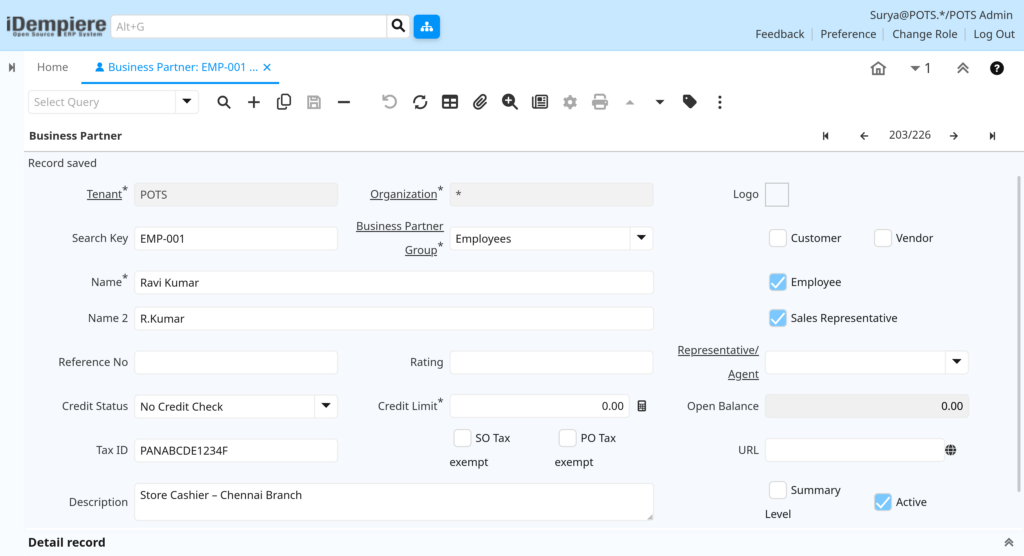
Field Reference — Business Partner Main Tab
| Field | Sample Value | Description |
| Name | Ravi Kumar | Full legal name of the employee. |
| Name 2 | R. Kumar | Secondary name or alias, used for display purposes. |
| Search Key | EMP-001 | Unique identifier for the employee record. Use a consistent naming convention such as EMP-XXX. |
| Business Partner Group | Employees | Assigns the employee to the correct accounting and reporting group. Must be pre-configured. |
| Employee | ✔ Checked | Flags this Business Partner as an employee. Required for employee-specific processing. |
| Organization | * or Specific Branch | Set to * to share across all branches or assign to a specific store location. |
| Active | ✔ Checked | Controls whether this record is available in transactions. Uncheck to deactivate without deleting. |
| Sales Representative | ✔ Checked (if applicable) | Enable if the employee earns commission on sales. Links the employee to commission rules. |
| Tax ID | PANABCDE1234F | Applicable tax identification number for the employee. Required for payroll tax compliance. |
| Description | Store Cashier – Chennai Branch | Internal notes or role description for reference. |
Step 3: Capture Payroll Number and Commission ID
iDempiere does not provide dedicated Payroll Number and Commission Number fields out of the box in the Business Partner window. These identifiers are managed as follows in a retail iDempiere setup:
- Payroll Number:
- Preferred approach: Use a custom field or attribute if your iDempiere implementation supports it, as this provides better structure and reporting flexibility.
- Alternative approach: Store it in the Search Key field using a consistent payroll-aligned format (e.g., PAY-2024-001) when no custom field is available.
- Commission Number / Commission ID:
Enable the Sales Representative checkbox on the main tab. The employee is then assignable to Commission Run records under the Commission window (typically Quote-To-Invoice(Sales) > Sales and Marketing > Commission). The Business Partner record itself serves as the commission identity reference. - Additional Reference Fields: If your iDempiere instance supports custom attributes or global attributes, a system administrator can add Payroll Number and Commission No as dedicated fields. Confirm with your implementation team.
Step 4: Add Employee Address via Location Sub-Tab
Click the Location sub-tab within the Business Partner window. This sub-tab stores all physical addresses associated with the employee — home address, correspondence address, or branch assignment.
Click New Record (+) within the Location tab to add an address. Each address entry is linked to this employee’s Business Partner record and can be flagged by type (Ship To, Bill To, Remit To, etc.).

Field Reference — Location Sub-Tab
| Field | Sample Value | Description |
| Name | Home Address – Ravi Kumar | Label for this address entry. Use a descriptive name to distinguish multiple addresses. |
| Address 1 | No. 12, Anna Nagar | First line of the street address. |
| Address 2 | Near Metro Station | Second address line for additional details. |
| City | Chennai | City name. Must match the pre-configured city master if validation is active. |
| Region / State | Tamil Nadu | State or region. Select from the pre-configured list. |
| Postal Code | 600040 | PIN or ZIP code. |
| Country | India | Country of the address. |
| Active | ✔ Checked | Only active addresses are available in transaction lookups. |
Step 5: Add Employee Contact and System User via Contact (User) Sub-Tab
Click the Contact (User) sub-tab. This sub-tab is used to maintain users within the system — either internal users or Business Partner contacts. It captures personal contact details and is used to manage system access for the employee, including login credentials and role assignment when required.
Click New Record (+) within the Contact tab. One employee can have multiple contacts listed, but typically one primary contact is maintained per employee.

Field Reference — Contact (User) Sub-Tab
| Field | Sample Value | Description |
| Name | Ravi Kumar | Contact name — typically the employee’s full name. |
| Title | Mr. | Salutation or title prefix. |
| Description | Store Cashier | Role or position description for internal reference. |
| Email Address | ravi.kumar@store.com | Official email address. Used for system notifications if access is granted. |
| Phone | +91-9876543210 | Primary contact number. |
| Notification Type | Method by which this contact receives system alerts. | |
| Password | •••••••• | Set a temporary password if creating a system user. Employee must change on first login. |
| Active | ✔ Checked | Only active contacts are displayed in transaction dropdowns. |
Retail Tip: Not all employees require system access. Only create a Login / User ID if the employee will directly interact with iDempiere — for example, cashiers using POS terminals or store managers running reports.
Step 6: Save the Employee Record
After filling in the main tab and all applicable sub-tabs (Location and Contact), click the Save icon (disk icon) in the toolbar or press Alt+S.
The record is saved immediately and becomes available across iDempiere — in sales orders, commission runs, POS sessions, and all reports that reference Business Partners with the Employee flag.
Step 7: Activate or Deactivate the Employee Record
The Active checkbox on the main tab controls whether the employee record is available in transactions. When Active is checked, the employee appears in all relevant dropdowns and reports. When unchecked, the record is hidden from transaction lookups but remains in the database for historical reference.
- Deactivate an employee record when the staff member leaves the organisation — do not delete the record.
- Deactivating the record prevents new transactions from being assigned to the employee while preserving all past transaction history.
- Reactivate the record if an employee returns or was deactivated in error.

Configuration Summary
| Configuration Item | Purpose |
| Business Partner (Main Tab) | Stores core employee identity, payroll reference, and commission flag. |
| Employee Checkbox | Classifies the Business Partner as an employee in iDempiere. |
| Search Key (Payroll Reference) | Unique reference aligning the record with the external payroll system. |
| Sales Representative Flag | Enables commission tracking and links employee to Commission Run records. |
| Location Sub-Tab | Stores home and correspondence addresses for the employee. |
| Contact (User) Sub-Tab | Captures personal contact details and optional system login credentials. |
| Business Partner Group | Groups employees for accounting defaults and report segmentation. |
| Organization = * | Makes the employee record available across all branches and stores. |
Business Flow Overview
Business Partner (Employee) Record Created
↓
Location and Contact Sub-Tabs Configured
↓
Employee Linked to Sales Orders / POS / Commission Runs
↓
Transactions Consume Employee Reference
Common Issues and Resolutions
| Issue | Cause | Resolution |
| Employee not appearing in transaction dropdowns | Active checkbox is unchecked | Open the Business Partner record and check the Active flag. Save and retry the transaction. |
| Duplicate employee records found | Employee was created more than once with different Search Keys | Deactivate the duplicate record. Merge transaction history if required. Standardise the naming convention going forward. |
| Address not saving in Location sub-tab | Mandatory fields (Address 1, City, Country) are incomplete | Ensure all required fields are filled before saving. Country must be selected from the pre-configured list. |
| Contact (User) sub-tab not visible | User does not have access to the Contact sub-tab due to role restrictions | System Administrator must grant access to the Contact sub-tab via Role configuration. |
| Employee address not appearing in delivery documents | Address entry in Location sub-tab is not flagged correctly (Ship To not enabled) | Edit the Location record and enable the appropriate address type flag for the intended use. |
| Record cannot be deleted — system shows an error | The employee Business Partner is referenced in existing transactions | Do not delete the record. Deactivate it by unchecking the Active flag to preserve transactional integrity. |
Next Steps
After completing Business Partner (Employee) configuration in iDempiere, proceed with:
- Commission Configuration — Set up commission rules and link employees flagged as Sales Representatives to the appropriate commission plans.
- User Role Configuration — Define and assign role-based access profiles for employees who require iDempiere system access.
- Business Partner Group Configuration — Review and refine Employee group accounting defaults to ensure correct ledger postings for staff-related transactions.
- POS Terminal Configuration — Assign employee Business Partners to POS terminals where cashier login and per-employee transaction tracking is required.
- HR / Payroll Integration (if applicable) — Map the Search Key (Payroll Reference) field to the external payroll system’s employee ID for reconciliation and reporting.