How to Reset Cache in iDempiere
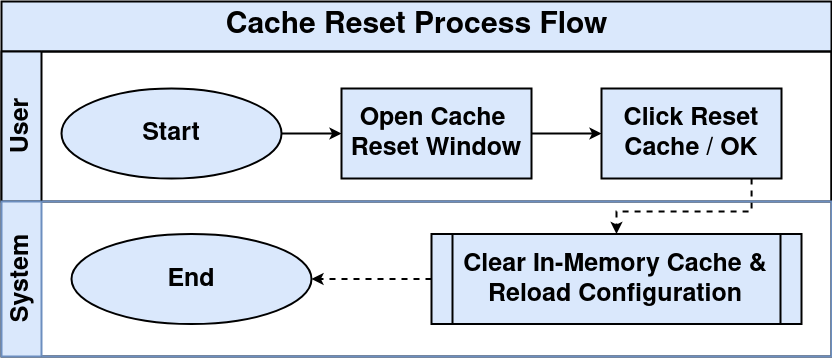
The Cache Reset function in iDempiere clears the system’s in-memory data cache and forces a reload of configuration data from the database. It is typically accessed through the System Admin menu and applied after making changes to master data, pricing rules, business partner settings, or any configuration that affects live transactions.
Process Flow
Prerequisites
Ensure the following are completed before performing a Cache Reset in iDempiere:
- Log in with a user account that has System Administrator access.
- Complete all required configuration changes — pricing, discounts, product master, or business partner records — before triggering the reset.
- Confirm that no batch processes or large imports are running at the time of the reset.
- Verify the iDempiere server is accessible and stable before initiating the reset process.
Navigation
Menu Path: System Admin → General Rules → System → Cache Reset
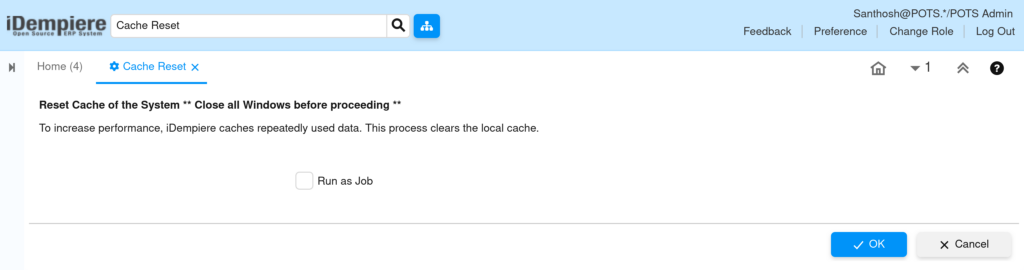
The Cache Reset window displays the reset option along with confirmation controls. There are no existing records to browse — the window performs an action, not a data entry operation.
Step-by-Step Configuration
Step 1: Open the Cache Reset Window
Navigate to the Cache Reset window using the menu path above. The window confirms you are in the correct system function before proceeding.
What you will see:
- A confirmation message or button labelled Reset Cache or OK.
- No input fields are required — the operation is triggered by a single action.
Step 2: Configure Discount Type as Break
If the cache reset is being performed specifically to activate a promotion discount with Discount Type set to Break, verify the Discount Schema configuration before resetting.
Discount Schema — Field Reference:
| Field | Sample Value | Description |
| Name | Retail Promotion Break | Identifies the discount schema |
| Discount Type | Break | Enables qty/price break logic |
| Valid From | 01/06/2025 | Start date for the promotion |
| Valid To | 30/06/2025 | End date; blank = indefinite |
| Break Discount % | 10.00 | Percentage discount at the break point |
| Break Value | 5 (Qty) or 500.00 (Price) | Threshold to trigger the discount |
| Active | Checked | Must be active to apply at POS |
Cache Reset
Return to the Cache Reset window after verifying all configuration is saved. Execute the reset to clear the iDempiere in-memory cache.
Instructions:
- Click the OK or Reset Cache button in the Cache Reset window.
- iDempiere will immediately begin clearing the application cache.
- A confirmation message will appear once the reset is complete — typically: “Cache Reset Done” or similar.
- The process completes within a few seconds for standard installations.
- No page reload or server restart is required after the cache reset.
| Warning: Performing a cache reset during peak retail hours may cause a brief delay for active users as configuration data reloads. Plan resets during off-peak periods. |
Step 3: Validate the Configuration in Transactions
After the cache reset, validate that the discount configuration is reflecting correctly in transactions such as Sales Orders, Invoices, or POS sessions.
Validation checklist:
- Open a new Sales Order and add a product with the configured discount schema assigned.
- Enter a quantity that meets the Break Value threshold (e.g., quantity ≥ 5).
- Verify the Discount % field auto-populates with the Break Discount value (e.g., 10%).
- For price-based breaks, enter a line total that meets the price threshold and confirm the discount applies.
- Check the Discount Schema field in the Business Partner or Price List to confirm the correct schema is linked.
- Review the line discount and total on the order to confirm accurate calculation.
| Tip: If the discount does not apply after the cache reset, confirm that the Discount Schema is assigned to the correct Price List Version and that the Active checkbox is enabled. |