How to Configure Product Attributes in iDempiere for Retail
The Attribute window in iDempiere is used to define reusable product characteristics that distinguish one product variant from another. Attributes capture specifications — such as Color, Size, Storage, and Capacity — that the standard Product Master fields cannot manage individually.
In retail, Attributes are assigned to products through Attribute Sets. This structure allows a single product like a mobile phone or an air conditioner to carry multiple variant-defining characteristics without creating separate Product Master records for each combination.
Configuring Attributes correctly is a critical prerequisite for iDempiere Attribute Set assignment, product variant management, and inventory transaction accuracy across all retail categories.
Process Flow

Business Rules
- Color, Size, Storage, and Capacity must be configured as reusable List-type Attributes to avoid duplicate product variant creation.
- Only Active Attributes and Active Attribute Values are available during Attribute Set configuration.
- Standardized Attribute naming conventions must be maintained for consistent inventory reporting and tracking.
- Instance Attributes such as IMEI must only be used when individual product-level unique identification is required.
- Retail product variants must be managed through Attribute and Attribute Set configuration — not by creating separate Product Master records for each variation.
- Organization = * makes Attribute records shared across all branches and stores.
- Attribute Values must use standardized Search Keys for consistent filtering and reporting.
Prerequisites
Before starting, ensure the following are completed:
- Initial Tenant Setup completed successfully
- Product Category master data is available
- Attribute Set configuration planned for target products
- Logged in with a role that has Product Attribute configuration access rights
- Organization structure defined (use * for shared attributes)
Step-by-Step Configuration
Step 1: Open the Attribute Window
The window lists all existing Attribute records. Review the list before creating new records to avoid duplicates. Each record shows its Name, Description, Value Type, and Active status.
Step 2: Create a New Attribute Record
Click the New Record button in the toolbar to open a blank form. New Record (+)
Enter the required field values for the new attribute.
Attribute Window Fields
- Name — Display name of the attribute shown in Attribute Sets and transactions
- Attribute Search — Links this attribute to an Attribute Search definition for filtering
- Reference — Data reference type used to validate entries
- Date Format — Applicable when the attribute captures date values
- Tenant — System-level tenant; auto-populated based on login context
- Organization — Defines availability scope (* for all organizations)
- Entity Type — Categorizes the record (User, Dictionary, etc.)
- Active — Enables or disables the attribute record
- Mandatory — Forces entry of this attribute when creating product instances
- Attribute Value Type — Defines data type: List, Number, or String
- Instance Attribute — Marks the attribute for use on individual product instances (e.g., serial numbers)
- Reference Key — Lookup table reference when Reference requires one
- Dynamic Validation — Attaches a validation rule to the attribute entry
- Default Logic — Expression evaluated to auto-populate the attribute value
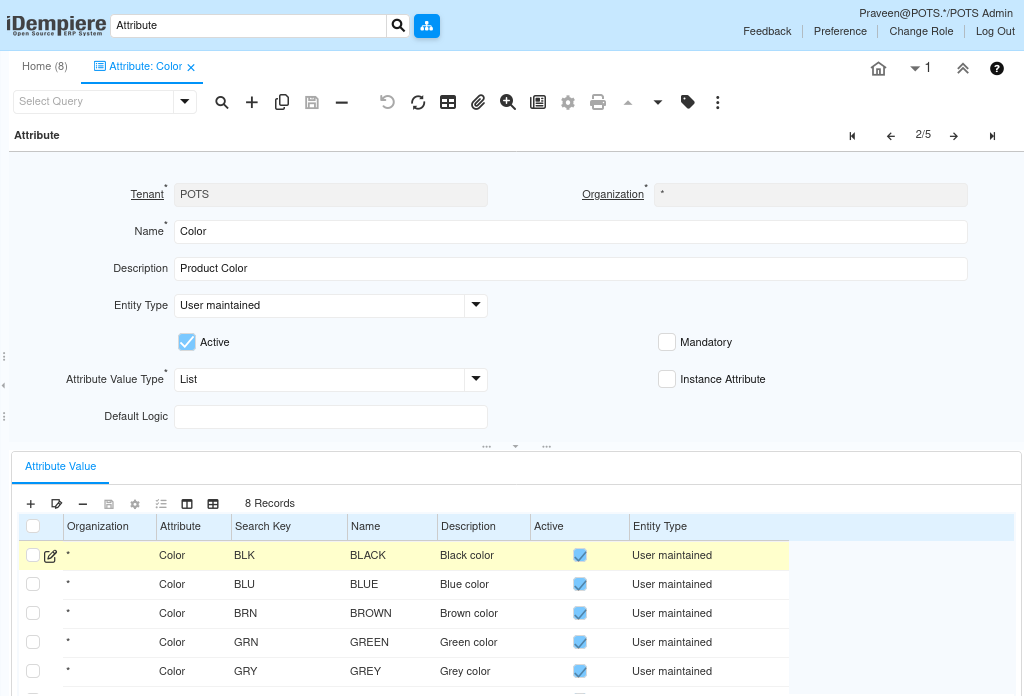
Step 3: Create Color Attribute
The Color Attribute manages product color variations across all retail categories. Configure it as a List type to allow predefined color selection during product and Attribute Set assignment.
Field Reference
| Field | Value |
| Name | Color |
| Description | Product Color |
| Entity Type | User Maintained |
| Active | Yes |
| Attribute Value Type | List |
| Mandatory | No |
| Instance Attribute | No |
Attribute Values
| Search Key | Name |
| BLK | BLACK |
| BLU | BLUE |
| WHT | WHITE |
| RED | RED |
| GRN | GREEN |
| BRN | BROWN |
| GRY | GREY |
| NVY | NAVY BLUE |
| Note: The Color Attribute is reusable across all product categories through Attribute Sets. Maintaining standardized color codes (e.g., BLK for BLACK) ensures consistent filtering, reporting, and inventory tracking across retail branches. |
Step 4: Create Storage Attribute
The Storage Attribute manages mobile device storage capacity options. Configure it as a List type to standardize storage variants across mobile product categories.
Field Reference
| Field | Value |
| Name | Storage |
| Description | Mobile Storage Capacity |
| Entity Type | User Maintained |
| Active | Yes |
| Attribute Value Type | List |
| Mandatory | No |
| Instance Attribute | No |
Attribute Values
| Search Key | Name |
| 64GB | 64 GB |
| 128GB | 128 GB |
| 256GB | 256 GB |
| 512GB | 512 GB |

| Note: Storage values must reflect current market variants. Additional values can be added to this list as new storage configurations become available in your product range. |
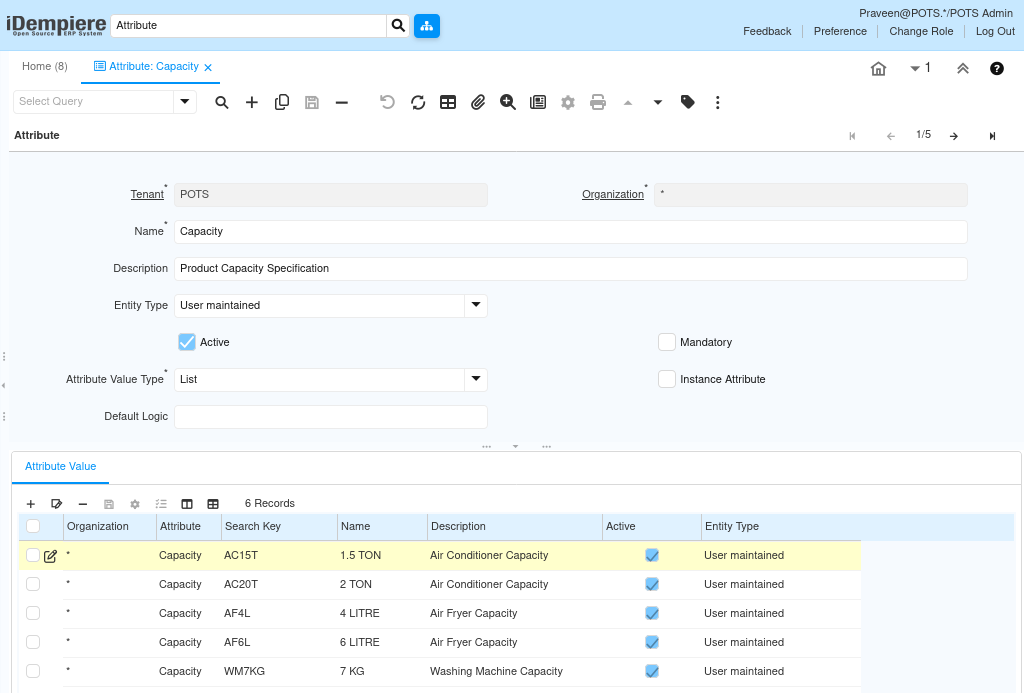
Step 5: Create Capacity Attribute
The Capacity Attribute manages appliance capacity specifications such as air conditioner tonnage, air fryer volume, and washing machine load ratings.
Field Reference
| Field | Value |
| Name | Capacity |
| Description | Product Capacity Specification |
| Entity Type | User Maintained |
| Active | Yes |
| Attribute Value Type | List |
| Mandatory | No |
| Instance Attribute | No |
Attribute Values
| Search Key | Name |
| AC15T | 1.5 TON |
| AC20T | 2 TON |
| AF4L | 4 LITRE |
| AF6L | 6 LITRE |
| WM7KG | 7 KG |
| WM8KG | 8 KG |
| Note: Use category-prefixed Search Keys (e.g., AC for Air Conditioner, WM for Washing Machine) to keep Capacity values identifiable across different appliance categories. |
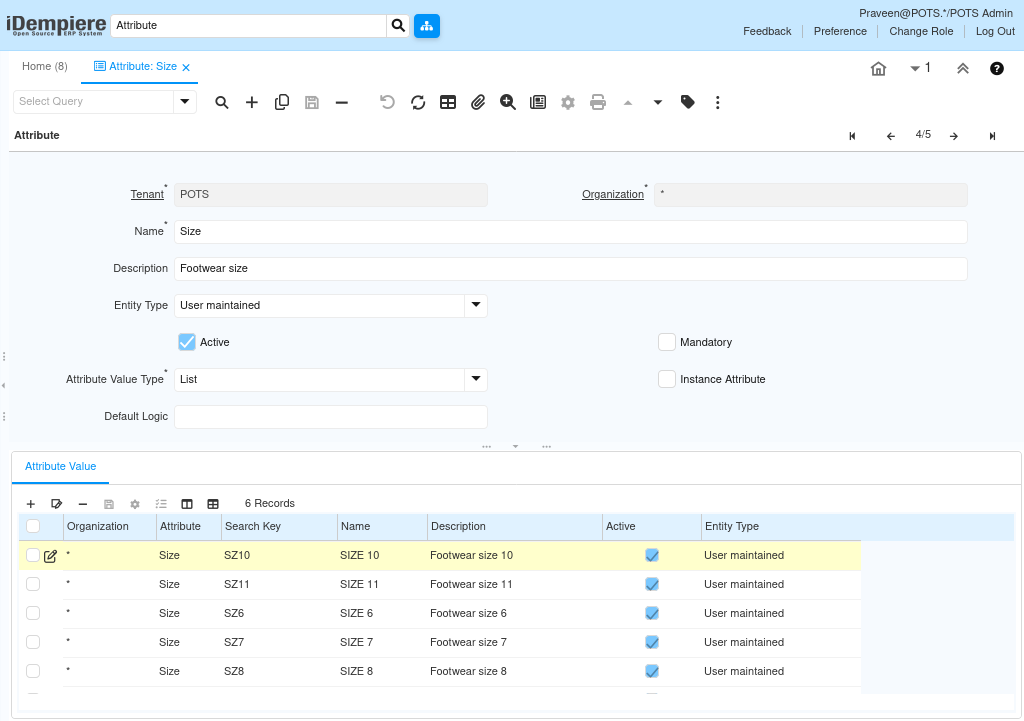
Step 6: Create Size Attribute
The Size Attribute manages footwear and apparel sizing. Configure it as a List type using standard retail shoe sizes to maintain consistent product variants.
Field Reference
| Field | Value |
| Name | Size |
| Description | Footwear Size |
| Entity Type | User Maintained |
| Active | Yes |
| Attribute Value Type | List |
| Mandatory | No |
| Instance Attribute | No |
Attribute Values
| Search Key | Name |
| SZ6 | SIZE 6 |
| SZ7 | SIZE 7 |
| SZ8 | SIZE 8 |
| SZ9 | SIZE 9 |
| SZ10 | SIZE 10 |
| SZ11 | SIZE 11 |
| Note: Extend the Size Attribute with additional values for apparel (S, M, L, XL) when configuring clothing categories. Use separate Search Keys to distinguish footwear sizes from apparel sizes. |
Step 7: Create IMEI Attribute (Instance Attribute)
The IMEI Attribute captures the unique International Mobile Equipment Identity number for each individual mobile device. Unlike Color, Storage, and Size, IMEI values are not predefined — they are entered during sales and inventory transactions.
Field Reference
| Field | Value |
| Name | IMEI |
| Description | Mobile IMEI Number |
| Entity Type | User Maintained |
| Active | Yes |
| Attribute Value Type | String (max 40) |
| Mandatory | No |
| Instance Attribute | Yes |
| Important: Set Instance Attribute = Yes for IMEI. This ensures a unique IMEI value is captured per unit during each inventory transaction — not shared across all units of the same product. |

Step 8: Save the Attribute Record
After entering all required values, click the Save button in the toolbar. Save (Alt + S)
- The record becomes immediately available for Attribute Set assignment.
- The Active checkbox must remain enabled for the Attribute to appear in configuration lookups.
- Deactivate — do not delete — Attributes that are no longer in use to preserve historical transaction data.
Step 9: Activate or Deactivate an Attribute
Active = Yes: The Attribute and its values are available for Attribute Set configuration and product transactions.
Active = No: The Attribute is hidden from all configuration lookups. Existing transactions that reference this Attribute are not affected.
Deactivating an Attribute automatically hides all its values from future transactions.
Always deactivate instead of deleting to preserve historical transaction integrity.
Common Issues and Resolutions
| Issue | Cause | Resolution |
| Attribute not visible in Attribute Set | Active checkbox is disabled | Open the Attribute record and enable the Active checkbox |
| Attribute values not appearing | Values not created under Attribute Value tab | Navigate to the Attribute Value tab and add the required values |
| IMEI captured incorrectly during transaction | Wrong Attribute Value Type selected | Set Attribute Value Type to String and Instance Attribute to Yes |
| Duplicate attribute values in dropdown | Same value created multiple times | Review and deactivate duplicate records; maintain unique Search Keys |
| Wrong attribute type selected | List used instead of String for IMEI | Delete or deactivate the record and recreate with the correct Attribute Value Type |
| Attribute not filtering products correctly | Attribute not linked to Attribute Set | Assign the Attribute to the correct Attribute Set |
| Color attribute missing standard values | Incomplete value list during initial setup | Add missing color values under the Attribute Value tab |
| Size values not matching retail sizing | Values entered without standard naming | Use standardized naming: SIZE 6, SIZE 7, SIZE 8, etc. |
| Capacity attribute showing wrong values | Capacity values entered for wrong category | Review and reassign values to the correct Attribute |
| Attribute saved but not available in transactions | Entity Type mismatch | Ensure Entity Type is set to User Maintained |
Next Steps
After completing Product Attribute configuration in iDempiere, proceed with:
| Next Configuration | Purpose |
| Attribute Set | Group related Attributes (Color, Size, Storage) into a reusable set for Product assignment |
| Assign Attributes to Attribute Sets | Link configured Attributes to the appropriate Attribute Set for each product category |
| Product Master | Create Product records and assign the configured Attribute Sets |
| Product Variants | Generate variant SKUs using Attribute Set combinations |