How to run EOD (Delete Unpaid Order) in Adempiere Retail
At the End of Day (EOD), all unpaid orders are deleted from the system to keep records clean and prevent pending orders from carrying over to the next day.
User Access
Who Can Access
- Back Office
- Cashier
- Manager
- Admin
What User Can Do
- Review unpaid orders before the EOD process runs.
- Manually follow up with customers to complete payment before EOD.
- Cancel or finalize unpaid orders if allowed before deletion.
- Generate reports to see unpaid orders pending deletion.
- Request a hold or exception for specific unpaid orders (if policy allows).
Pre-Requisite Activities
- Identify Unpaid Orders
- Attempt Payment Collection
- Review Exceptions
Business Rules
- All unpaid orders must be identified and reviewed before the EOD deletion process begins.
- Unpaid orders will be deleted automatically during the EOD process to prevent carryover to the next day.
- Users must be notified about unpaid orders before they are deleted.
- Exceptions to deletion (e.g., hold orders) must be flagged and approved by management before EOD.
- The EOD deletion process must be authorised by a manager or designated role.
- Once deleted, unpaid orders cannot be recovered from the system.
User Interface
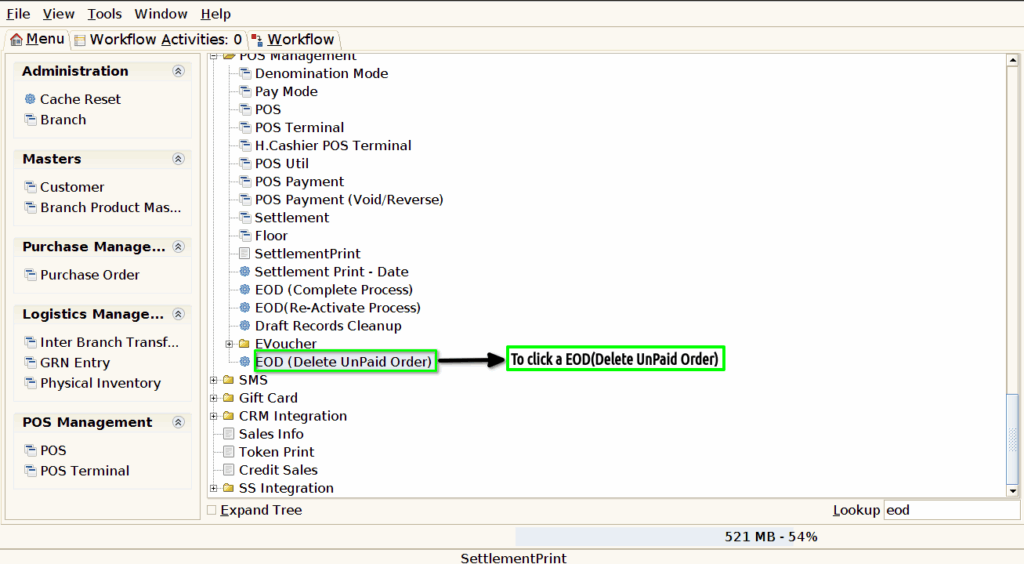
Step 1 : To Select a Branch in Menu.Then to click a EOD(Delete Unpaid Order).
Step 2 :To enter a Date and to click a start check box.

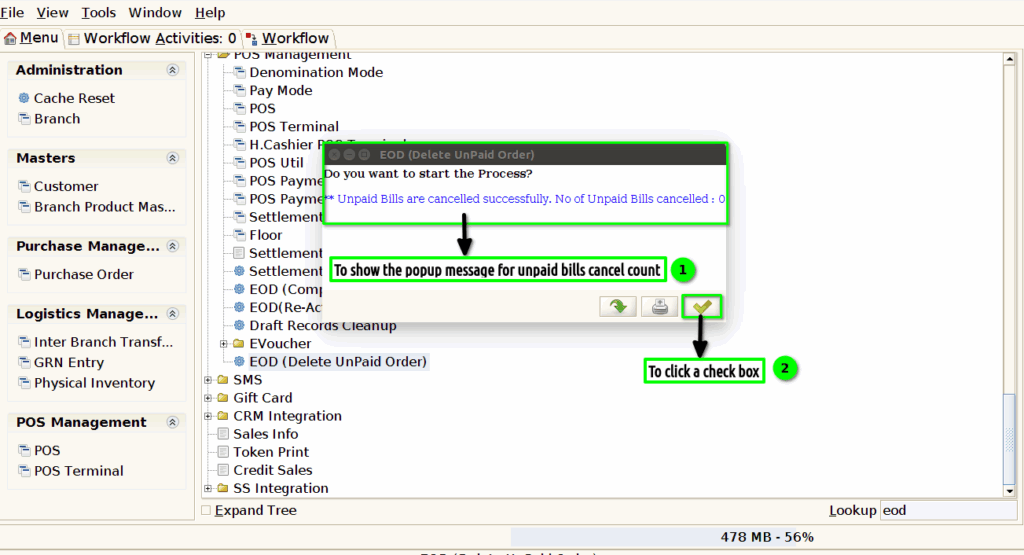
Step 3 :Once to complete the check box to show the popup message for Unpaid Bills cancelled count and to click the check box.