How to create POS Settlement in Adempiere Retail
Settlement is the process of finalizing a payment or transaction by transferring funds from the customer to the business, confirming the transaction is complete.
User Access
Who Can Access
- Back Office
- Cashier
- Manager
- Admin
What User Can Do
- Initiate or process settlement of payments at the end of a transaction or day.
- Verify settlement status of payments or batches.
- Review reports showing settled and unsettled transactions.
- Approve or authorize settlements if required by role.
Pre-Requisite Activities
- Close All Open Transactions
- Reconcile Cash and Payments
- Check for Pending Authorizations
- Manager Approval
Business Rules
- Settlement must occur at the end of each business day or shift, before starting a new one.
- All transactions (sales, refunds, voids) must be closed or finalized before settlement is allowed.
- Only authorized users (e.g., cashier, supervisor) can initiate the settlement process.
- The system must reconcile totals (cash, card, digital payments) during settlement.
- Once settlement is completed, no changes can be made to transactions included in that batch.
- Multiple settlements per day are not allowed unless approved (e.g., mid-shift closures).
User Interface
Step 1 : To Select a Branch in Menu.Then to click a Settlement.

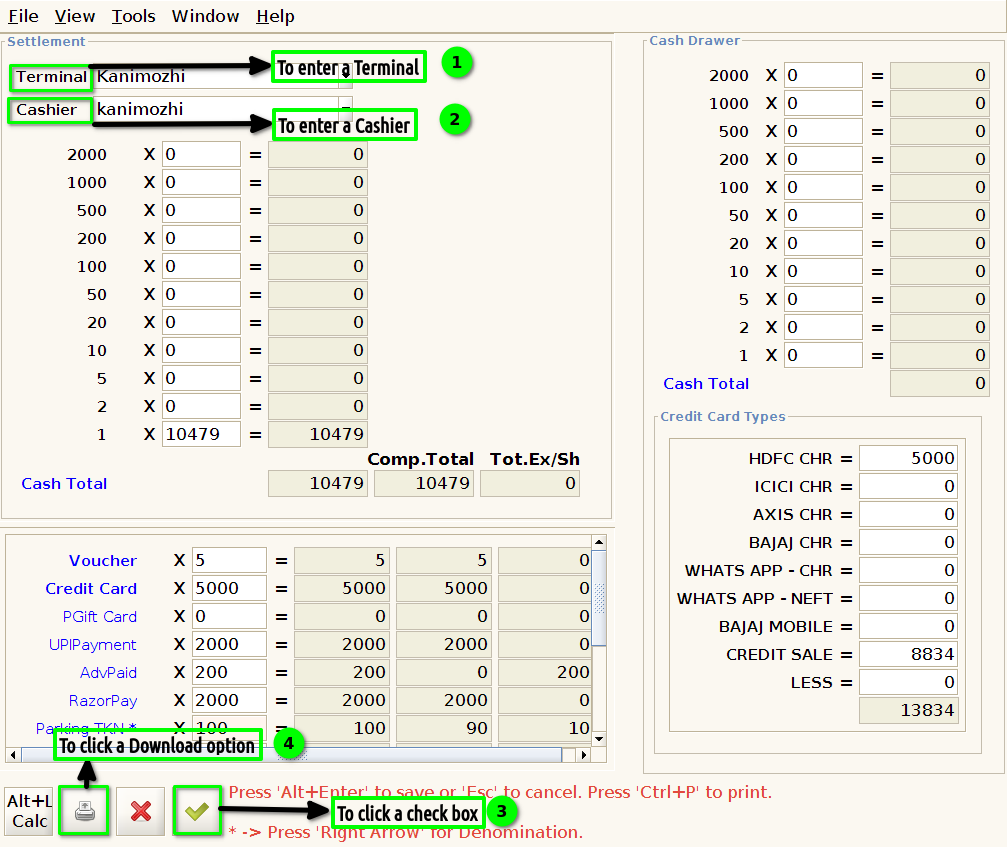
Step 2 :To enter the Terminal value and to enter the value for Cashier then to click the check box.Finally to click the download option.Then to open the settlement print.
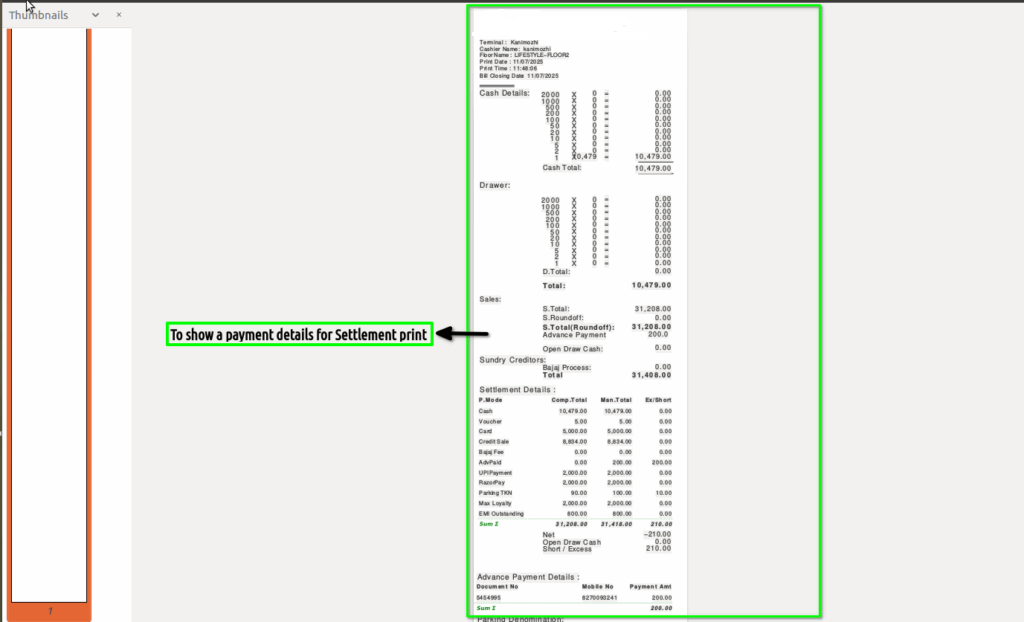
Step 3 :To click the PDF folder and to open the Settlement print.To show the payment details.