How to RePrice a Sales Order or Invoice in iDempiere
Introduction
The RePrice Order/Invoice process updates the prices on an existing Sales Order or Invoice using the latest active Product Prices in the assigned Price List Version.
It is used when a product price changes after an order was created but before it ships, so the customer is billed at the current rate without recreating the order.
The process refreshes line prices, discounts, taxes, and the Grand Total automatically, without changing the original Price List, Product Price, or order quantities.
Business Rules
- Only one document, either a Sales Order or an Invoice, can be repriced per execution.
- The selected document must remain editable, typically Drafted or Open.
- The document must have a valid Price List assigned.
- The process uses the latest active Price List Version tied to the document.
- All document lines are repriced automatically, along with taxes and totals.
- Product Price records themselves are not modified by this process.
- Quantities, warehouse, and business partner details remain unchanged.
Process Flow Diagram

Configuration Steps
Step 1: Update the Product Price
Repricing only has an effect if the Price List Version actually contains a changed price; otherwise the document is recalculated to the same values.
Open Price List → Version → Product Price for the product, update the Standard Price (or List or Limit Price), then save the record.
| Field | Sample Value | Description |
| Price List Version | Retail Sales Price List – 2026 | Active version the order’s Price List points to |
| Product | AASH-ATTA-5KG_Aashirvaad Atta – 5kg | Product whose price is being updated |
| List Price | 300.00 | Reference price; unchanged in this example |
| Standard Price | 280.00 (was 290.00) | Selling price used on new order lines and by RePrice |
| Limit Price | 270.00 | Minimum allowed selling price; unchanged in this example |

Step 2: Select the Document to Reprice
The process needs to know exactly one document to recalculate, so only one of Order or Invoice should be filled in.
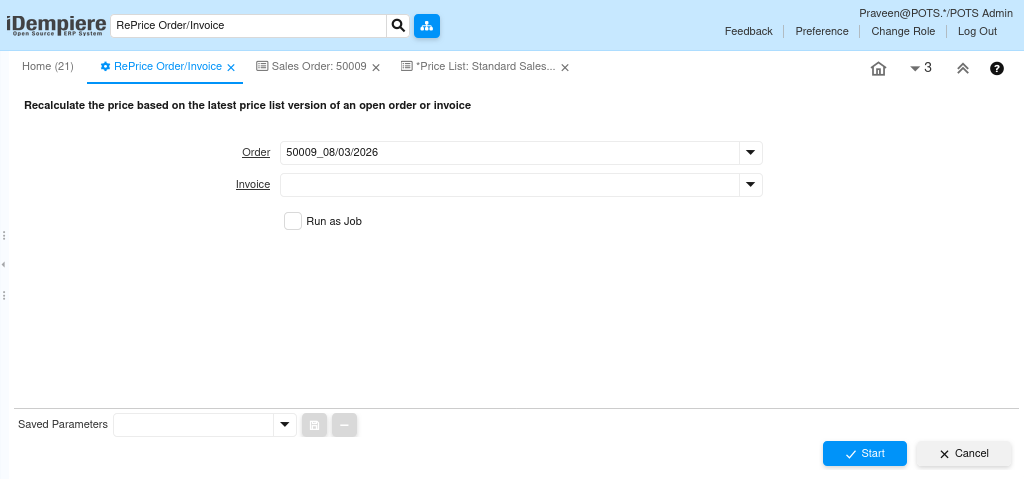
Open RePrice Order/Invoice, select the Order (or Invoice) to reprice, leave the other field blank, then click Start.
| Field | Sample Value | Description |
| Order | 50009_08/03/2026 | Sales Order to be repriced |
| Invoice | (Blank) | Left empty when repricing an Order |
| Run as Job | Unchecked | Runs the process in the background |
Step 3: Execute the Process
Clicking Start is what actually triggers the recalculation; selecting the document alone does not change any prices.
Click Start. The system reads the document’s Price List, retrieves the latest active Price List Version, finds the latest Product Prices, and updates every line.
Step 4: Review the Repricing Result
The confirmation message shows exactly which document changed and by how much, before you reopen it.
Read the result line in the format Document: Previous Grand Total → Updated Grand Total.
| Field | Sample Value | Description |
| Document | 50009 | Sales Order that was repriced |
| Previous Grand Total | 342.20 | Grand Total before repricing |
| Updated Grand Total | 330.40 | Grand Total after repricing |

Step 5: Verify the Updated Document
A final check on the document itself confirms the new price carried through to every affected field, not just the Grand Total.
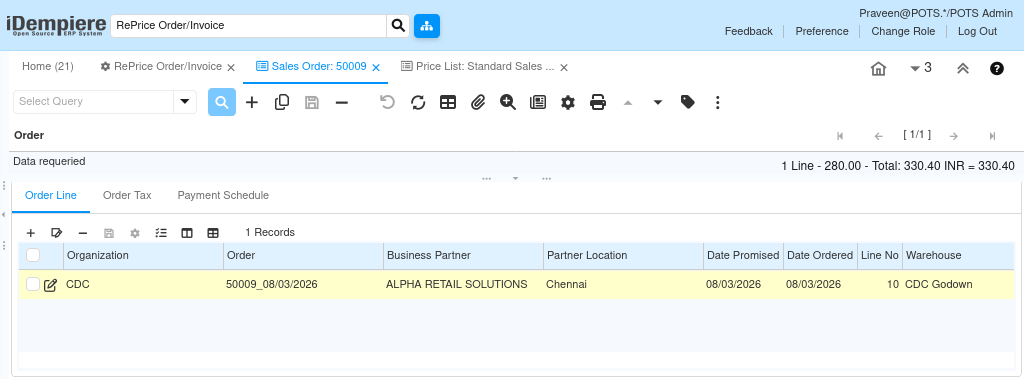
Reopen the Sales Order and check the Order Line tab: Price, Line Amount, Total Lines, and Grand Total should reflect the updated price.
Field Reference
| Field | Sample Value | Description |
| Price | 280.00 (was 290.00) | Updated line price from the Price List Version |
| Total Lines | 280.00 (was 290.00) | Sum of line amounts before tax |
| Grand Total | 330.40 (was 342.20) | Total including tax after repricing |
| Note: Quantity, Warehouse, and Business Partner on the order are unchanged; only price-related fields are refreshed. | ||
Common Issues and Resolutions
| Issue | Cause | Resolution |
| No change after repricing | Latest Price List Version does not contain an updated Product Price | Verify the Product Price was actually changed in the active Price List Version |
| Order not available for selection | Order does not exist, or is no longer eligible for modification | Confirm the Order exists and is still Drafted or Open |
| Invoice not available for selection | Invoice status restricts editing | Verify the Invoice is valid and not Completed or Closed |
| Price remains unchanged | Product Price edit was not saved before running the process | Save the Product Price change, then rerun RePrice Order/Invoice |
| Incorrect totals after repricing | Tax, discount, or Price List assignment misconfigured | Review Product Prices, Taxes, Discounts, and the Price List assignment |
Next Steps
- Complete the Sales Order.
- Generate the Shipment.
- Generate the Customer Invoice.
- Process the Customer Payment.