How to Process Generate Shipments in iDempiere
The Generate Shipments process bulk-creates Customer Shipment documents from completed Sales Orders based on warehouse, dates, and delivery rules, instead of creating each shipment manually.
It is used to fulfil many open orders in one run, such as end-of-day dispatch, and can consolidate several orders for the same customer into a single Shipment.
The process reserves inventory, generates Shipment Lines, and can automatically complete each Shipment, feeding directly into packaging, confirmation, and invoicing.
Process Flow Diagram
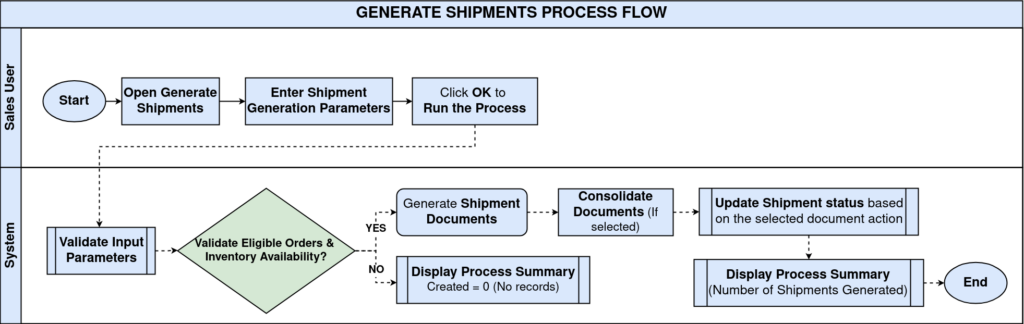
Business Rules
- Only completed Sales Orders with remaining quantities to deliver are processed.
- Warehouse selection is mandatory before running the process.
- The selected Document Action runs automatically on every generated Shipment.
- Multiple orders for the same Business Partner and location can consolidate into one Shipment.
- Orders with Unconfirmed Shipments recalculates remaining quantity before adding new lines.
- Warehouse Orders and On Credit Orders are excluded from generation.
- Inventory availability is validated before any Shipment is created.
Configuration Steps
Step 1: Enter Shipment Generation Criteria
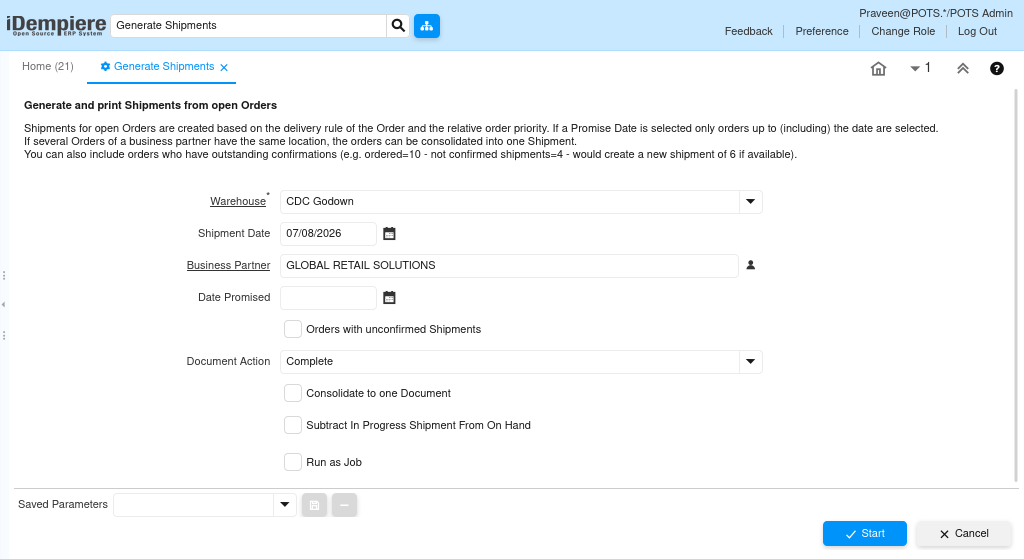
Open Generate Shipments, select the mandatory Warehouse, optionally narrow by Business Partner or Date Promised, choose a Document Action and consolidation options, then click OK.
| Field | Sample Value | Description |
| Warehouse | CDC Godown | Warehouse inventory is shipped from; mandatory |
| Shipment Date | (Blank) | Document date applied to generated shipments |
| Business Partner | GLOBAL RETAIL SOLUTIONS | Optional filter to generate shipments for one customer only |
| Date Promised | (Blank) | Includes only orders due on or before this date |
| Orders with Unconfirmed Shipments | Unchecked | Includes orders that already have Draft or In Progress shipments |
| Document Action | Prepare | Action automatically applied to each generated shipment |
| Consolidate to one Document | Unchecked | Merges eligible orders for the same customer into one shipment |
| Subtract In Progress Shipment From On Hand | Unchecked | Deducts stock already reserved by unconfirmed shipments |
| Run as Job | Unchecked | Runs the process in the background |
Note: Leaving Business Partner blank includes all eligible customers; a narrow filter with no matching open orders results in zero shipments created.`
Step 2: Execute the Process
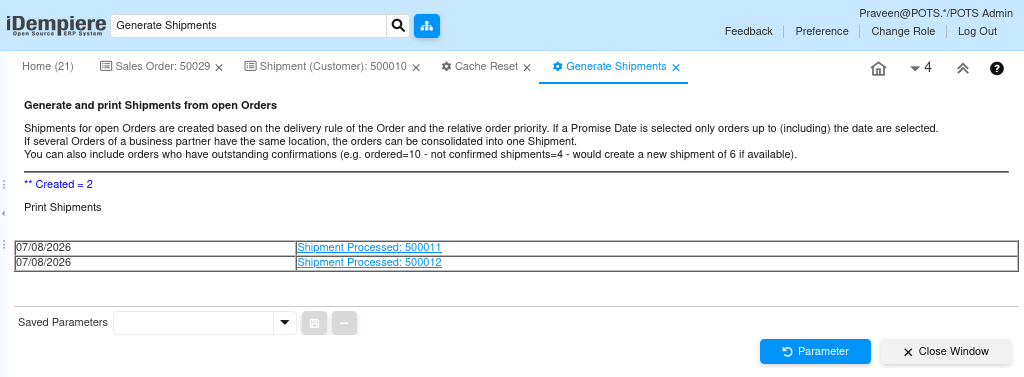
Click OK. The system searches eligible Sales Orders, validates inventory, creates Shipment documents and lines, and displays a Created count with links to each shipment.
Field Reference — Example Result
| Field | Sample Value | Description |
| Created | 2 | Number of Shipment documents generated by this run |
| Shipment Processed | 500011 (07/08/2026) | First generated shipment, with a link to open it |
| Shipment Processed | 500012 (07/08/2026) | Second generated shipment, with a link to open it |
Step 3: Print the Generated Shipments (Optional)
Click OK on the Print Shipments prompt to open a combined delivery note PDF for all generated shipments, or Cancel to skip printing for now.
Step 4: Review Each Generated Shipment
Open each generated Shipment and verify the Customer, Warehouse, Shipment Lines, Delivered Quantities, Document Status, and Movement Date.
Expected Result
- Generated Shipment contains all eligible Shipment Lines.
- Document Status matches the selected Document Action (e.g. Drafted for Prepare).
- Quantities match what was available and eligible at the time of generation.
Common Issues and Resolutions
| Issue | Cause | Resolution |
| No shipment generated (Created = 0) | Business Partner filter excludes all eligible orders, or no orders are completed with remaining quantity | Remove or broaden the Business Partner filter and confirm Sales Orders are completed with pending delivery |
| Warehouse mandatory error | Warehouse not selected | Select a valid Warehouse before clicking OK |
| Shipment quantity lower than ordered (Backordered) | Insufficient available inventory | Check stock on hand and quantities already reserved by unconfirmed shipments |
| Duplicate shipments avoided | Orders with Unconfirmed Shipments left unchecked while a partial shipment already exists | Enable Orders with Unconfirmed Shipments to recalculate and add the remaining quantity |
| Orders not included in the run | Promised Date, Warehouse, or Business Partner filter does not match the order | Verify filter values against the Sales Order details |
| Multiple shipments for the same customer | Consolidate to one Document left unchecked | Enable Consolidate to one Document to merge eligible orders |
| Print Shipments dialog skipped | Cancel clicked instead of OK | Reopen the generated Shipment and print manually if needed |
Next Steps
- Review Shipment Lines on each generated document.
- Complete the Shipment, if generated in Draft or Prepared status.
- Perform Ship/Receipt Confirmation, if confirmation is required.
- Create Shipment Packages, if dispatching through a carrier.
- Generate the Customer Invoice, if applicable.