How to view PO Fill Rate Report in Adempiere Retail
A PO (Purchase Order) Fill Rate Report By Vendor shows the percentage of ordered items that each vendor has successfully delivered on time and in full, compared to what was originally ordered.
User Access
Who Can Access
- Admin
- Back Office
- Purchase Manager
- Manager
- Cashier
What User Can Do
- Evaluate Vendor Performance
- Support Vendor Negotiations
- Make Sourcing Decisions
- Track Trends Over Time
- Communicate with Vendors
- Enhance Reporting and Accountability
Pre-Requisite Activities
- Define Report Objectives
- Verify Data Completeness & Accuracy
- Identify Responsible Persons
Business Rules
- Calculation of Fill Rate
- Timeliness Definition
- Handling Partial Deliveries
- Vendor Attribution
- Reporting Period
- Data Validation
- Presentation Rules.
User Interface
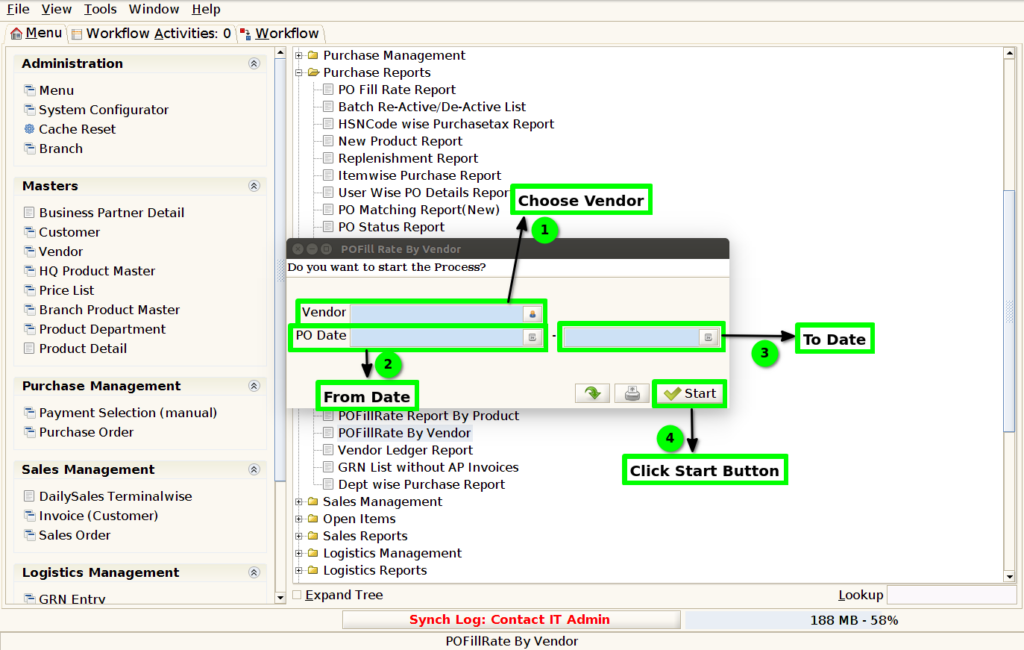
STEP 1: Click Purchase Reports Folder.

STEP2: Click POFillRate Report By Vendor.

STEP3: Choose Parameter From Date, To Date and Vendor Mandatory.
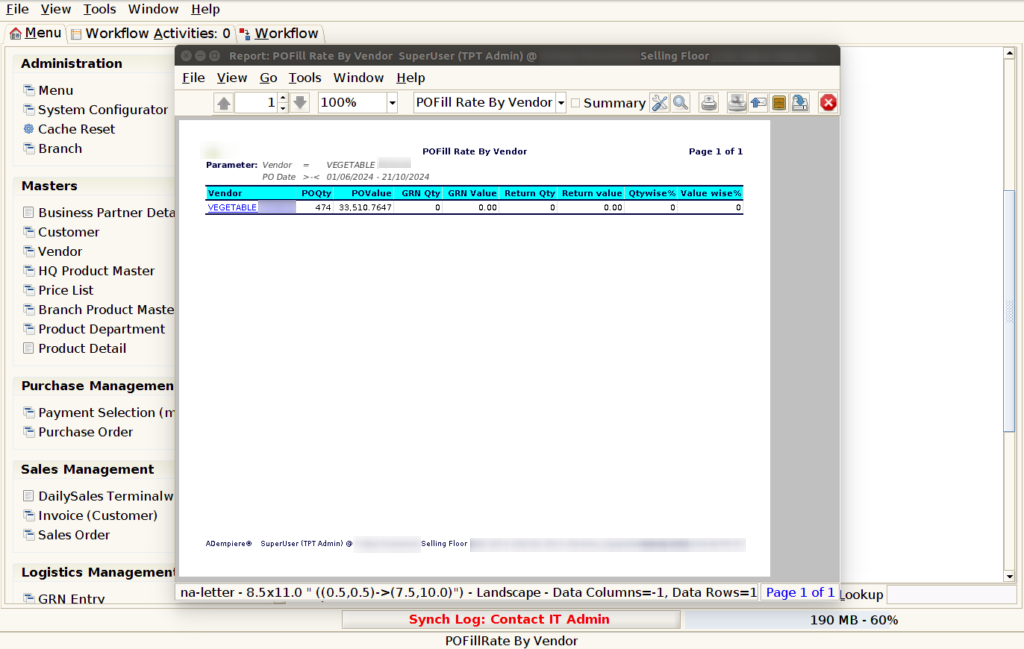
STEP4: Show Columns Details.
1.Vendor Name.
2.Purchase Order Quantity.
3.Purchase Order Value.
4.GRN Quantity.
5.GRN Value.
6.Return Quantity.
7.Return Value.
8.Quantity Wise %
9.Value Wise %.