How to view Monthly Sales R Report in Adempiere Retail
A Monthly Sales Report is a summary document that shows the total sales made by a business during a specific month.
User Access
Who Can Access
- Cashier
- Sales Manager
- Manager
- Admin
What User Can Do
- Track Sales Performance
- Analyze Trends
- Report to Stakeholders
- Identify Issue
Prerequisite Activities
- Complete Sales Data Entry
- Reporting Period
- Categorize Sales
Business Rules
- Complete and Finalized Data Only
- Strict Reporting Period
- Data Accuracy and Validation
- Timely Reporting
User Interface
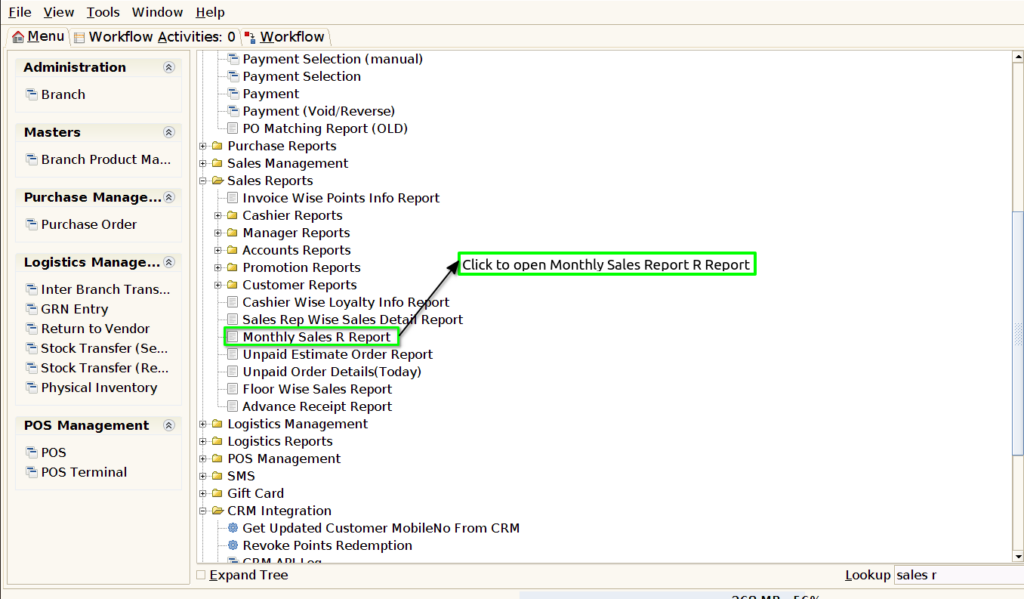
Step 1 : Select ‘Monthly Sales R Report’ in Menu -> Sales reports > Manager report > Monthly Sales R Report or Search Monthly Sales R Report.
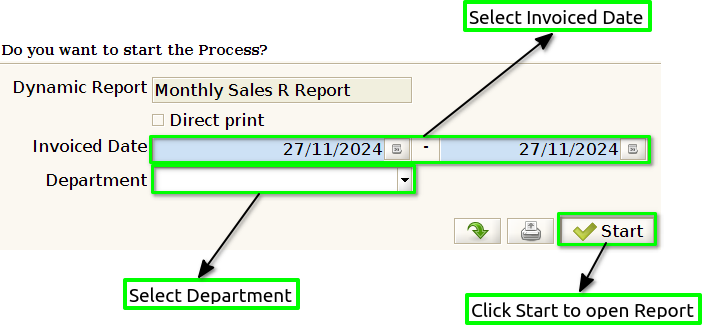
Step 2 : Select the date range and Department to open the Monthly Sales Report R Report.
Step 3 : To view a preview of the Monthly Sales Report R Report.
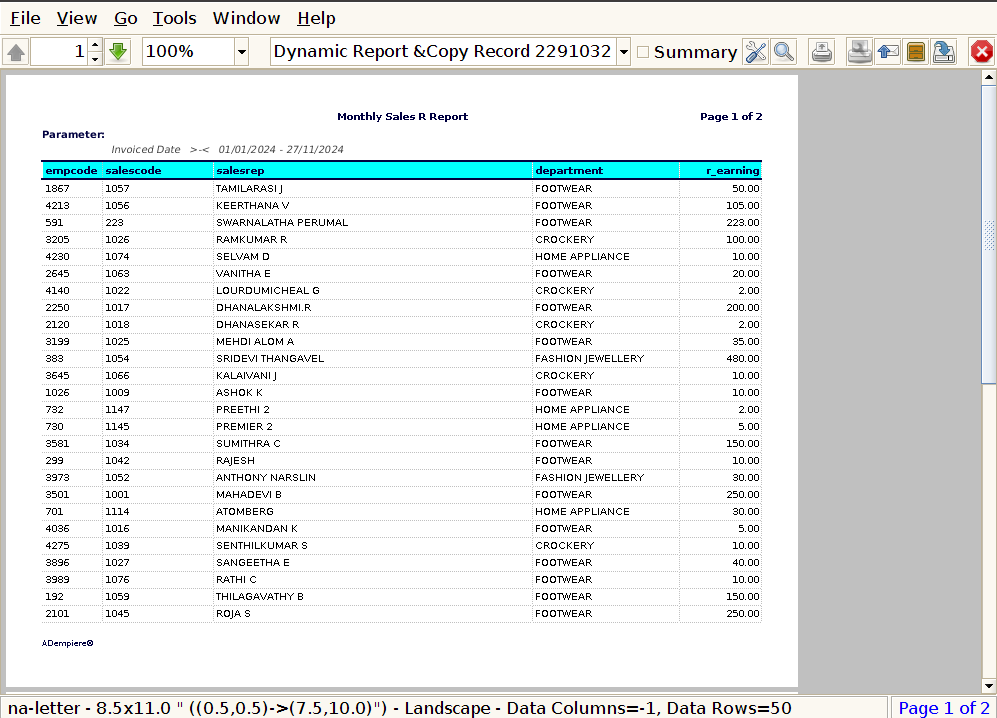
Code : This allows the report to provide both the sales rep’s name and their corresponding sales rep code, ensuring accurate and identifiable sales tracking.
Emp Code : This would help in identifying each sales representative not just by their name or rep code, but by a unique employee code. This is especially useful if your system uses an employee code for tracking and reporting purposes.
Sales Rep : By adding the Sales Rep Name to the Sales Rep Wise Sales Summary Report, the report becomes more readable and informative, allowing for easy identification of each sales rep and their corresponding sales performance.
Department : By including the Department in the Sales Rep Wise Sales Summary Report, you can organize and segment the sales performance data not only by the sales rep but also by the department they belong to.
Representative Earning : Here is a sample Monthly Sales R Report that focuses on Representative Earnings. This report will track the performance of individual sales representatives and their earnings for the month, based on their sales achievements.