How to change quantity of Line Item in ADempiere Retail POS?
“Change Product Quantity” means modifying the number of units of a product in a transaction (like sales, purchase, GRN, or stock adjustment), either by increasing or decreasing the quantity based on business needs.
User Access
Who Can Access
- Cashier
- Head Cashier
What User Can do
- Edit Qty
Pre-Requisite Activities
- Maintain product master with units and stock control settings
- Define user roles/permissions to allow quantity edits
- Configure alerts or blocks for quantity violations
- Enable audit log to track changes to product quantity
- If barcode-based, ensure scanning updates quantity automatically
Business Rules
- Quantity cannot be set to zero or negative (unless allowed for returns)
- Must respect unit of measure (e.g., can’t split a pack unless allowed)
- In POS, once bill is confirmed/printed, quantity cannot be changed
- System may auto-adjust stock levels or pricing based on new quantity
- Every quantity change must be logged with user ID and timestamp
User Interface
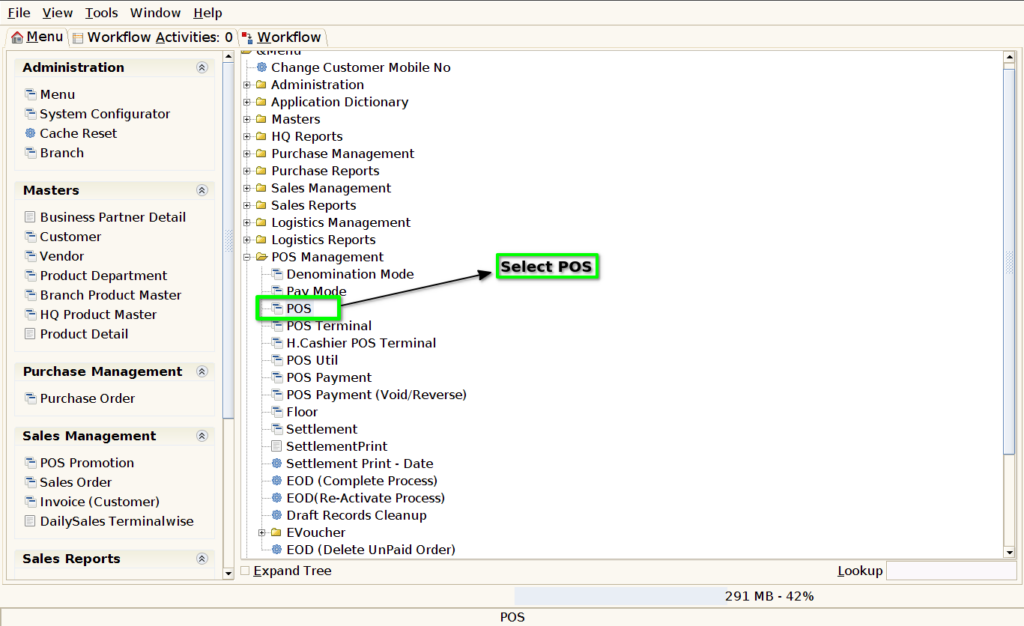
Step 1 : Select ‘POS’ in Menu -> POS Management -> POS or Search POS in Lookup.
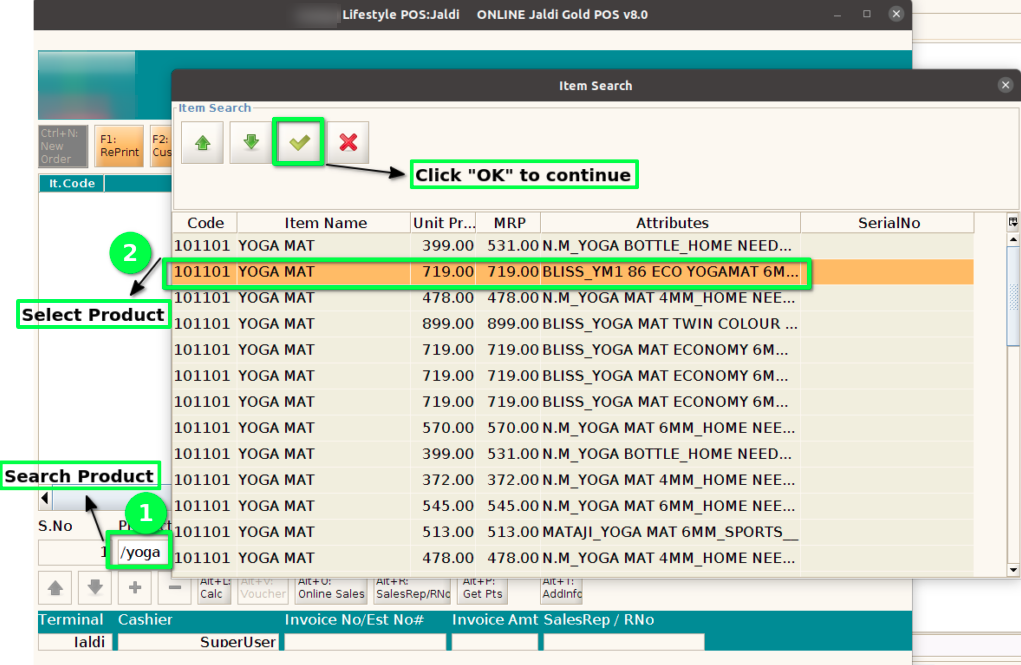
Step 2 : Search Product using Product Code, Product Name, Barcode, IMEI, Serial Number
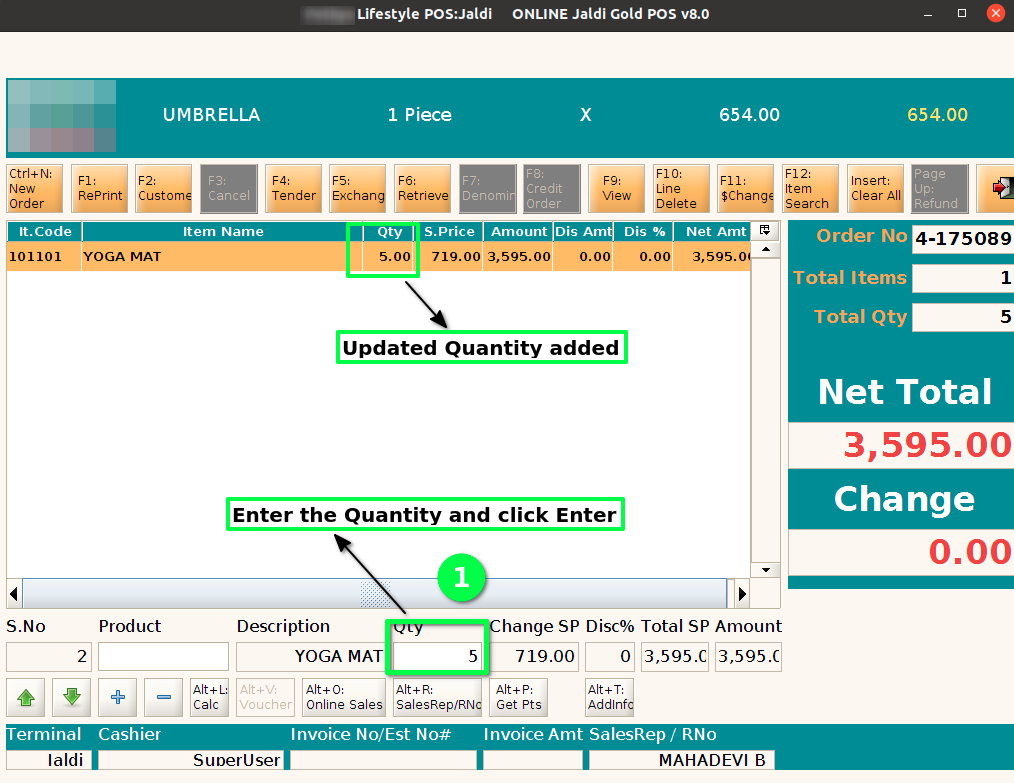
Step 3 : Change the Qty by press Tab button then enter the Qty
Step 4 : Quantity change Using ‘Shift +’ and ‘Shift -‘. For promotion products qty change option should not be work using Shift +’ and ‘Shift -‘.

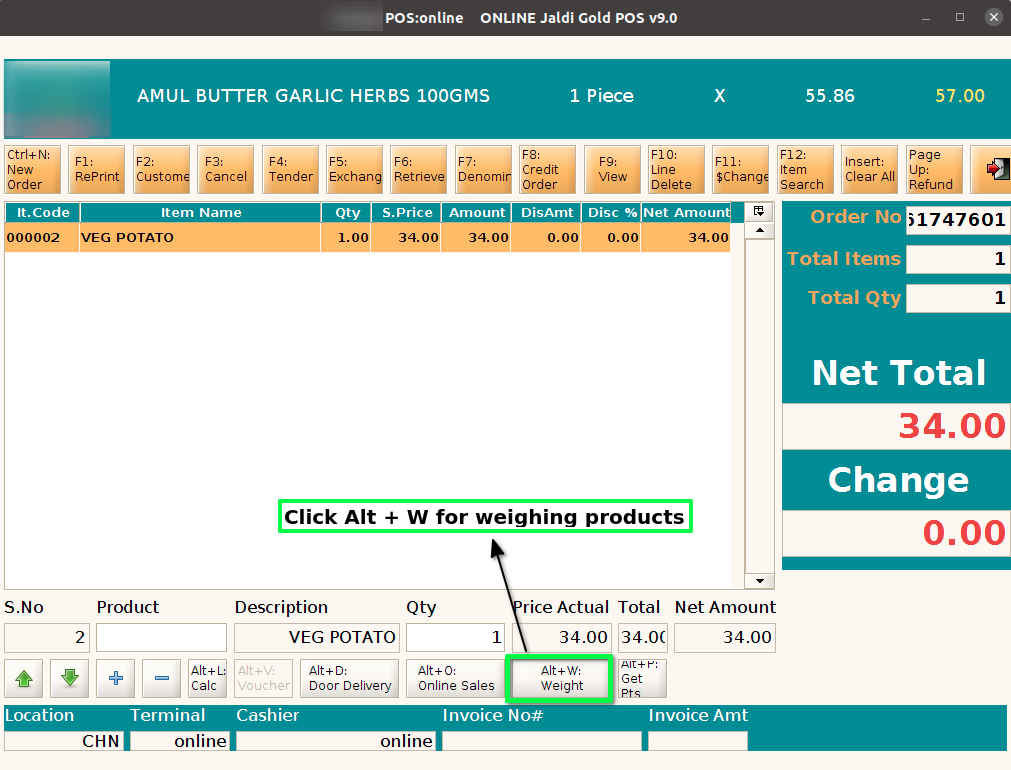
Step 5 : For weighing products Click ‘Alt + W’ to change the quantity for decimal values