How to Add Free Items in the Odoo Goods Receipt
In Odoo, free items are often included as part of vendor promotions or negotiated purchase agreements. Adding these items during the Goods Receipt (GR) process ensures that both complimentary and paid products are captured accurately in the system. This not only supports clear reporting and auditing but also streamlines the GR workflow by automatically bringing in free items alongside the purchased goods.
Creating a Goods Receipt (GR)
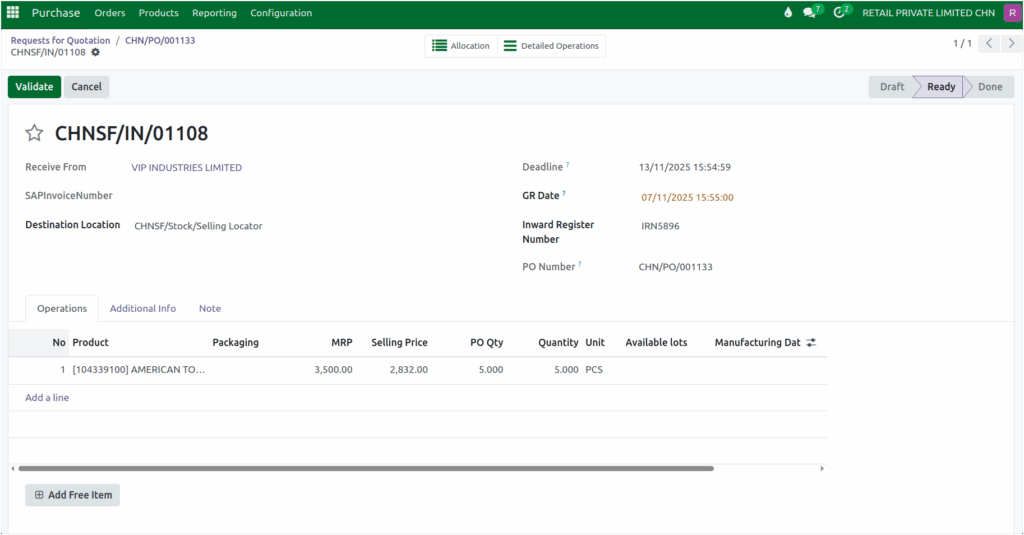
Before starting the GR process, make sure the Purchase Order (PO) has been confirmed. Once confirmed, click the “Receive Products” button on the PO screen. The GR screen will appear automatically, and the system will generate a GR document number. It is also mandatory to enter the IRN (Invoice Reference Number) at this stage.
Accessing Free Items in the GR Process
Free products can be added while processing the GR. On the GR screen, the “Add Free Item” button appears at the bottom of the Operations tab. Clicking this button opens the Add Free Item pop-up window, where users can select and add free items to the GR. The system also allows multiple free items to be added in a single GR transaction.
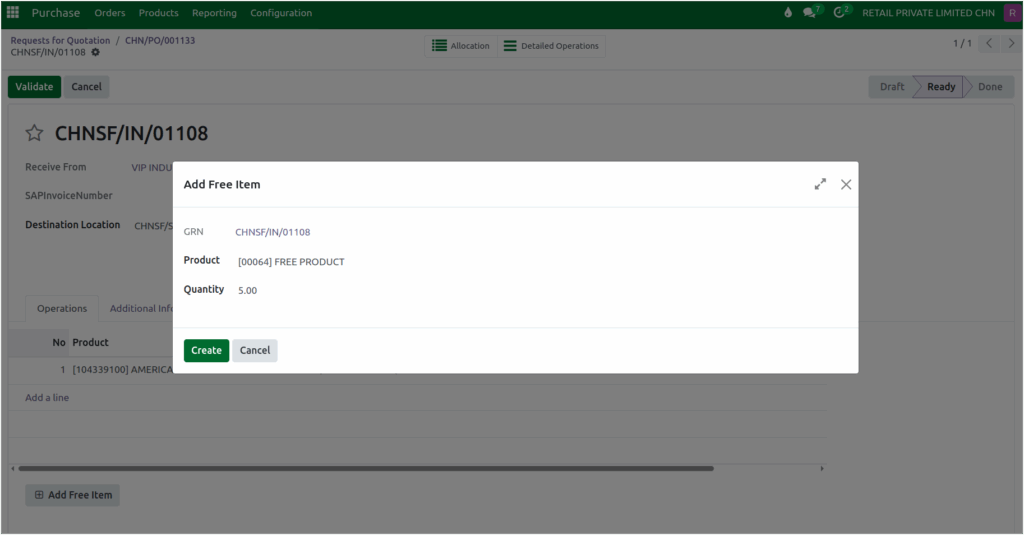
When the pop-up window opens, the GRN number will automatically appear. In the Product field, a list of existing free items will be displayed for selection. After choosing the desired item, the user must enter the quantity of the free product received.
Creating a Free Product in GR
If the required free product is not available in the list, it can be created directly from the pop-up window. In the Product field, type the name of the new free product and click Create to add it to the system. Then, enter the quantity of the free item received so it can be recorded in the GR.
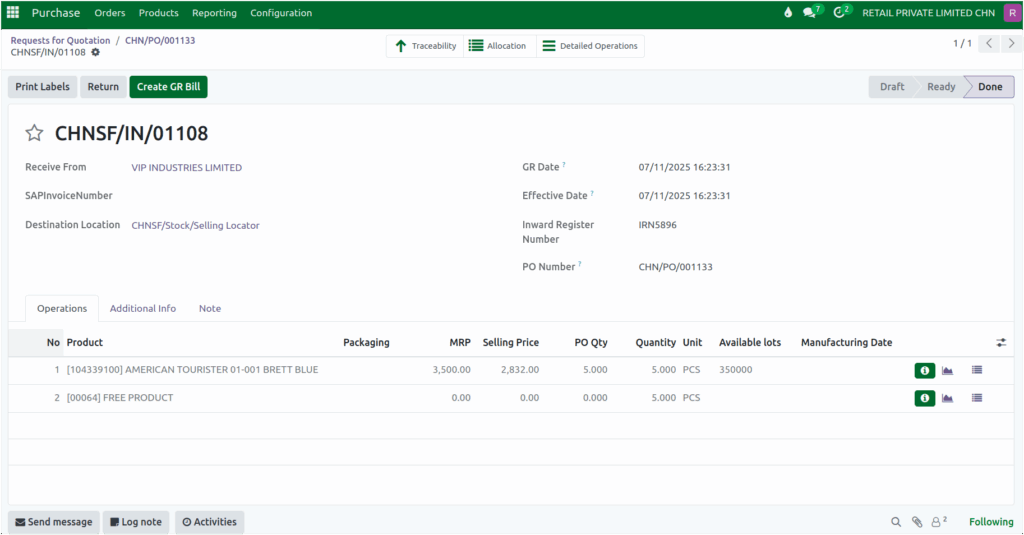
After selecting or creating the product and entering the quantity, click Create to finalize the process. The free product will then be added to the GR as a new product line. The quantity entered will be displayed in the Qty field, while the MRP, SP, and PO quantity will appear as zero since the item is free. Once added, the free product will be visible in the GR product list.
Validating the Goods Receipt (GR)
When all items, including free ones, have been added, click Validate to complete the GR process. After validation, the free product quantity will be automatically updated in the Product Master, ensuring that stock records are accurate and up to date.