How In-Transit Documents are Created and Validated in Internal Stock Transfer
In Odoo, the Internal Stock Transfer (IST) process helps manage the movement of products between different locations, such as warehouses, within the same company. The system ensures that every transfer is tracked accurately by automatically creating two related documents one for the stock movement from the source to the in-transit location and another for the final movement (in-transit) to the destination.
Creating the Internal Stock Transfer
To begin, open the Inventory module from the main menu and select Internal Transfer. From there, choose Internal Stock Transfer to create a new transfer record. Once you’re on the transfer form, you need to fill in the required details.
Start by selecting the Transfer Type, which determines how the stock will move, for example, between different branches or warehouses. When the transfer type is chosen, the Source and Destination Locations are automatically set by the system.
You can then enter the Product Category to specify the type of items being moved or you select the GRN from the dropdown, the Contact Person for the transfer, and the Scheduled Date, which is set to the current date by default but can be changed if needed.
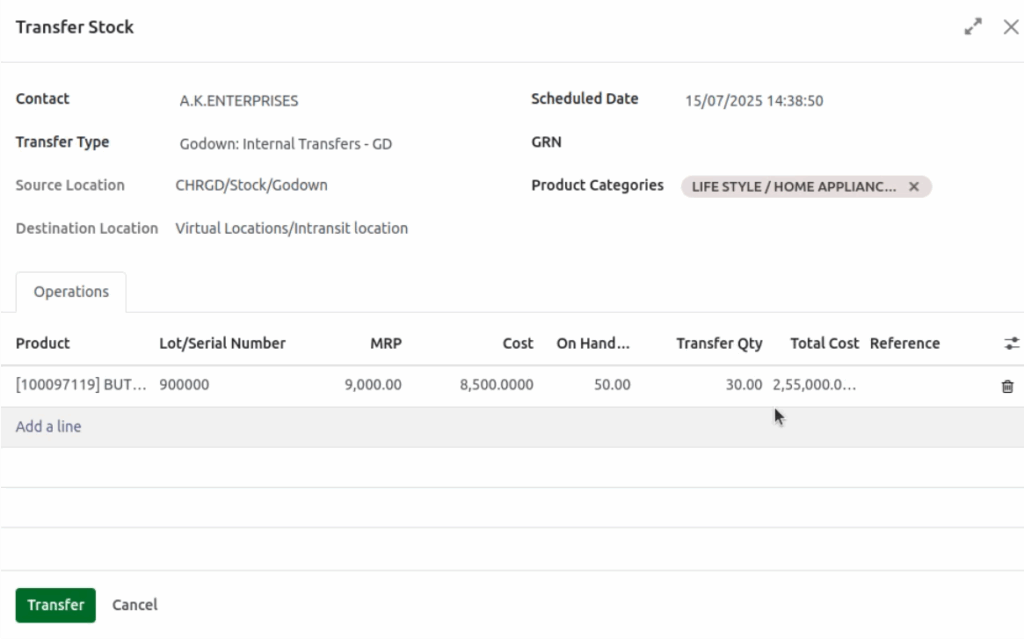
Next, you need to add the products that will be part of the internal transfer. Under the Operations tab, click Add a Line to include a new product. Select the product using its code, choose the appropriate lot or serial number, and enter the quantity to be transferred. Once all products have been added, verify the total cost to ensure accuracy before proceeding.
Processing the In-Transit Document
After entering all necessary details, click the Transfer button. When you do this, Odoo automatically generates two separate documents, each with a unique document number.
The first is the Stock Movement Document, which records the movement of products from the Source Location to the In-Transit Location. This document is immediately marked as Done, indicating that the stock has been dispatched from the source.
The second is the In-Transit Document, which tracks the movement of products from the In-Transit Location to the Destination Location. This document remains in the Ready state, awaiting validation to complete the transfer process.

To ensure accuracy, open the newly created in-transit document. Check that all key details such as Transfer Type, Source and Destination Locations, Contact Person, Scheduled Date, and Deadline are correctly displayed. The Source Document field should show the reference number of the stock movement document that moved items from the source to the in-transit location.
Within the Operations tab, review the list of products included in the transfer. Make sure the product names, quantities, and lot or serial numbers are correct. You can also view the detailed lot or serial number information in the Detailed Operations tab at the top of the screen before validating the transfer.
Validating the In-Transit Document
Once all information has been verified, click Validate to confirm the in-transit document. When validation is complete, Odoo automatically updates the inventory levels in both the source and destination locations to reflect the movement of goods. You can open the product record to confirm that the quantities have been correctly adjusted in each location.

Through this process, Odoo ensures that every internal stock transfer is properly documented, transparent, and traceable at each stage from dispatch to delivery, helping businesses maintain accurate inventory records across all their warehouses.
