How to Configure Pricing Settings in Odoo POS
Odoo POS offers powerful pricing features that help businesses manage flexible product prices, apply discounts, control who can change prices, and run promotions. With the right configuration, you can create a smooth and transparent billing experience for both cashiers and customers.
Accessing Pricing Settings in Odoo POS
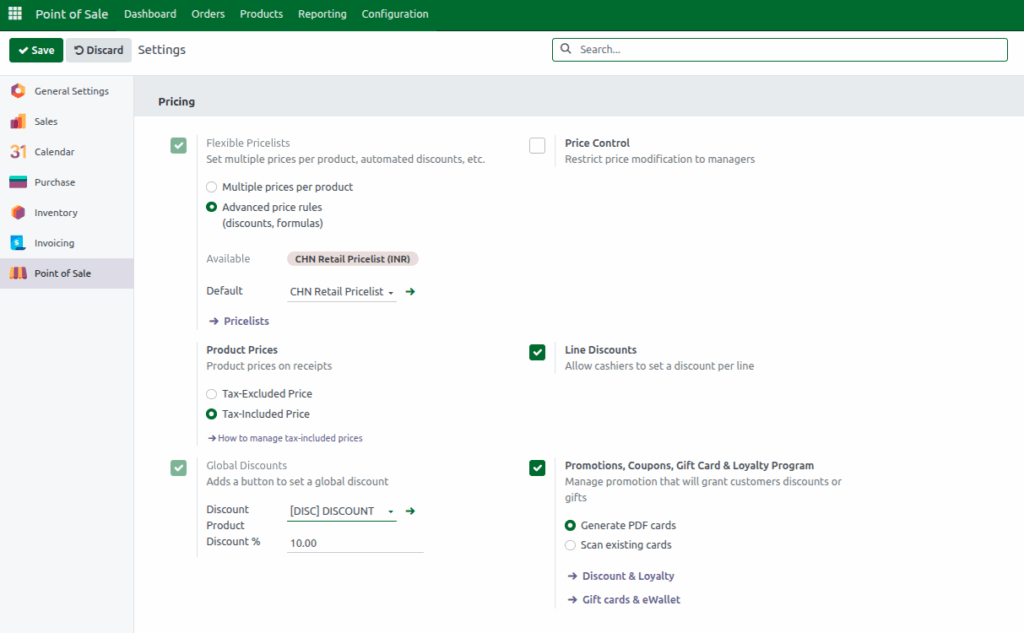
To configure pricing options, open the Point of Sale module and click the Configurations menu. Then select Settings and choose the POS terminal you want to configure from the Point of Sale field. Scroll down to the Pricing section to view all available pricing controls.
Setting Up Flexible Pricelists
Make sure the POS session is closed before enabling the Flexible Pricelists option, as it will appear as read-only if the session is open.
Enable the Flexible Pricelists checkbox to allow different pricing strategies for your products. You can choose Multiple prices per product to set different prices for the same item or Advanced price rules to automatically apply pricing formulas or discounts. Select the desired pricelist from the drop down, or create a new one if needed. You can also set a default pricelist for all POS orders.
Managing Price Display and Discounts
You can control how product prices are shown on receipts. Tax-Excluded Price displays the price before tax, while Tax-Included Price shows the price including tax.
For discounts, enable the Global Discounts option to add a button in the POS that applies a discount to all products in a transaction. Choose the Discount Product to calculate the discount value and set the default discount percentage. You can also enable Line Discounts, allowing head cashiers to apply discounts to individual product lines, giving flexibility for item-specific promotions.
Controlling Price Modifications
Odoo POS allows you to restrict who can change product prices. By enabling Price Control, only authorized users, can modify prices. This ensures pricing consistency and prevents unauthorized changes.
Configuring Promotions and Loyalty Programs
Odoo POS supports coupons, gift cards, and loyalty programs to make customer rewards easier to manage. Enable the Promotions, Coupons, Gift Card & Loyalty Program checkbox to activate these options.
You can choose Generate PDF cards to create digital cards for customers or use Scan existing cards to apply rewards or promotions that already exist.
Final Review and Saving the Configuration
After configuring all pricing settings, review each option to make sure everything is correct. Once verified, click Save to store the changes. Properly configured pricing settings ensure your POS terminal handles product prices, discounts, and promotions efficiently while minimizing errors during transactions.
