How to Configure Integrations in Odoo Inventory
Odoo Inventory allows businesses to connect their inventory with other systems like eCommerce platforms, POS price tag, and SAP. These integrations help keep stock, prices, and transactions updated in real time. Setting up these integrations in Odoo is simple and can be done from the Settings menu in the Inventory module.
Accessing Integration Settings
To start configuring integrations, open the Inventory module in Odoo. From there, click on the Configurations menu and select Settings. Inside the settings page, you can find different integration sections based on what you want to connect. This page allows you to set up connections with eCommerce platforms, POS price tag, and SAP by entering the required server, authentication, and database details.
Setting Up eCommerce Integration
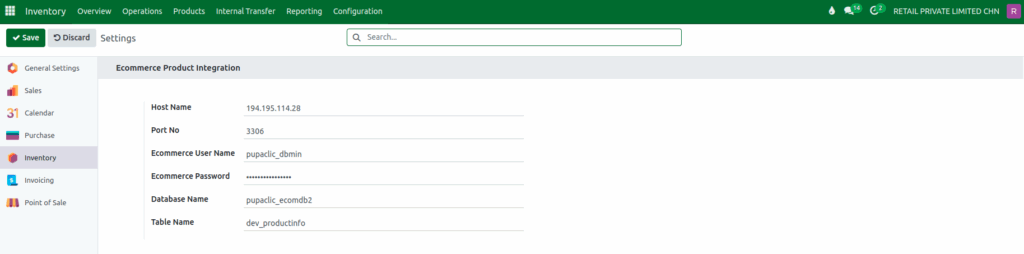
The eCommerce integration helps keep stock levels updated between your online store and your inventory system. To set it up, you need to enter the Host Name and Port, which allow Odoo to connect to the external inventory server or database. You must also enter the eCommerce Username and Password for secure API communication.
The Database Name identifies where stock information is stored, and the Table Name specifies the exact table that contains the inventory data. Once this is configured, stock levels can sync automatically so your online shoppers always see correct, real-time availability.
Configuring POS Price Tag Integration
The POS price tag integration keeps product prices updated across all physical store terminals. This setup requires a Key, which works as an API key or authentication token to ensure only authorized systems can access pricing data.
You also need to enter the URL, which is the API endpoint that Odoo will use to fetch or update price tag information. With this integration active, product prices stay consistent across all POS systems, and any price change can automatically update printed or digital labels inside the store.

Setting Up SAP API Integration
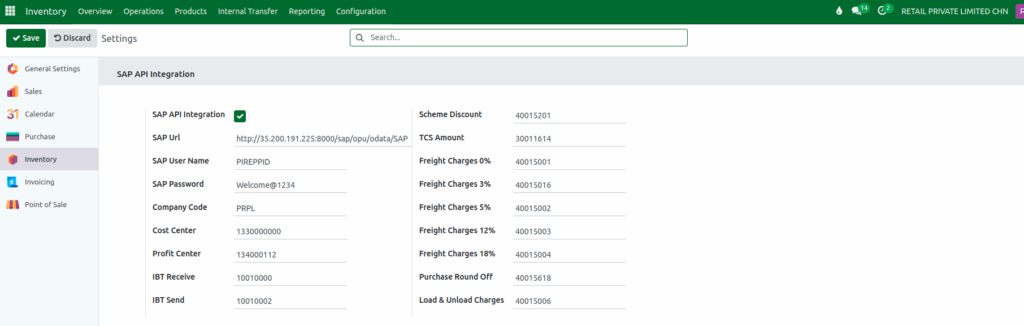
Odoo can also connect with SAP to manage inventory movements and financial records. For this, you need to enter a valid SAP Username and Password for API access. You must also specify the Company Code, which identifies the legal entity in SAP, as well as the Cost Center and Profit Center that are used for tracking expenses and profitability inside the business. With these details in place, Odoo can send and receive important stock transactions directly to SAP without manual entry.
IBT Transactions and Additional Cost Sync
Inter-branch transfers (IBT) can also be connected through API integration. When an IBT Send transaction is triggered in Odoo, it posts a Goods Issue in SAP for the branch sending the items. IBT Receive posts a Goods Receipt in SAP for the branch receiving them, ensuring both sides stay accurate and synchronized.
If your process includes extra costs like freight or handling, these can also be sent through the API. Odoo includes these costs in the payload, and SAP posts them using standard cost distribution methods such as planned delivery costs or surcharges. This keeps your stock valuation and financial records accurate.