How to Configure the POS Inventory Settings in Odoo
Tracks product movements for accurate stock levels. Manages real-time stock availability to prevent stock outs. Supports Allow Ship Later for delayed deliveries. Integrates inventory with POS for seamless sales. Enhances customer satisfaction with accurate stock and timely fulfillment.
Access the Settings
- Open the Point of Sale module.
- Click on the Configurations menu.
- Select Settings.
- Choose the specific terminal to configure in the Point of Sale field.

Configuring Operation Type
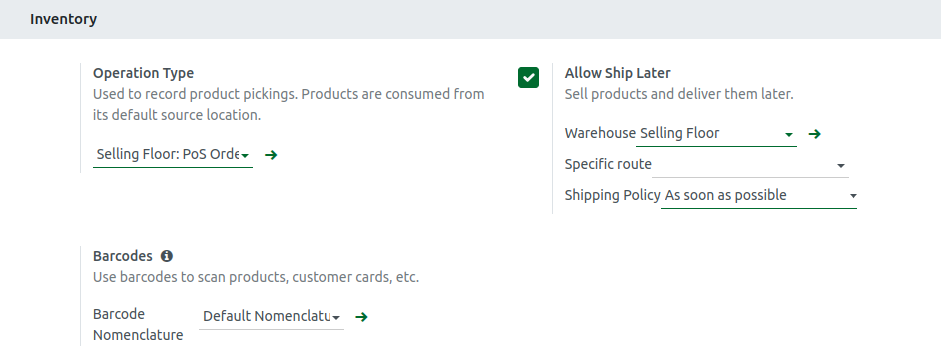
Specifies how product movements are tracked during sales at the Point of Sale. Select the appropriate Operation Type for your sales flow (e.g., Selling Floor: POS Orders). When a product is sold, it is removed from its assigned storage location in the inventory.
Configuring Allow Ship Later
Enables the ability to sell products now and deliver them later. Enable the checkbox for “Allow Ship Later” to show the Door Delivery option in the POS Terminal. The following fields will become visible for configuration:
- Warehouse: Select the inventory location from which products will be shipped.
- Specific Route & Shipping Policy: Define the logistics flow for order fulfillment (e.g., shipping method)
Choose the shipping policy:
- As soon as possible: Ships products as soon as they are available (recommended).
- When all products are ready: Delays shipment until all products in the order are available.
Configuring Inventory Management
In the Inventory Management section, choose between At Session Closing or In Real Time based on your store’s needs:
- At Session Closing: Inventory is updated only when the POS session is closed. Ideal for high-volume environments where speed is crucial.
- In Real Time (Accurate but Slower): Inventory is updated immediately as each order is processed, providing more accurate stock levels due to continuous updates.
Configuring Barcodes
In the Barcode Settings section, select your preferred nomenclature:
- Default Nomenclature: For basic use (recommended).
- Default GS1 Nomenclature: For industry-standard barcode formats.
This allows quick product lookup, customer verification, and easy application of discounts using barcodes.
Saving inventory Configuration
Review all inventory-related settings to ensure accuracy. Once verified, click Save to confirm and store your changes in the system.