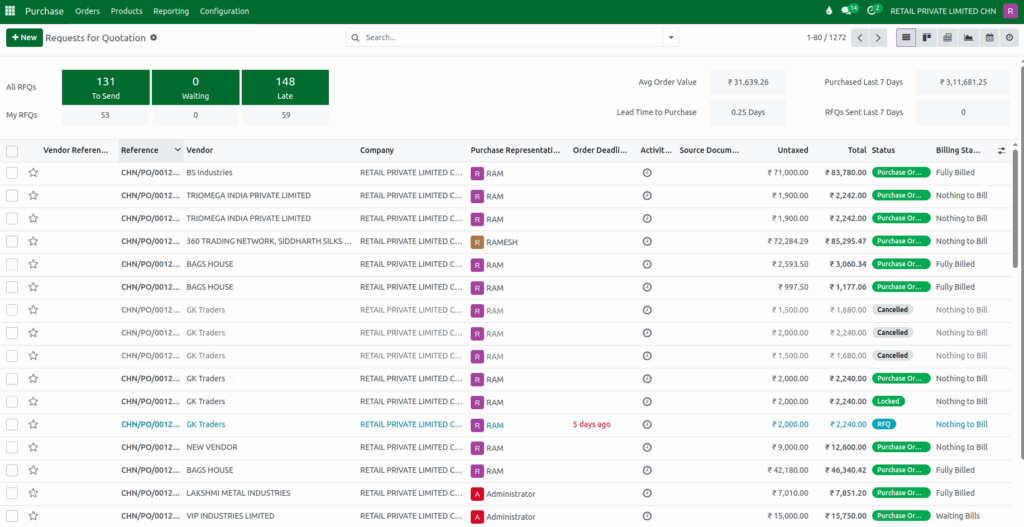
How Details are Displayed on the Requests for Quotation Screen in Odoo Purchase
The Requests for Quotation (RFQ) screen in Odoo Purchase is an important place where businesses can manage all their vendor quotation requests from one spot. It helps companies create, track, and organize RFQs easily so the purchasing team can work faster and more accurately.
Overview of the RFQ Screen
The RFQ screen gives a clear view of all quotation requests created in the system. From here, you can create a new RFQ, check its progress, and manage communication with vendors. When you click the “New” button, you can fill in details like vendor name, products, quantities, delivery dates, and terms.
The toolbar also includes Search, Filter, and Group By options, which help you quickly find the RFQs you are looking for. Depending on your preference, you can switch between List, Kanban, or Calendar views to make navigation easier.
RFQ Dashboard Summary
At the top of the screen, you will find a small dashboard showing important counts related to RFQs. The All RFQs number shows the total quotation requests created by everyone in the company. The My RFQs count shows only the requests created by the user currently logged in.
Under this, you will also see categories like To Send, which shows RFQs not yet sent to vendors; Waiting, which includes RFQs waiting for vendor confirmation; and Late, which highlights those that have passed their deadline. This area helps the purchase team understand how many RFQs are active, pending, or delayed at a glance.
Key Purchase Metrics
On the right side of the RFQ screen, Odoo displays helpful purchase metrics. These include the Average Order Value, which shows the typical value of purchase orders created. The Lead Time to Purchase shows how long it usually takes from creating an RFQ to confirming it as a purchase order.
There are also details like Purchased Last 7 Days, which highlights the total amount purchased recently, and RFQs Sent Last 7 Days, which shows how many quotation requests were sent to vendors in the past week. These metrics give managers a quick idea of recent purchasing activity.
Details Displayed in the RFQ List
The center of the screen displays the full list of RFQs. Each row in this list shows all important information about a single quotation request. The Vendor Reference is the reference number given by the vendor. The Reference is a unique number given by Odoo to identify each RFQ. The Vendor field shows the supplier you are requesting the quotation from, and Company shows which company is handling the RFQ.
The Purchase Representative field shows the person responsible for managing that RFQ. Order Deadline displays the final date for the vendor to respond or deliver, and Odoo highlights it if it is overdue. The Activities column shows any planned follow-ups. Source Document tells you which document created the RFQ.
Other financial details include Untaxed, and Total, which show the amounts before tax, the full amount, and the amount in the company currency. The Status field shows whether the RFQ is still a draft, sent to the vendor, waiting for approval, converted into a purchase order, locked, or cancelled.
Billing information is also shown through the Billing Status, which tells you whether the order is fully billed, waiting for bills, or has nothing to bill.
To make important RFQs easy to find, you can click the star icon next to any record, and it will move to the top of your list for quick access.