How to Print and View Odoo IST Picking Operations Print in Inventory
Odoo makes it easy to print and view Picking Operations document for Internal Stock Transfers (IST). These Picking Operation document help track product movement between locations and give a clear summary of what was transferred.
Print the Internal Transfer Document
Start by opening the Inventory module from the main menu. Go to Internal Transfer and select the Internal Stock Transfer you want to work with. Open the Intransit document related to that transfer. Once inside the form view of the intransit document, click the Settings (gear) icon. From the drop down menu, choose Print, and then select Picking Operations.

Validation Before Printing
Odoo only allows you to print the Picking Operations document after the internal transfer has been validated. If you try to print it before validation, the system will show an error message: “Please validate the record to continue printing.” After you validate the internal transfer, the Picking Operations PDF will be generated and downloaded automatically.

Header and Address Details
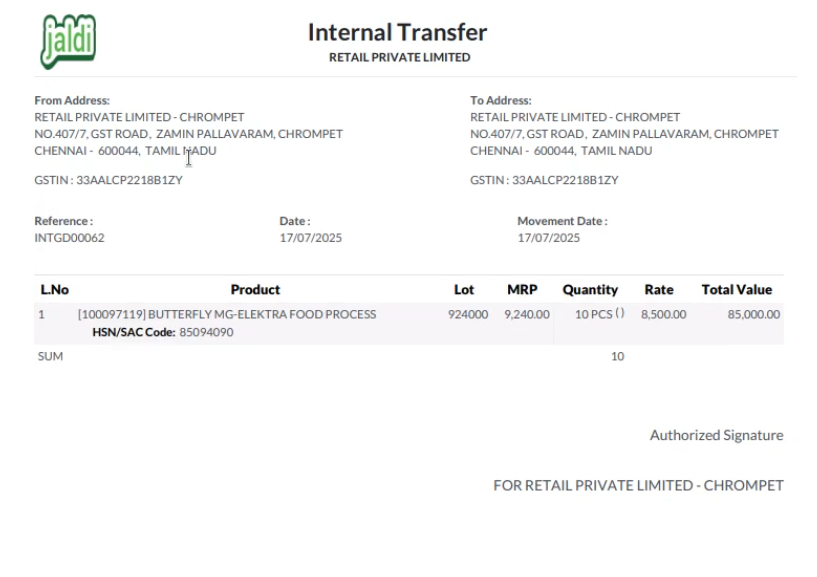
When you open the downloaded PDF, the header section displays important details. The company logo appears on the left corner, and the Internal Transfer title is shown at the center of the page. The document also includes the From Address, which represents the source location, and the To Address, showing the destination location where the goods will be moved.
Document and Movement Information
The printout provides useful information about the stock movement. The Reference field shows the document number for the transfer. The Date field displays when the internal transfer was created. There is also a Movement Date, when the internal transfer was confirmed. These details help keep track of both the transaction and the actual movement.
Product Details in the Picking Operation Print
The main section of the report lists all the products included in the transfer. For each item, you will find details such as the L.No (line number), the product code, product name, and HSN code. The lot/serial number is also shown for items that use lot/serial tracking.
The printout includes the MRP, the quantity transferred, the packaging quantity, and the rate of the product. Using the rate and quantity, the Total Value is calculated and displayed. At the bottom, you will see the overall sum of quantities for all transferred products.