How to create a Sales Classification in Odoo Inventory
The Sales Classification Feature in Odoo Inventory allows you to create, view and manage different classifications for your products such as Average, Fast and Slow. These classifications help organize inventory based on how quickly items sell, making it easier to plan stock levels and reorder schedules.
Accessing the Sales Classification Screen
To get started, go to the Inventory module, then navigate to Configuration ->WareHouse Management -> Sales Classification. This section provides a centralized view of all the created Sales Classification.
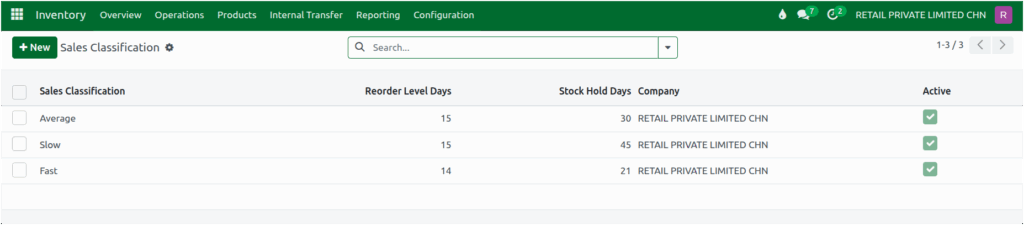
Creation Of New Sales Classification in Odoo Inventory
To create a new classification, click the + New button. This will open a screen where you can enter the necessary details for the new Sales Classification.

First, you need to assign a value to the Sales Classification field which has only three predefined options — Average, Fast and Slow. You can select any of the predefined options based on how quickly the product sells.
- Average: Used for products that have steady, regular sales.
- Fast: Chosen for products that sell quickly and need frequent restocking.
- Slow: Assigned to products with low or infrequent sales.

Any other value is not accepted, and leaving the field blank will display an alert “Invalid fields: Sales Classification.”
Next, the Company field displays the current company from which the classification is being created.
Finally, you can assign values to Stock Hold Days which determine how long stock is held and
Reorder Level Days which determine when to reorder based on the classification. Using the same value for both fields is allowed.

Once all the details are entered, click Save to store the Sales Classification in the system. The created
Sales Classification will be linked to the products and used in the MBQ (Minimum Base Quantity) process. This helps Odoo automatically plan stock levels and reorder quantities based on the product’s sales speed.
Preventing Duplicate Sales Classification
Each classification name must be unique; if a duplicate sales classification name is selected, the system will display an a Validation Error: “Classification must be unique!”

