How to print and view the details on the POS bill receipt in A4 size in Odoo
In retail stores with a few product categories Home Appliances, Mobile Product, this A4 bill receipt provides a detailed and professional record for customers. It offers better readability with more space for itemised details, taxes, and terms. The receipt is useful for record-keeping and audits, providing clear printed documentation. It is compatible with standard office printers that support A4 paper size.
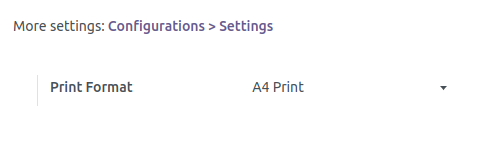
Configuration for A4 Print in POS
Go to the Menu Bar in POS terminal and then Navigate to Print Format Settings. From the available formats, select the one labeled “A4 Print”. This enables printing receipts on A4-sized paper
using a compatible printer. Make sure your POS printer or system printer supports
A4 format.
Adding Products to the POS Cart
Products can be added to the POS Cart in three ways:
- Type the product code(e.g., /2010058)
- Scan the lot barcode
- scan any of the multi barcode
once added, the product appears in the POS Cart automatically.
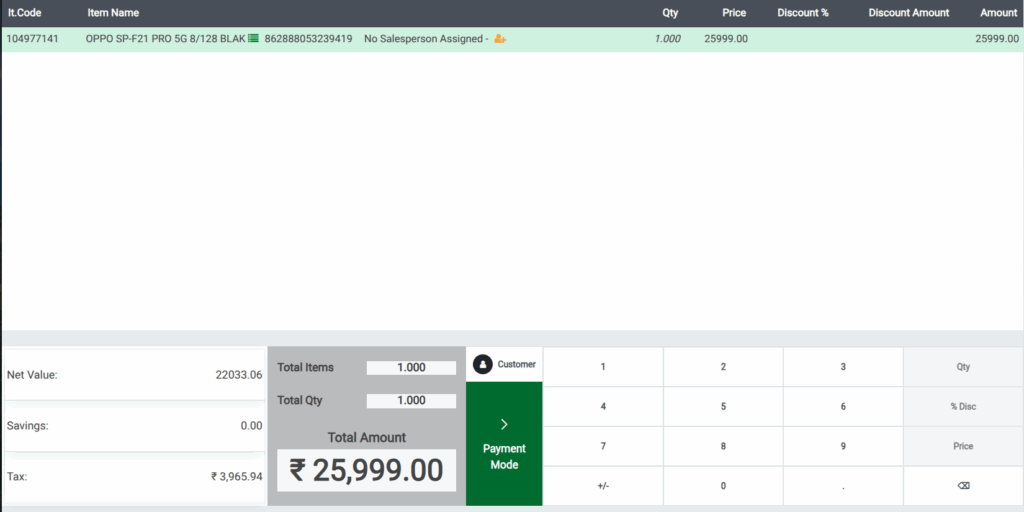
Once a product is added to the POS cart, proceed to payment. Click on the Payment Mode, and the system will navigate to the payment screen. From there, choose any payment mode (Cash, UPI, or Card) click the validate to complete the transaction.

Print A4 Bill Receipt for the POS order
- After validation, click Print Receipt.
- The system prints the bill in A4 format, using the selected print template.
- Ensure the printer is configured for A4 output.
View or Save A4 Receipt as PDF
After validating the order, instead of printing, choose the “Print to PDF” option. This opens the receipt in A4 format preview. Click Save or Download to store the receipt as a PDF file on your device.
In the bill receipt, the product name is displayed. If the product is a Mobile Product, the IMEI number will also be shown. The receipt includes quantity, MRP, rate, tax, and total amount for each product. After the product details, the tax details and payment mode are displayed. Finally, the footer message is shown according to the configured bills and receipts settings.

