How to print a Vendor Return Document and view its details in Odoo Inventory
Odoo makes it easy to generate a clear and professional Vendor Return Print, helping businesses maintain accurate internal records and smooth communication with vendors. Printing a Vendor Return ensures transparency in the return process and provides a detailed summary of the products being sent back to the vendor.
Creating a new Vendor Return in Odoo Inventory
To start a Vendor Return process, go to Inventory module and navigate to Operations and click Vendor Return. Click the +New button to create a new document. Choose the vendor from the Vendor drop down, then select the reason for the return from the Reasons for Return field. After you save the record, Odoo will automatically generate a Document Number for the return.
Next, click Add a line to include the product you want to return. You can choose the product and select the related GR Bill from the Bill drop down and enter the quantity you want to return in the Demand field. Once done, click Mark as To Do. Make sure to check both the Product Availability and Available Lot fields before saving and validating the return.

When You Can Print a Vendor Return Document
A Vendor Return can be printed only after it has been validated. If you try to print it while it is still in draft or ready state, the system will display a message saying: “Please Confirm the Order to continue printing.”

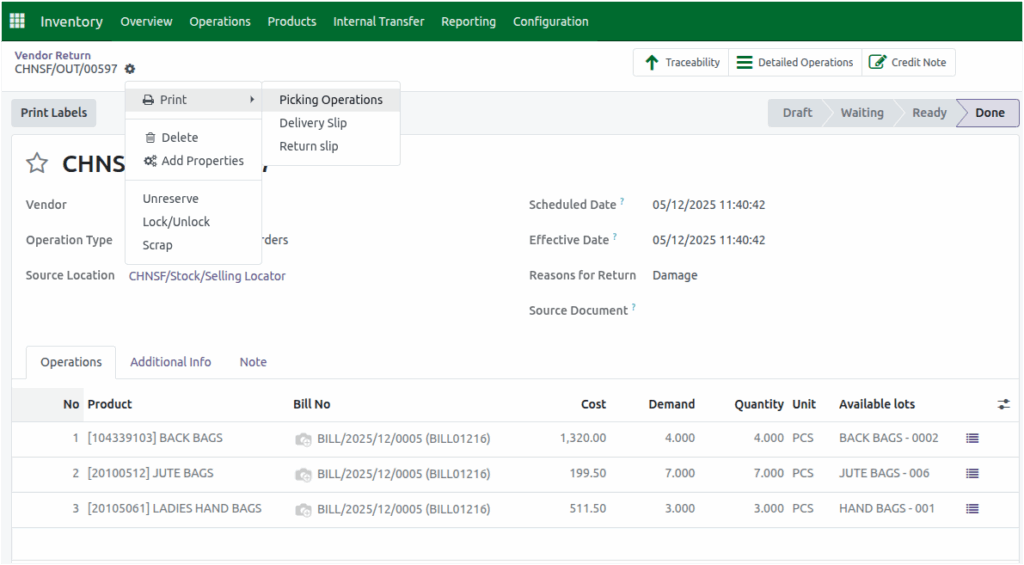
Once the order is validated, click the cog button and choose Print , from the drop down select Picking Operations. So now the system will then generate the Print in the PDF format.
Details shown in the Vendor Return Picking Operation Print
The printed Vendor Return document is neatly formatted to show all essential information.The center of the document displays the title Purchase Return and below the company name. The Top left corner shows the company logo.
The vendor’s address based on the selected vendor appears in the Delivery Address section. The person who created the Vendor Return is shown in the Created By field and the person who confirmed it appears in the Responsible field. The Date and Movement Date field displays the confirmation date of Vendor Return.

The printout also displays all product details in a clean, well-structured table, making it easy for users to review the return information at a glance. Each product line clearly shows the Line number, Product Code, Product Name and HSN Code, helping teams quickly identify the returned items. The Lot/Serial Number is listed in Lot column to ensure proper traceability, while the MRP and Return Quantity provide clarity on pricing and the exact number of units being sent back.
In addition to individual product details, the Print also includes the total return quantity for all products combined, giving a complete summary of the entire Vendor Return in one place.
With Odoo’s structured workflow and professional print format, managing Vendor Returns becomes easier, more transparent, and fully traceable for your entire inventory process.
