How Lot values are updated after Completing a Customer Return in Odoo Inventory
Managing inventory accurately is essential for any business, especially when handling returned products. In Odoo, Customer Returns are designed to automatically update lot values so stock levels and valuation always match your real inventory. When a customer sends items back, the system adjusts the quantity, total value and average cost of the related lot.
Accessing the Lot Details in Odoo Inventory
Whenever a customer returns a product, Odoo updates the details of the corresponding lot. The system refreshes the on-hand quantity, recalculates the total value of the items in that lot, and adjusts the average cost as required.
Before this process works correctly, two important prerequisites must be met. The product should be tracked by Lots or Unique Serial Numbers and the Product Category must be configured with the Average Costing Method. These settings allow Odoo to compute and update the average cost within each lot accurately.
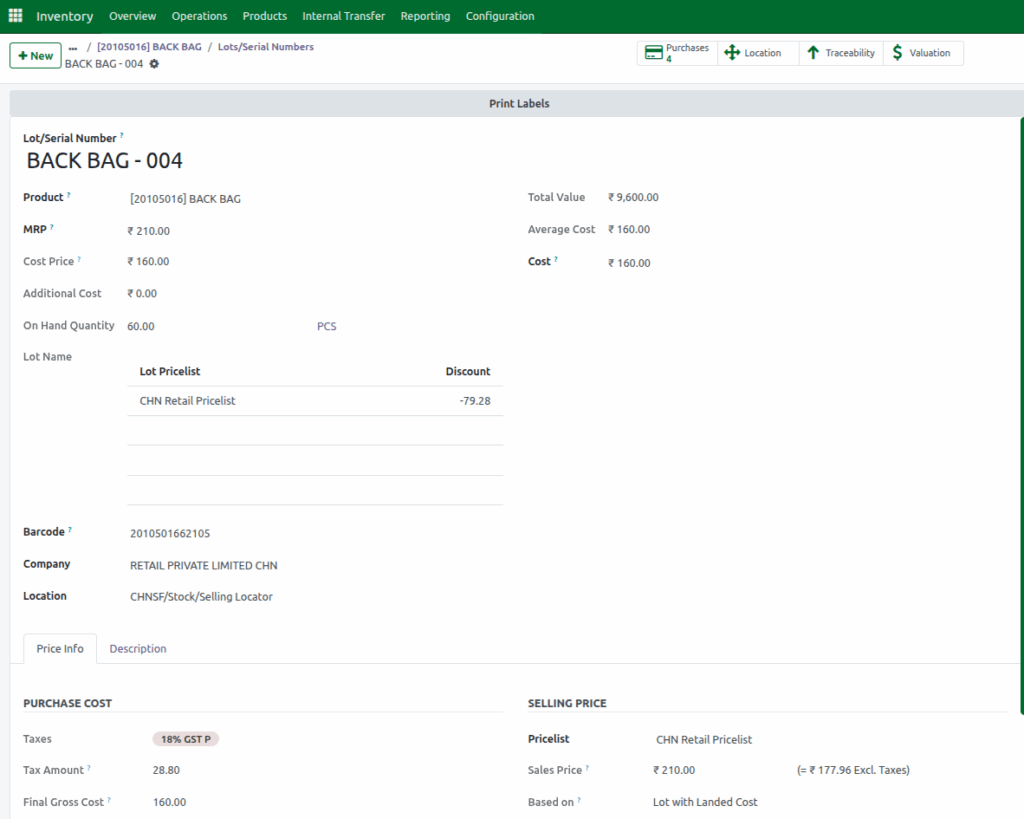
For example, consider a lot that currently has an on-hand quantity of 60 PCS (after purchase and sales) with an average cost of 160, resulting in a total value of 9600. Odoo uses this stored information during a customer return to ensure that your inventory valuation remains accurate.
Creating a new Customer Return in Odoo Inventory
To record a new Customer Return, navigate to the Inventory module, click Operations and select Customer Return. Click the +New button to create a new document. Choose the customer from the drop down and fill in the reason for return. Once saved, Odoo generates a unique Document Number for tracking. You can then choose the Destination Location where the returned products will be received and stored.
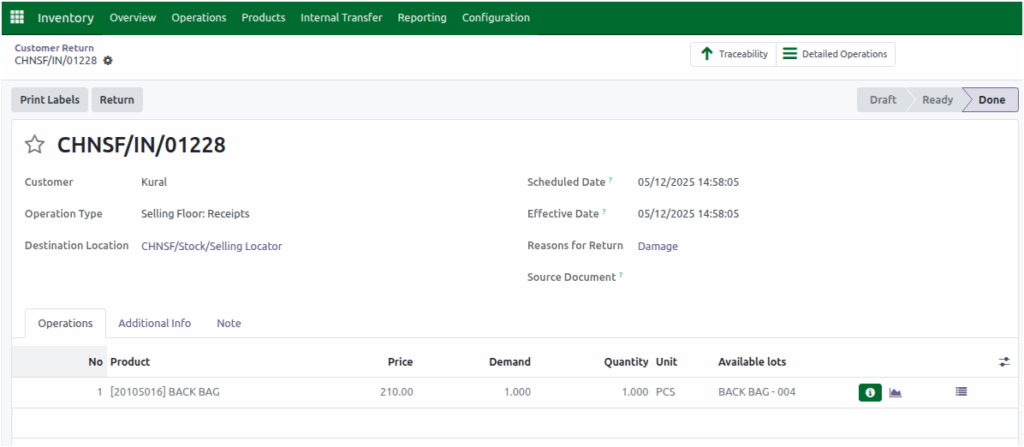
After that, click Add a line to include the product being returned. Choose the correct product and enter the return quantity – for example, 1 PCS. Once you save the entry and click Mark as To Do, you can select the appropriate lot in the Available Lot field, since this product is tracked by lots.
As soon as you select the lot, Odoo automatically displays the sales price of that specific lot in the Price field, giving you clear and accurate pricing information before you validate the return.
Validating the Customer Return Document
When all entries are correct, you can click Validate. As soon as the customer return document is validated, the System immediately updates the lot values.
The on-hand quantity increases based on how many units were returned, and the system recalculates the total lot value and average cost accordingly. This automatic adjustment ensures inventory accuracy and supports proper accounting.
Viewing the updated Lot Information in Odoo Inventory
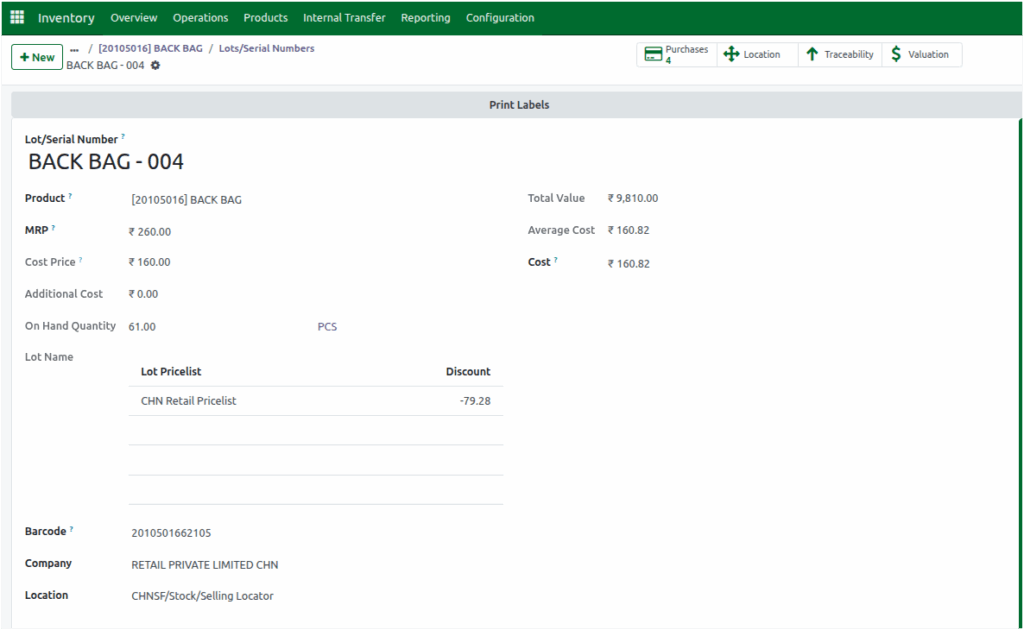
After the return is completed, you can go to the Lot/Serial Number master to view the updated values.
For example, if a customer returns 1 PCS to a lot that previously had 60 PCS, the new on-hand quantity becomes 61 PCS. If the cost from the customer return is considered to be 210 which is the selling price of the corresponding lot, the system uses that cost for calculating the Total Value, which is determined using the formula:
Total Value = Existing Total Value + (Cost * Returned Qty)
Total Value = 9600 + (210 * 1) = 9810
Next, the system updates the average cost using:
Average Cost = Total Value ÷ On-Hand Quantity
Average Cost = 9810 ÷ 61 = 160.82
So Total Value is displayed as 9810.00 and Average Cost is displayed as 160.82. These automatic updates ensure your stock records and valuation remain correct after a customer return. Odoo handles the entire process in the background, giving you accurate visibility of inventory levels and lot-specific costs at all times.
