How to Cancel and Delete an Odoo Purchase Order
Odoo may create situations where a purchase order contains mistakes or is no longer needed, and in such cases, the order may need to be canceled or deleted completely. Managing purchase orders in Odoo is essential for keeping purchasing records clean, accurate, and well-organized. Understanding when to cancel a purchase order and when to delete it helps maintain proper control over the procurement process and ensures that the system reflects only correct and necessary data.
Purpose of Canceling and Deleting a Purchase Order
Canceling a purchase order is useful when you want to stop or void an order without removing it from the system. This means the record stays available for tracking or reference in the future.
On the other hand, deleting a purchase order completely removes it from the system. This erases all details of the order so it no longer appears anywhere, which is usually done when the record was created by mistake or is no longer needed at all.
Creating and Confirming a Purchase Order
To begin, open the Purchase module from the Odoo dashboard. You can create a new Request for Quotation by clicking the +New button. After that, enter the basic details such as the vendor and the product in their respective fields.
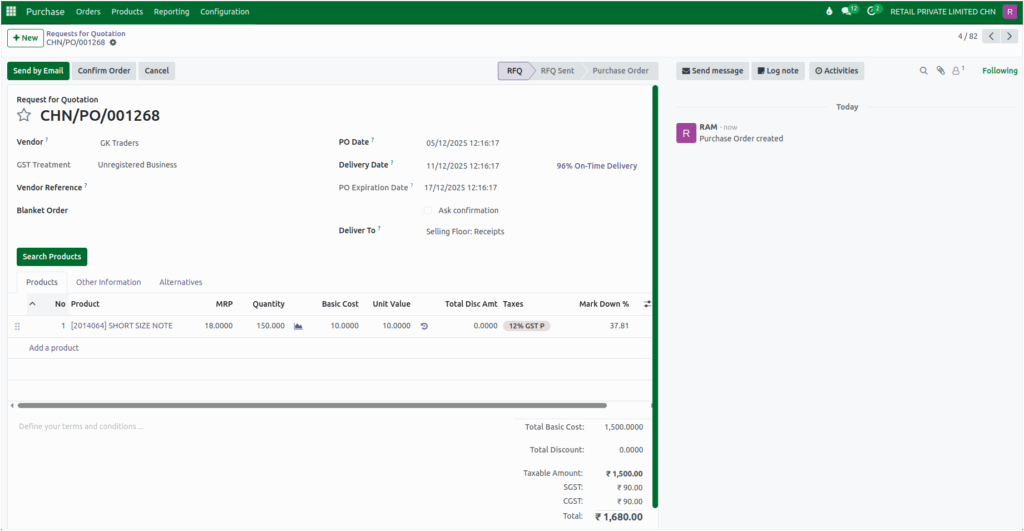
Once the information is saved, Odoo automatically generates a Purchase Order document number. You can then confirm the order to convert the RFQ into a purchase order and then the purchase order can then be approved.
Cancelling a Purchase Order
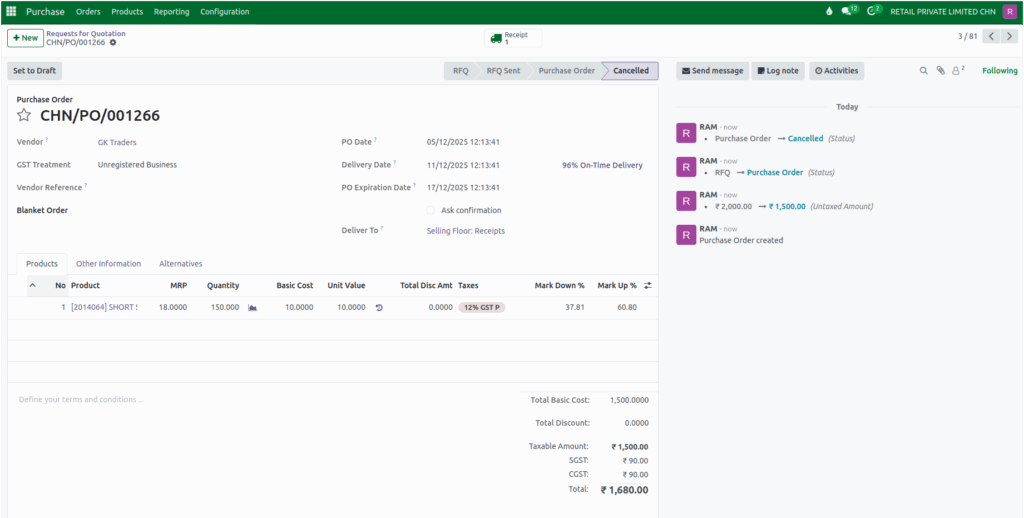
When the purchase order is newly created or confirmed, it can be canceled directly, by clicking the Cancel button.
If the approved purchase order needs to be cancelled, Odoo provides a simple process. After the order has been approved, you can click the Unlock button to allow changes. Once the order is unlocked, the Cancel button becomes visible. By selecting this option, you can cancel the purchase order while still keeping the record in the system for future reference.
Deleting a Purchase Order
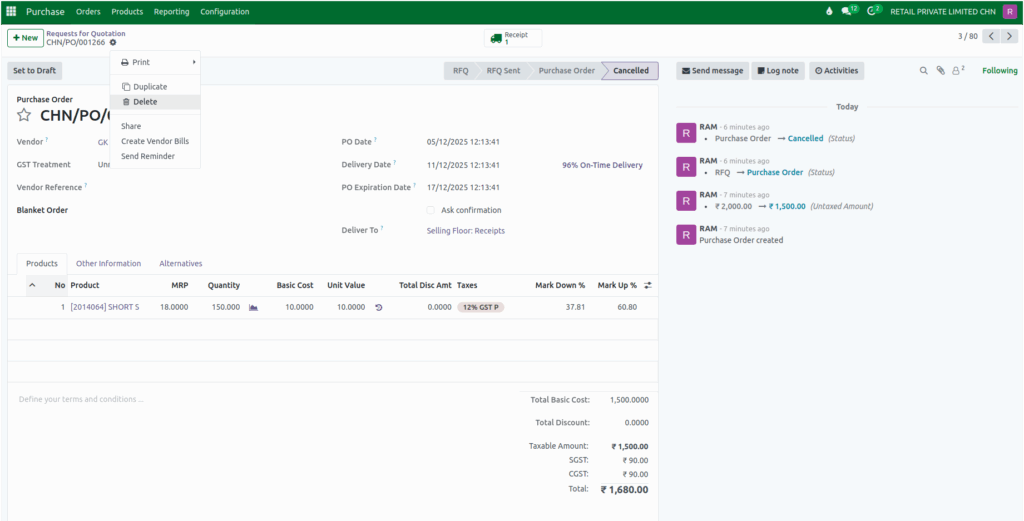
After selecting the cancelled order, click the Action button at the top of the screen. From the dropdown menu, choose the Delete option. Odoo will permanently remove the purchase order from the system.
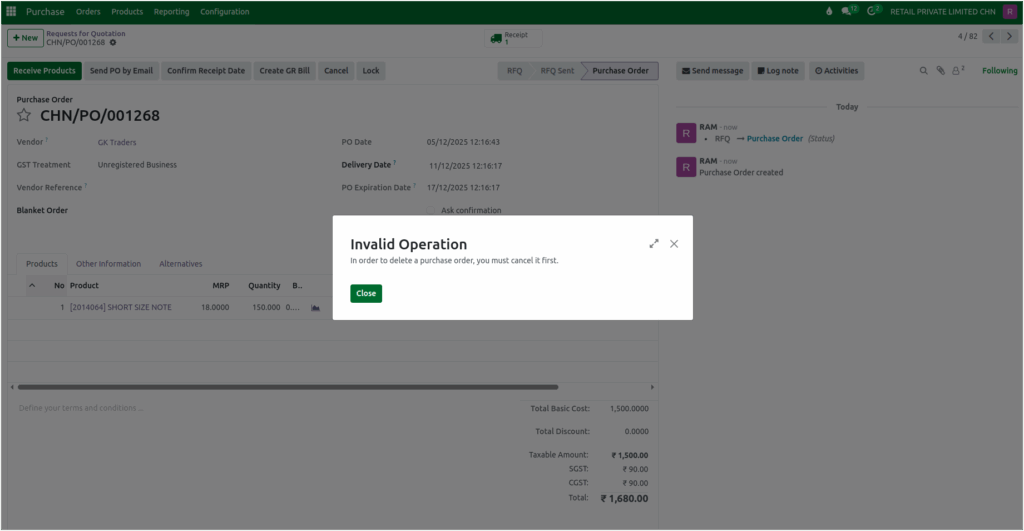
If a purchase order is deleted before being cancelled, the system will display the validation “In order to delete a purchase order, it must be cancelled first”. Therefore, only a cancelled purchase order can be deleted.
The status of the purchase order is tracked and managed in the purchase log. Cancelling helps maintain a clear audit trail, while deleting helps you remove unnecessary or incorrect entries. Using these options wisely ensures your purchase management process stays efficient and error-free.
