How to create a Warehouse in Odoo Inventory
Managing warehouses efficiently is essential for any company dealing with physical products. Odoo Inventory module makes this process simple by allowing you to create and control multiple warehouses. This helps you track stock precisely, streamline product movements, and improve the overall accuracy of your inventory operations.
Create a New Warehouse
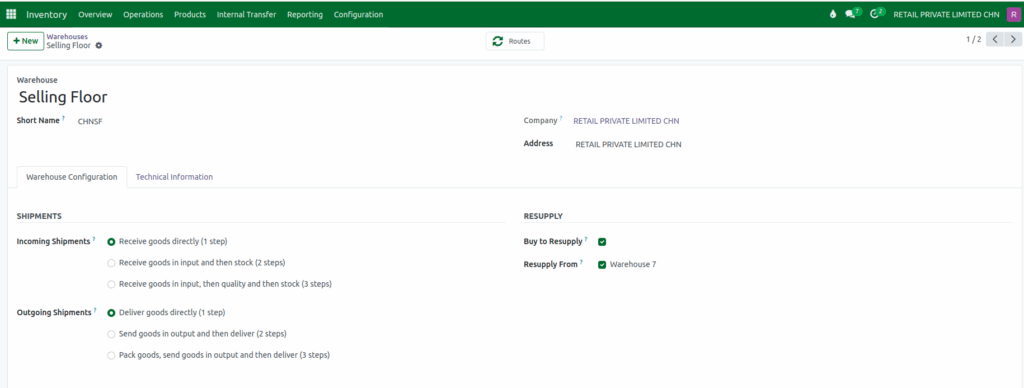
To create a new warehouse in Odoo, start by opening the Inventory module and navigating to Configuration → Warehouse Management → Warehouses. From there, click the +New button to bring up the warehouse form. You will need to enter the main details, including the Warehouse Name and a Short Name, which is a required five-character code used to identify the warehouse throughout the system.
If your business operates with multiple companies, you can also specify the warehouse Address and select the appropriate Company. After completing the necessary information, simply click Save to finalize and create your new warehouse.

Configure Shipments and Resupply
After setting up your warehouse, the next step is defining how products should move in and out of it. Odoo gives you full control over your logistics workflow.
Incoming Shipments
When managing incoming products, you can control how goods are received into your warehouse. Odoo offers three approaches:
- Receive goods directly (1 step) – items are received straight into stock in a single step.
- Receive goods in input and then stock (2 steps) – products first arrive at an input area before being moved to stock.
- Receive goods in input, then quality and then stock (3 steps) – items go through input, then quality control, and finally are stored in stock.
This flexibility allows you to choose a simple one-step process for quick handling or a more detailed multi-step flow that incorporates input zones and quality inspections, depending on your operational needs.
Outgoing Shipments
You can define how products are sent out of your warehouse. There are three main ways to handle outgoing shipments:
- Deliver goods directly (1 step): Products are shipped straight from stock to the customer or destination.
- Send goods in output and then deliver (2 steps): Items move to an output zone first before being dispatched.
- Pack goods, send goods in output and then deliver (3 steps): Products are packed, processed through the output zone, and then delivered.
This setup allows you to choose between a fast, simple shipment process or a more organized approach that includes packing and output handling, based on your operational requirements.
Resupply Options
If your operations involve purchasing or transferring stock from other warehouses, you can enable:
- Buy to Resupply – restock through purchase orders
- Resupply from – ideal for businesses with multiple storage points. Select the another Warehouse.
These configuration options allow you to tailor your warehouse operations to your exact workflow.
Review Warehouse Locations and Operation Types
After saving, Odoo automatically creates stock locations and operation types for the new warehouse. Under the Technical Information tab, you’ll find:
- Locations: View, Stock, Input, Quality Control, Packing, and Output locations.
- Operation Types: In, Internal, Pick, Pack, and Out.
Each location and operation type is linked to the warehouse short code and name, keeping all movements well organized.

Check Warehouse Routes
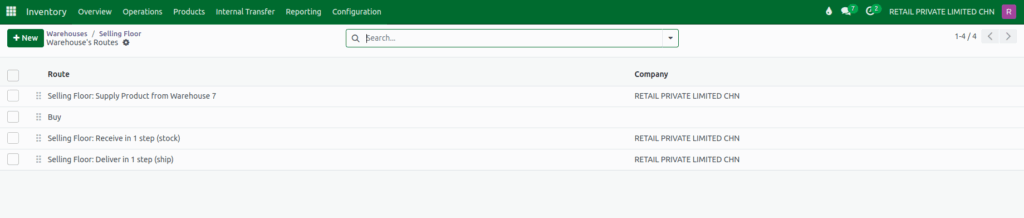
Finally, every warehouse comes with built-in routes that determine how products flow throughout your system. By clicking the Routes button, you can view and manage them.
Common routes include:
- Resupply From: Automatically restock from another warehouse
- Buy: Generate replenishment through purchasing
- Receive in One Step: Simple incoming flow
- Deliver in One Step: Simple outgoing flow
These routes are especially powerful because they let you automate processes that would otherwise require constant manual attention.