How to assign a Salesperson in Odoo POS
Assigning a salesperson in Odoo POS is an essential step for improving sales accountability, performance tracking, and customer service quality. By associating each product with a specific salesperson, businesses can monitor individual performance, generate detailed sales reports, and ensure proper responsibility for customer interactions. This feature supports better sales analysis and provides valuable insights into team productivity.
Enable Salesperson Setup in POS
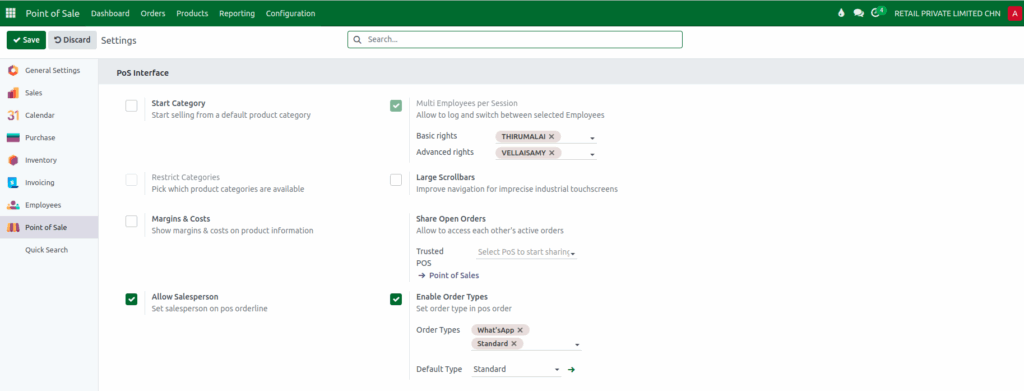
To begin using the salesperson assignment feature, you must first ensure that the setting is enabled in the POS configuration. From the main Odoo dashboard, navigate to the Point of Sale module and open Configuration → Settings. In the Point of Sale field, select the POS terminal for which you want to enable the feature.
Within the POS Interface section, make sure the Allow Salesperson option is activated. Once enabled, Odoo POS will allow users to select a salesperson during order entry at the terminal.
Assigning a Salesperson to a Product
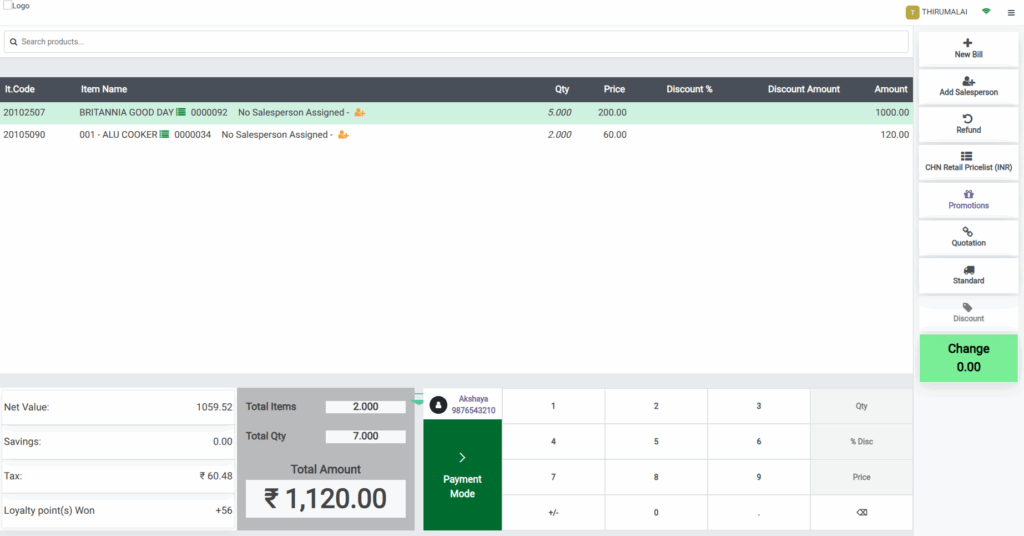
To add a salesperson, start by adding products to the POS cart. You can add products using their product code, barcode, or lot barcode. You can then update the required quantity and select the appropriate customer before proceeding with salesperson assignment.
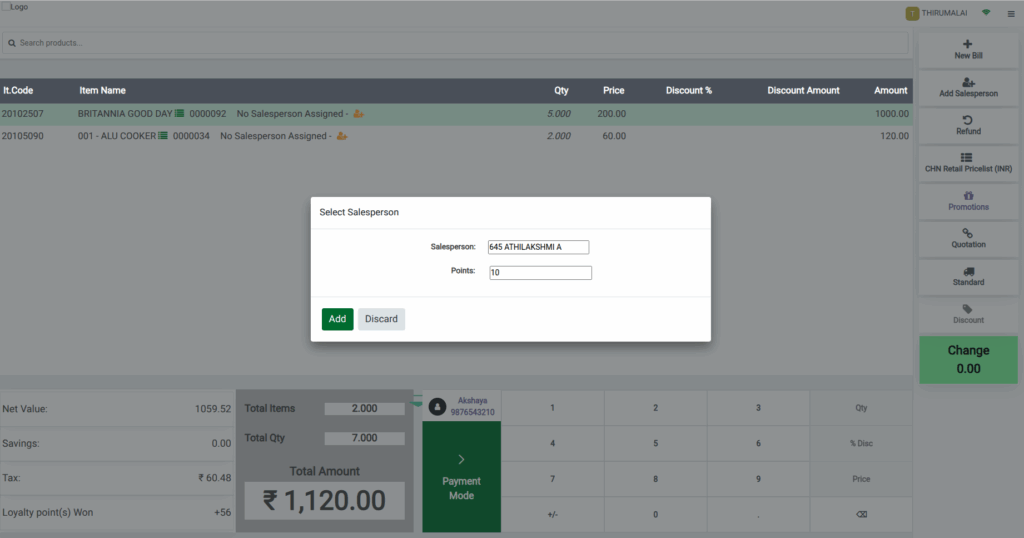
When products are added to the cart, a small salesperson icon appears beside each product line. If no salesperson has been assigned, the system displays “No Salesperson Assigned” as a reminder.
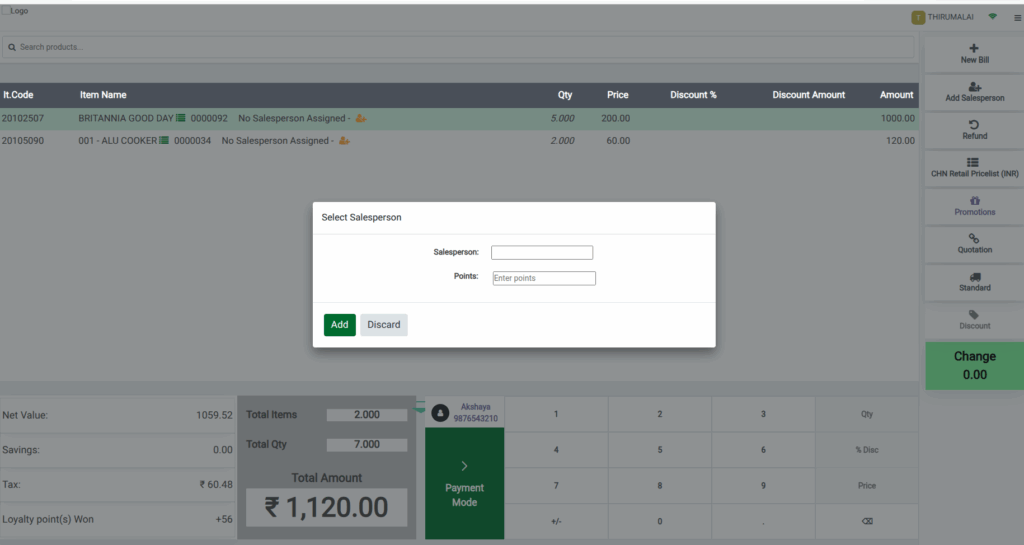
To assign one, simply click the salesperson icon next to the product name, which opens a Salesperson popup window. For faster processing, Odoo POS also supports a shortcut: pressing Alt + r instantly opens the salesperson selection popup. Also Odoo allows to assigned multiple salespersons for a different products within a single order.
Salesperson Selection Options
The salesperson popup offers various ways to quickly locate and choose the right salesperson. You can scroll through the list, where each option is displayed using a combination of the salesperson’s Badge ID and Name, allowing easy identification. You can also search directly by entering either the salesperson’s name or Badge ID to filter the list instantly.
Assigning Points to Salespersons
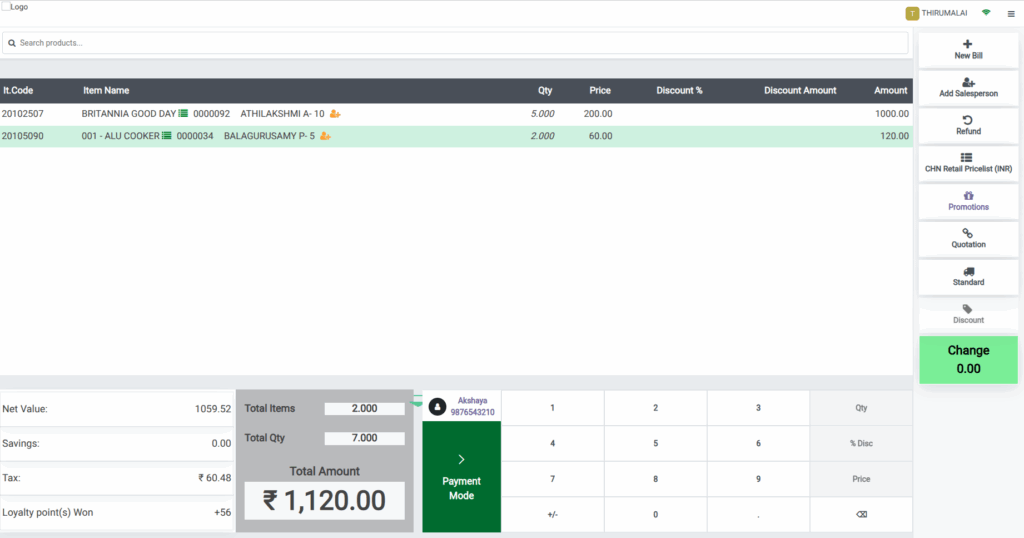
In the Points field of the salesperson popup, simply enter the point value you want to assign and click
Add. Once confirmed, the POS cart displays both the salesperson’s name and the assigned points on the respective product line.
Salesperson Information on the Bill Receipt
After assigning the salesperson, review the cart details to ensure accuracy. Select a payment method through the Payment screen and click Validate to complete the transaction.
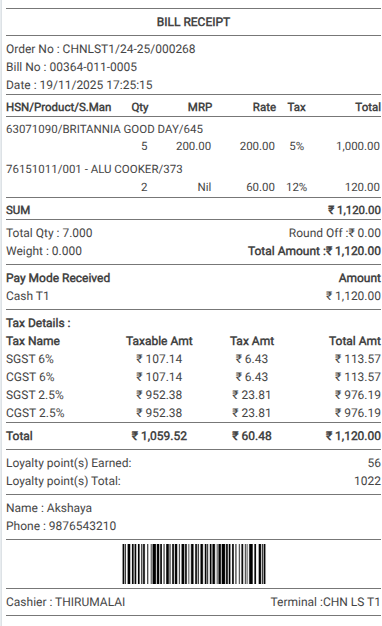
The system then generates the bill receipt, which includes clear salesperson information. Under the HSN/Product/S.Man section of the receipt, Odoo shows the salesperson’s Badge ID alongside the product details.
This ensures complete transparency and makes it easy to track which salesperson handled each product or sale.