How to Process a Fixed Amount Down Payment in Odoo POS
Handling a fixed amount down payment in Odoo POS is useful when you want customers to pay part of the total amount upfront. This helps confirm the order, start preparation or production, and ensure the business receives some payment before final settlement. Odoo POS allows you to record this advance payment smoothly through the down payment option.
Setting Up the Down Payment in Odoo POS
To begin, open the Point of Sale module and click the Configuration and select Settings. Under the Point of Sale section, choose the terminal you want to configure. In the Sales section, you will find the option to set up the advance payment product in the Down Payment Product field. This setting enables the POS system to accept and process down payments during order handling.

Selecting the Sales Order for Advance Payment in POS
From the POS cart screen, go to the Quotations section where all completed Sales Orders are listed. Select or search the Sales Order for which you want to record an advance payment.
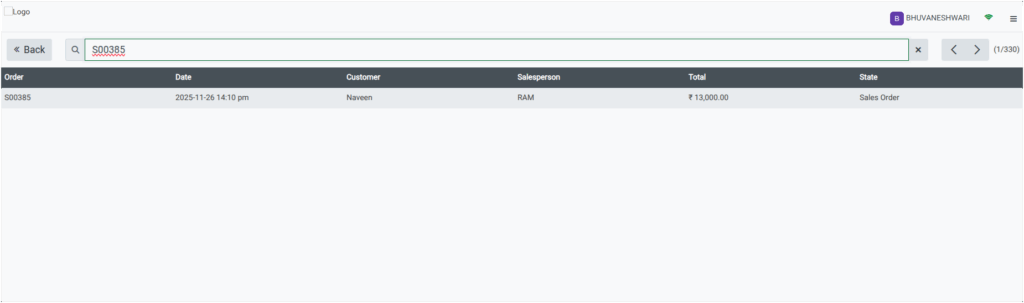
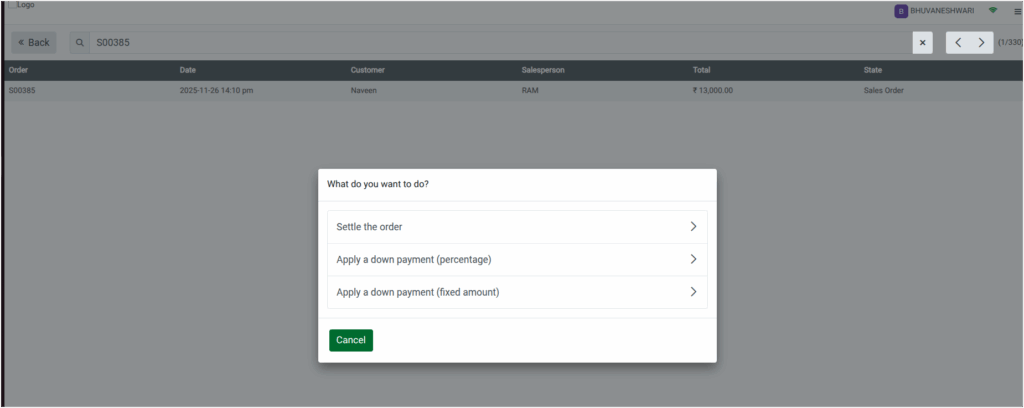
When you open the order, a pop-up will appear with options such as Settle the order, Apply a down payment(percentage) and Apply a down payment(fixed amount). Choose Apply a down payment (fixed amount) to continue.
Entering the Down Payment Fixed Amount
After selecting the fixed amount option, a numpad will appear with Down Payment displayed on the top-left. The Due Balance will be shown on the top-right, indicating the total amount the customer needs to pay.
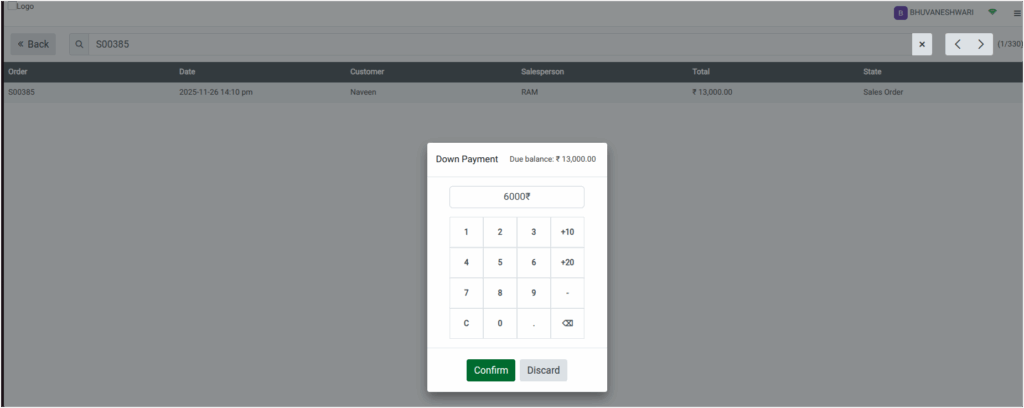
Enter the advance amount the customer wants to pay. The system will not allow an amount higher than the Due balance and if the amount exceeds the limit, it will display an Error Amount Too High message. In such cases, the system will automatically set the advance payment to the total order amount.
Once the correct amount is entered, click Confirm. The advance payment will be added to the POS cart as a green-colored Advance Payment line, showing the amount entered. The selected customer will also appear in the cart to ensure the payment is linked to the correct profile. The net amount is displayed without any tax, as tax will be added only during final settlement.

Processing the Payment and Bill Receipt in Odoo POS
After reviewing the details in the POS cart, click on Payment Mode and select the preferred payment method. Complete the payment and click Validate. A receipt will be generated automatically.
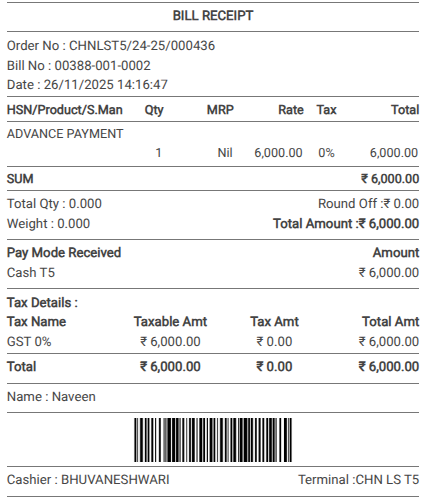
On the receipt, the product name will show ADVANCE PAYMENT, the amount paid will appear in the Rate field, and the Total Amount will reflect only the down payment amount. The customer name and payment method, such as cash or card, will also be clearly shown. Since tax is not applied at this stage, the advance amount will display with 0% tax. Any tax that applies will be added during the final settlement of the sales order.