How to Process a Stock Adjustment for Serial Number Products in Odoo Inventory
Managing items tracked by unique serial numbers requires extra care, especially when performing stock adjustments. Odoo Inventory provides a structured and accurate way to handle these adjustments so that every serial-tracked product reflects the correct quantity and valuation.
Enabling Tracking for Products in Odoo Inventory
Before starting a stock adjustment, the product must be configured to use Tracking by Unique Serial Number. This ensures that each unit is managed individually instead of in bulk. To enable this, open the Product Master, under Traceability, select By Unique Serial Number under the Tracking section.
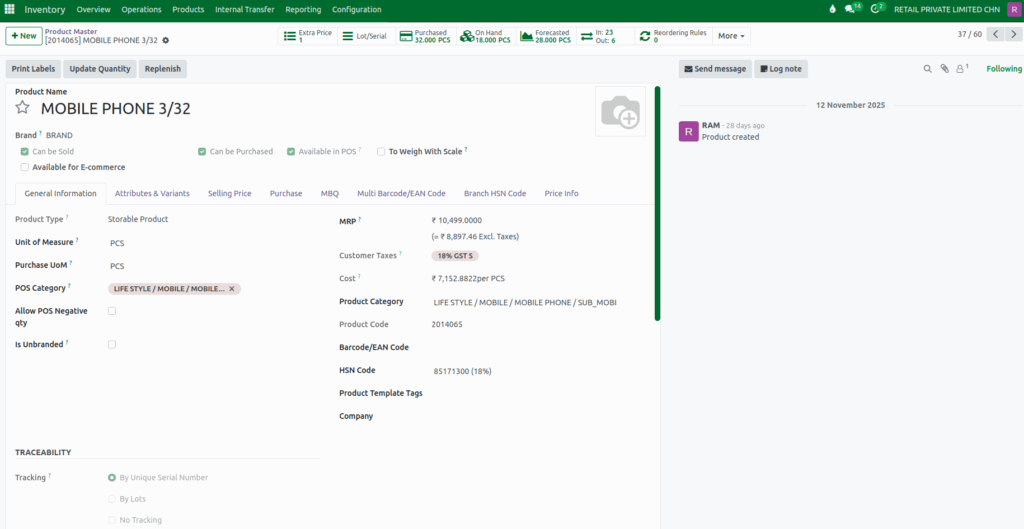
Once tracking is enabled, Odoo will require you to choose a lot or serial number every time the product is moved, received, or adjusted. This setup improves traceability, prevents duplication of serial numbers, and ensures more accurate stock control.
Creating a New Stock Adjustment Document
To begin a stock adjustment, click + New in the Stock Adjustment menu. Select the Source Location where the stock currently exists and choose the appropriate Product Category from the dropdown. After entering these details, click Save, and Odoo will automatically generate a unique Stock Adjustment Document Number for reference.
If you select Validate before adding any products, Odoo will display a validation saying: “No scrap lines with products found. Please add products to validate.” This means that at least one product must be added before proceeding.

Selecting Products and Serial Numbers
Products can be added to the Stock Adjustment document either by typing the product code, entering the product name, or scanning the lot/serial barcode. Since the product is tracked by unique serial numbers, Odoo will require you to select the correct serial number for each item added.
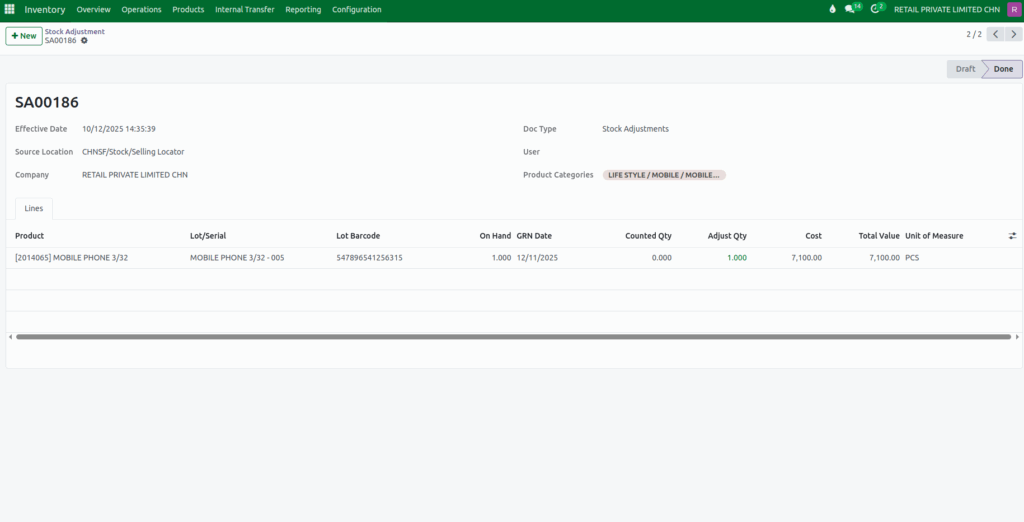
Once a serial number is selected, Odoo automatically displays important information such as the Lot Barcode, On-Hand Quantity, and GRN Date. The Lot Barcode appears only if the serial number has an assigned barcode. The On-Hand Quantity is always based on the selected Source Location, and for serial-number products it will always show 1 or 0, since each serial represents one physical item. The GRN Date indicates when the specific serial was received into stock.
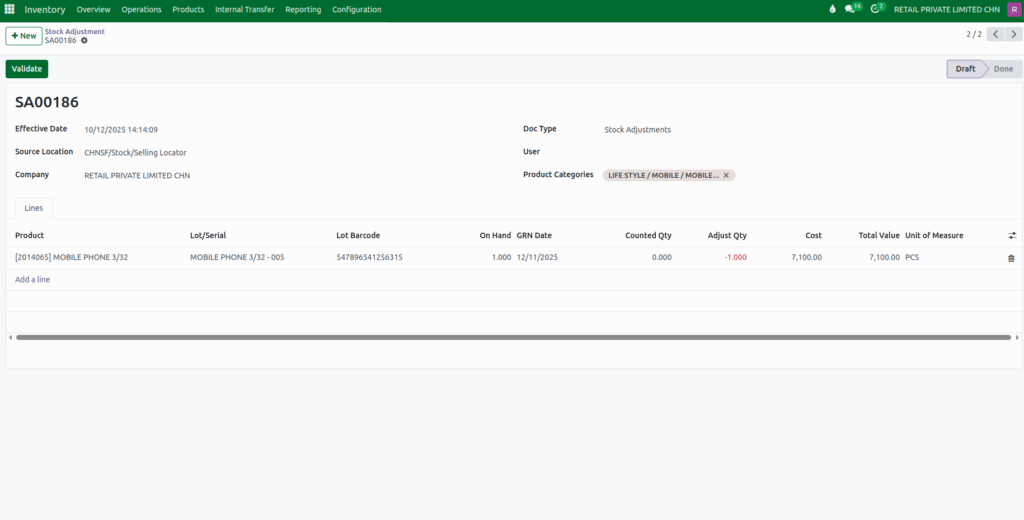
You can add multiple products in a single document and can even add the same product multiple times as long as each entry has a different serial number. However, if you try to add the same product with the same serial number more than once, Odoo will display a validation message: “[Product Code + Product Name] Insufficient Quantity To Scrap”, indicating that the serial number cannot be used again because its available quantity has already been recorded.
Quantity Adjustment and Cost Calculation
After selecting a serial number, you can enter the Counted Quantity. For serial-tracked products, this quantity must always be 1 or 0. If you enter any value greater than 1, Odoo will stop you with a validation message: “The serial number has already been assigned: Product: [Product Code + Product Name], Serial Number: [Lot/Serial number].”
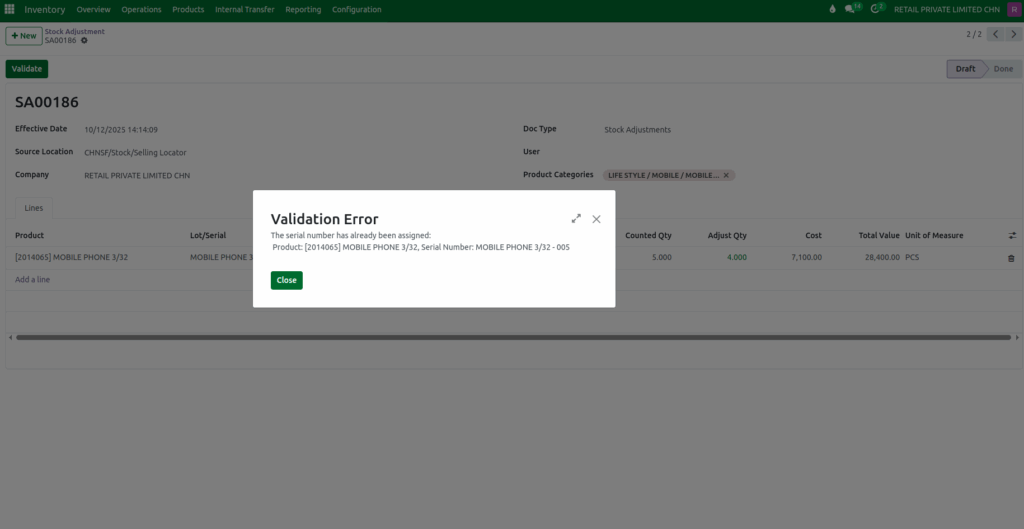
The system then automatically calculates the Adjusted Quantity based on the difference between On-Hand and Counted Quantity.
For serial-based products, Odoo automatically displays the Average Cost tied to the selected serial number. The Total Value of the stock adjustment is then calculated by multiplying the Adjusted Quantity with the product’s cost. This helps maintain accurate inventory valuation whenever quantities change.
Validating the Stock Adjustment
Once all product entries and quantities are correct, click Validate. After validation, Odoo updates the on-hand quantity, total value, and average cost for every affected serial number. This ensures your inventory remains precise and fully aligned with the actual physical stock available in your warehouse.