How to Handle multiple Payment Methods in Odoo Point Of Sale
Managing payments smoothly is important for any business, and Odoo Point of Sale (POS) makes this easy by allowing customers to pay a single bill using different payment methods. This gives customers more flexibility and helps cashiers complete checkouts faster and more accurately.
Processing an Order in Odoo POS
To begin a sale, open the POS and add the required products to the cart. You can add items by typing the product code, scanning the lot barcode or scanning any associated multi-barcode. As soon as a product is entered, it appears in the cart where you can review its price and quantity. After checking all items, select the customer and move to the payment screen by clicking the Payment Mode button or pressing F4.

Processing a Sale with multiple Payment methods in Odoo POS
On the payment screen, Odoo allows you to split a single bill into different payment methods. You can select options like Cash, UPI, Credit Card, Parking Token, or any custom paymode set up in the POS terminal.
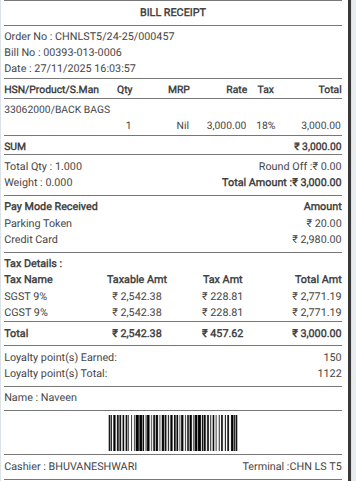
Enter the amount for each method based on how the customer wishes to pay. For example, a bill of total ₹3000 can be settled by paying ₹20 using a Parking Token, the remaining amount ₹2980 through a Credit Card.

The system also includes rules to prevent payment errors. Only the Cash payment can exceed the bill amount, which is useful for handling rounding or small balance adjustments. Other payment methods like UPI or Credit Card cannot go beyond the actual bill value.
If you try to enter more than the bill amount—such as ₹3000 using a Credit Card which exceeds the total bill amount as ₹3020 — so the system will show an EXCESS AMOUNT ENTERED alert. Odoo also prevents entering zero or negative amounts for any payment method and will display a warning to ensure correct payment entries.
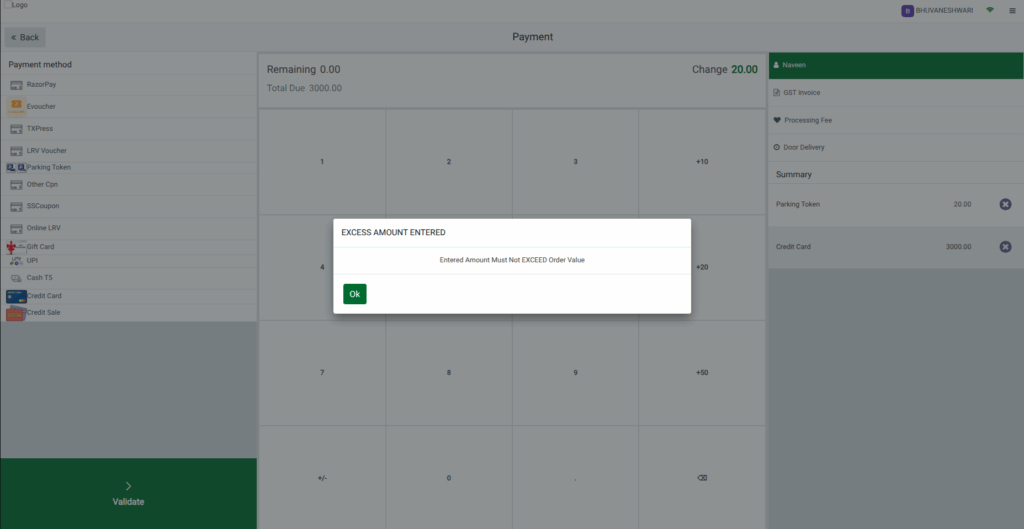
The system will consider the transaction complete once the total of all selected payment methods equals the bill amount. Click Validate or press alt + v to finish the sale and generate the bill receipt.
Pay Mode Details in Bill Receipt
Once the payment is validated, Odoo automatically prints the bill receipt. In the bill, each payment method is displayed separately along with the exact amount paid through each pay mode under Pay Mode Received Section. This makes the transaction transparent and ensures that both the cashier and the customer have clear information about how the payment was settled.
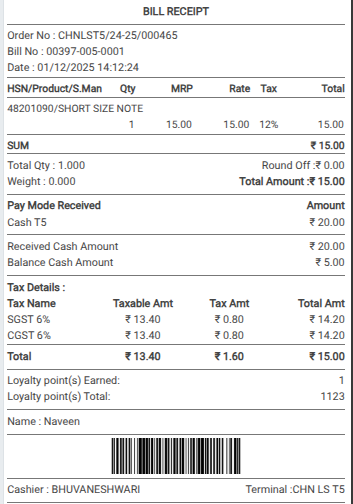
In cases where the Cash amount exceeds the bill amount, the receipt will show the cash received as well as the balance cash that needs to be returned to the customer. This ensures complete clarity for every transaction.